

Creating a Quick Timer plan
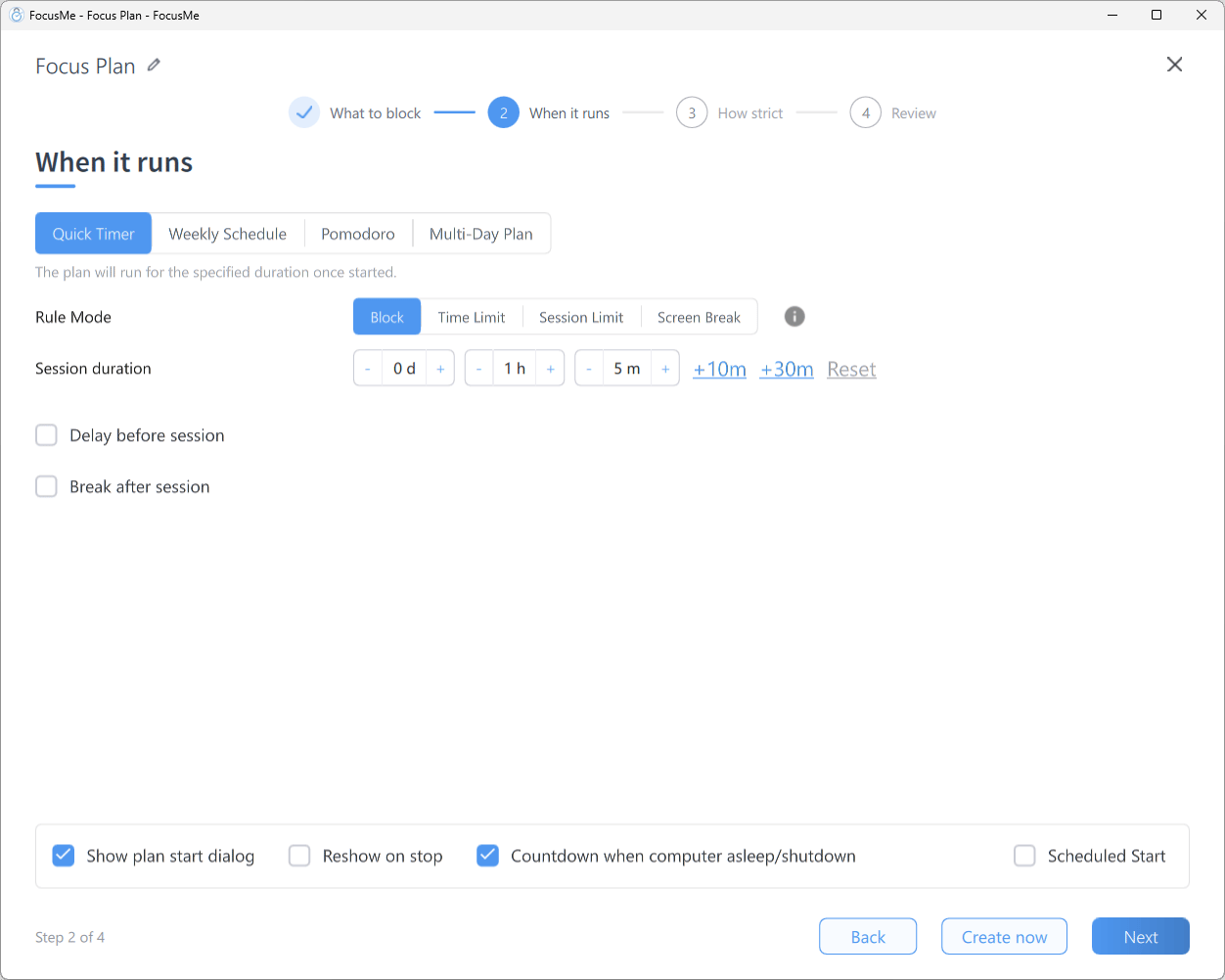
Step 2 When it runs with Quick Timer selected
- Click Add a Plan, name it and add your sites and apps on What to block
- On When it runs, choose Quick Timer in the segmented control
- Choose the Rule Mode — Block for a full block, or Time Limit, Session Limit or Screen Break — and set the default session length with the day, hour and minute steppers. +10m, +30m and Reset adjust it quickly
- Set the options you want:
- Delay before session — a countdown before blocking begins
- Break after session and lasting — an enforced break when the session ends
- Show plan start dialog — show the start dialog each time you press play, so you can adjust that session
- Reshow on stop — reopen the start dialog when a session ends, ready for the next one
- Countdown when computer asleep/shutdown — keep counting while the computer is off
- Scheduled Start with day pills — start the session automatically at a set time on chosen days
- Click Next, pick a How strict preset and click Create & Enable on Review
Starting a session
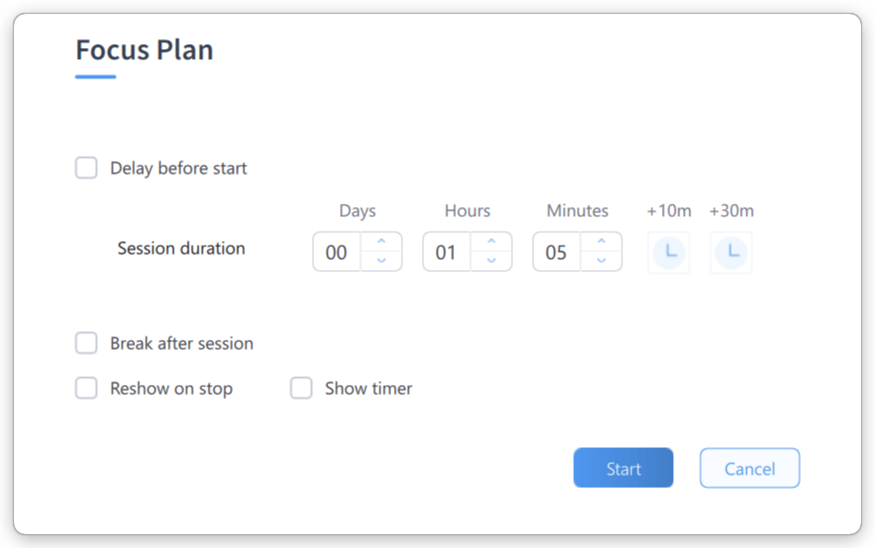
The Quick Timer start dialog
- Delay before start — hours and minutes before blocking begins. The plan sits on Standby until then
- Session duration — days, hours and minutes, with +10m and +30m buttons and Reset
- Break after session — tick it and set the break length
- Reshow on stop and Show timer
The floating timer
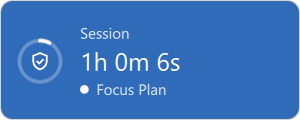
The floating timer window
Extending a running session
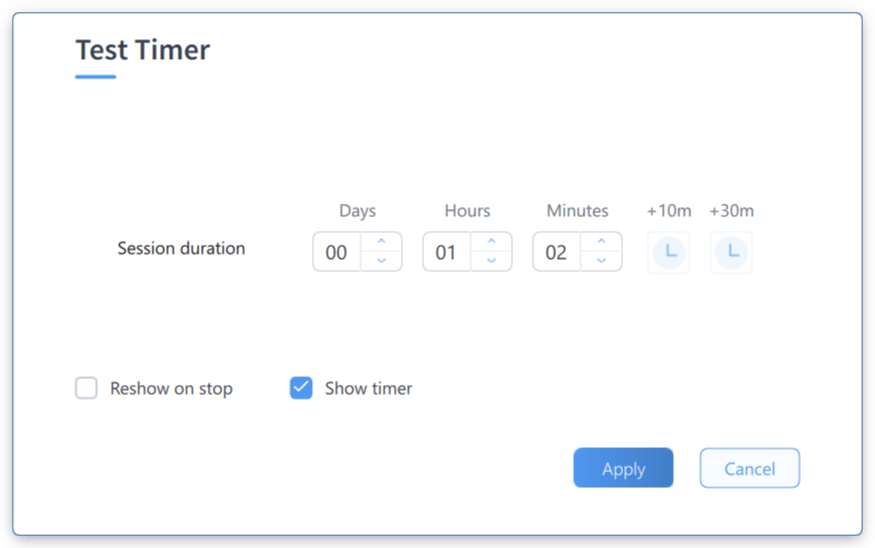
The Extend Time dialog
- Right-click the plan in the Plans list and choose Extend Time, or right-click the floating timer and pick one of the Add … minutes items. Extend time is also on the break screen
- In the dialog, set the new duration and click Apply
Stopping early
Whether you can stop depends on the How strict setting:- Unlocked — click stop and the session ends
- Gentle Guidance — type 5 random characters
- Firm but Flexible — type 10 random characters, then a 2 minute wait counts down before the session ends
- Lock it Down — type 25 random characters perfectly, then a 10 minute wait. While a wait counts down the plan keeps blocking and shows Stopping; right-click it and choose Cancel Stop if you change your mind
- Enforced (set under Customize) — the session cannot be stopped; Get help with a plan (an assisted stop) is the only route, via an accountability partner or FocusMe support
Tips
- Start small. New to timed sessions? Begin with 25 – 30 minutes and extend when you are in flow.
- Chain sessions. With Reshow on stop, the start dialog is back the moment a session ends, so the next one is one click away.
- Add a break after. A 5 minute Break after session stops one sprint turning into a marathon. See Screen Breaks.
- Start from the command line. Quick Timer plans can be started and extended from scripts — see CLI Plan Control.