

Presets
Step 3 opens with four cards. Each one sets every challenge at once; new plans start on Gentle Guidance.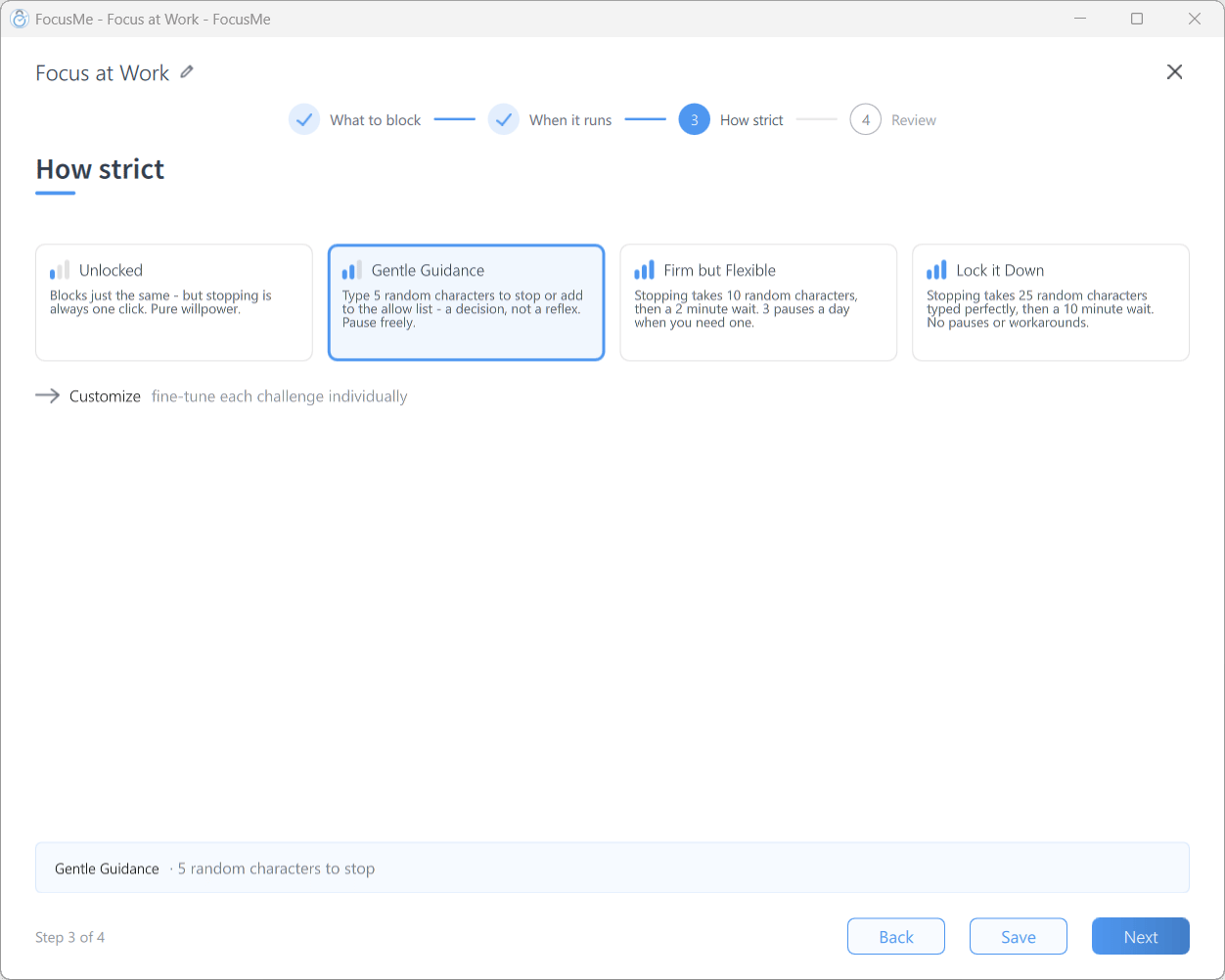
Step 3 How strict — the four preset cards
In the app’s own words:
- Unlocked — Blocks just the same - but stopping is always one click. Pure willpower.
- Gentle Guidance — Type 5 random characters to stop or add to the allow list - a decision, not a reflex. Pause freely.
- Firm but Flexible — Stopping takes 10 random characters, then a 2 minute wait. 3 pauses a day when you need one.
- Lock it Down — Stopping takes 25 random characters typed perfectly, then a 10 minute wait. No pauses or workarounds.
Customize
Click Customize (fine-tune each challenge individually) to set each action separately. The table has one row per action: To do this names the action, Challenge is what it takes, and Partner can approve (shown when you have an accountability partner) lets a partner approve past it. Each row’s extra settings sit on the line beneath it. A summary strip describes the result — for example stop: 25 perfect random characters, then 10 m wait · no pausing · no allow list additions — and Back to presets returns to the cards.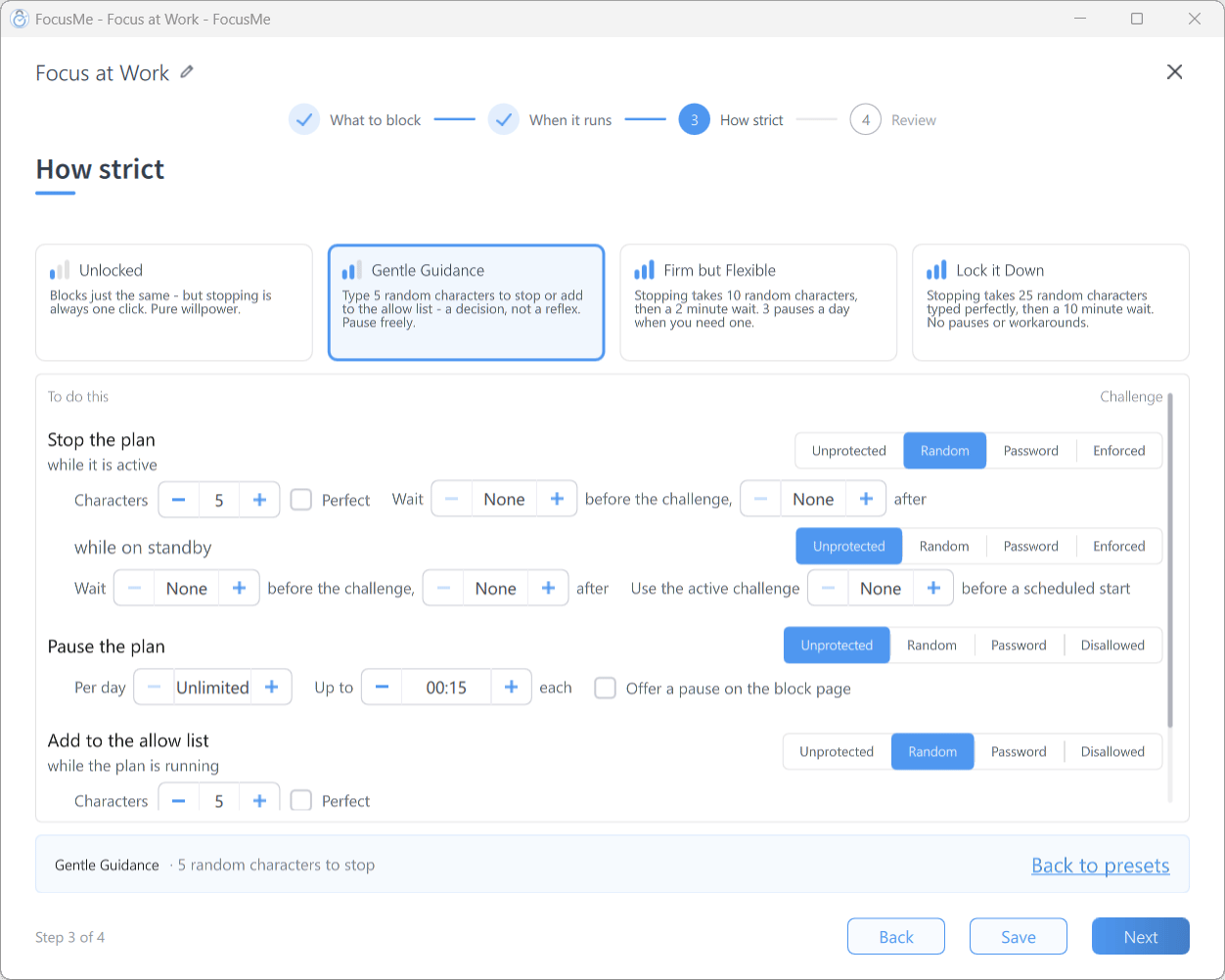
Step 3 after clicking Customize — one row per action
Challenge levels
Each row has a segmented picker under Challenge:- Unprotected — no challenge; one click.
- Random — type a string of random characters. Set Characters (1–2000). Tick Perfect to require flawless entry — If you make a typo you’ll have to start again! Tick the row’s Partner can approve box to let an accountability partner override this protection.
- Password — enter a password you set here. To change a password-protected setting later you must enter the current password.
- Enforced — for stopping and editing: the action can’t be done until the plan ends, unless the row has Partner can approve ticked and your partner approves. Choosing it shows a warning, for example Stopping the plan while active will not be possible. With a 24/7 schedule and no end date, you will never be able to stop this plan. On a Quick Timer or Pomodoro: Stopping the plan will not be possible until the timer runs out.
- Disallowed — for skipping, pausing and adding to the allow list: the action is removed entirely; the button doesn’t appear.
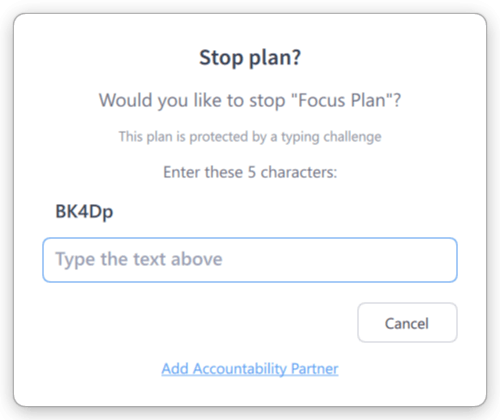
The random-characters challenge
Loosen or delete the plan can only be set to Enforced when you have an accountability partner. FocusMe ticks Partner can approve for it and keeps it ticked, so your partner is the way to change the plan. If your last partner leaves, the plan asks for a 200-character code to edit instead, and FocusMe tells you so.
Stop Waits
A wait slows a stop down. The Wait … before the challenge, … after sentence on each Stop the plan row sets either wait, or both.- Before the challenge. Choose Stop and the countdown starts. The plan keeps blocking and shows Stopping in …. When the wait is over, FocusMe tells you: Ready to stop (The wait for “Plan” is over - complete the challenge to stop it.). Complete the challenge then. If you leave it too long, choosing Stop again starts a new wait.
- After the challenge. Complete the challenge and the plan keeps blocking for the length of the wait, showing Stopping in …. Then it stops by itself. Firm but Flexible and Lock it Down use this wait.
Editing Running Plans
You can edit a plan while it’s running, but only to make it stricter. You can switch an interval’s rule mode to Block, choose a stricter website block action, lengthen a Quick Timer, raise a challenge level, or reduce pause limits. On the How strict step a banner says so (This plan is running. You can make it stricter now. To loosen anything, stop the plan first.) and the weaker options are struck through. If you have an accountability partner and Loosen the plan while it runs is ticked, the banner reads This plan is running. Anything that loosens it goes to your partner for approval when you save. Weakening changes then go to your partner (These changes will require approval from an accountability partner before they can be applied.). See Approving plan edits.Assisted Stop
If you’re locked out by a protected plan and genuinely need to regain access, an assisted stop lets someone else approve stopping it. Right-click the plan and choose Get help with a plan (offered while the plan is active or on standby), or click Get help with a plan on the break screen. When a plan is Enforced and nobody can approve stopping it, the message FocusMe shows when you try to stop it has a Get help with a plan link too.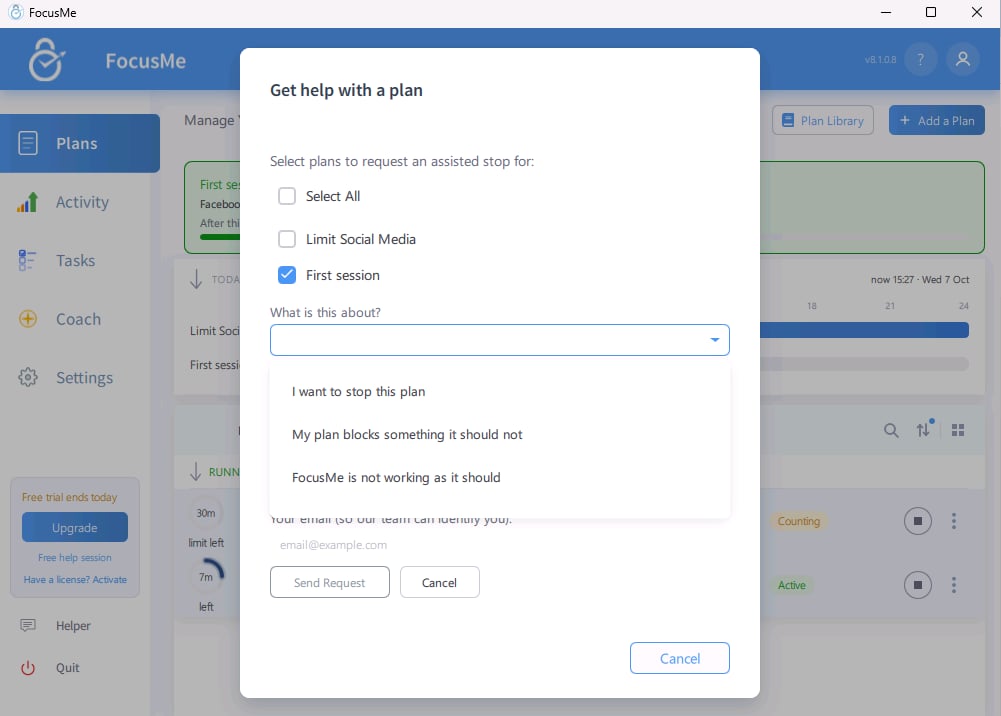
The assisted stop dialog
- Your accountability partners. With partners set up, Request Partner Approval sends the request to them. They can approve it by email or give you a code to type under Stop Code:. Plans that allow it show Partner can approve in the list; if one doesn’t, the dialog says your partner can’t approve stopping it. A partner added while plans are running becomes active 24 hours after confirming. If your commitment settings extend your fee or lock to partner stops, a new partner can approve stops 7 days after confirming. If you have no partner yet, the button reads Add Accountability Partner and takes you to Settings → Commitment.
- Send Request to FocusMe. This sends the request to our team instead. FocusMe reminds you that it does not provide 24/7 support, so an accountability partner is the faster route. If you’re not signed in, it asks for Your email (so our team can identify you):.
What is this about?
A request to FocusMe starts by asking What is this about? Pick the one that fits:The answer
Our team’s answer shows in FocusMe, not by email:- Stop approved. The plans stop by themselves. If your commitment settings set a wait or a fee, FocusMe says when they will stop and, when a fee is due, offers to pay it. Our team may instead lower the plan’s protection or set a custom password on it, and FocusMe tells you which.
- Plan fix. FocusMe tells you whether support corrected the plan or found nothing wrong with it. Either way the plan keeps running.
- Denied. FocusMe tells you, with the reason if one was given, even if you closed the dialog or restarted in the meantime.
Tips for Effective Protection
- Climb the ladder. Start on Gentle Guidance, move to Firm but Flexible, then Lock it Down. Only reach for Enforced once you trust your schedule.
- Test before committing. Run a plan on Unlocked for a day to check its targets, schedule and rule mode, then raise the protection.
- Set an end date. With Enforced stopping on a 24/7 weekly schedule and no end date, the plan can never be stopped — the wizard warns you, so heed it.
- Use pause limits as a middle ground. Firm but Flexible gives you three 15-minute pauses a day: relief when you need it, without a free exit.
- Lock your accountability partners. If you rely on Partner can approve, use Lock Accountability Partners in Settings → Commitment so you can’t quietly add a more lenient one.
- Add a cost or a wait. Commitment settings can charge a fee, add a wait or limit how many assisted stops you get.