


The Timer Window during an active session
What it shows
Each plan has its own Timer Window, so several can be on screen at once.
States
- Active — the countdown runs on the timer’s normal card.
- Delay — while a Quick Timer plan waits for its Delay before start, the window is greyed out and labelled Delay.
- Standby / inactive — outside the plan’s scheduled hours the ring turns grey.
- Paused — the countdown greys out and the resume icon replaces the pause icon.
- Waiting for user — on a Pomodoro plan with Wait for User on, a banner reading Start Break or Start Focus appears; click it to begin the next phase.
- Break — on Pomodoro and Screen Break plans the card takes on a lighter break tint.
Right-click menu
Right-click the timer to open its menu. Items appear according to the plan type and state, and anything that would loosen a protected plan is left out: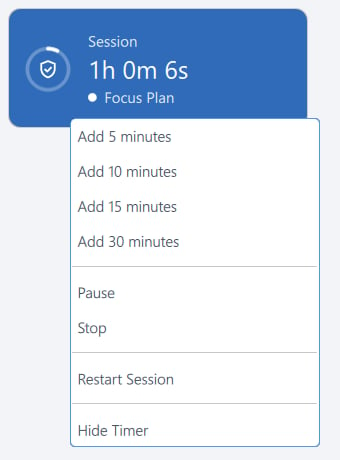
The floating timer and its right-click menu
Pause and Stop follow the plan’s protection exactly as they do from the Plans tab — a Random or Password challenge appears if one is set.
Showing and hiding
Behaviour
- Always on top — the timer floats above other windows. On macOS it is visible on every Space.
- Draggable — click and drag to move it; FocusMe remembers the position. Timer Position in Settings picks the corner new timers open in.
- Per plan — each plan’s timer is independent.
Customisation
Everything about the timer’s appearance lives in Settings → Appearance, shared with FocusMe’s notifications: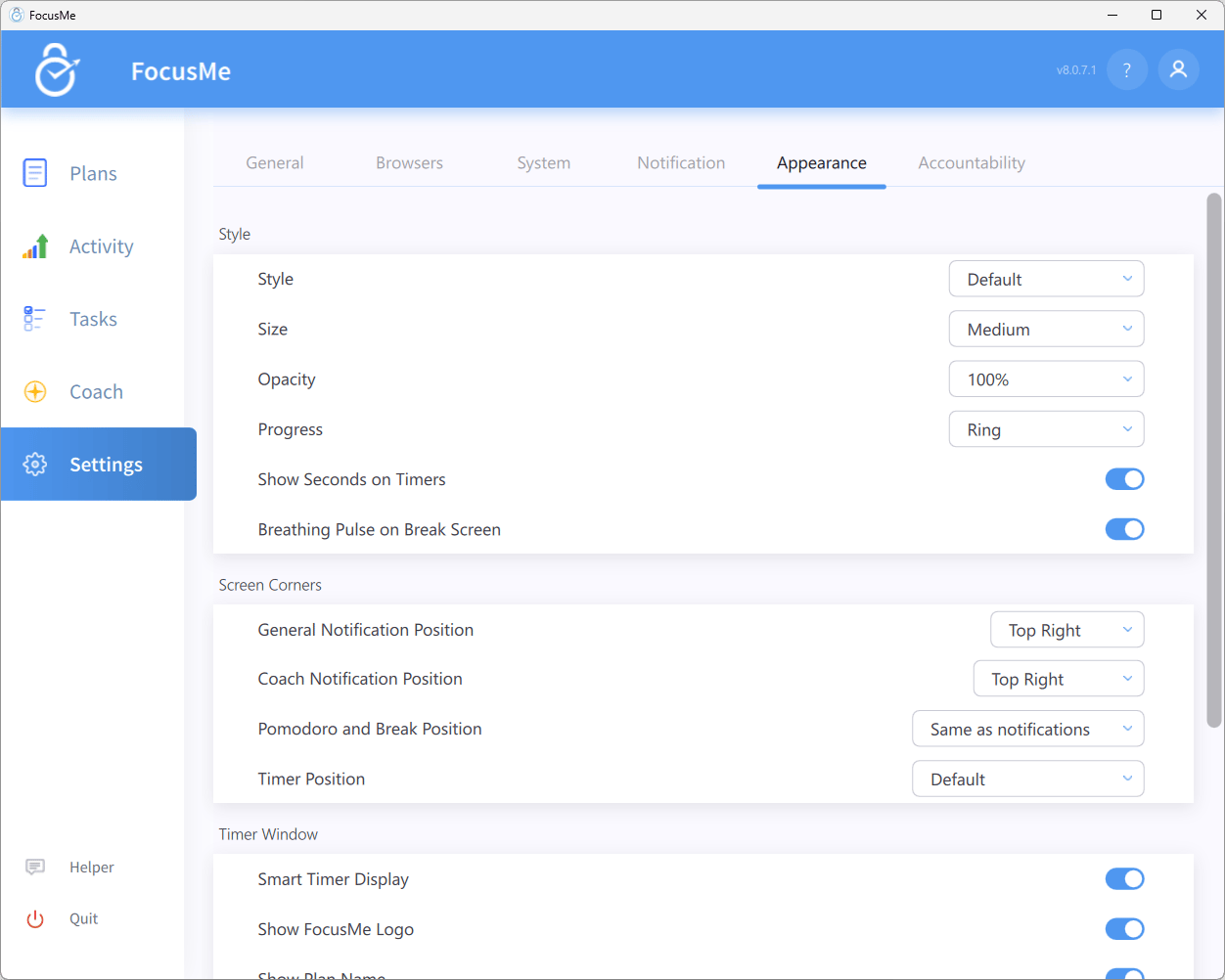
Settings → Appearance tab