

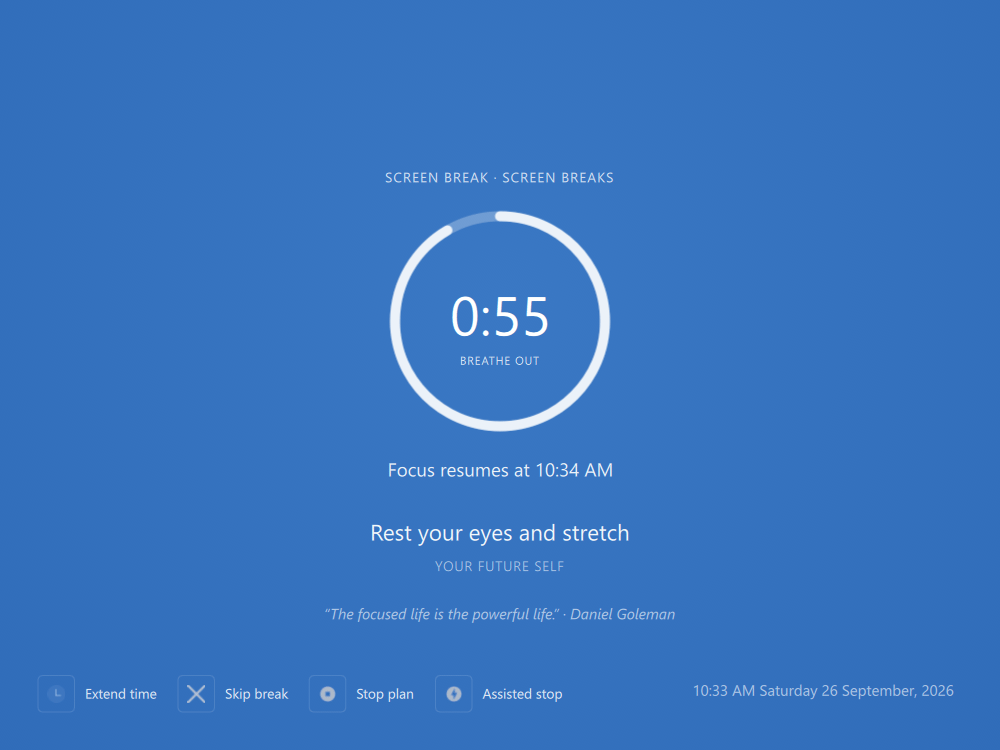
The Break Screen during a screen break
What’s displayed
- A heading that says why the screen is up, with the plan name: Screen break, Pomodoro, Break (after a Quick Timer session), Computer blocked, Time limit reached or Session limit reached.
- A countdown ring with the time left in the break.
- One line under the ring saying what happens next: Focus resumes at … (or Unblocks at … when the computer is blocked), Pomodoro 2 of 4, or Back to work in a moment in the last few seconds.
- Skip available in … while a minimum break time is still running and the break can be skipped once it ends (see below).
- On a Pomodoro plan with Wait for User on, the break ends with Move the mouse to start the next Pomodoro. The next focus phase starts when you move the mouse.
- On a Screen Break plan, one of the plan’s own messages, if you added any (see Break messages), and a quote.
- The current time and date in the bottom right corner, so you stay oriented.
Break messages
A Screen Break plan can show your own reminders on the break screen. In the Plan Wizard, on When it runs, the Screen Break settings have a Message on the break screen box:- Write one message per line, up to 20 lines of 200 characters. Each break shows one of them, picked at random.
- To add an author, put it after a
|, for exampleRest your eyes | Your optometrist. The author shows on its own line under the message. - Also show a quote adds a quote under your message, from the collection in Settings → Browsers → Quotes.
Controls

Break Screen controls
Postpone or Skip?
Clicking Skip break opens Postpone or Skip? (or just Skip? / Postpone? if the plan allows only one):- Postpone delays the break. You choose how long under Set postpone length, within the plan’s pause length (Up to … each), and the break returns afterwards. Each postponement uses one of the plan’s daily pauses.
- Skip ends the break now. Each skip counts towards the plan’s Per day skip limit.
Minimum break time
Screen Break intervals can set a minimum break with skippable after in the rule settings (0 means no minimum). While it is running the screen shows Skip available in … and Skip break is hidden, so you take at least a short rest even when skipping is allowed. When the break can’t be skipped at all, there’s no countdown: the screen just shows when focus resumes.Challenges
If the action you chose is protected, a challenge appears on the Break Screen:- Random — Enter these N characters: (or Enter these N characters perfectly: when Perfect is on, in which case a typo starts you over).
- Password — type the plan’s password into the Enter password box.
- Enforced — the button isn’t available at all. If the action has Partner can approve ticked and you have an accountability partner, FocusMe shows Your plan has enforced protection. Request your accountability partner to approve skipping this break. and offers to send the request to your partner instead. Once your partner approves, by email or with a code you enter, the break ends. See Accountability Partner.
Get help with a plan
Get help with a plan lets someone else approve stopping the plan when you can’t (or shouldn’t) do it yourself:- Click Get help with a plan on the Break Screen.
- Tick the plans you want stopped (the current plan is ticked for you) and enter a Reason. Your approver will see it.
- Click Send request to send it to your accountability partners, or Send Request to FocusMe to send it to the FocusMe team. A request to FocusMe asks What is this about? first, as described in Plan Protection. Without a partner, only the FocusMe option is shown, with a reminder that a partner gets faster responses.
- Partners can approve by email, or give you a code to enter in Stop Code:. Approved plans stop automatically.
Blank screen during breaks
Pomodoro plans have a Blank screen during breaks option (on the Pomodoro page of the Plan Wizard and in the Pomodoro start dialog). When it’s on, the Break Screen covers the display for every break; when it’s off, breaks run in the background with the Timer Window showing the countdown.Breaks are part of your productivity system, not an interruption. Use them to rest your eyes, stretch and reset.