

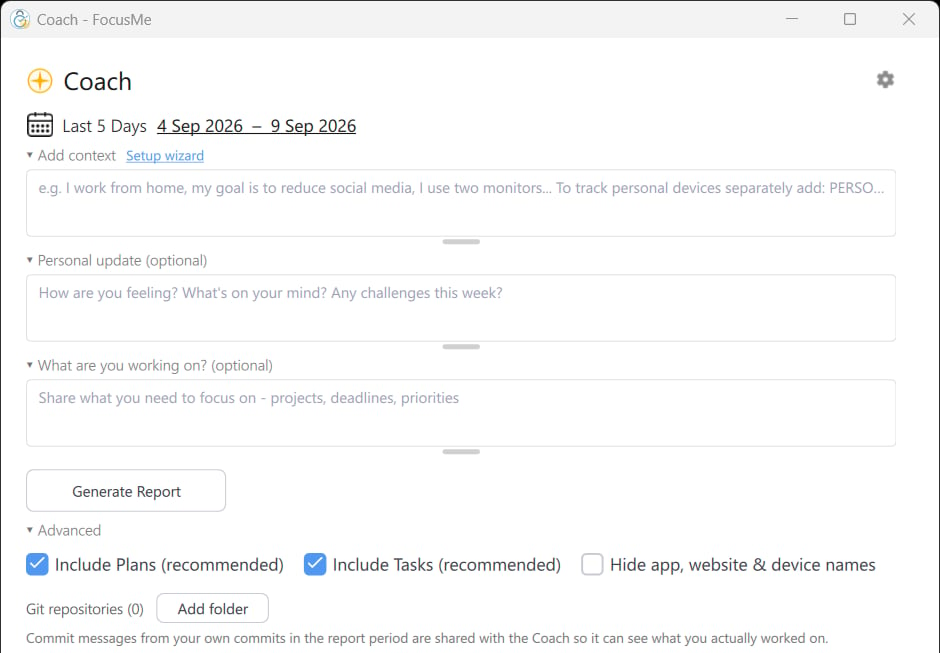
The Coach window: the period, your context and the report options
Enabling Coach
Coach works from your usage data, so the first time you open it FocusMe asks for your consent in the Enable Coach dialog: Get a personalised report on your digital habits, powered by your real activity data. It explains that this requires collecting usage data, linked to a pseudonymous token kept separate from your account details, and that you can disable it or delete your data at any time in Settings.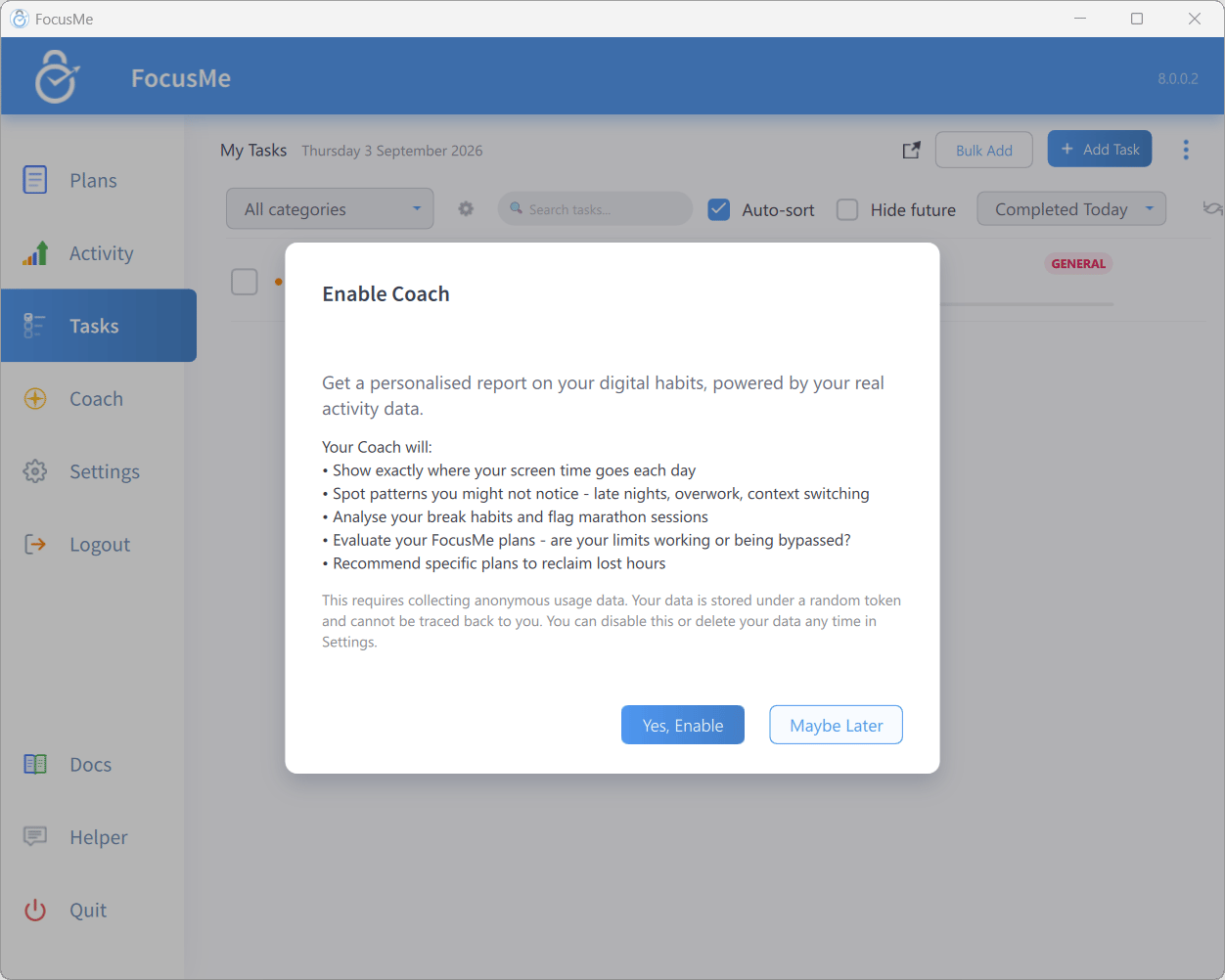
The Enable Coach consent dialog
- Yes, Enable switches on Coach & Anonymous Data Collection and opens Coach.
- Maybe Later closes the dialog; you’ll be asked again next time.
- Log In appears instead of Yes, Enable when you’re not logged in.
Default
Since FocusMe 8.0.9, Coach & Anonymous Data Collection is off in every region until you turn it on by choosing Yes, Enable. A computer that was already sending Coach data before it updated to 8.0.9 keeps it on, so check the switch in Settings → System if you are not sure.Generating a report
- Pick a period from the date dropdown: Today, Yesterday, This Week, Last Week, Last 5 Days, Last 7 Days, Last 14 Days, This Month or Last 30 Days.
- Optionally fill in Add context, Personal update (optional) and What are you working on? (optional) to tell the coach about yourself (see below).
- Click Generate Report. FocusMe first shows Uploading data… while it sends any pending activity, then Analysing… while the report is written.
Coach reports on the activity FocusMe records, so Record Activity must be on in Settings → System. While it is off, the Generate button is unavailable and the window says Coach needs Record Activity switched on in Settings, so it has something to report on.
Context and work context
Below the date row you can give the coach information that screen time alone can’t capture. Everything here is saved for next time. While a report is open, these options fold into a single Context & options line; click it to open them again.
Under Advanced:
Add your goals, projects and tasks in the Tasks tab and your coach will reference them in reports.
Reading a report
A report opens with a headline, then the full analysis. Depending on how the report was generated you may first see a short preview with a Read Full Report button.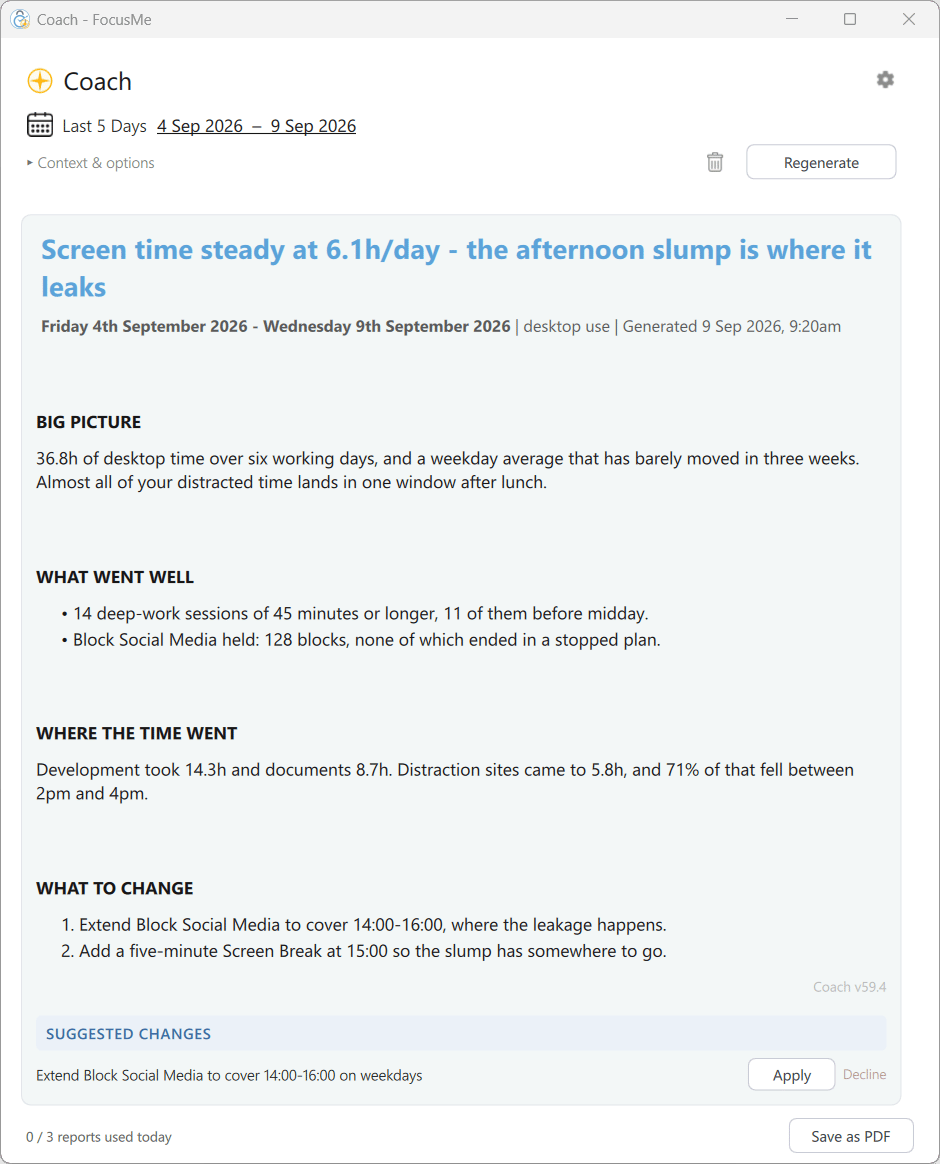
A finished report, with the coach's suggested changes at the bottom
- a quick summary and your headline numbers for the period,
- your top apps and websites,
- key findings about your habits, ordered by impact, and
- specific FocusMe plan recommendations with an estimate of the time you could save.
Suggested changes
Under SUGGESTED CHANGES the coach lists actions it recommends — New plan, New task, Edit task, Update context or Replace context. Each has:- Apply — opens Apply Change? with a preview; confirm to apply it immediately. Applied items are marked (applied) and the button changes to Done.
- Decline — opens Decline Suggestion? where you can add an optional reason (“I prefer my current settings…”). This helps the coach avoid repeating suggestions you’ve already considered.
Ask your coach
Below the report, ASK YOUR COACH is a chat about that report. Type in Ask about your report… and click Send; Clear chat removes the conversation.Feedback
After reading, the coach asks Was this report helpful? with 👍 Yes / 👎 No. You can add a short comment; your rating and comment are stored with that report, linked to your pseudonymous token rather than your name or email, and help improve the Coach.Managing reports
Reports are saved on your device so you can revisit them offline.- Use the previous and next arrows to move between saved reports.
- Click the delete icon, then Sure? to remove the current report.
- Right-click the report text for Copy and Select All.
- Save as PDF exports the current report.
- If reports are missing on this device (for example after a reinstall), the Coach Settings dialog offers Sync from server.
Coach Settings
Click the gear (Coach settings) in the Coach window.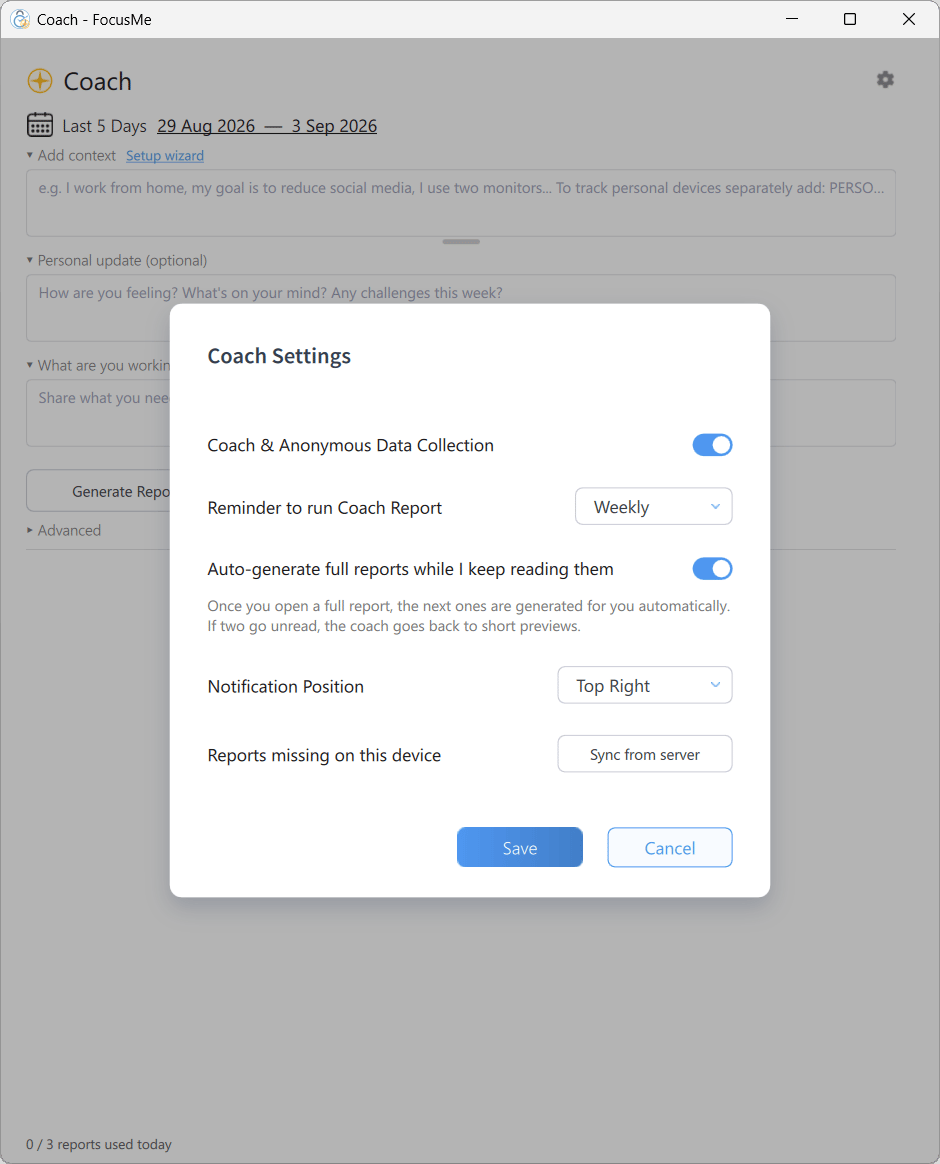
The Coach Settings dialog
Auto-generated reports
With a reminder schedule set, Coach generates reports in the background and shows a notification with a headline teaser when one is ready. Click the notification to open it. Reports generated this way start as short previews; enable Auto-generate full reports while I keep reading them to get full reports as long as you keep opening them.Data and privacy
- Coach only runs when Coach & Anonymous Data Collection is on. Until then, no activity data is uploaded.
- Only application names and website domains are shared, never window titles. Turn on Hide app, website & device names to share usage counts only.
- Coach data is linked to a pseudonymous token, kept separate from your account details.
- Delete My Data in Settings → System permanently deletes your Coach usage data from FocusMe’s servers. Locally saved reports are not affected.
- Switching the setting off stops collection and uploads immediately; your existing reports remain on your device.