

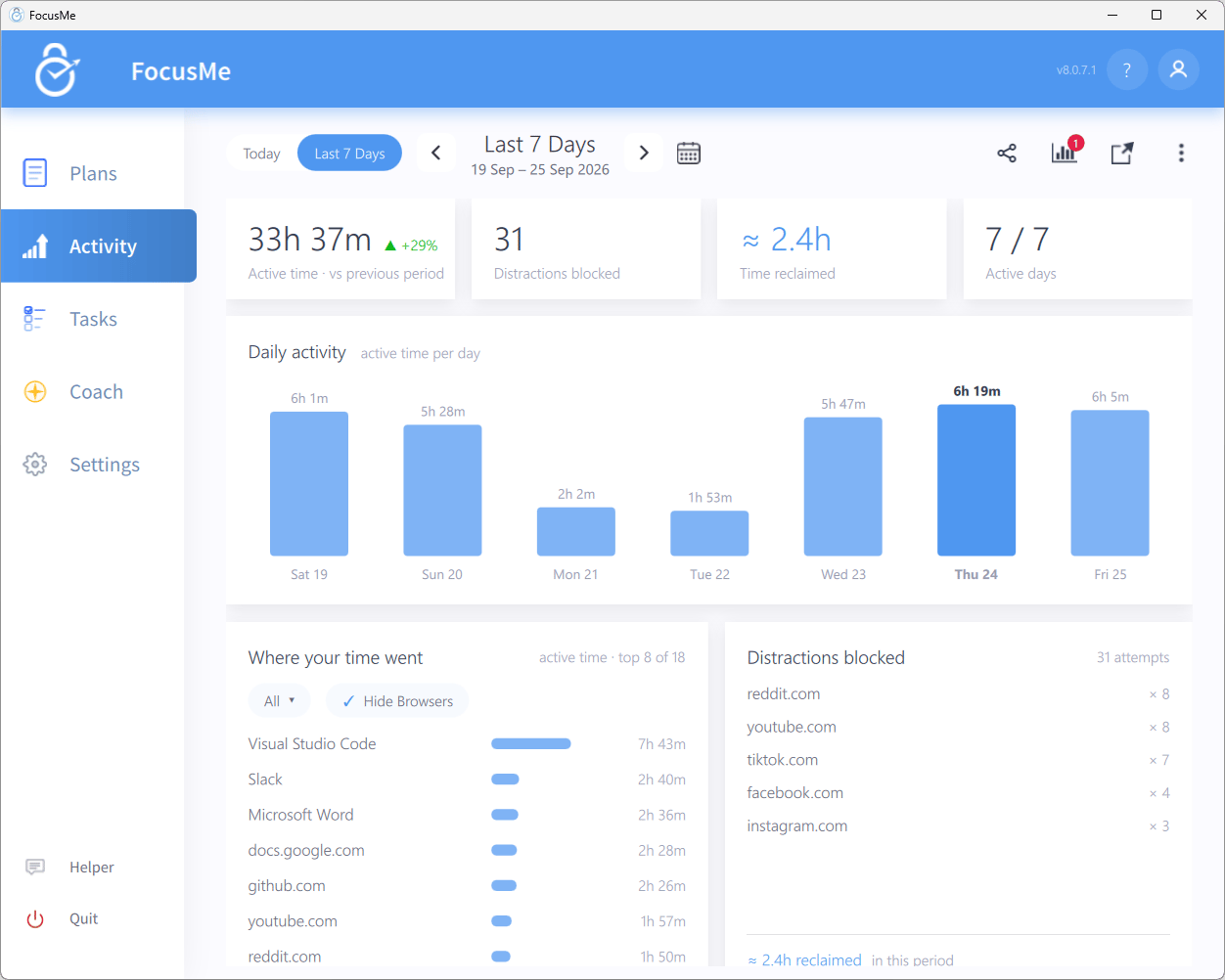
The Activity dashboard
Choosing a period
The header controls which dates are shown:- Today / Last 7 Days — the two quick views. Last 7 Days is the default and covers the seven completed days ending yesterday.
- Previous period / Next period chevrons step backwards and forwards by the current period length.
- Click the calendar icon to pick a preset: Last Month, This Month, Last Week, This Week, Last 7 Days, Yesterday or Today. When the dates don’t match a preset, the label reads Custom range.
Tiles
Below the tiles, the Daily activity chart plots active time per day for the period. Switch to Today and the chart makes way for the day’s totals, including On-screen time.
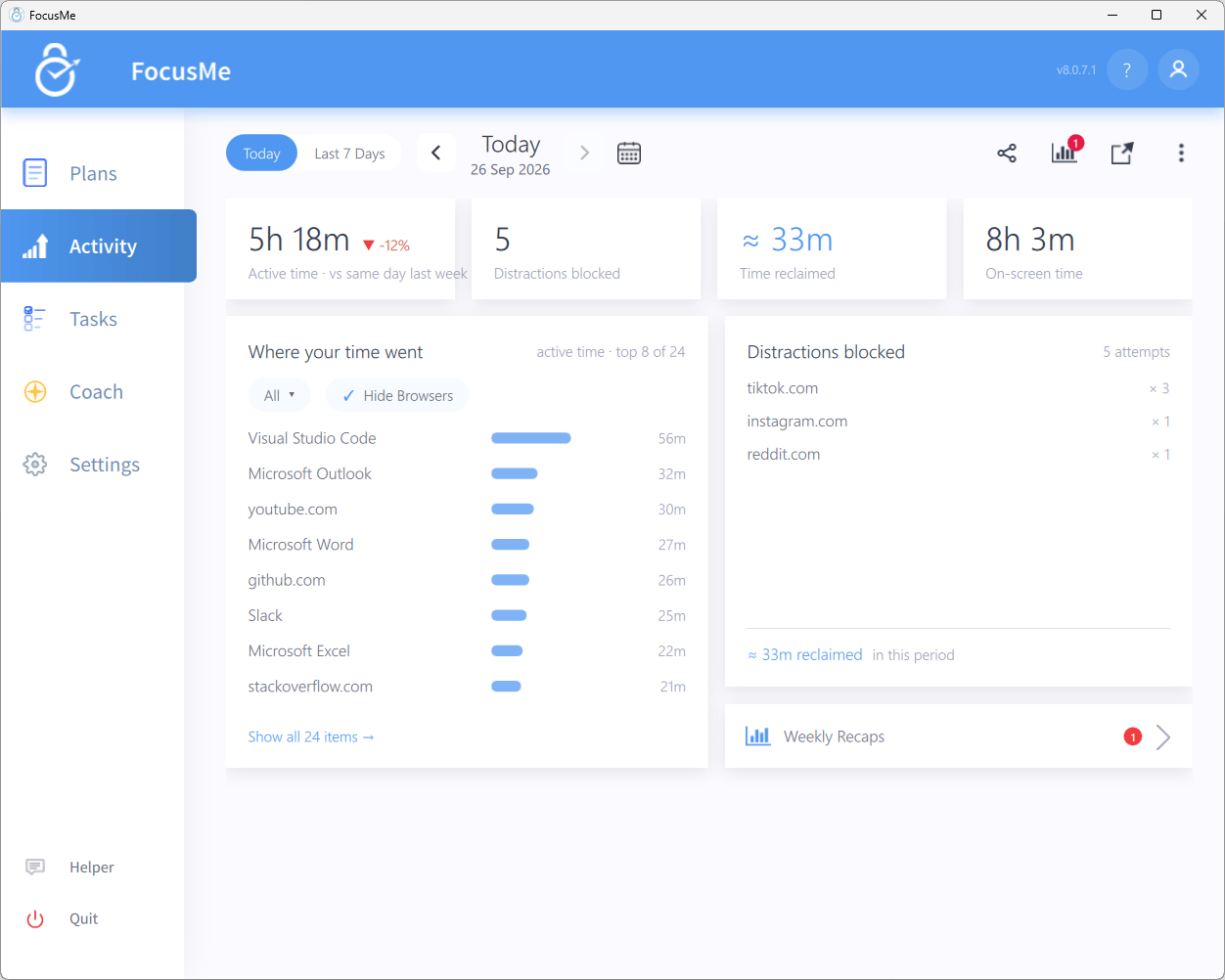
The Today view
Where your time went
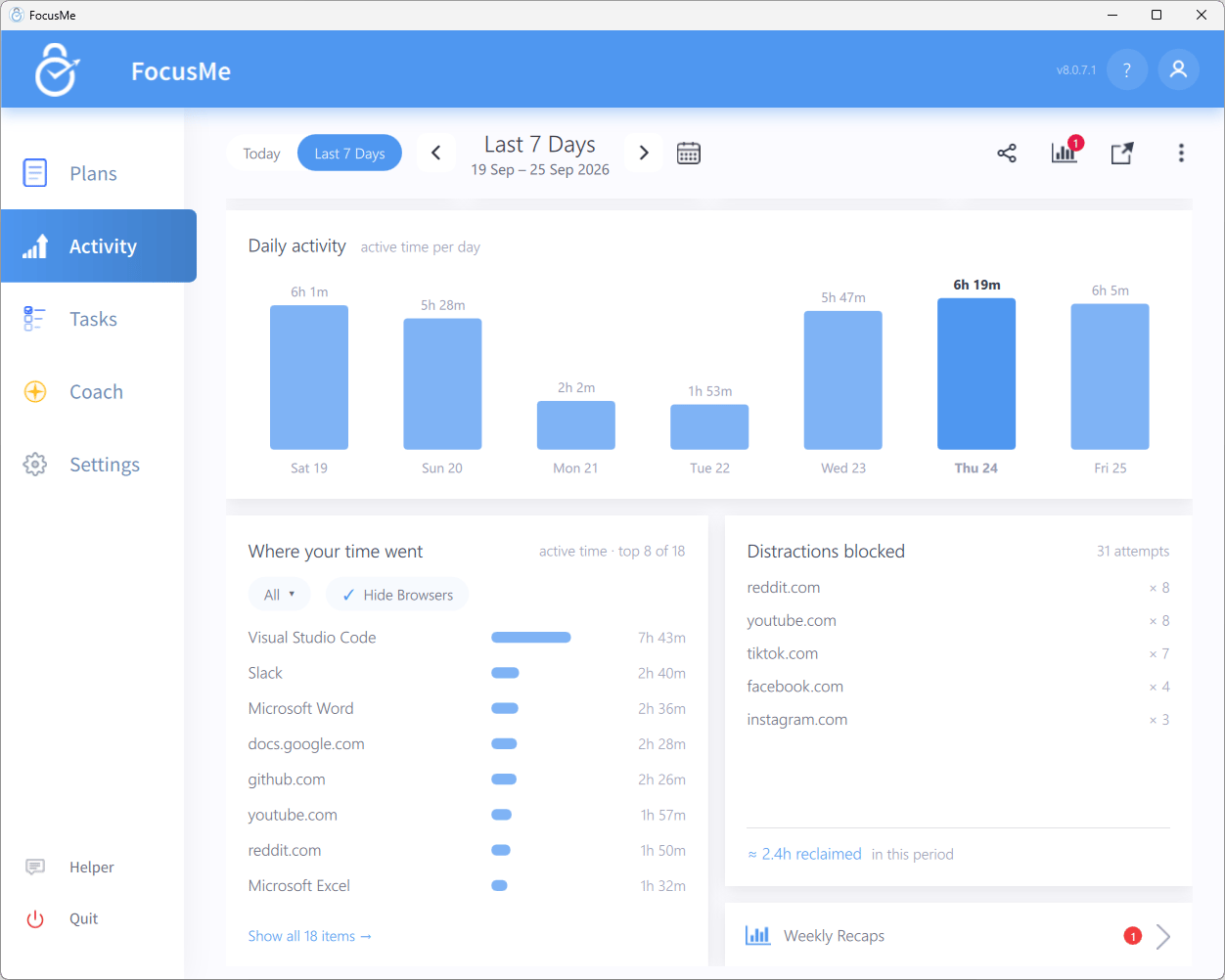
Where your time went, Distractions blocked and Weekly Recaps
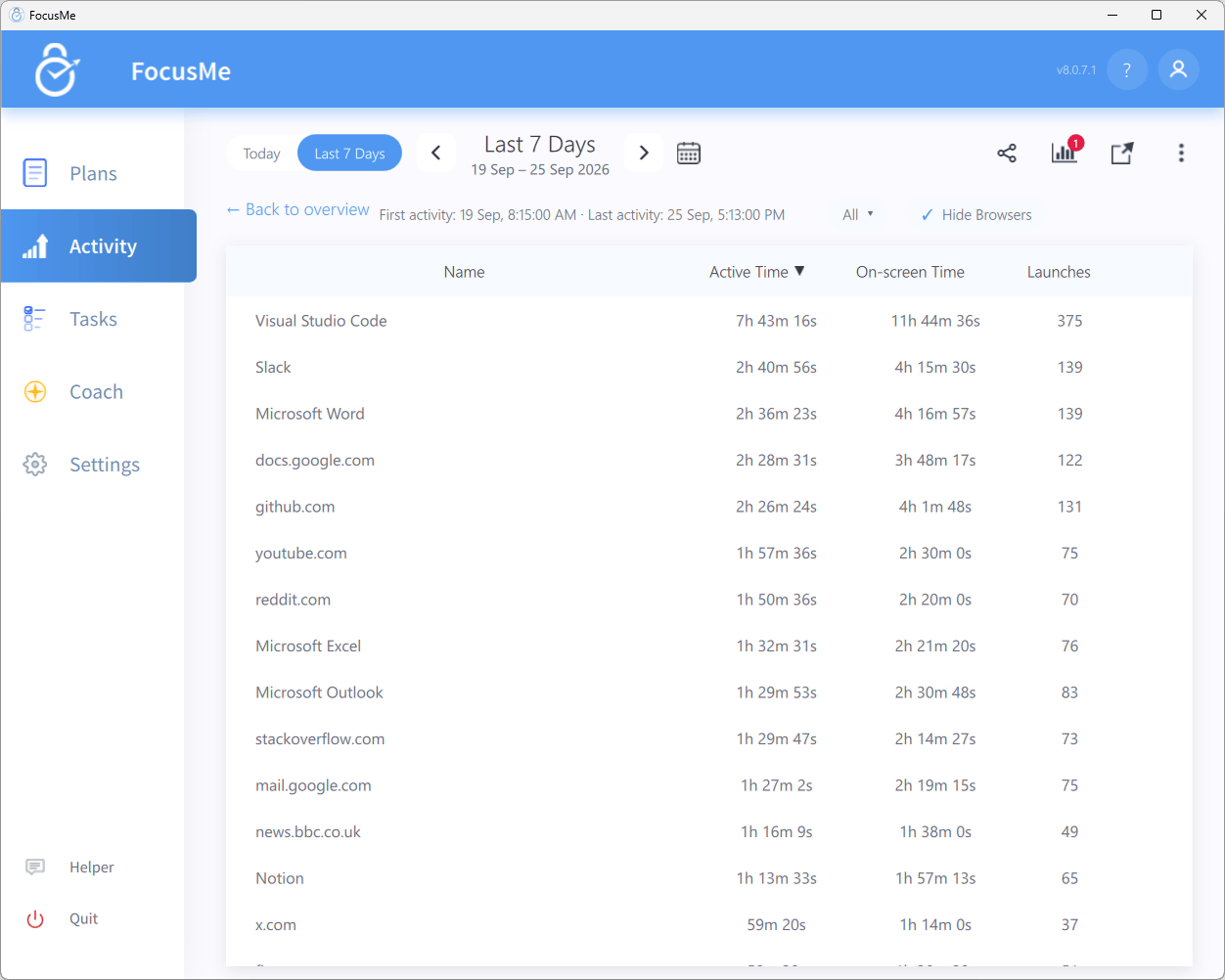
The full items table, sorted by Active Time
Active time counts only while a window is in the foreground and you are using the keyboard or mouse. On-screen time counts whenever the window is visible, so it is useful for apps that run passively on a second monitor.
Distractions blocked
The rail on the right lists the apps and websites FocusMe blocked most often in the period, with the number of attempts and the total time reclaimed in this period.Weekly Recaps
Click the Weekly Recaps icon in the header (it shows a badge when a new recap is waiting) or the Weekly Recaps entry in the rail.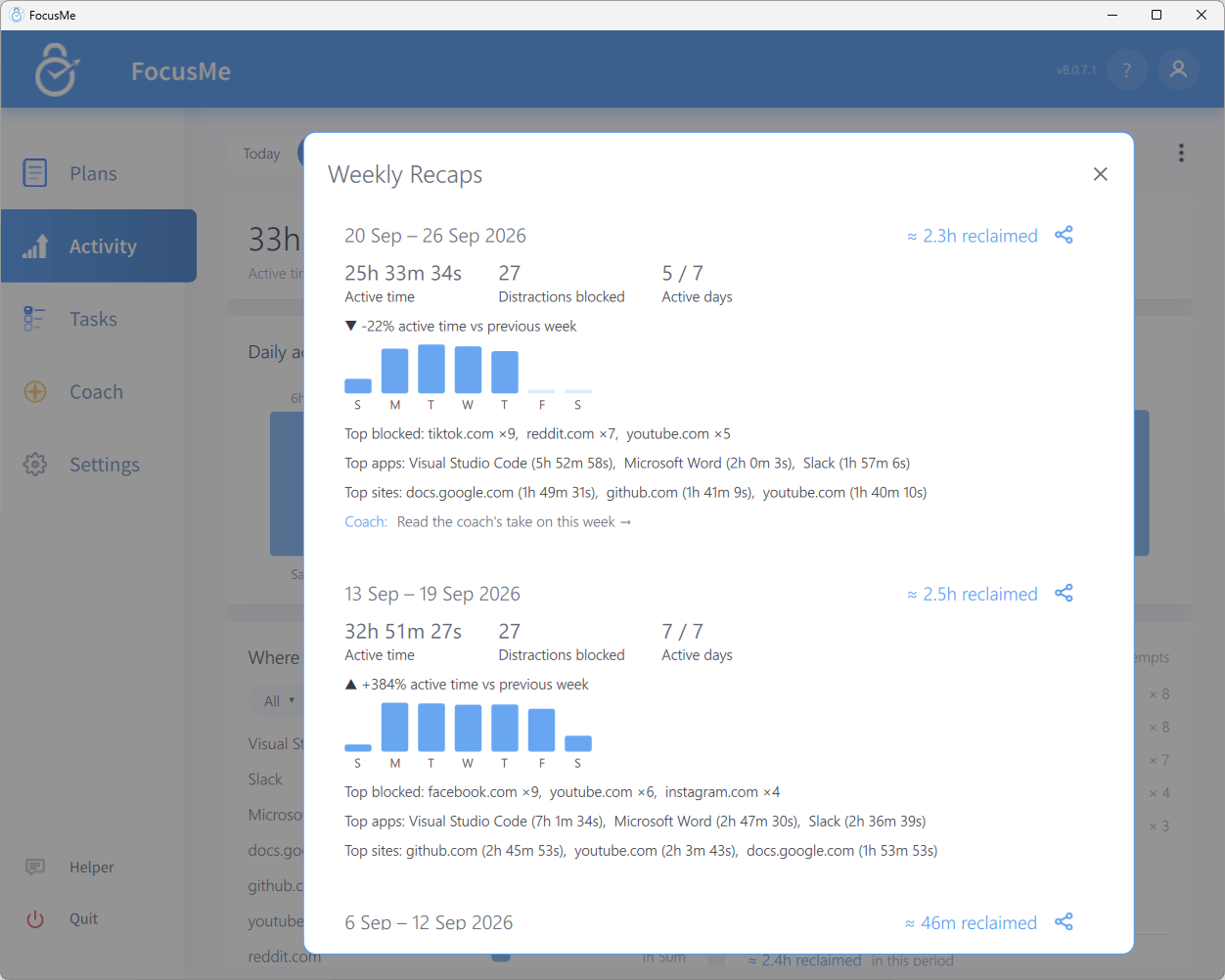
Weekly Recaps
Share your stats
Click the share icon (Share these stats) in the header (or the share icon on a recap) to turn the current period into a square image card.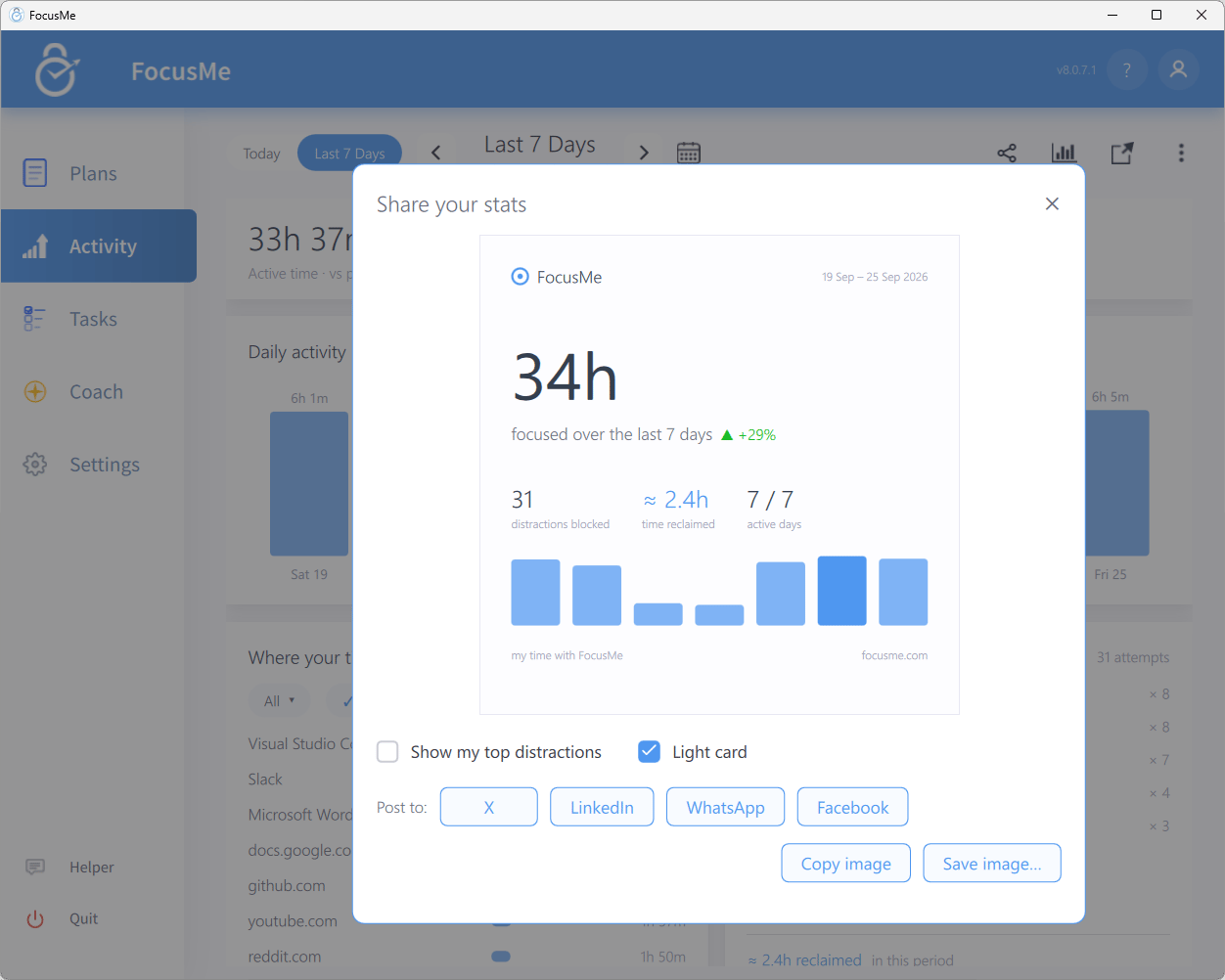
Share your stats
- Show my top distractions adds your most-blocked sites and apps to the card (off by default).
- Light card switches between the light and dark card designs; it follows your app theme by default.
- Post to: X, LinkedIn, WhatsApp or Facebook creates a share link and opens the network with a pre-filled message. For Facebook the message is copied for you to paste (Post text copied. Paste it as your message if it doesn’t appear automatically.).
- Copy image puts the card on your clipboard (Image copied. Paste it into your post with Ctrl+V.); Save image… saves it as a PNG.
The header menu
The ellipsis menu in the header contains: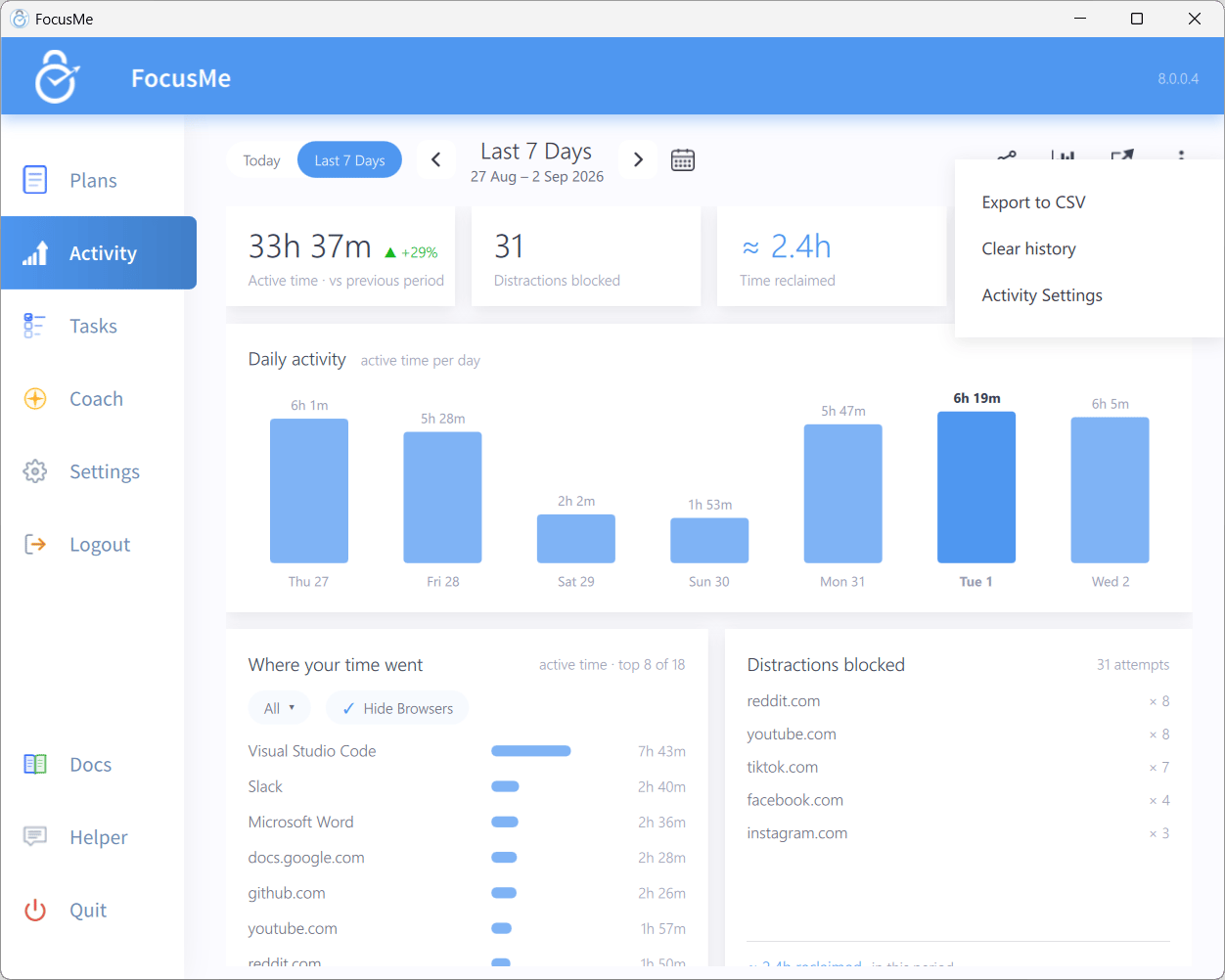
The Activity header menu
Activity Settings
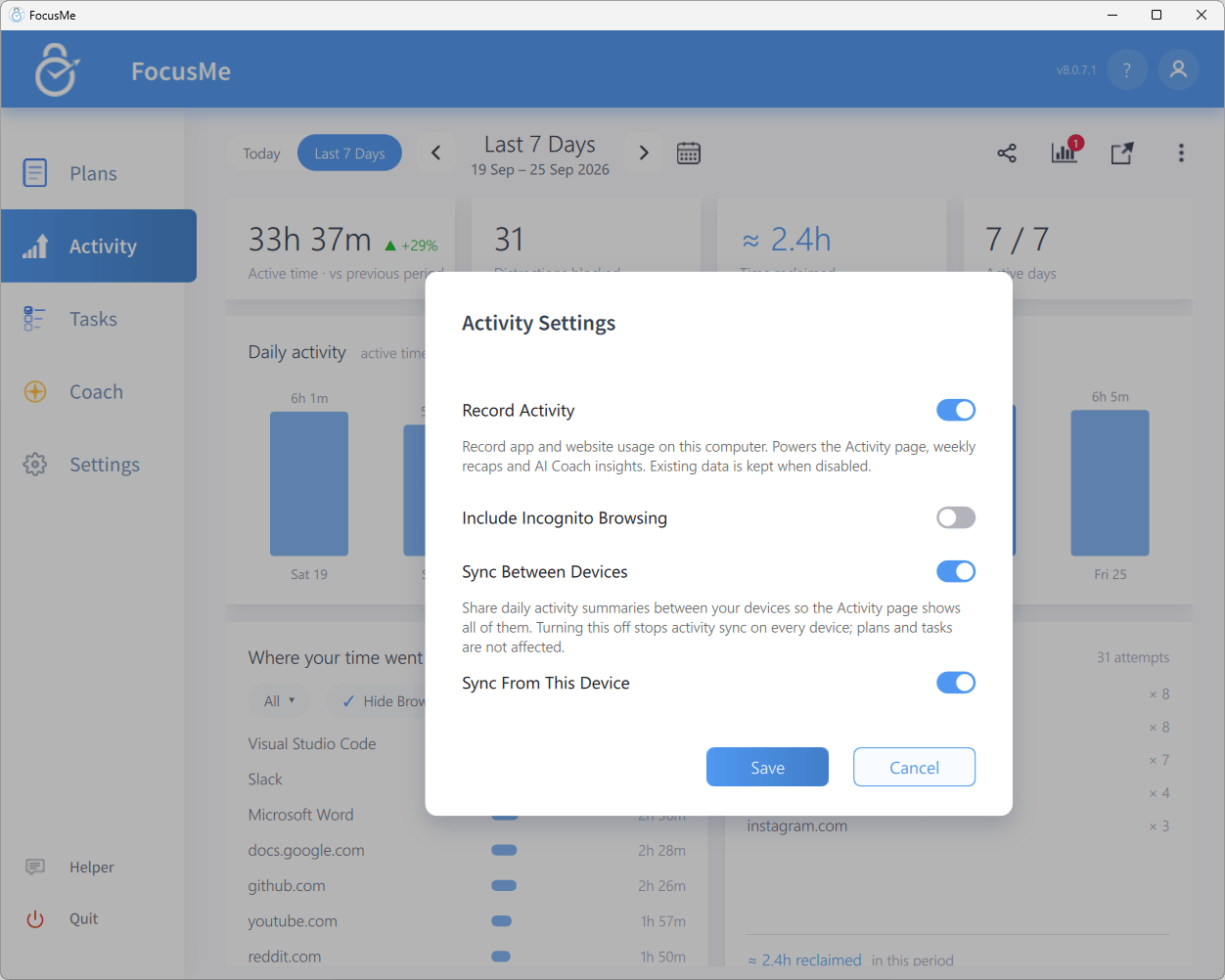
Activity Settings
Click Save to apply. Record Activity and Protect Activity are also available in Settings → System.
Privacy
- Activity is recorded and stored on your computer. Plan, block and app events are always logged locally so your dashboard is complete.
- Activity is sent off your computer in two cases: Sync Between Devices shares daily summaries with your other devices through your account, and Coach & Anonymous Data Collection (in Settings → System) sends the sites and apps you use, with times, for Coach reports.
- Sharing a stats card uploads only the image you see in the preview.
- Delete My Data in Settings → System removes your Coach usage data from FocusMe’s servers; Clear history → All Devices removes synced activity from your account.
Using Activity effectively
- Find your biggest time sinks — open Show all N items → and sort by Active Time.
- Set a baseline — track a week without plans, then set limits you can actually keep.
- Check that blocks work — if a blocked site still shows active time, review the plan’s targets and your browser addon.
- Watch the trend — compare Last 7 Days with the previous period, or read your Weekly Recaps.