

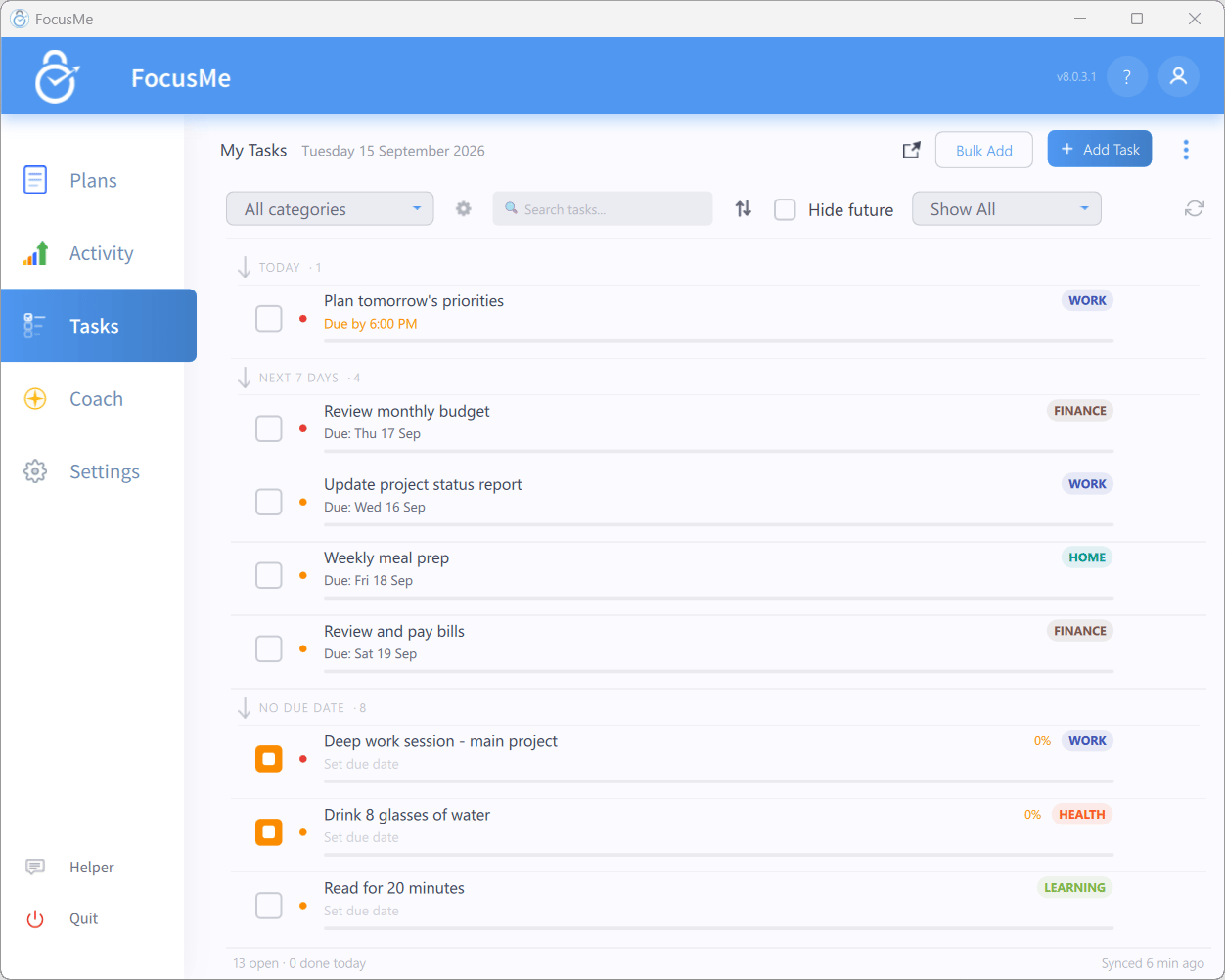
The Tasks tab
Adding a task
Click Add Task to open the New Task dialog.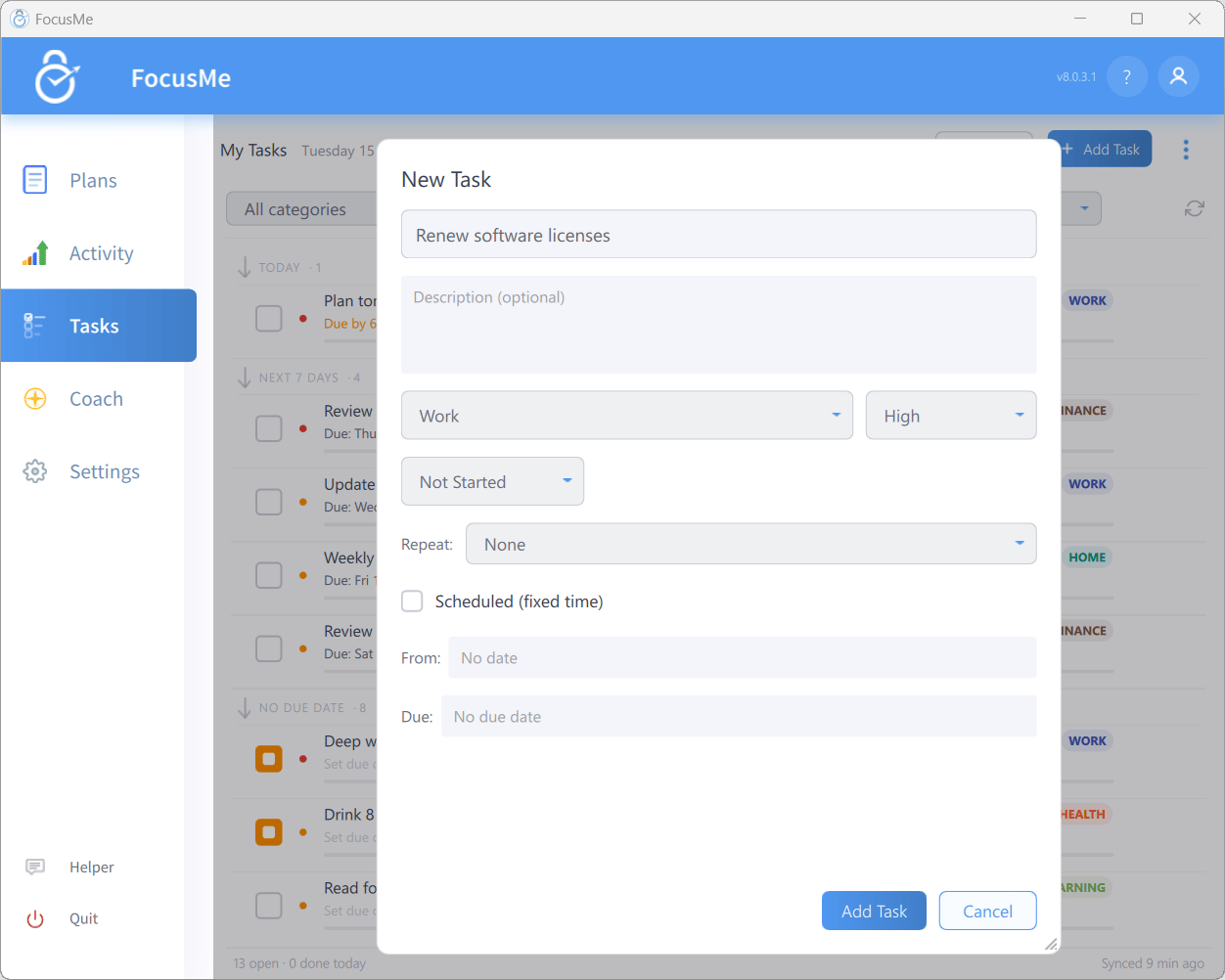
The task dialog
Click Add Task to save, or Save when editing. Double-click a task row to edit it later.
Quick Add Task
Choose Quick Add Task from the tray icon menu to open a small Quick Add Task window without bringing up the main FocusMe window. Type a title and add it straight to your list.Bulk Add
Click Bulk Add to create several tasks at once. The dialog reads One task per line. Category: … and shows the category the tasks will be filed under (or Uncategorized). Paste or type your list and click Add N Tasks.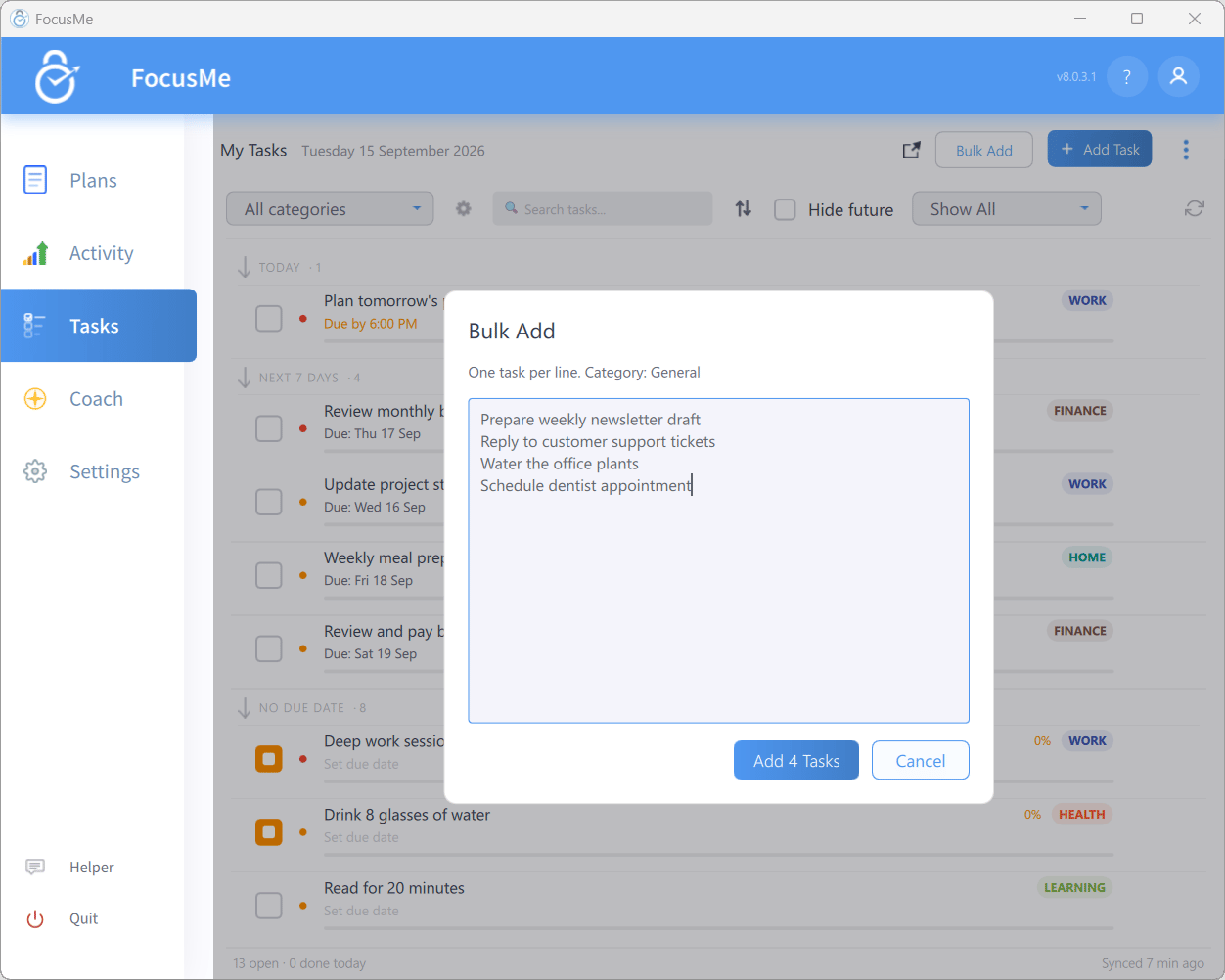
The Bulk Add dialog
Status and progress
Click the checkbox on a task row to cycle its status: Not Started → In Progress → Completed → Not Started. When a task is In Progress a progress slider appears. Right-click the checkbox to Mark complete for… a past date, which is handy if you forgot to tick off yesterday’s habit. FocusMe won’t accept a future date or a date that is already completed. Completed tasks show Completed with the time; overdue tasks show Overdue with how long ago the deadline passed.Recurring tasks and streaks
Recurring tasks reset automatically after completion, which makes them ideal for habits. The task row shows the recurrence as a small DAILY, WEEKDAYS, WEEKENDS, WEEKLY, MONTHLY or CUSTOM badge. Every completion of a recurring task counts towards a streak:- Up to seven consecutive completions are shown as tick marks on the row; longer runs show as a 🔥 N-day streak (or week/month streak, depending on the recurrence).
- Hover the streak to see your current run and your Best.
- Double-click the streak to open Completion History, a calendar of your past completions.
- Missing a period resets the streak.
Categories
Tasks can be grouped into colour-coded categories. Click the category badge on a task row to reassign it, and use the All categories dropdown in the filter bar to show a single category. Click the gear next to the category filter to open Manage Categories:- Type a New category name and click Add.
- Click a category’s colour swatch (Click to change colour) to cycle through the 12 available colours.
- set default marks the category new tasks are filed under (default).
- Hide from All categories / Show in All categories controls whether a category’s tasks appear in the combined list.
- Remove a category with its delete button and confirm Remove?. Its tasks move to the default category.
Finding and sorting tasks
The filter bar offers:Due date groups
With Group by due date on, the list is split into sections: Overdue, Today, Next 7 days, Later, No due date and Completed. Each heading shows how many tasks it holds. Click a heading to collapse or expand that section. To reschedule a task, drag it by the grip at the left edge of its row (it appears when you hover the row) and drop it on another section. Today sets the due date to today, Next 7 days to tomorrow, Later to a week after that, and No due date clears the date. The time of day is kept. Dropping on Overdue counts as Today. The bar at the bottom of the list shows how many tasks are open, overdue and done today, and when your tasks last synced.Archiving, export and import
The overflow menu (three dots, top right) contains:
Hold Shift while opening the menu to reveal Delete All Tasks.
To delete a single task, hover its row, click the delete button and confirm Yes.