

Fastest route: the Plan Library
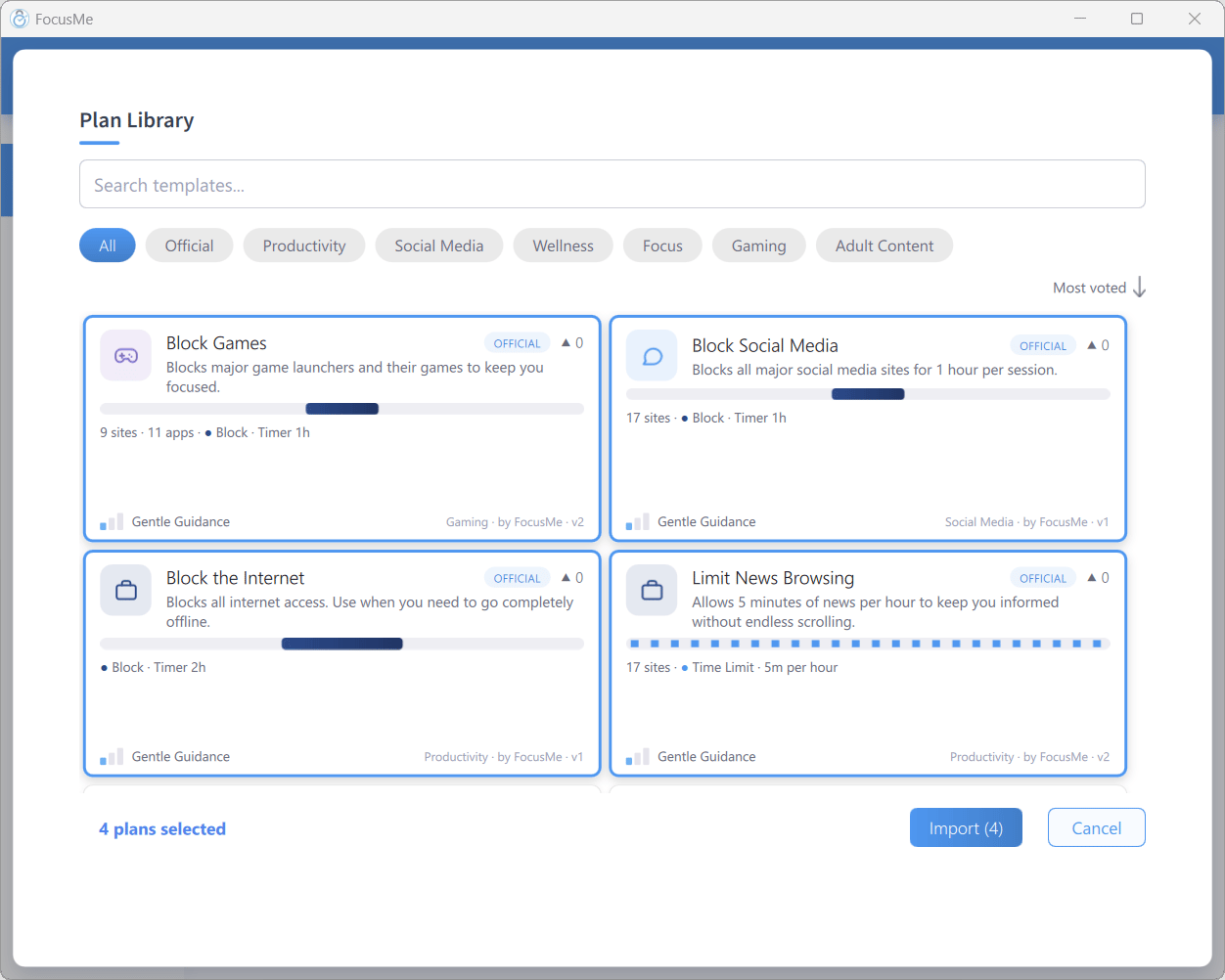
The Plan Library with the official Block Social Media template
- Open the Plans tab and click Plan Library
- Choose the Social Media category chip, or type in Search templates…
- Hover the Block Social Media template and click Import
- Press play on the new plan in your list to start it
Build it yourself
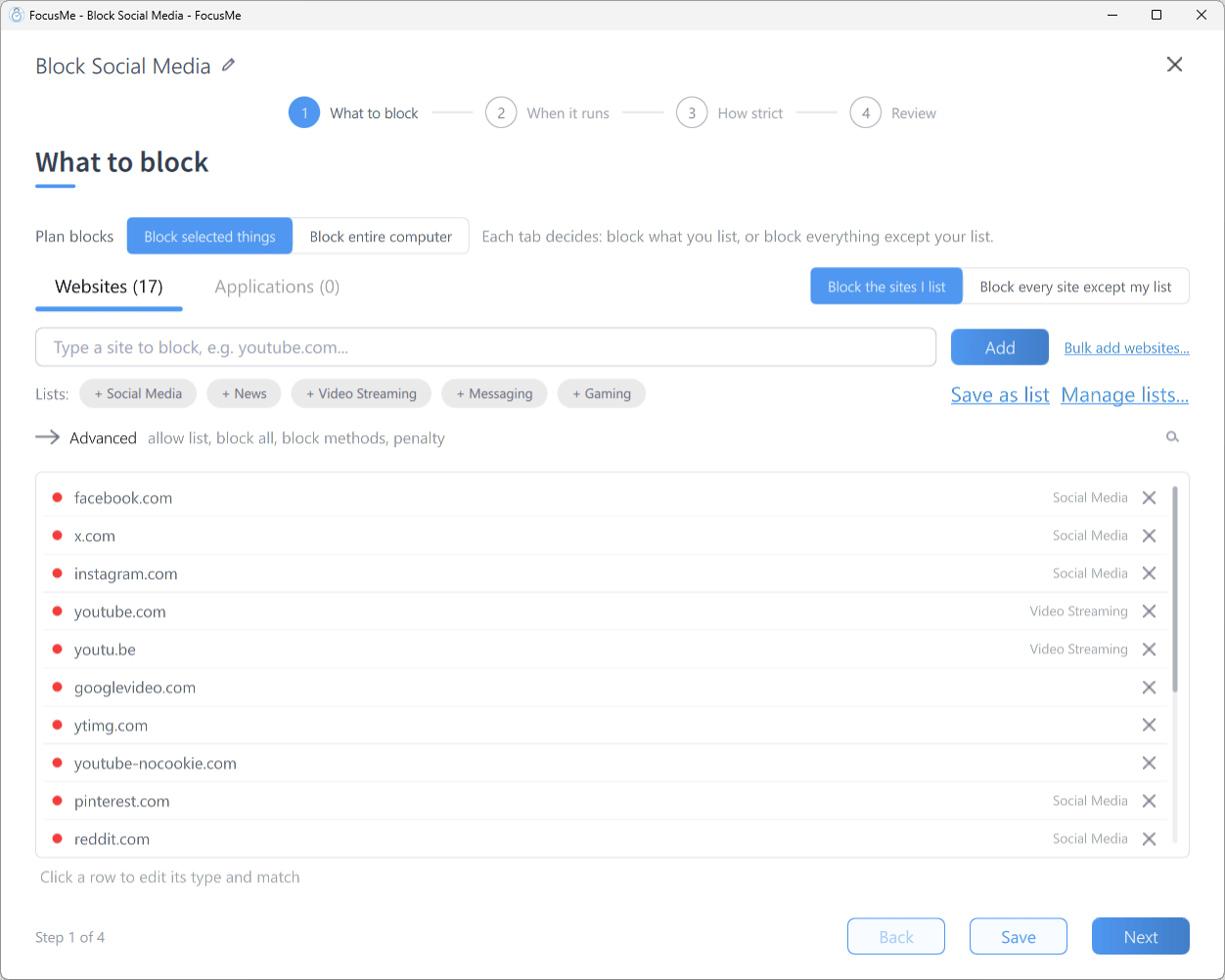
Step 1 What to block, Websites tab, with social media sites on the block list
- On the Plans tab click Add a Plan and give the plan a name in the header
- On What to block, stay on the Websites tab and type each site into the add row (Type a site to block, e.g. youtube.com…), then click Add:
- Click Next to reach When it runs and choose how the plan should run:
- Weekly Schedule for a recurring timetable, for example the Weekdays preset with an Office Hours block
- Quick Timer if you would rather start it by hand for a set duration
- Each block on the timeline has its own rule mode. Leave it on Block, or pick Time Limit if you want a daily budget instead of a full block
- Click Next to reach How strict and pick a preset, for example Firm but Flexible
- Click Next to reach Review, then click Create & Enable
Block the apps too
Most social networks also ship desktop apps. To cover them, switch to the Applications tab on What to block and add each app:- Type the process name into the add row (Type an app to block, e.g. steam.exe…) and click Add, or click Pick from installed apps… and choose from Installed Apps or Running Processes
- Apps chosen from the picker are added with an Exact match, so only that app is affected
Allow a daily budget instead
If a full block feels too much, keep the same targets and change the rule mode:- On When it runs, select the time block on the timeline and switch its rule mode to Time Limit
- In the settings row underneath, set Allow to the budget you want, for example 30 m per Day
- Optionally add a Remind me at reminder so you get a warning before the budget runs out
Block short-form video only
You can block the most addictive features while leaving the rest of a site open, for exampleyoutube.com/shorts or instagram.com/reels.
See the YouTube Shorts guide →
Make it stick
The biggest risk is that future you switches the plan off. The How strict step is where you decide how hard that should be:- Gentle Guidance — type 5 random characters to stop; a decision, not a reflex
- Firm but Flexible — a 2 minute wait, then 10 random characters, with 3 pauses a day
- Lock it Down — a 10 minute wait, then 25 random characters typed perfectly, with no pauses