

Opening the Helper
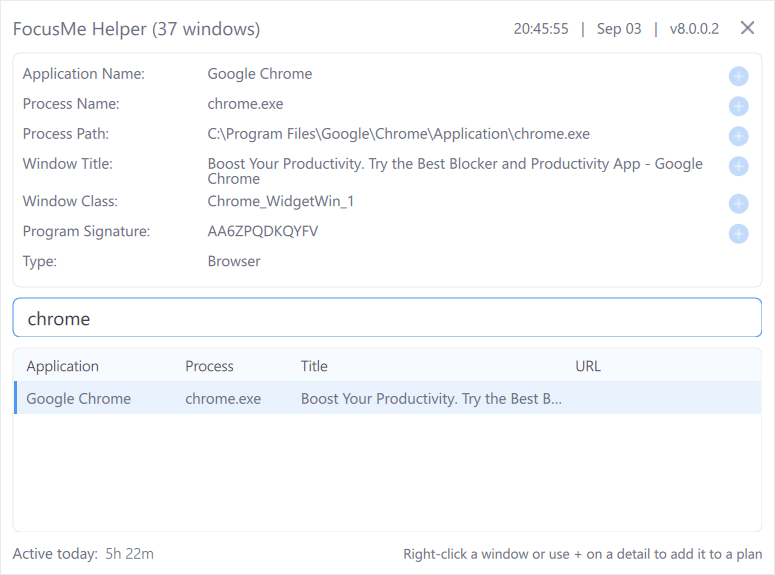
The Helper window listing open windows, with the detail rows for the selected window
- Open the app or website you want to identify
- Click Helper in the FocusMe sidebar (or choose Helper from the tray icon menu)
Reading the list
The header shows how many windows are open. Each row lists one window with four columns:
Type in Filter windows… to narrow the list, and click a column header to sort by it. The footer shows Active today: with the time you have spent on the selected window’s app.
Detail rows
Select a window to see its full set of details:
Click any value to copy it — the window confirms with Copied to clipboard. Paste it into the add row on a plan’s What to block step.
Adding straight to a plan
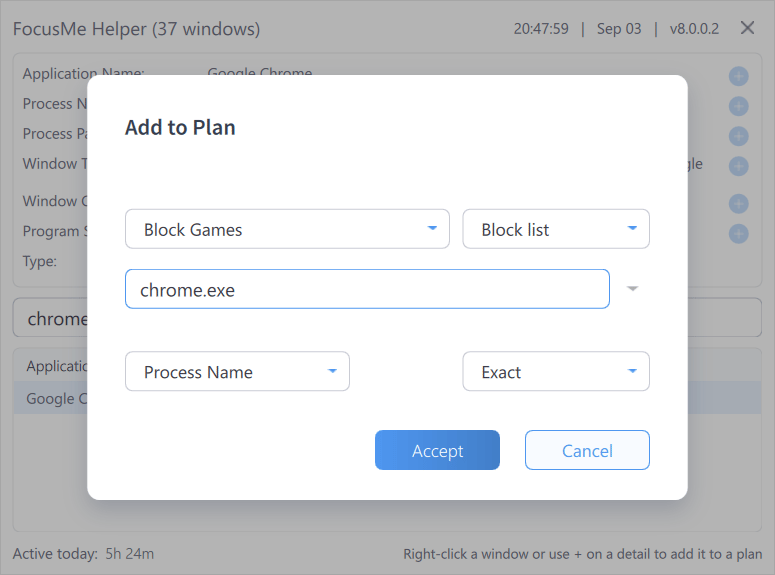
The Add to Plan dialog opened from the Helper
- Hover a detail row and click the + that appears, or right-click a window in the list and choose Add to plan…
- In the Add to Plan dialog, pick the plan, choose Block list or Allow list, and check the target type and match
- Click Accept
Common process names
Tips
- Windows Store apps show
ApplicationFrameHost.exeorWWAHost.exeas their process. Do not block that; add the Application Name or Window Title instead. See Block Windows Store Apps. - Games each have their own executable. Launch the game, then read its Process Name or Process Path in the Helper.
- Websites only show a URL when the browser addon is installed and connected. See Browser Extension.