

Creating an Account
When you buy FocusMe or start a trial on the website, an account is created for you with the email address you used. You can also create one from inside the app: click the account icon at the top right of the window, choose Sign in and click Create account. The sign-up form opens on focusme.com.Logging In
The account icon at the top right of the window opens the account menu. While you are logged out it reads Not logged in and offers Sign in and Activate a license.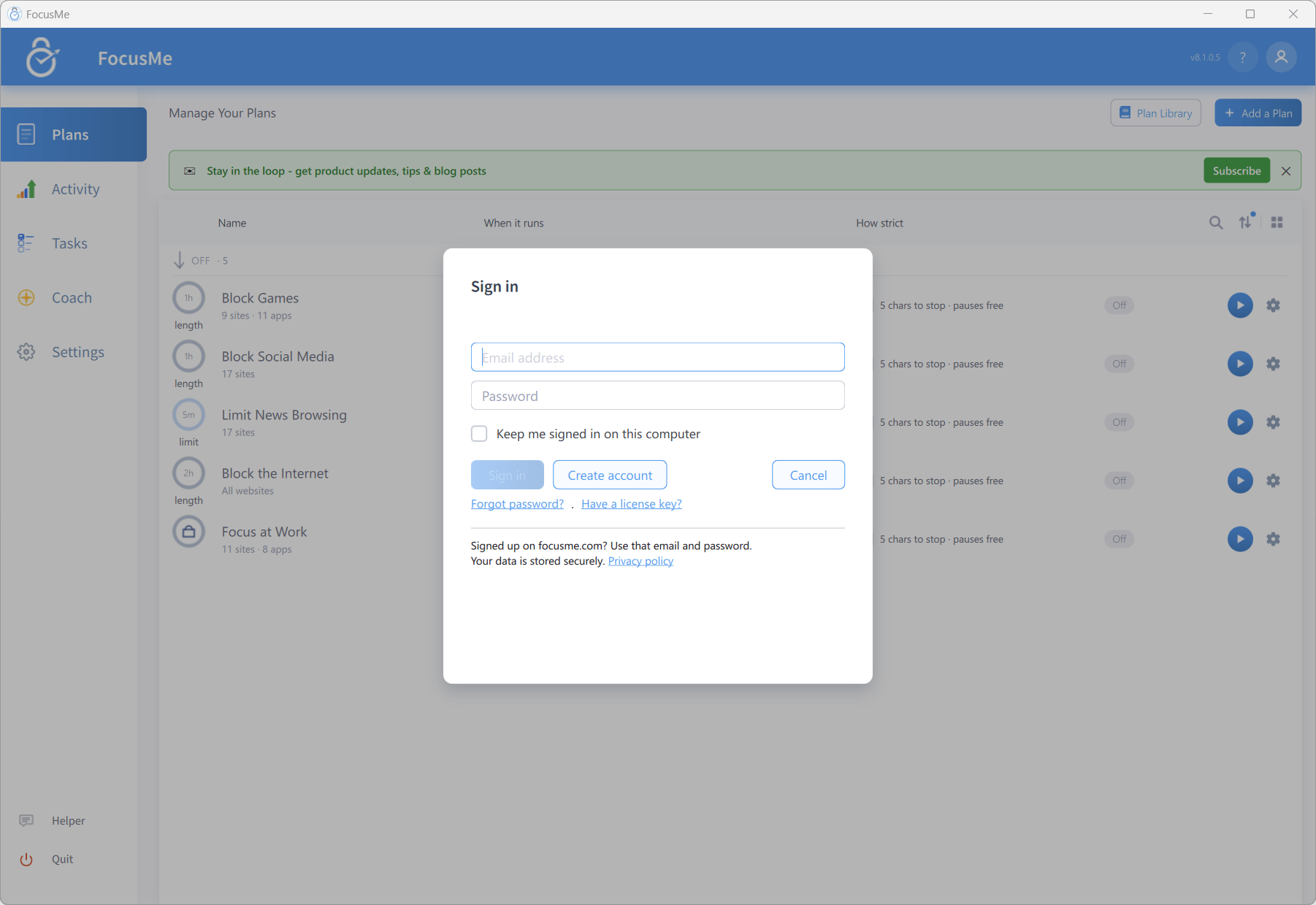
Signing in to FocusMe
- Click the account icon and choose Sign in. The Sign in dialog opens
- Enter your Email address and Password (click Show to check what you typed)
- Click Sign in
What Syncs
Local preferences — window size, theme, notification positions and the like — stay on each computer.
Sync to Devices
Every plan carries its own list of devices. You set it in the wizard’s Review step, where the Devices row summarises the current choice — This device only, All devices, including new ones, All current devices or N devices — and is only shown when you are logged in.- Open the plan in the wizard and go to Review
- Click Change on the Devices row to open the Sync to Devices dialog
- Tick the devices the plan should run on. Each entry shows the device name (with (this device) for the one you are using), its operating system and when it was last seen
- Tick New computers if the plan should also appear automatically on computers you sign in on later, and New phones and tablets for phones and tablets you sign in on later
- Click Done
Plans from your other devices
The first time you sign in on a computer, FocusMe may ask Plans from your other devices: your account has Unlocked plans from your other devices, so do you want to run them on this computer too? Click Yes to add them, or No, keep them off this computer. Plans with stronger protection are not part of this question.Signing in with a different account
If this computer has plans that belong to another account, FocusMe shows These plans belong to another account when you sign in. Choose what happens to each plan, then click Done:- Copy here: the plan joins the account you are signed in with. The old account keeps its own copy.
- Remove from this computer: the plan stays with its own account and won’t run here while a different account is signed in. You may need to meet the plan’s protection first.
Activity Sync
Open the Activity tab, click the ellipsis menu and choose Activity Settings:- Record Activity — powers the Activity page, weekly recaps and Coach insights
- Sync Between Devices — uploads activity so it can be viewed on your other devices (turning it off stops activity sync on every device; plans and tasks are not affected)
- Sync From This Device — include or exclude this computer’s activity
Logging Out
Click the account icon, choose Log out and confirm Logout?. Two situations prevent it:- Plans are enabled — Cannot logout while plans are enabled! Stop all plans first. This stops logout being used to escape a running plan.
- Auto-login is in use — Cannot logout while using auto-login mode! Turn off automatic login before logging out.