

Plan Status
The status pill on each row tells you which actions apply:Context Menu
Right-click a plan, or click the ⋮ button on a running plan, to see its actions. (On an Off plan the button is a gear: click it to open the wizard, or right-click it for the menu.) The menu changes with the plan’s status. Clicking the stop button on an active row that can be paused opens a small popup with just two choices, Pause and Stop.Off or Expired plans
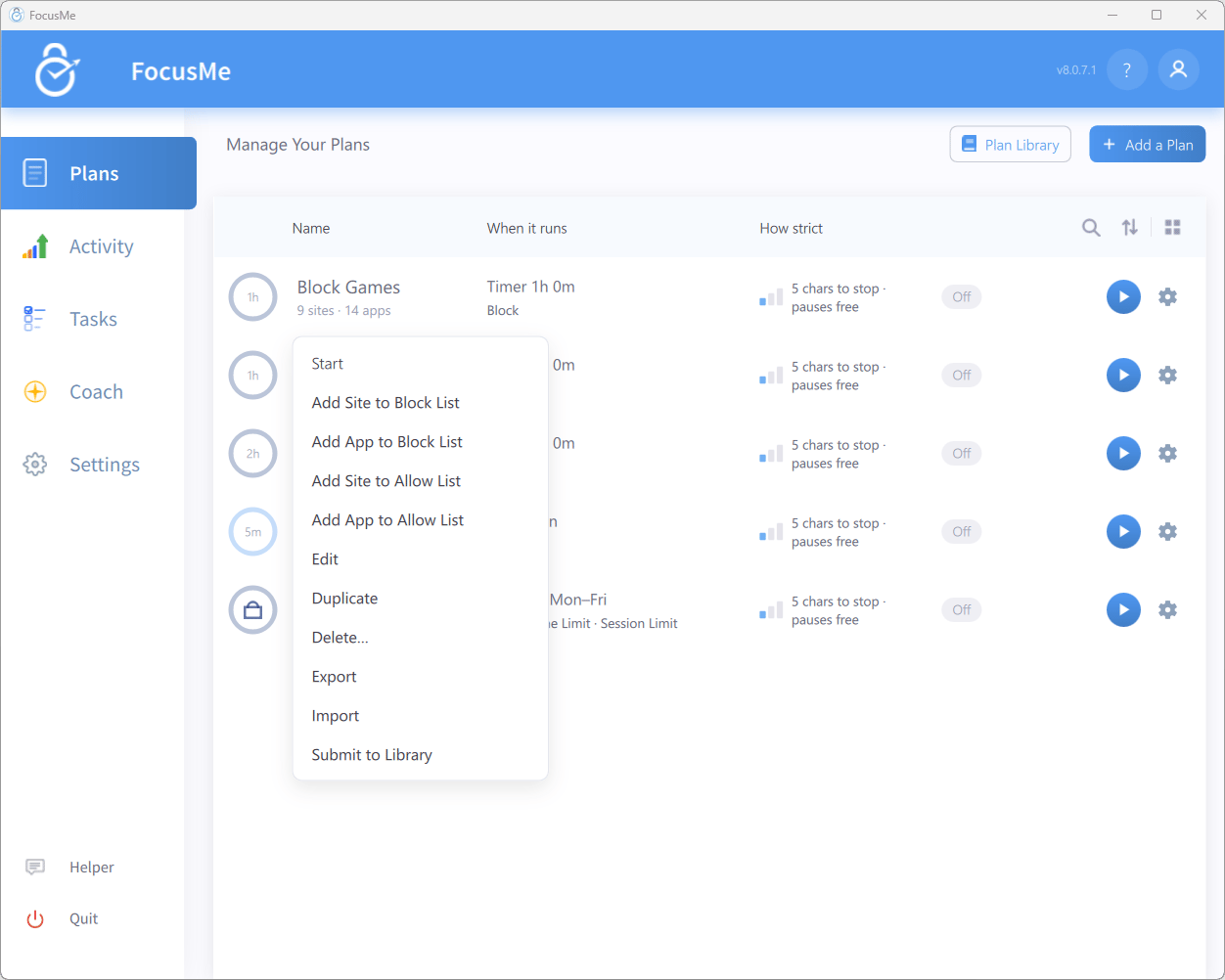
Context menu for a stopped plan
If the plan’s Loosen or delete the plan challenge is set, opening the plan to edit it asks nothing, but you’ll be asked to complete it when you save a change that loosens a stopped plan, and before adding to its allow list, submitting it or deleting it.
Active plans
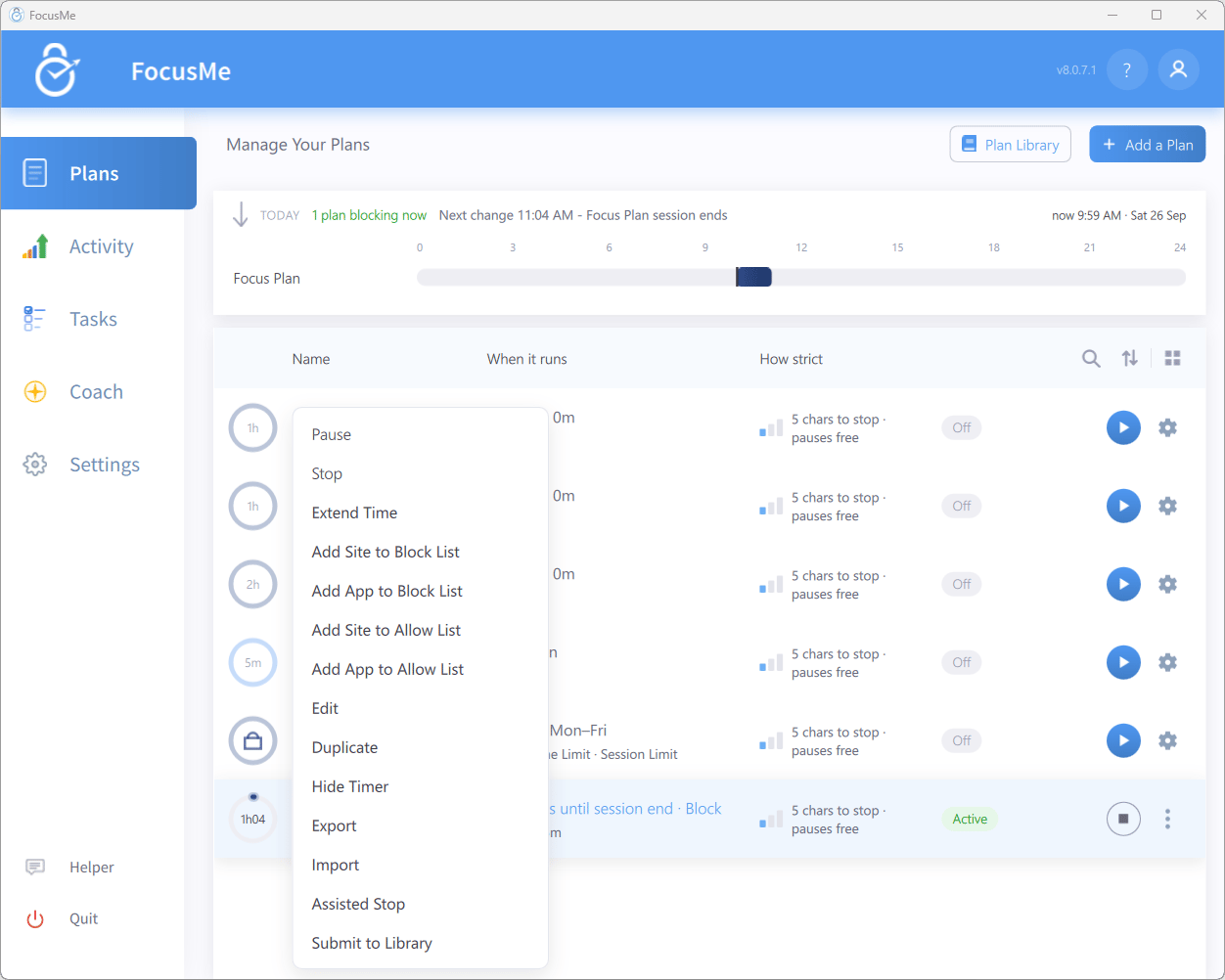
Context menu for an active plan
Standby plans
A standby plan shows the same menu as an active one, with two differences: Skip Delay replaces Extend Time on a Quick Timer that is waiting to start, and the break and skip actions aren’t offered.Paused plans
The add-to-list, Edit, Duplicate, Export, Import, and Submit to Library items are available in every state. Delete… only appears on Off and Expired plans, and Hide Timer / Show Timer only on Active and Standby ones.
Edit in the Drawer
Click a plan row once to open its drawer. Each column has a shortcut into the right wizard step:- WHAT IT BLOCKS → Edit blocks opens What to block
- HOW STRICT → Edit protection opens How strict
- COMING UP → Edit schedule opens When it runs
Rename a Plan
There is no separate Rename command. Instead:- Open the drawer and click the pencil beside the plan name. Type the new name and press Enter (or Esc to cancel).
- Or open the wizard with Edit and change the name in the header field. The wizard warns you if the name is empty (Plan name required) or already used (A plan with this name already exists). While the plan is running, the name in the wizard can’t be changed.
- Or type a new name in the title of a plan’s start dialog.
If you have accountability partners, a plan must be stopped before it can be renamed.
Duplicate a Plan
Right-click → Duplicate creates an exact copy with all settings. The copy is created switched off and named after the original —Focus at Work (copy), then (copy 2), and so on.
Duplicating is the quickest way to make variations — a weekday and a weekend version of the same plan, for example.
Export and Import
Turn on Enable Import & Export of Plans in Settings → System to add Export and Import to the context menu.- Export saves the plan as a
.fmpfile — handy for backups or moving plans to another computer. - Import lets you pick an
.fmpfile and choose which of its plans to bring in.
Delete Plans
Right-click a plan and choose Delete… to open the Delete Plans dialog. The plan you clicked is already ticked, and every other plan you could delete is listed unticked: Tick any other plans to delete with it. Click Delete Selected (N) to delete the ticked plans. Only plans that are Off or Expired can be deleted, so stop a plan first. Running and protected plans are not listed, so they can never be swept away by accident.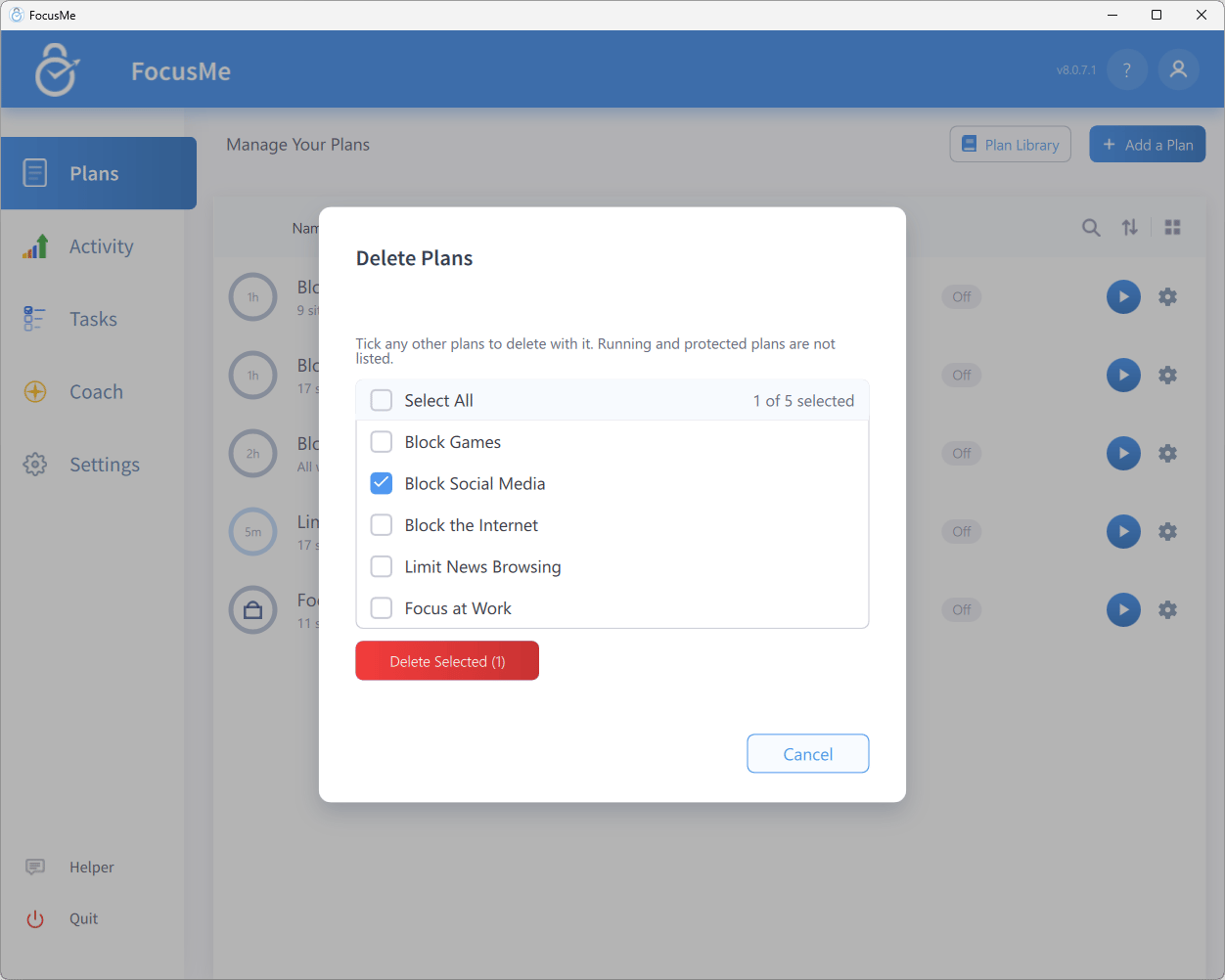
The Delete Plans dialog