

1. Check the plan is actually running
Open the Plans tab and look at the plan’s row:- The Now ring at the left shows whether it is running right now, and the status pill should read Active. Standby means the plan is enabled but outside its schedule; Off means it is not running at all
- If the pill says Paused, Break or Waiting, blocking is suspended until that state ends
- For a Time Limit or Session Limit block, sites are only blocked once the allowance is used up. Click the row to open its drawer and check COMING UP
2. Check the entry itself
Open the plan with Edit and look at What to block:- Check the spelling and use the current domain (
x.com, nottwitter.com) - Enter a plain domain without
https://orwww.; a plain domain also covers its subdomains - Click the row and check its type and match. A Website address entry with Contains is right for almost every site
- A short word or a number on Whole Word only matches when it stands alone. If you meant it to match inside longer words, switch the match to Contains
- With a Regex entry, remember the address is matched with
https://, a leadingwww.and any trailing/already removed, and that the path is included — so a pattern anchored with$, such as\.com$, will not matchexample.com/feed. See Regular Expressions - Switch to Allowed and make sure the site is not on the allow list, which always takes priority
3. Install the browser addon and check it is connected
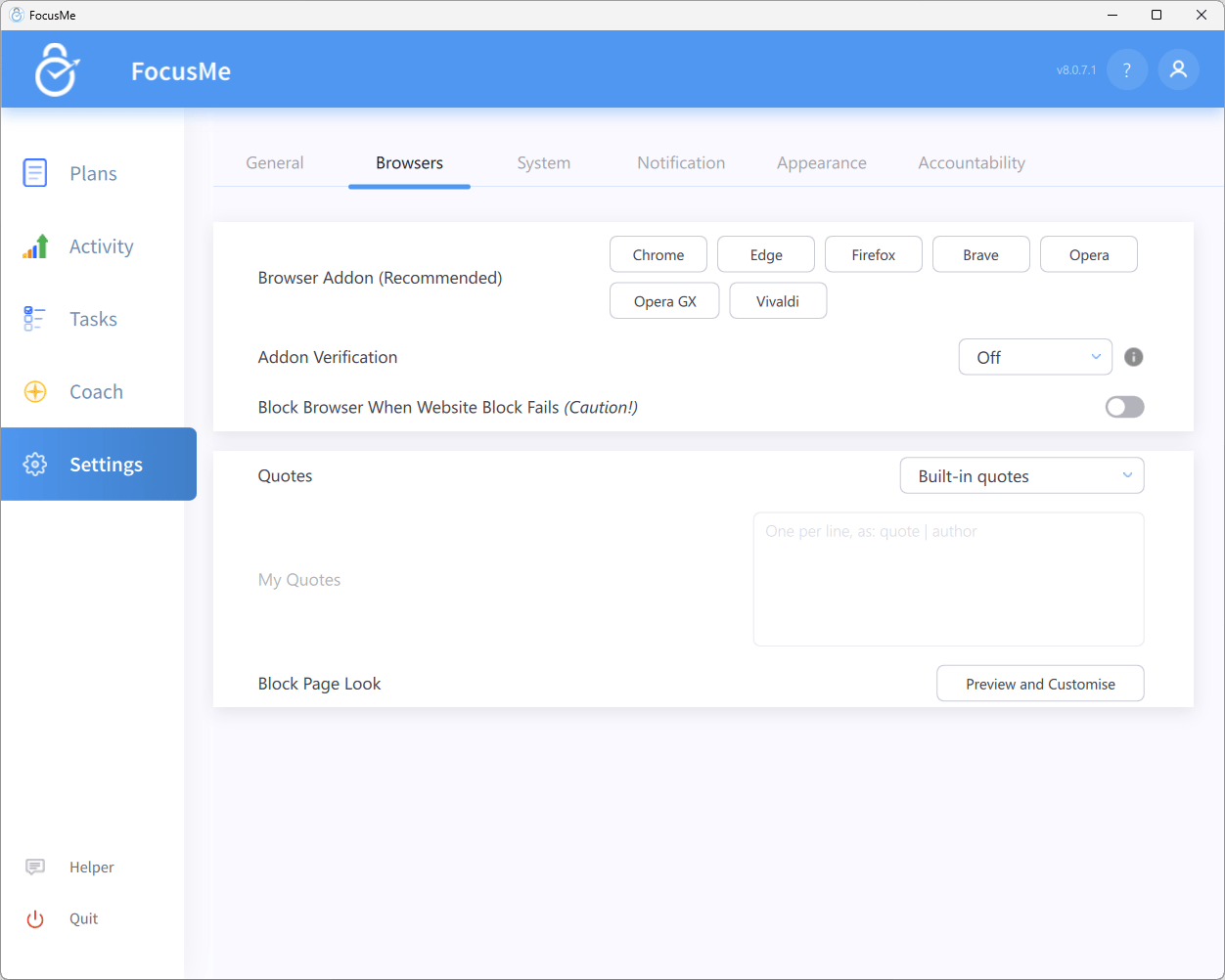
Settings → Browsers with the addon buttons and Addon Verification
- Go to Settings → Browsers and click the button for your browser under Browser Addon (Recommended). Only browsers that are installed are listed
- After installing, click the FocusMe icon in the browser toolbar. The popup should say Connected. If it says Connecting… or Disconnected, restart the browser
- If the addon was removed or disabled, FocusMe shows a Browser Addon notification with Check extensions and Reinstall actions. Use them to get back to Connected
4. Restart the browser
After installing or updating the addon, close every window of the browser and open it again. A browser that keeps running in the background after its last window closes may need to be quit from its own menu or the system tray.5. Decide what happens when the addon cannot see a page
Settings → Browsers → Addon Verification controls what FocusMe does when the addon is missing or cannot check a page:
With Basic or above you will see Addon is not found. Browser will be blocked in N seconds. with an Install addon button when a browser has no addon.
Block Browser When Website Block Fails (Caution!) on the same tab closes a browser that does not close a blocked website on command. It is always on while Addon Verification is Strict.
6. Incognito and private windows
Extensions are disabled in Incognito / InPrivate windows unless you allow them. Open your browser’s extensions page and enable the FocusMe addon for private browsing. Otherwise, under Standard or Strict, you will see Browser will be closed soon - the URL cannot be verified. and the browser is closed.7. Unsupported browsers and Linux Flatpaks
- Use a browser that has a FocusMe addon (the list under Browser Addon (Recommended) shows which ones are installed on your computer). In a browser with no addon FocusMe falls back to window-title matching; add the site as an Address or page title entry as well as a Website address entry to improve the odds
- On Linux, Flatpak builds of Chromium-based browsers cannot run the addon. FocusMe tells you The Flatpak version of … can’t support our addon and closes the tab or browser; install the standard
.debversion instead. Flatpak Firefox, Zen and LibreWolf are supported
8. Browser windows that are visible but not focused
If a blocked site stays open in a second window while you work in another, enable Settings → System → Check Secondary Browser Windows. FocusMe then checks browser windows that are visible but not in focus. Check Minimized Browser Windows goes further and is not usually recommended.9. Use the Helper to see what FocusMe sees
Click Helper in the sidebar while the site is open. The Helper lists every open window with its Process, Title and URL exactly as FocusMe detects them. Compare the URL with your entry, and use Add to plan… to add the correct value directly. Using the Helper Tool →Still not working?
Contact Support with:- Your operating system and version
- Which browser you use and whether the addon popup says Connected
- The website address that is not being blocked
- A screenshot of the plan’s What to block step