

Quick setup
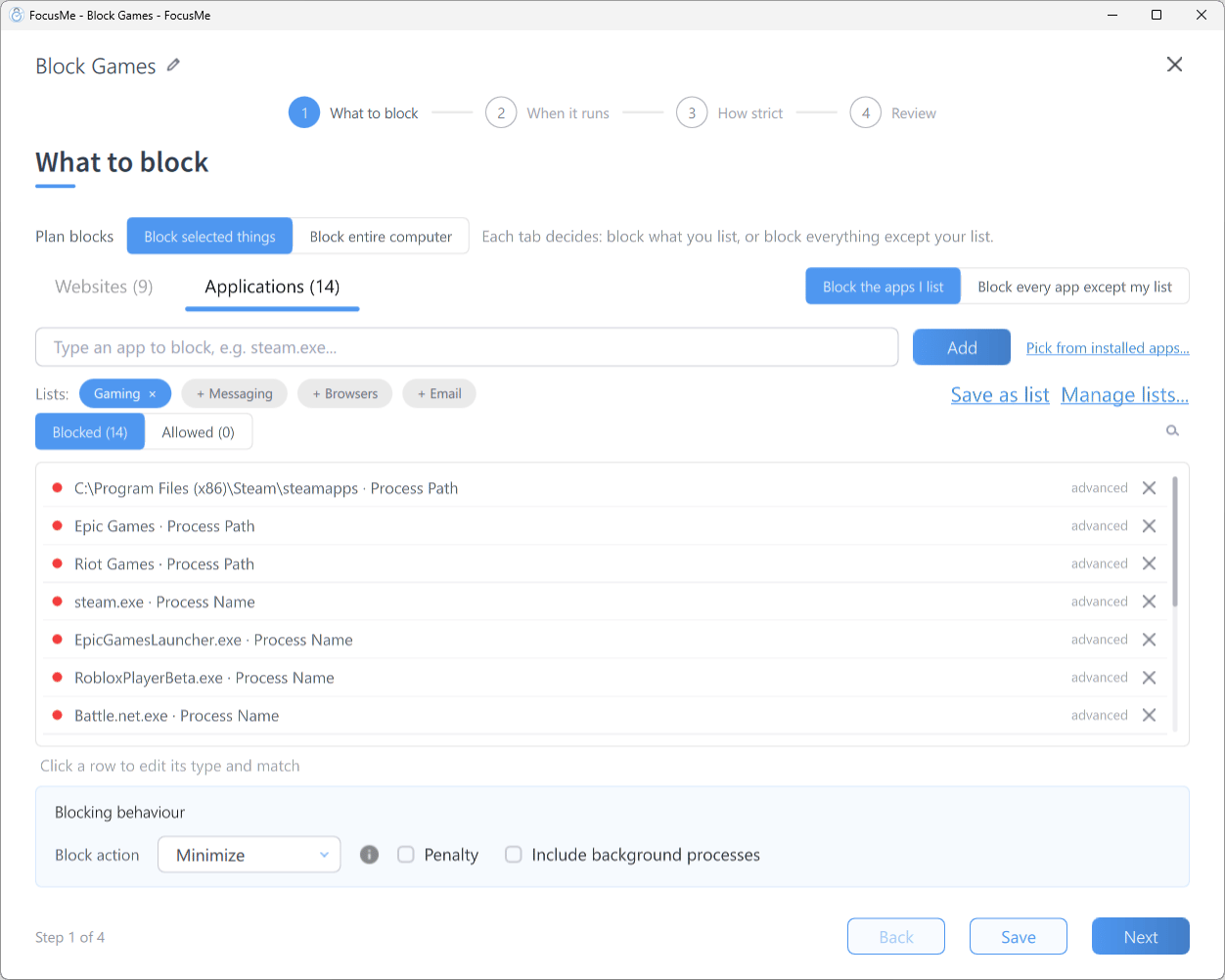
Step 1 What to block, Applications tab, with a few apps on the block list
- On the Plans tab click Add a Plan and name the plan
- On What to block, switch to the Applications tab
- Type the app’s process name into the add row (Type an app to block, e.g. steam.exe…) and click Add. A name ending in
.exeis added as a Process Name, anything else as an Application Name. Or click Pick from installed apps… to choose from a list - Click Next and choose when the plan runs on When it runs
- Click Next and choose a preset on How strict
- On Review, click Create & Enable
Picking an app
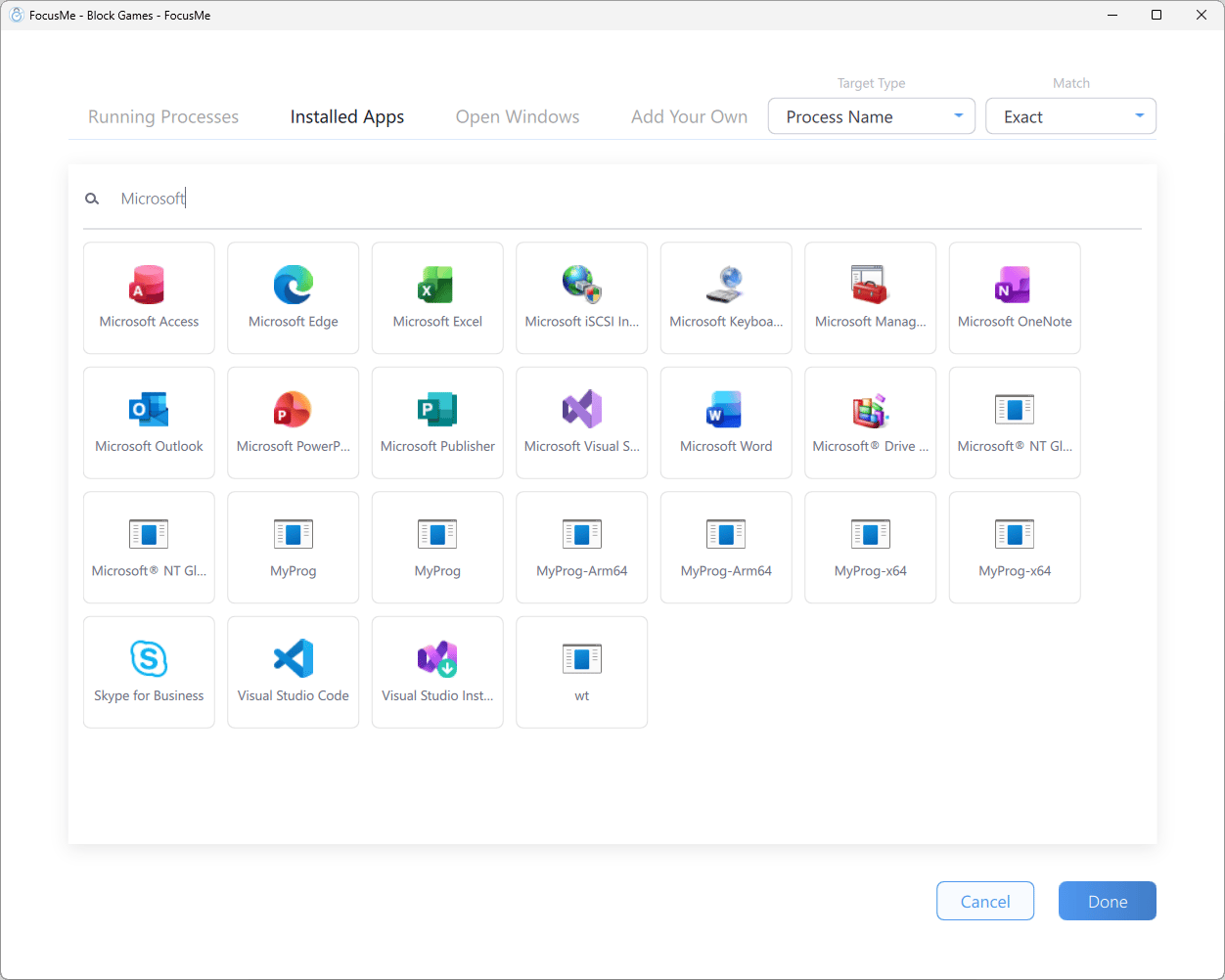
The app picker on the Installed Apps tab
Tick the apps you want, check the Target Type and Match at the top right of the picker, and click Done. Apps picked this way are added with an Exact match, so only that app is affected.
Choosing a target type
Every application entry has a type and a match. Click a row on What to block to change them.
Matches are Contains, Exact, Starts With, Ends With, Regex and Whole Word. The Helper in the sidebar shows every one of these values for any open window — see Using the Helper Tool.
What happens to a blocked app
Open the Advanced expander at the bottom of What to block to reveal Blocking behaviour. The application Block action decides what FocusMe does when a blocked app is in front:
Tick Include background processes to also block matching apps that are running without a visible window.
Blocking games
Block the game itself rather than the launcher, unless you want the launcher gone too:- Steam is
steam.exe. Blocking it removes the store, the library and every game launched through it. To block only games, see Block All Steam Games - Epic Games and other launchers work the same way: block the game executable, found under Running Processes while the game is running
- Minecraft runs as
javaw.exe; block it by Window Title containingMinecraftinstead
Windows Store apps
Store apps run under Windows system processes, so addingApplicationFrameHost.exe is the wrong approach. Use Application Name, Window Title or the Open Windows tab instead.
Block Windows Store Apps →
Learn more about blocking applications →