

Enable AI Coach
The first time you click the AI Coach button in the sidebar, you’ll be asked to enable anonymous data collection.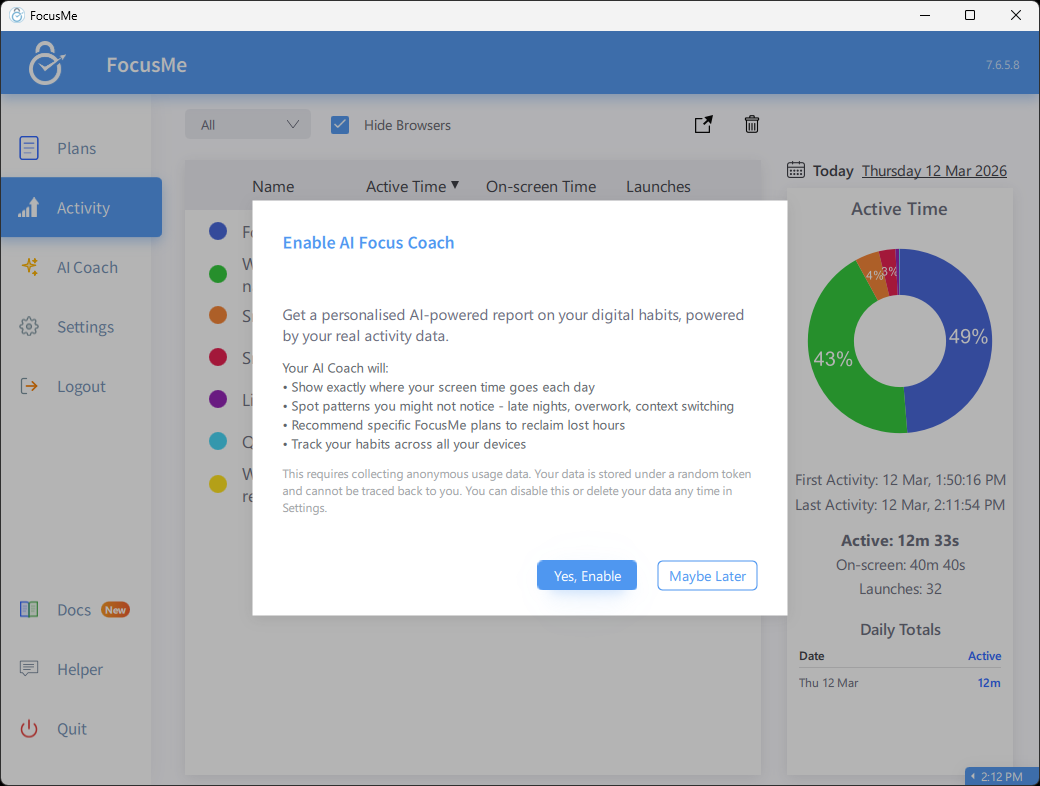
Your data is anonymised before it leaves your device. See AI Coach — Privacy and Anonymity for details.
Generate a Report
Once data collection is enabled, click the AI Coach button to open the coaching window.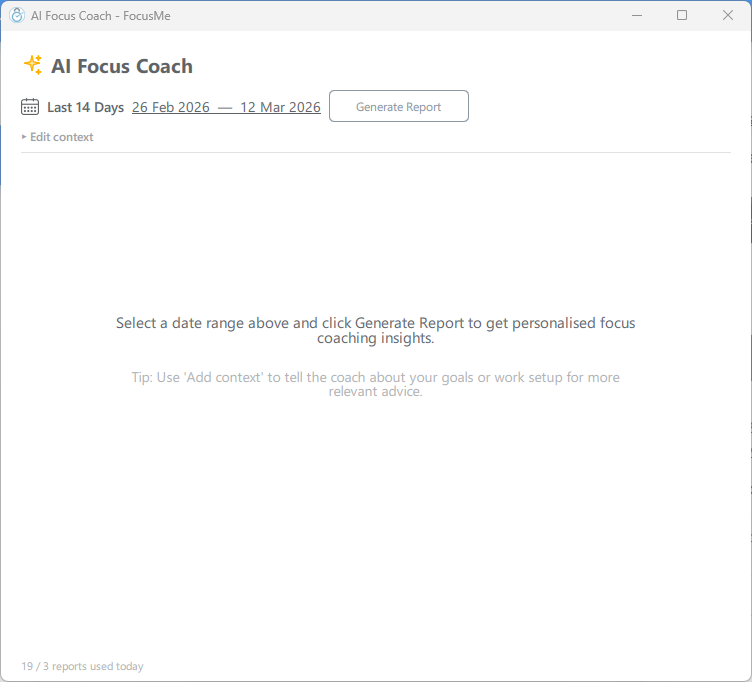
1. Choose a Date Range
Click the date range dropdown to select the period you want to analyse.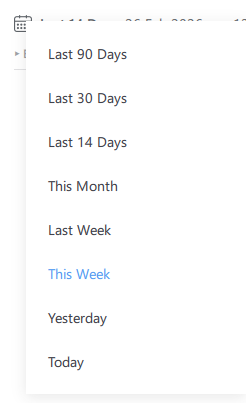
- Today or Yesterday for a single-day snapshot
- This Week or Last Week for weekly patterns
- Last 14 Days, Last 30 Days, or Last 90 Days for longer trends
- This Month for the current calendar month
2. Add Context (Optional)
Click Add context to expand a text field where you can tell the coach about your goals or work setup. This helps the AI tailor its recommendations.
- “I work from home and want to reduce social media during work hours”
- “I’m a student and need to focus on studying in the evenings”
- “I use two monitors and switch between coding and browsing frequently”
3. Click Generate Report
Click Generate Report to start the analysis. FocusMe will upload any pending activity data and then request an AI-generated report.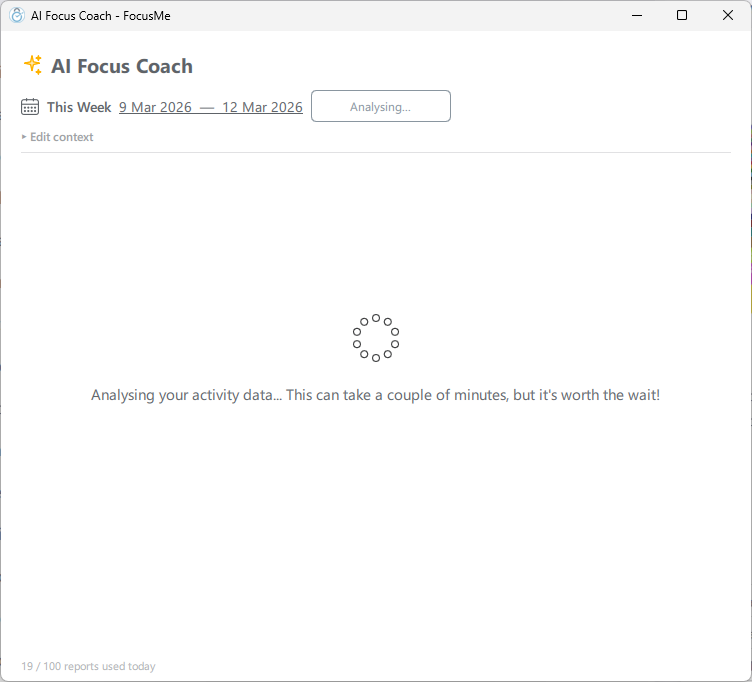
Read Your Report
Once complete, the report appears in the main area with your insights, findings, and recommendations.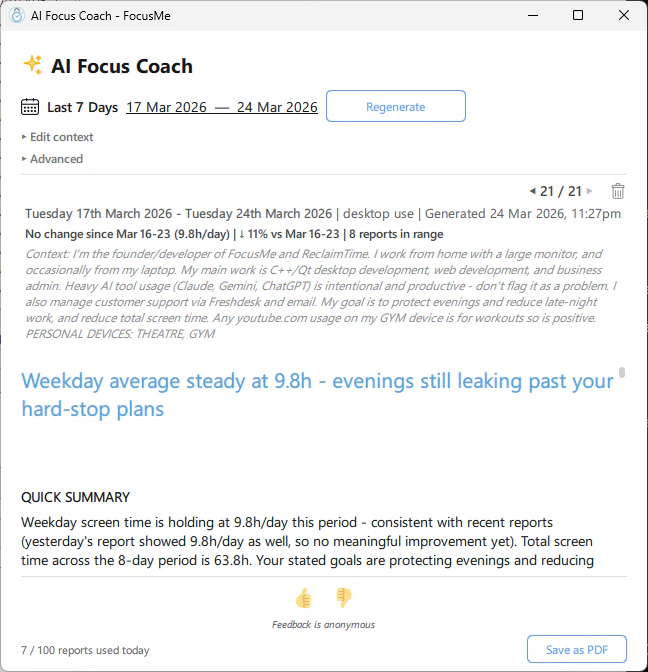
Browse and Manage Reports
Reports are saved locally on your device. Use the navigation buttons at the bottom to browse previous reports.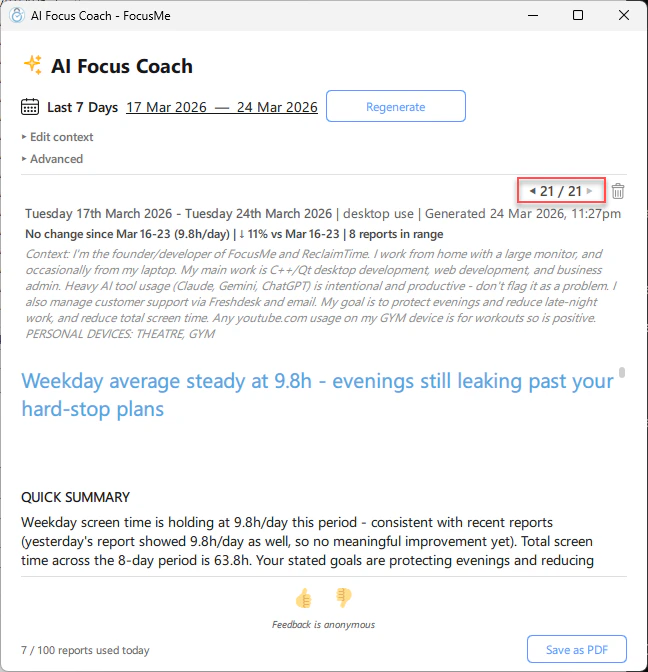
- Previous / Next — use the arrow buttons to step through saved reports
- Delete — click the delete button, then confirm to remove a single report
- Report count — shows how many of your daily reports you’ve used (e.g. “1 / 3 reports used today”)
Export as PDF
Click Save as PDF to export the current report. The PDF includes the FocusMe branding, report metadata, and the full analysis. It opens automatically in your default PDF viewer after saving.Manage Data Collection
You can control anonymous data collection from Settings.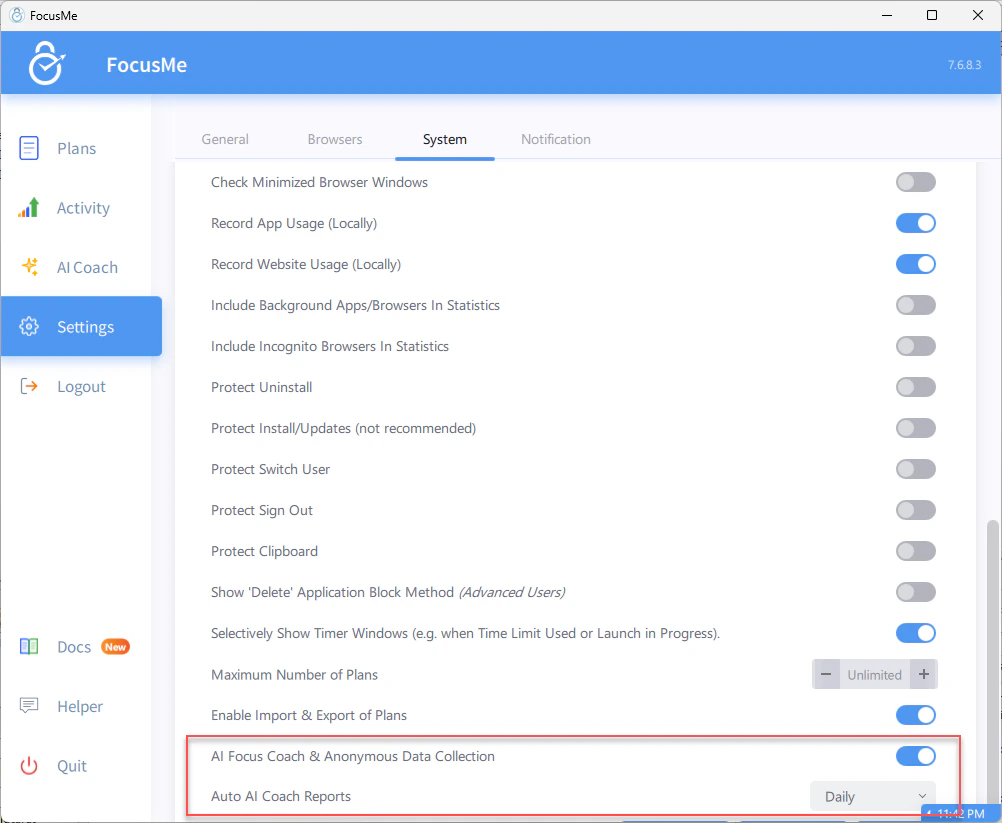
- Toggle off the “Share Anonymous Data” switch to stop collecting and uploading data. Your existing reports remain available locally.
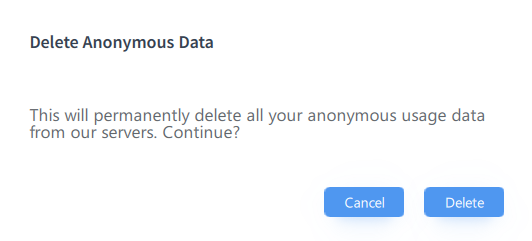
- Delete My Data — permanently removes all your anonymous data from our servers. This action cannot be undone.
Auto-Generated Reports
AI Coach can generate reports automatically on a daily or weekly schedule. When an auto-report is ready, you’ll see a notification with a headline teaser. Click the notification to jump straight to the report. To configure auto-reports:- Go to Settings
- Find the AI Coach section
- Set the auto-report frequency to Off, Daily, or Weekly
Tips for Better Reports
- Collect at least a week of data before your first report for meaningful patterns
- Enable on all devices where you use FocusMe to get a complete picture
- Add context about your goals so recommendations are relevant to your situation
- Try different date ranges — compare a productive week against a less focused one to see what changed
- Act on one recommendation at a time — create the suggested FocusMe plan, use it for a week, then generate a new report to see the impact