

Three Ways to Get Your First Plan
Until you have a plan, the Plans tab shows Nothing is blocked yet with three cards. The same options live in the toolbar at the top of the page.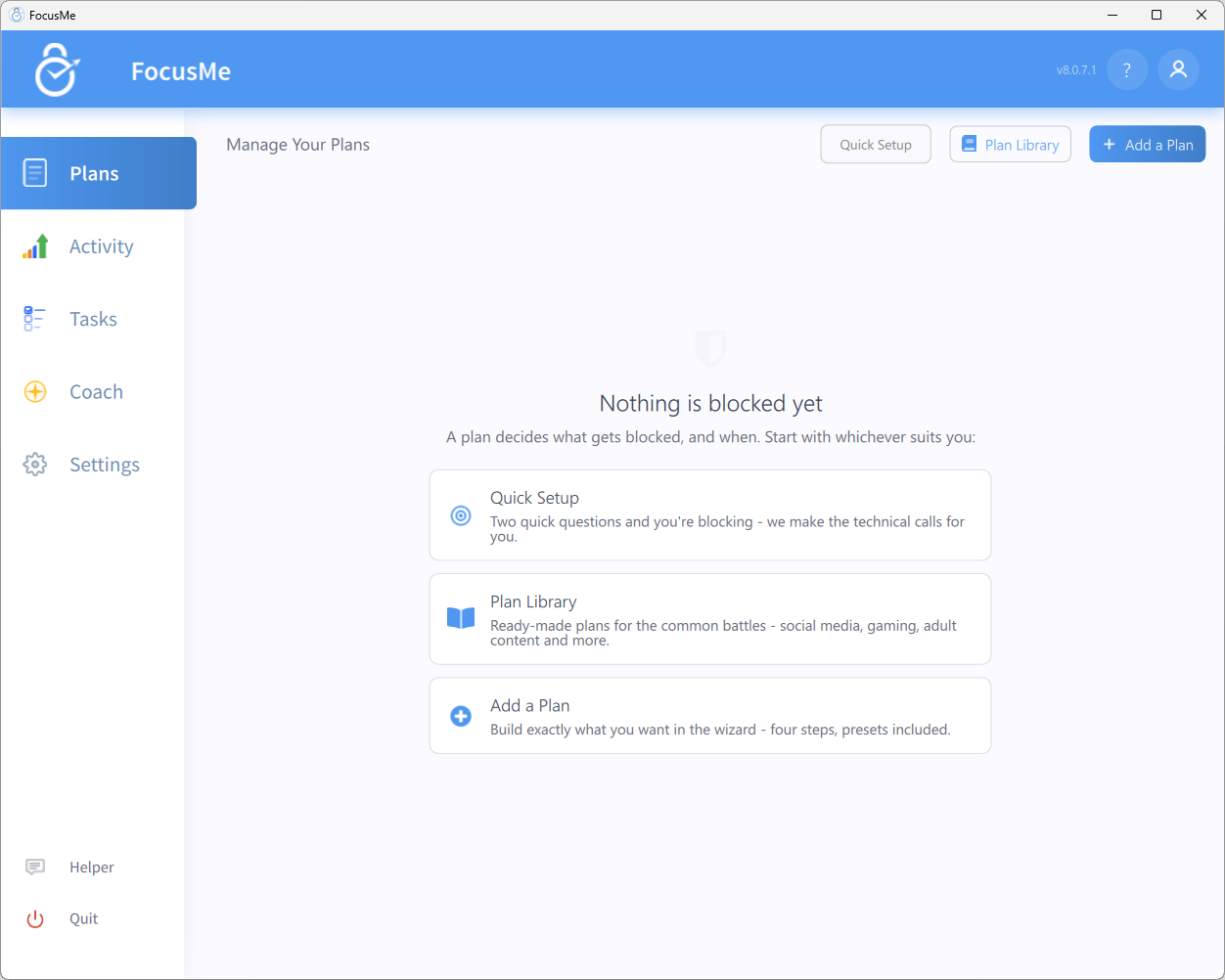
The Plans tab before you have any plans
Quick Setup
Two quick questions and you’re blocking — FocusMe makes the technical calls for you.
Plan Library
Ready-made plans for the common battles — social media, gaming, adult content and more.
Add a Plan
Build exactly what you want in the wizard — four steps, presets included.
Quick Setup
Quick Setup opens automatically the first time you run FocusMe, right after you pick a theme. You can also start it with the Quick Setup button, which is shown while your plans list is empty.Step 1: The problem
What are you fighting? Pick one or more. Each choice becomes its own plan:- Distractions at work: Facebook, YouTube, Reddit, news and 37 more · weekdays 9 to 5
- Adult content: 460+ adult sites · always on, locked down
- Social media: Facebook, Instagram, X, TikTok and 7 more · every day
- Gaming: Steam, Epic, Roblox, Battle.net and their games · every day
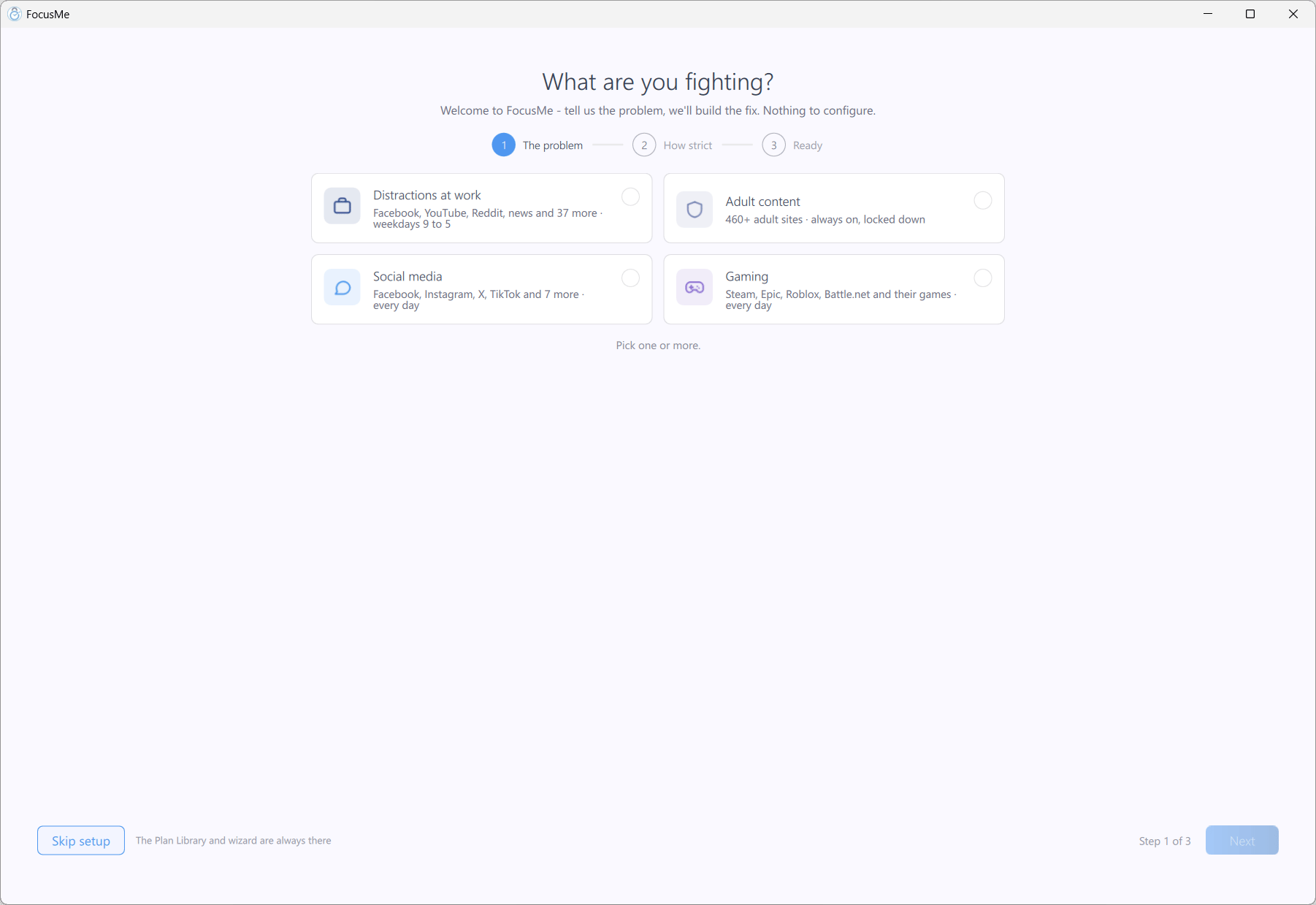
Step 1 — What are you fighting?
Step 2: How strict
How bad is it, honestly? This sets how hard it is to talk yourself out of stopping:- Gentle Guidance — type 5 random characters to stop. Pause freely.
- Firm but Flexible — 10 random characters, then a 2-minute wait. 3 pauses a day.
- Lock it Down — 25 random characters typed perfectly, then a 10-minute wait. No pauses.
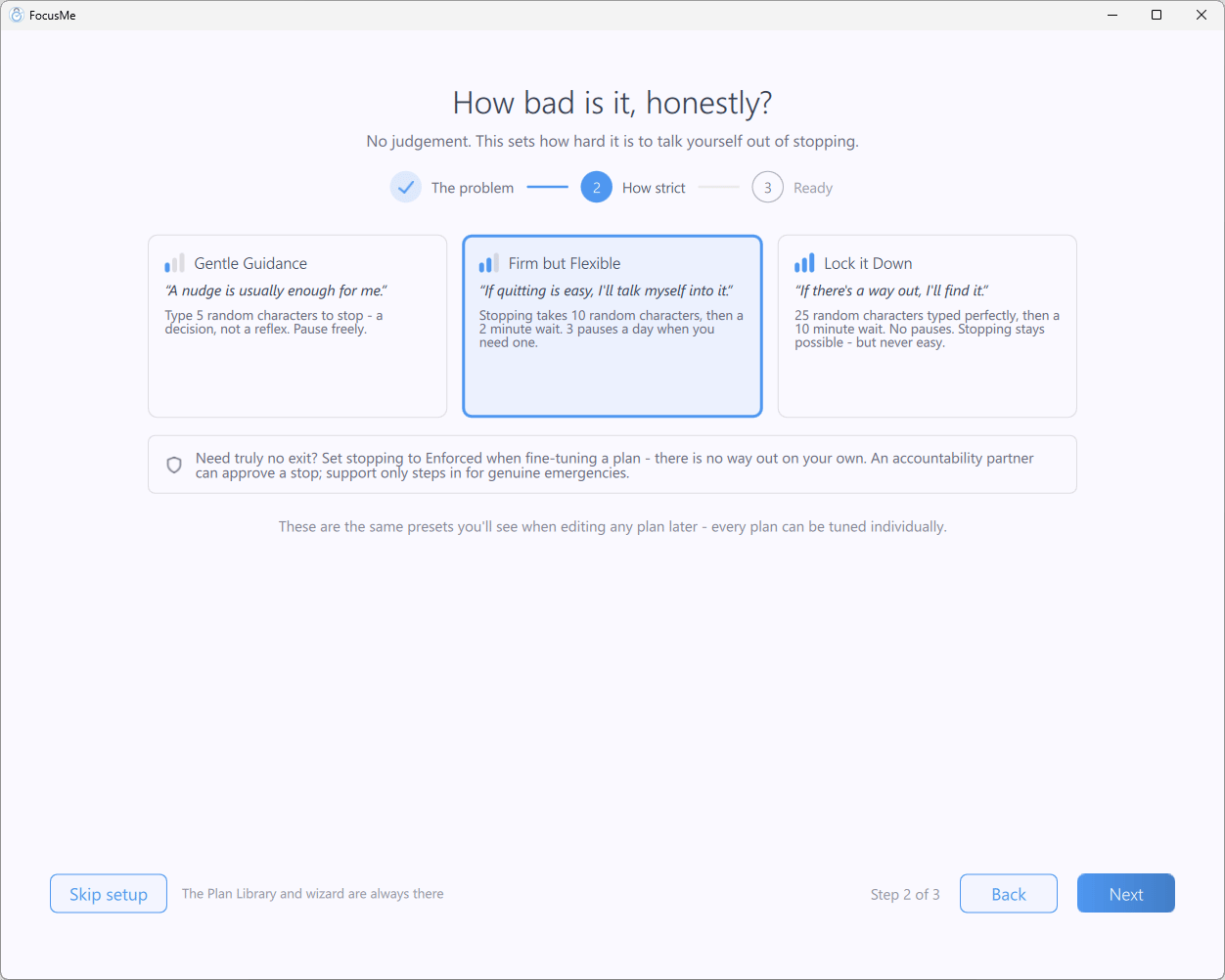
Step 2 — How bad is it, honestly?
An Adult content plan always uses Lock it Down, whatever you pick here.
Step 3: Ready
Your plans are ready. Each card shows what the plan Blocks, its Schedule (Always on (24/7), Weekdays 9-5, or On demand — the suggested one is marked), and its Protection. Switch a plan off with its Enabled toggle if you’re not sure, or click Fine-tune → to open it in the wizard. Switch on Add screen breaks for a 5-minute break every 25 to 55 minutes (the stricter your answer to step 2, the more often), weekdays 9 to 5. The screen is locked during each break. Then click Start blocking. If you’ve switched every plan off, the button reads Save plans: the plans are created but none of them starts. When your plans include Distractions at work, Social media or Gaming, Start with a 10-minute focus session is switched on for you. It blocks the sites in your new plans for 10 minutes straight away, so you can see FocusMe block for real, then your plans take over. During it, a Time Limit plan that still has time left shows Counting rather than blocking. The session ends by itself. With only Adult content picked, the Ready step says Blocking starts straight away instead.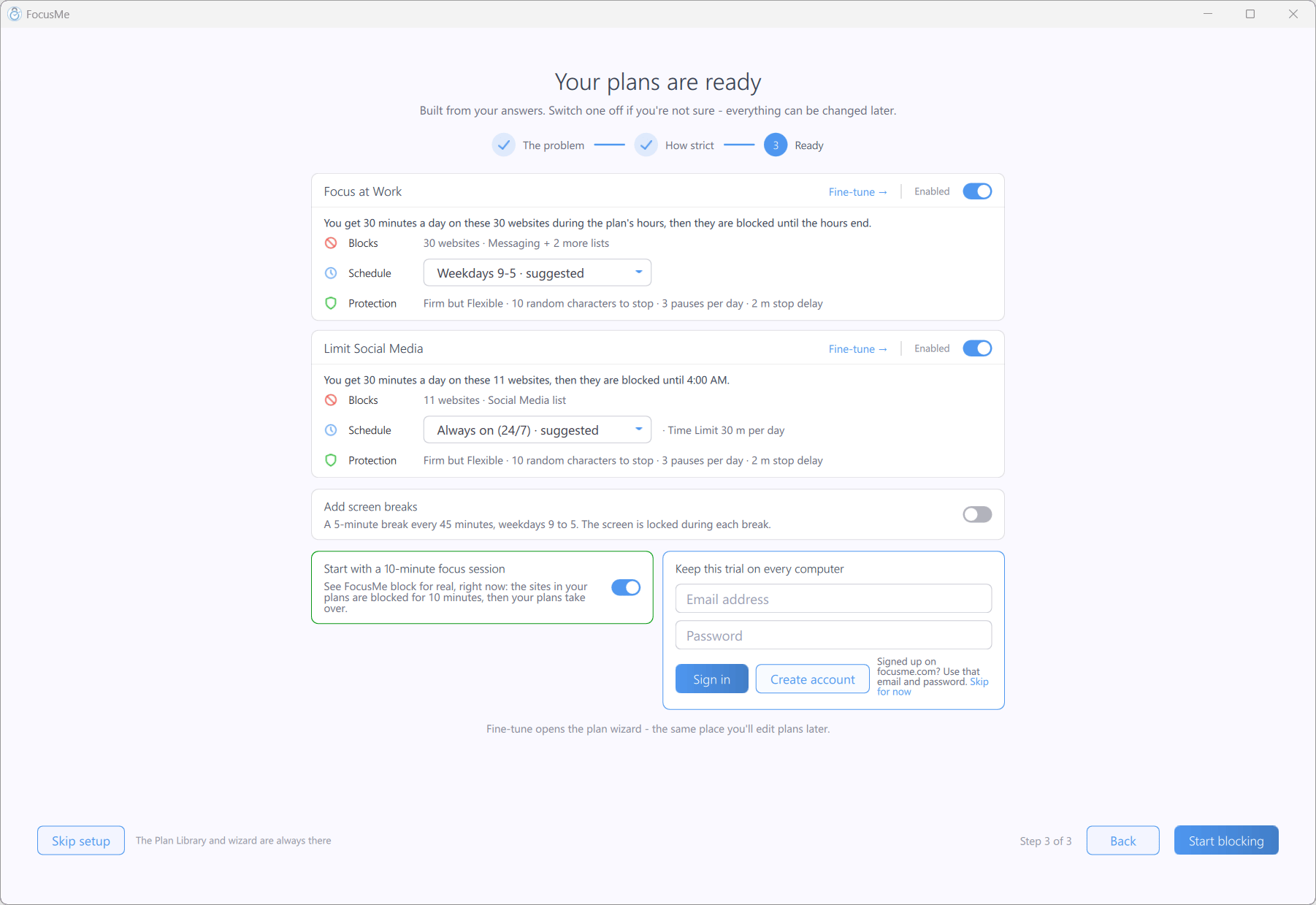
Step 3 — Your plans are ready
Plan Library
Prefer to start from something that already works? Click Plan Library.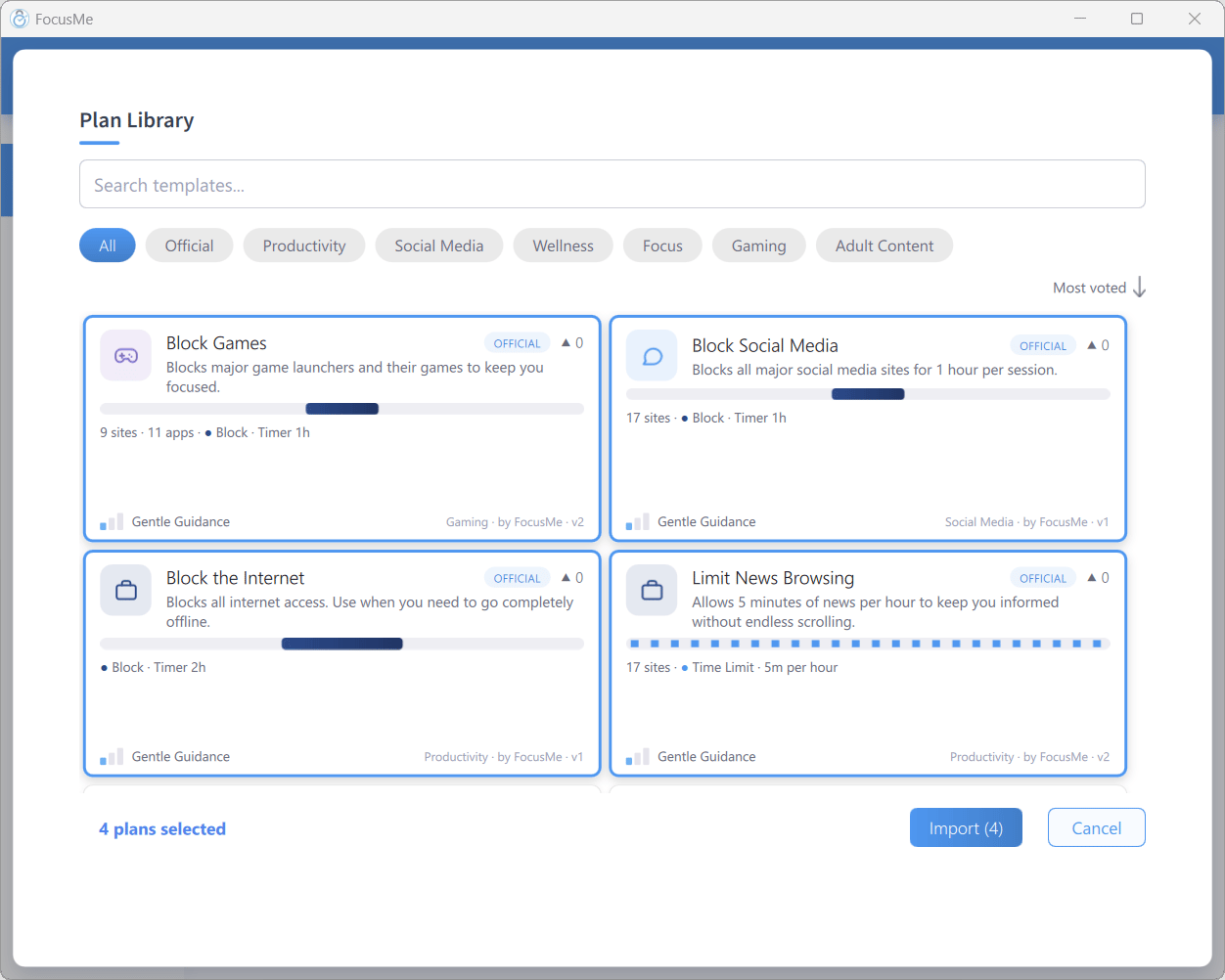
The Plan Library
- Browse the cards, or narrow them down with Search templates…, a category chip (Official, Social Media, Gaming, and so on), or the sort menu (Most voted, Most imported, Newest, A-Z)
- Click one or more cards to select them
- Click Import (N)
Build a Plan with the Wizard
Let’s build a plan that blocks social media during work hours. Click Add a Plan to open the wizard. The header holds the plan name — it’s pre-filled withFocus Plan; change it to something like Focus at Work.
Step 1: What to block
On the Websites tab, type a site into Type a site to block, e.g. youtube.com… and click Add. Repeat forfacebook.com, instagram.com, tiktok.com, and any others.
Quicker still: in the Lists: row, click the ready-made Social Media list to add the lot in one go.
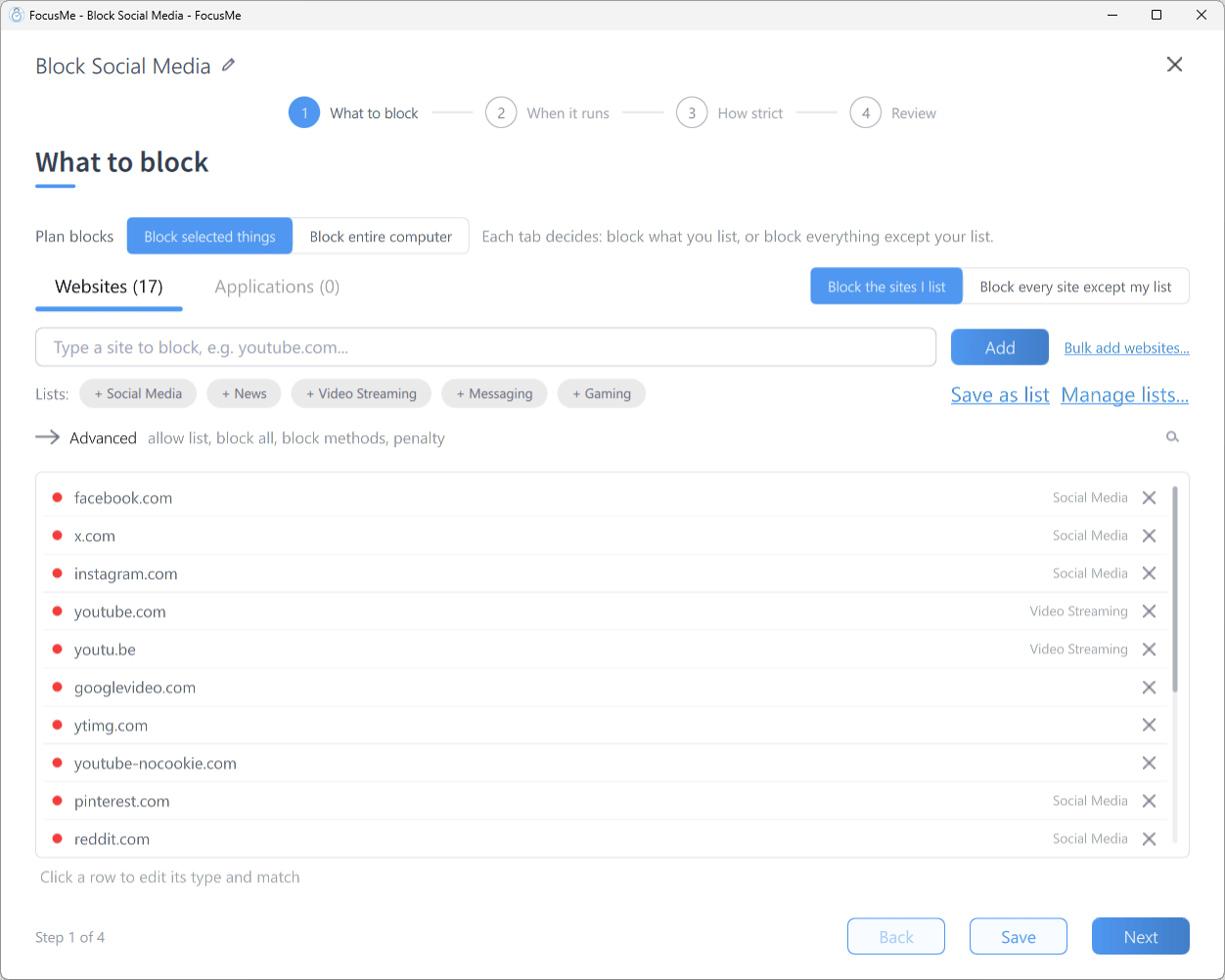
Step 1 — What to block
Step 2: When it runs
Pick a timing at the top of the page:
Choose Weekly Schedule and click the Office Hours preset chip — that gives you Monday to Friday, 9:00 to 17:00. Adjust by dragging on the timeline, or pick days and use the Weekdays, Weekends, or 24/7 chips.
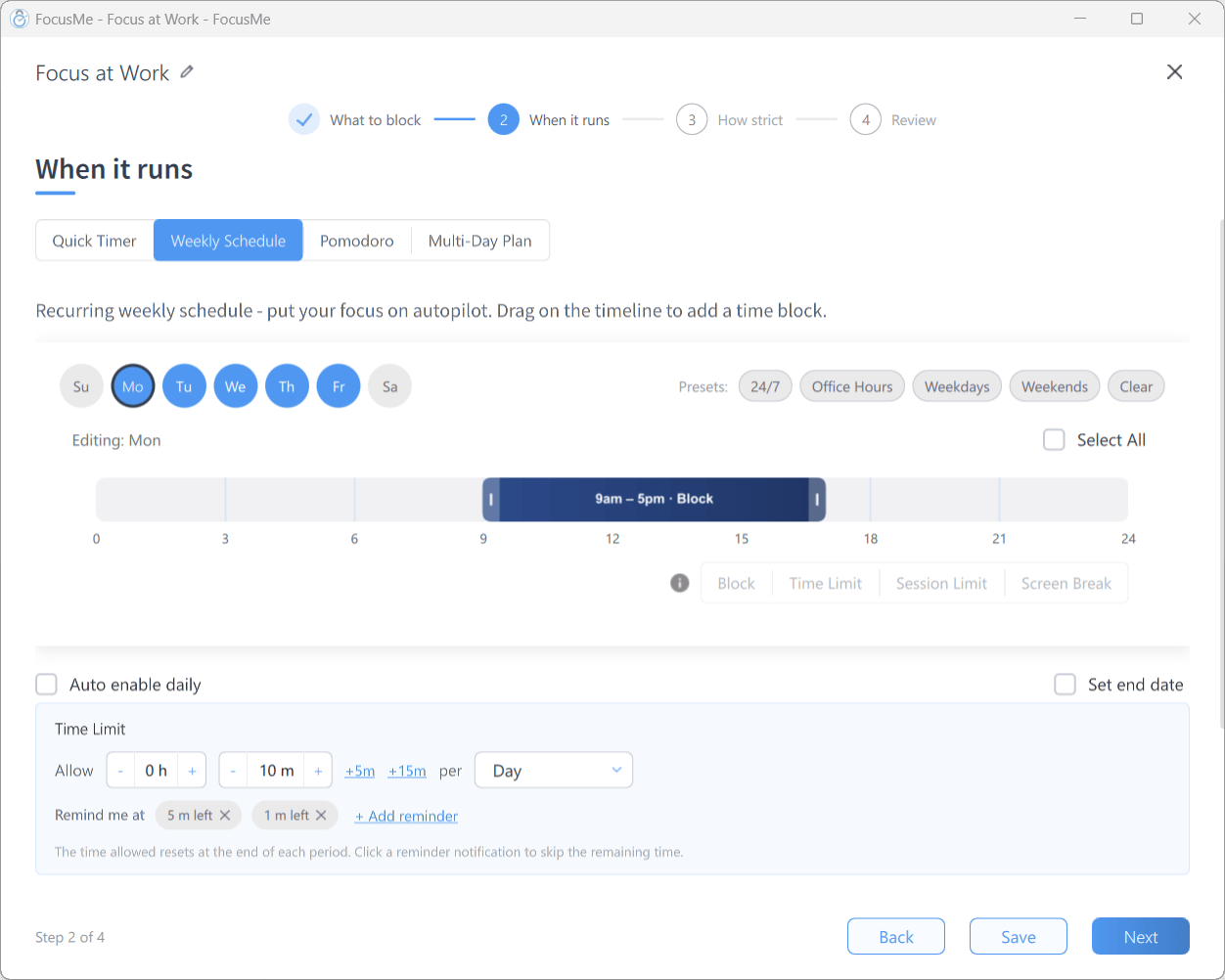
Step 2 — When it runs, with the Office Hours preset applied
Step 3: How strict
Choose a protection preset. Gentle Guidance is selected for new plans and is a good place to start: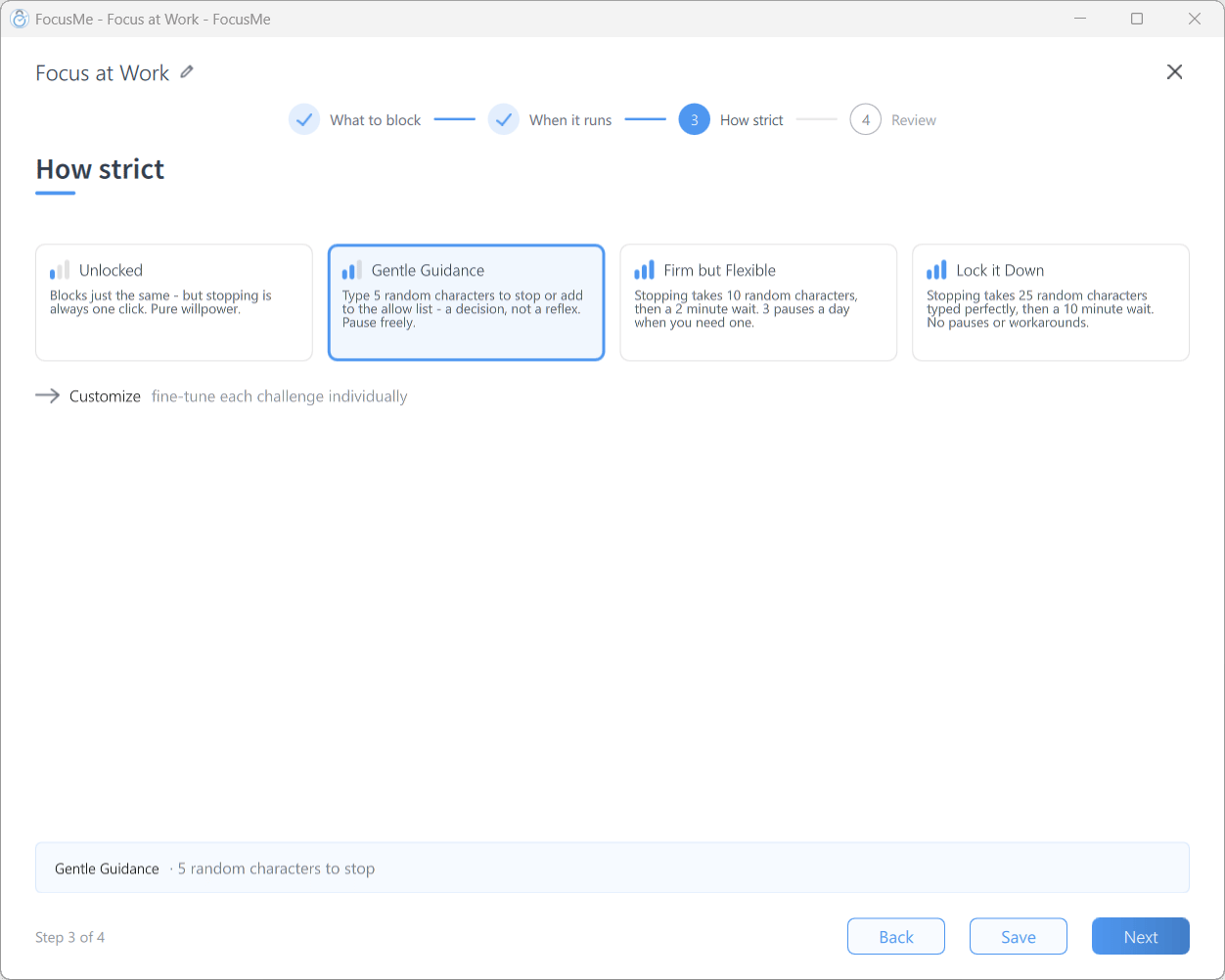
Step 3 — How strict
Step 4: Review
Check the Blocks, Schedule, and Protection rows — each has an Edit link. Expand Options to add a description, choose notifications, show the floating timer, or change the idle timeout.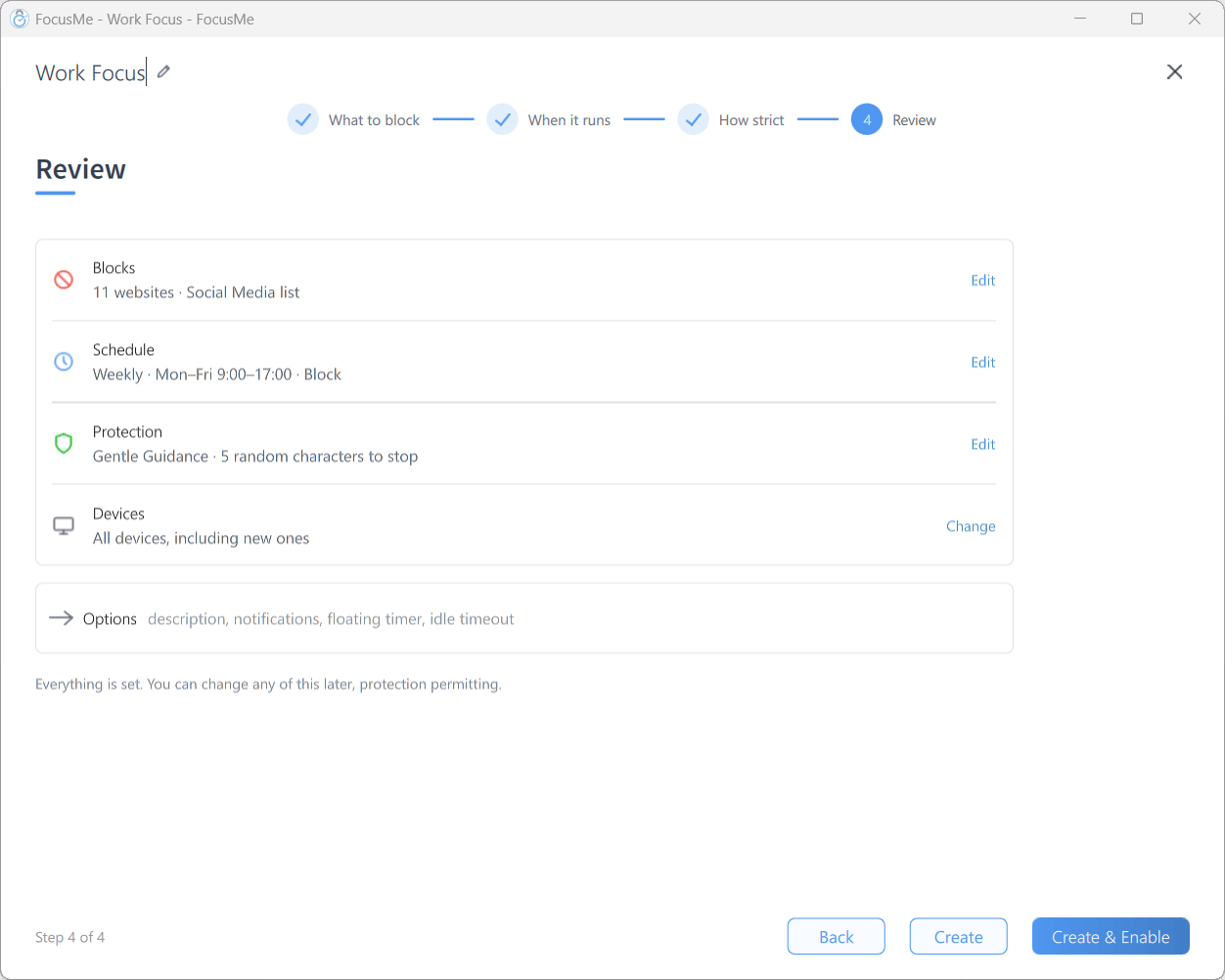
Step 4 — Review
Your Plan is Live
Your plan appears in the Plans list with its progress ring, targets, timing, and strictness.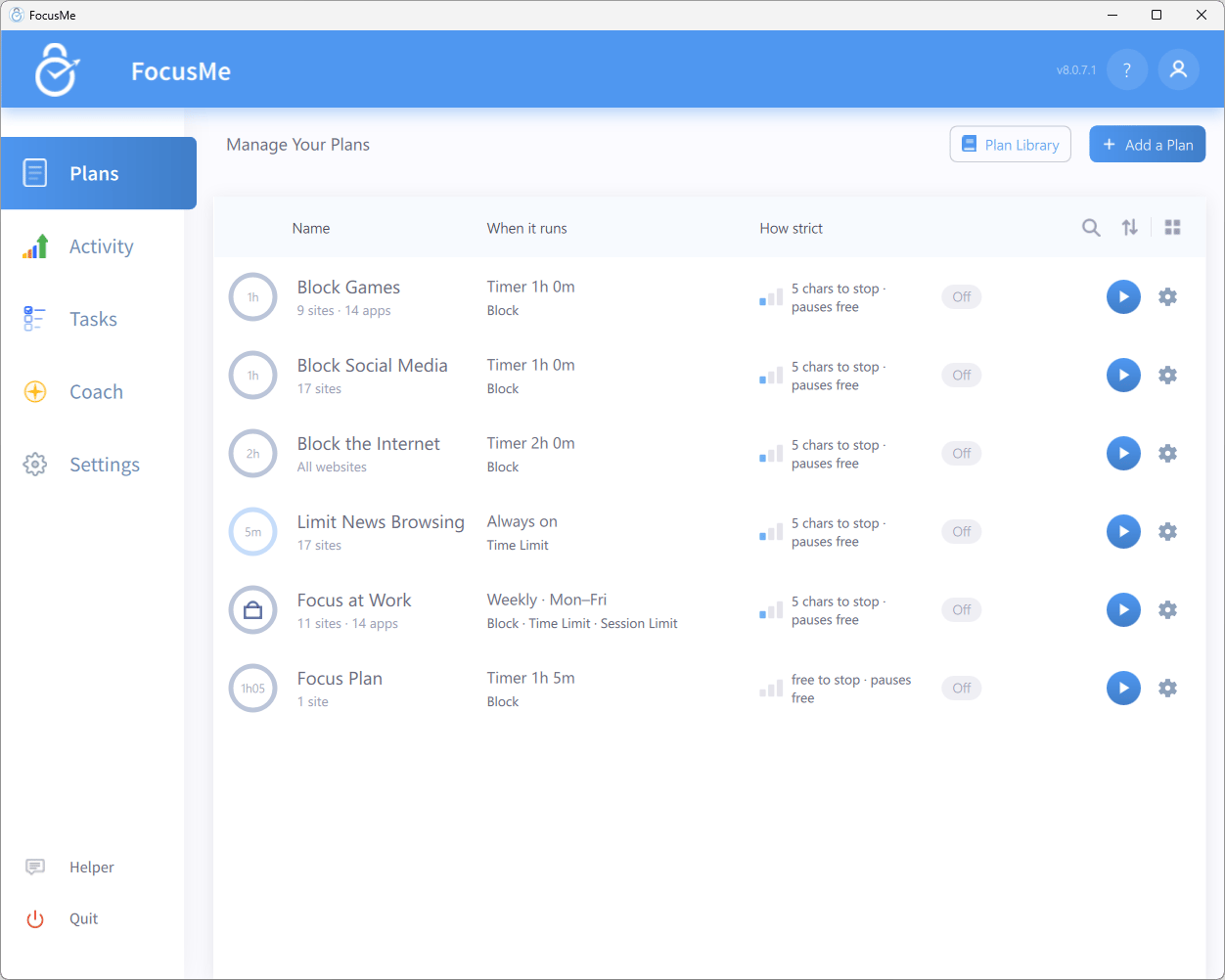
Your new plan in the Plans list
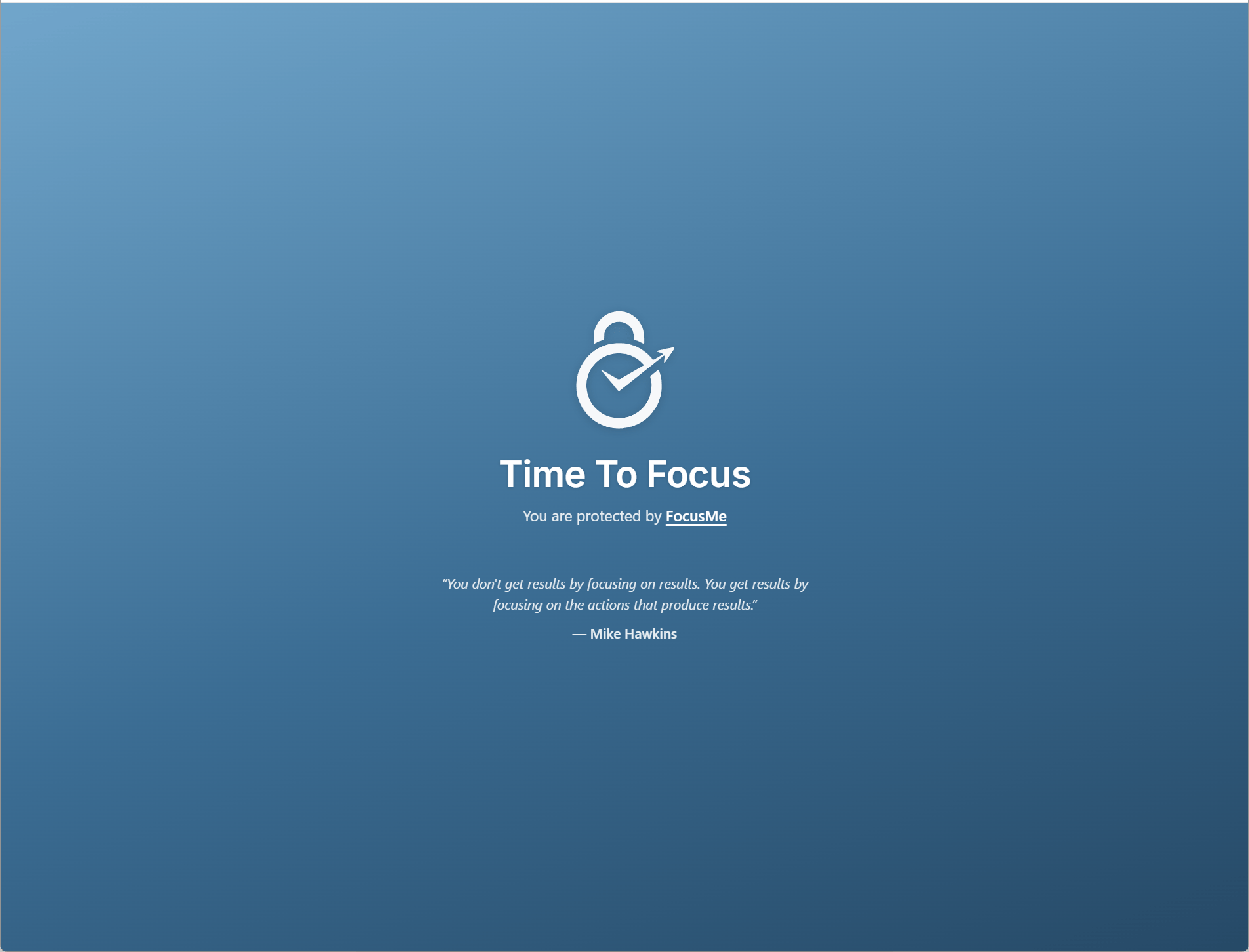
What you see when a website is blocked
What’s Next?
Block Applications
Block desktop apps alongside websites.
Protect Your Plan
Make plans harder to bypass when temptation strikes.
Install the Browser Addon
Get the most accurate website blocking.
See Your Activity
Find out where your time went and how many distractions were blocked.