

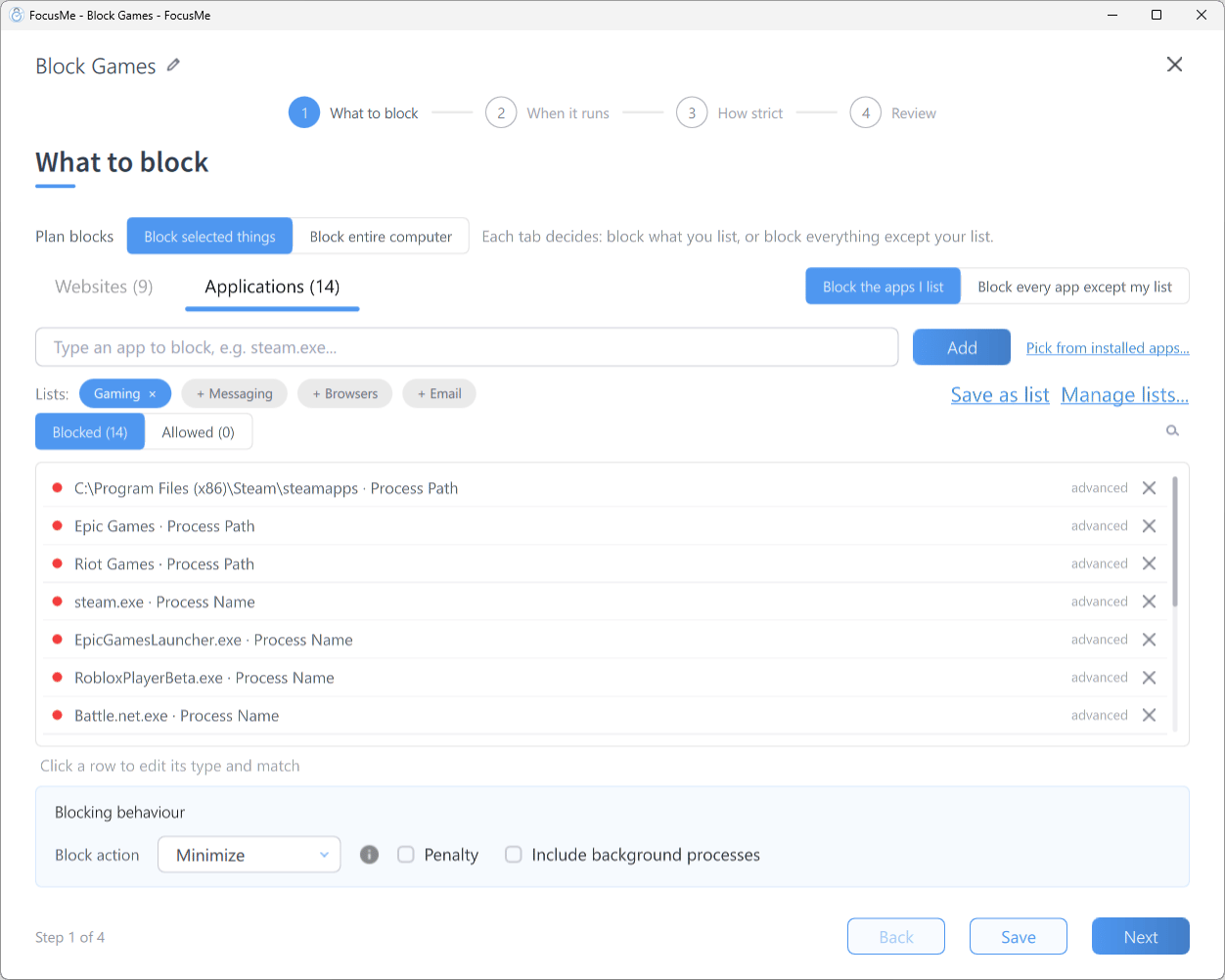
Step 1 What to block — the Applications tab with a few apps in the block list
Adding an Application
Type into the add row (Type an app to block, e.g. steam.exe…) and press Enter or click Add. An entry ending in.exe is added as a Process Name, anything else as an Application Name, both with an Exact match. After two characters FocusMe suggests matching installed apps; entries already in the list are marked Already added. Duplicates and entries that already sit on the other list are flagged, with Move to block list / Move to allow list offered where appropriate.
Pick from installed apps
Click Pick from installed apps… to open the app picker. It has four tabs: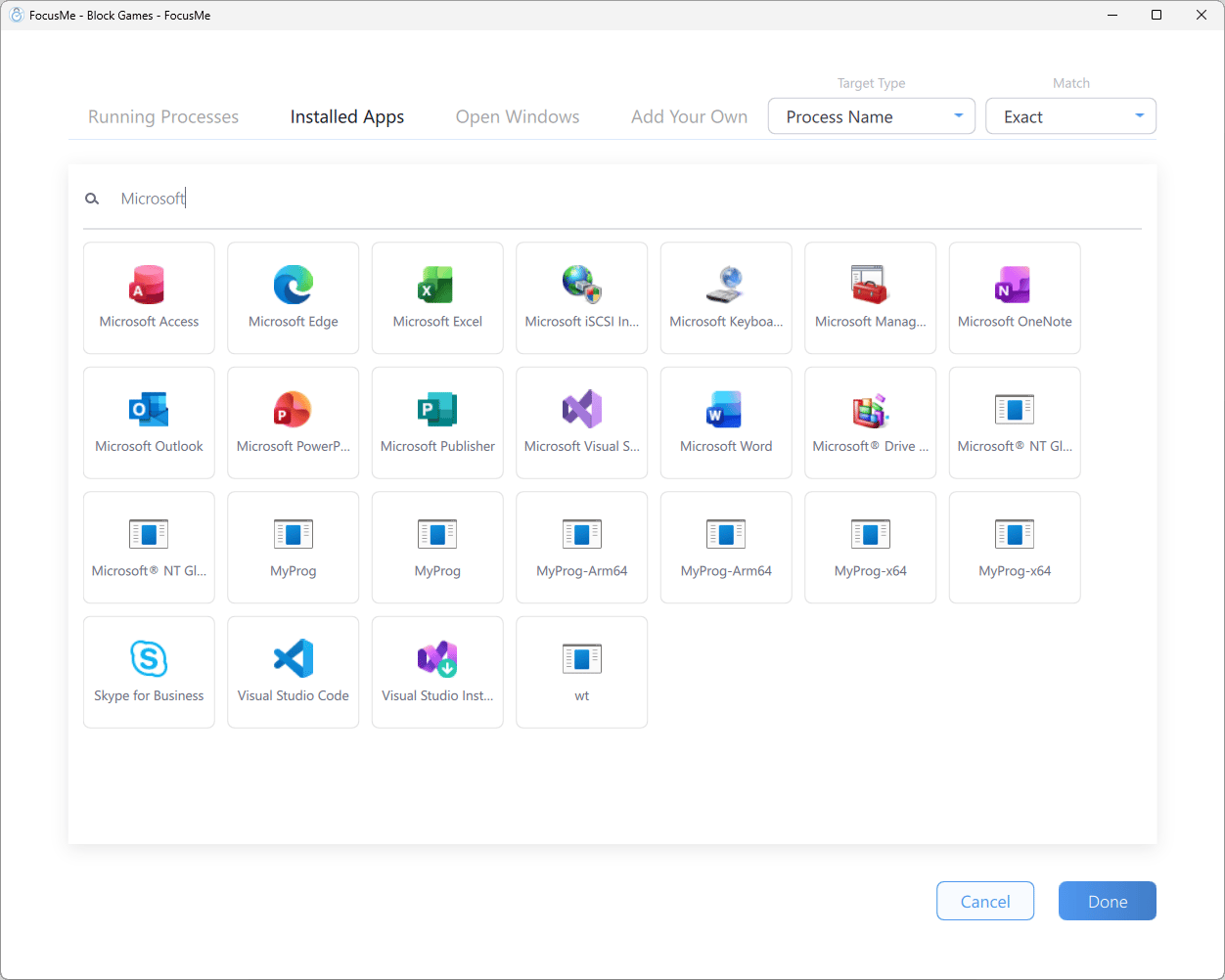
The app picker — Installed Apps tab
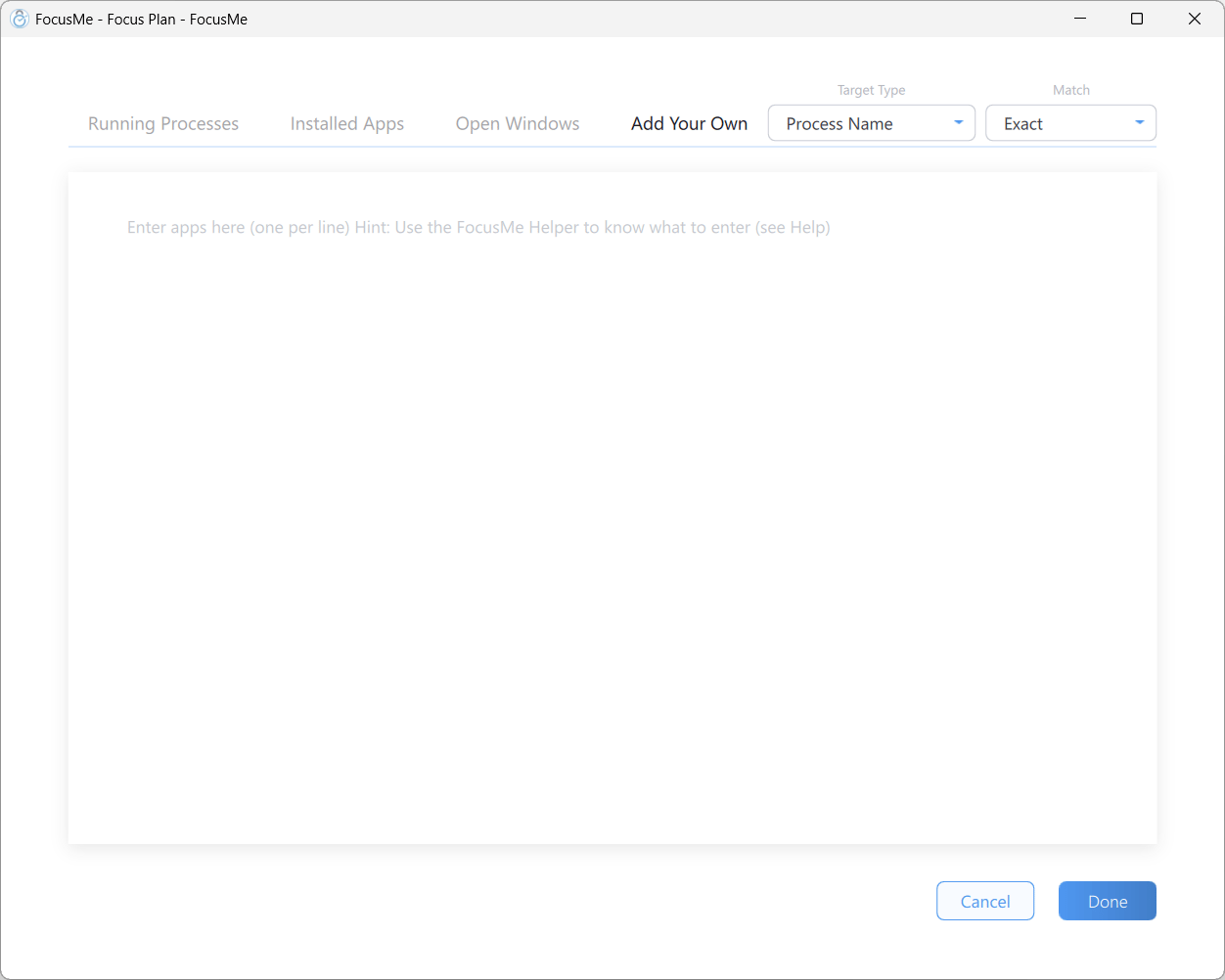
The app picker — Add Your Own tab
Editing a Row
Click any row to open the inline editor (Click a row to edit its type and match), where you can change its type, its value and its match.Target Types
Match Types
Common Apps to Block
Saved Lists
The Lists: row offers FocusMe’s ready-made app lists as chips — click one to load it. Save as list saves your current targets as a list of your own, and Manage lists… lets you save, import, export, edit, delete or Restore defaults. Lists work the same way as on the Websites tab — see Blocking Websites.Allowed List and Blocking Everything
Beside the Websites and Applications tabs, a switch chooses between Block the apps I list and Block every app except my list.- Block every app except my list blocks every app and allows only the apps on your allowed list.
- Click Advanced (allow list, block all, block methods, penalty) to reveal the list switch and the blocking behaviour options. The segmented control switches between the Blocked list and the Allowed list. Anything on the allowed list takes priority.
WINWORD.EXE, EXCEL.EXE and chrome.exe during work hours.
An allowed app can be temporary: it is removed on its own when its time is up. Allow for at most in Blocking behaviour sets the longest time an entry added while the plan runs may last. See Adding to a running plan.
Block entire computer
At the top of What to block, Plan blocks chooses between Block selected things and Block entire computer. With Block entire computer, a full-screen break covers every app and website while the plan is active. The Websites tab is hidden, and the Applications tab lists apps that can delay the break from starting, such as a video call app. See Block your PC at night.Blocking Behaviour
The Blocking behaviour panel (under Advanced) sets the Block action for applications:
Also in this panel, on the Applications tab:
- Include background processes — also block matching apps that are running in the background, not just the one in front.
- Penalty — block all apps after repeated violations within a reoffence window. See Penalty.
How App Blocking Works
While a plan is active FocusMe watches for matching apps. When one is launched or brought to the front it is minimised, closed, killed or hidden according to the block action, and a notification tells you which plan blocked it.Windows Store Apps
Microsoft Store apps run inside Windows host processes rather than their own executables. If you addApplicationFrameHost.exe or WWAHost.exe, FocusMe shows a Windows System Process warning: blocking ApplicationFrameHost.exe blocks every Store app at once, including Settings, Calculator and Photos. You can Cancel or Add Anyway.
To block a single Store app instead:
- block it by Application Name (for example
Netflix), or - block it by Window Title, or
- open the app, then pick it from the Open Windows tab of the app picker.
Platform Differences
On macOS, grant FocusMe Accessibility permission in System Settings so it can detect application windows. See macOS.