

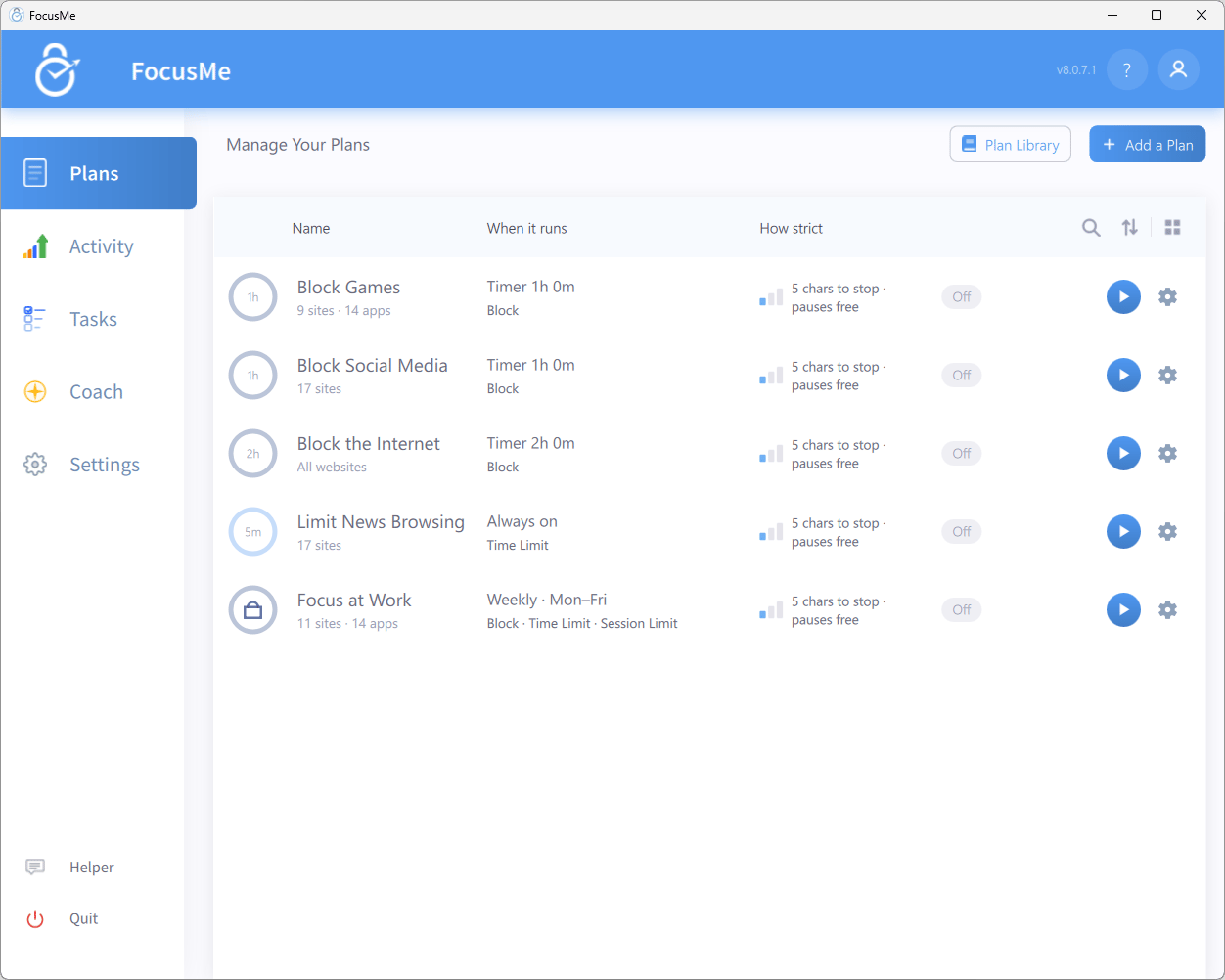
The Plans tab — FocusMe's main window
What Can FocusMe Do?
Block Websites
Block specific sites like Reddit or TikTok, or block every website except the ones on your allowed list.
Block Applications
Block any desktop application — games, messaging apps, browsers, or anything else that pulls your attention.
Set Time Limits
Give yourself a daily budget of distraction time (say, 30 minutes of social media) and let FocusMe enforce it.
Enforce Screen Breaks
Lock the screen at regular intervals to protect your eyes and prevent burnout.
Lock Yourself Out
Pick a protection preset from a gentle nudge to a full lock-down, so stopping a plan takes a real decision.
See Where Your Time Goes
The Activity tab shows your active time, the distractions FocusMe blocked, and weekly recaps.
How Plans Work
Everything in FocusMe revolves around plans. A plan decides what gets blocked, and when. You build one in a four-step wizard, and every step answers a single question:
A final Review step summarises the plan before you click Create & Enable.
You can run as many plans as you like at once. One plan can block social media during work hours while another enforces a screen break every 45 minutes.
Too many choices? Quick Setup asks two questions and builds plans for you, and the Plan Library has ready-made plans for the common battles. See the Quick Start.
A Tour of the Sidebar
Helper and Quit sit at the bottom of the sidebar. While you are on a trial, a card above them shows the days left, with an Upgrade button and a Have a license? Activate link.
At the top right of the window, the ? icon opens these docs and the account icon opens the account menu: Sign in and Activate a license while you are logged out, or your user name, My account and Log out once you are signed in.
Supported Platforms
A browser addon for Chrome, Firefox, Edge, Safari, and other Chromium- and Gecko-based browsers works alongside the desktop app for the most accurate website blocking. See Browser Extension.
Next Steps
Install FocusMe
Download and set up FocusMe on your computer.
Quick Start
Get your first plan running in a few minutes.
Plans Overview
Understand the Plans dashboard and the anatomy of a plan.
Plan Protection
Choose how hard it should be to bypass a plan.