

Requirements
FocusMe needs iOS 16 or later. Install it from the App Store.First Run
- Welcome to FocusMe. Tap Get Started.
- Allow Screen Time Access. Tap Allow Screen Time, then allow access in the box iOS shows. If you declined, you can grant it later from the Allow Screen Time access row in FocusMe’s Settings.
- Stay in the Loop. Tap Enable Notifications to hear when a plan starts, is about to end or reaches a limit, or Not now.
Plans
The Plans tab lists your plans as cards. Each card shows the plan’s name, what it blocks (for example 2 apps · 3 sites), when it runs, its protection and a circle with the time left or the time allowed. Tap a card to open it. The Blocks, Schedule and Protection rows each have Edit, which opens the wizard at that step. A stopped plan has Start and Delete; a running plan has Stop… and must be stopped before it can be deleted. To create a plan, tap Add a Plan. The Plan Wizard has the same four steps as on your computer: What to block, When it runs, How strict and Review.What to block
What to block
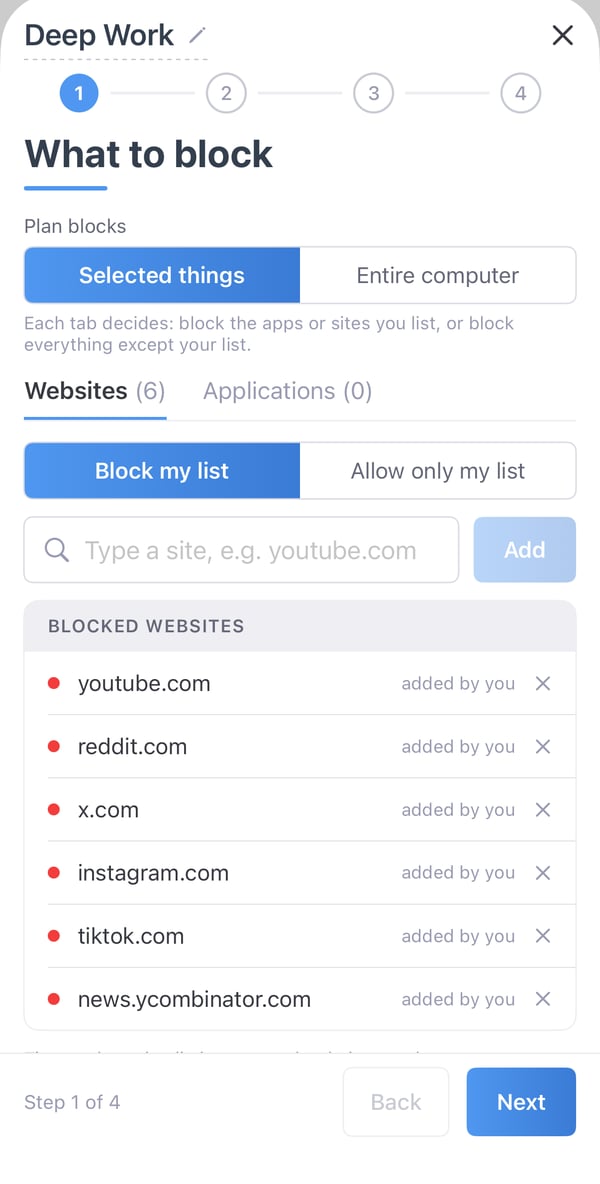
- Applications. Tap Choose apps and categories to open Apple’s app picker, and tick apps or whole categories. Block my list blocks what you choose. Allow only my list keeps the apps you choose usable and blocks every other app on the iPhone while the plan runs; calls always work.
- Websites. Type a site, such as
youtube.com, and tap Add. A site covers its subdomains too. Sites are blocked in Safari and other browsers. Allow only my list blocks every website except the ones you list, and iOS also turns on its adult-content filter.
When it runs
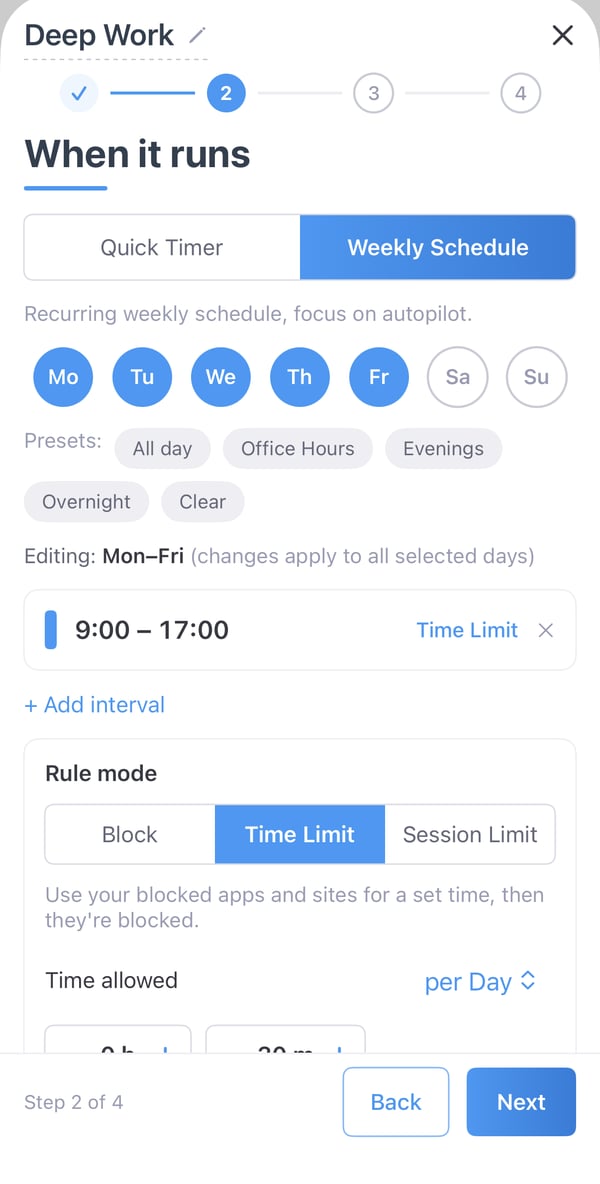
- Quick Timer runs for a set time once you start it. Set the Session duration, or tap +10m or +30m. iOS needs a timer of at least 15 minutes.
- Weekly Schedule runs on the days and hours you choose. Pick the days, then use a preset (All day, Office Hours, Evenings, Overnight) or add your own intervals. Each interval needs at least 15 minutes.
When it runs
Pomodoro and Multi-Day plans, and weekly plans with different hours on different days, are created in FocusMe on your computer. They run on the iPhone as set there, and the wizard shows Scheduled on desktop instead of letting you change the schedule. Everything else about the plan can still be changed on the iPhone.
How strict
Choose how hard the plan is to stop:
For a plan you cannot stop yourself while it is active, open Customize and set the stop type to Enforced. Customize also lets you choose Random text with your own number of characters and Perfect Entry, Own password, a separate challenge While on standby. See Plan Protection.
The iPhone app has no Pause button: pausing is done in FocusMe on your computer.
While a plan is running you can make it stricter, but not looser: This plan is running. You can make it stricter now. To loosen anything, stop the plan first.
Review
Check the plan and tap Create & Enable (or Create to save it without starting it). When you are signed in, the Devices row chooses where the plan runs.The Block Screen
When you open a blocked app or site, iOS shows FocusMe’s block screen in its place: [app or site] is blocked, with the plan’s name and, where it applies, when the block ends, for example until 17:00 or time’s up until midnight. Tap OK to close it. Each blocked attempt appears on the Activity tab’s Timeline.Stopping a Plan
Open the card and tap Stop…. What happens next depends on the plan’s protection:- Unlocked: confirm with Stop Plan. Blocking ends straight away.
- Gentle Guidance, Firm but Flexible, Lock it Down or Random text: type the characters shown. With Perfect Entry on, one wrong character starts a new challenge.
- Own password: type the plan’s password.
- Enforced: you cannot stop the plan yourself while it is active.
Get help with a plan
Get help with a plan, in Settings, sends a request to FocusMe Support, the same as on your computer: I want to stop this plan, My plan blocks something it should not, or FocusMe is not working as it should. Give a reason and tap Send Request. See Assisted Stop.Sync With Your Computer
Sign in under Settings → Sign in with the same account as on your computer, and your plans sync both ways. Plan sync is part of FocusMe Premium.- The first time you sign in, FocusMe may ask Plans from your other devices: tap Yes to run your Unlocked plans from your computer on the iPhone too.
- Each plan chooses its devices in the Sync to Devices list, the same list as in the desktop app. A plan must stay on at least one device.
- A computer plan that blocks the entire computer (a screen break, for example) blocks apps on the iPhone only when Block all apps on mobile devices is on. Calls always work.
- Apps are picked on each iPhone (see What to block). Websites sync.
- Some schedules and limits are set only in FocusMe on your computer. The iPhone runs them and shows them without letting you change them, and time used on the iPhone counts towards a shared limit.
- You cannot log out while plans are on: Cannot logout while plans are enabled!
Premium and Your Account
FocusMe Premium adds plan sync and activity sync across your devices. Open Settings → FocusMe Premium to subscribe through the App Store, monthly or yearly:- FocusMe Mobile: Premium on up to two phones
- FocusMe, all devices: Premium on five computers and two phones
Activity
The Activity tab shows Today, 7 days or 30 days:- Apps: your screen time and how long you used each app, from iOS’s Screen Time.
- Timeline: the blocked attempts, by day.
Settings
Troubleshooting
If FocusMe still does not behave as you expect, contact support and say which iPhone you have and its iOS version. To send us a diagnostic log, open Settings → About FocusMe, tap Version five times, then tap Share Log.