

Requirements
FocusMe requires macOS 12 (Monterey) or later and runs natively on both Apple Silicon and Intel Macs. Download it from focusme.com/download/mac.Installation
Two downloads are available:Accessibility Permission
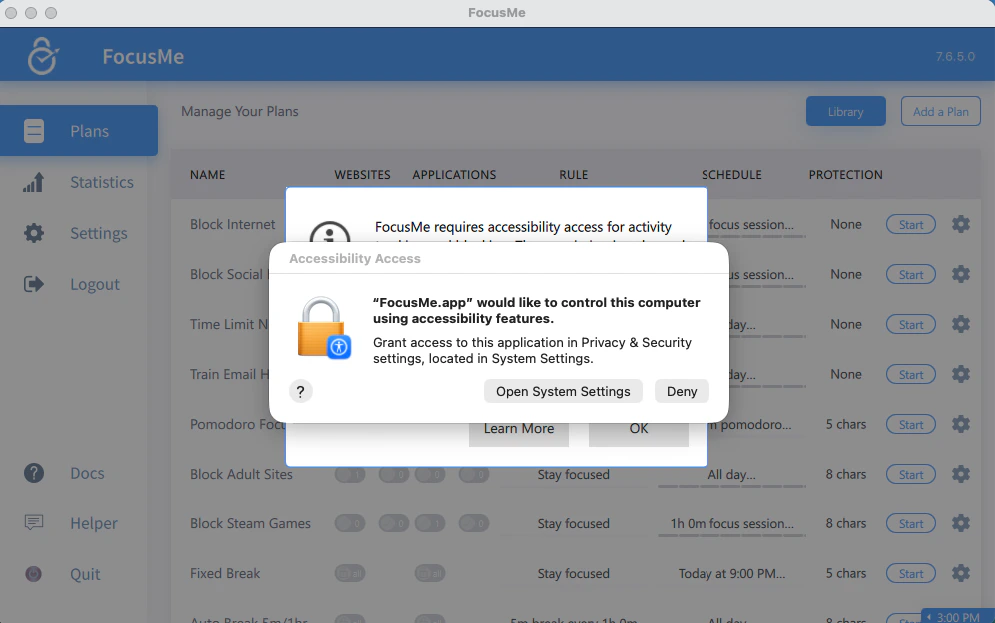
Granting FocusMe Accessibility permission in macOS System Settings
- Open System Settings → Privacy & Security → Accessibility
- Enable FocusMe in the list (click + and add it from Applications if it is missing)
Enhanced Window Detection
Settings → System → Enhanced Window Detection → Enable requests an additional permission that lets FocusMe detect which apps and websites are open, even in the background, making blocking faster, more reliable and lighter on the battery. FocusMe does not capture, record or transmit any screen content — the permission is used only to identify windows.macOS-Specific Settings
Browser Blocking on macOS
- Install the addon for Chrome, Firefox, Brave and the other supported browsers from Settings → Browsers, exactly as on Windows
- Safari uses FocusMe for Safari from the Mac App Store. Click Safari in Settings → Browsers to open it, install it, then enable it in Safari → Settings → Extensions
Blocking Behaviour on macOS
- The Close application action asks the app to quit gracefully; Kill terminates it immediately. Pick Kill for apps that ignore a normal quit.
- Timer windows are shown on every Space, so the countdown stays visible when you switch desktops.
- The Hide application action and Network block website action are Windows-only.
Keeping FocusMe Running
FocusMe starts at login and keeps running when you close its window; blocking continues from the menu-bar icon. Opening FocusMe again (from the Dock, Finder or Launchpad) brings the running copy to the front. Quit from the menu-bar icon is refused while any plan is enabled.Updates
Updates arrive as PKG installers. FocusMe applies them silently when it can, otherwise the installer opens and asks for your password; with Automatic updates it waits until you are at the Mac before doing so. Updates run while plans are active. See Update FocusMe.Troubleshooting
”FocusMe would like to control this computer using accessibility features”
This is the Accessibility prompt. Grant it — see above.App blocking not working
- Confirm the app is on the plan’s list with the right target type — open Helper from the sidebar to see the exact Application Name and Process Name. Process-name rules block without any permission, so start here
- If the rule targets a Window title, check Accessibility is granted and enable Enhanced Window Detection if it is not already — window titles are the part that needs the permission
- If you recently updated macOS or FocusMe, restart the Mac so macOS re-verifies the permission