

Setting up a Screen Break plan
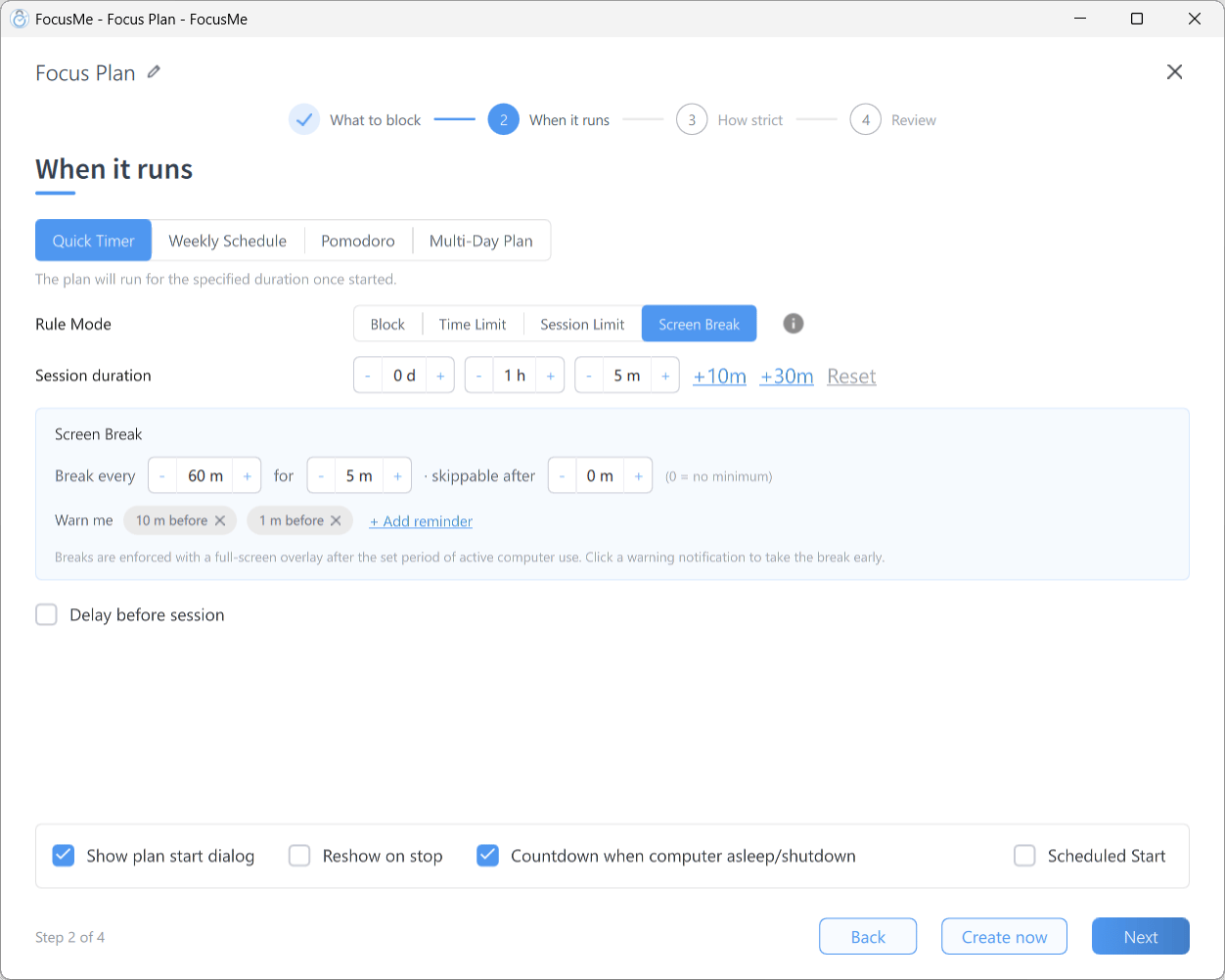
The inline Screen Break settings row
- Click Add a Plan and name it, for example Screen Breaks
- On When it runs, choose Weekly Schedule and click the Office Hours or 24/7 preset, depending on when you want breaks
- Select a block on the timeline and set its rule mode to Screen Break
- Fill in the sentence row underneath:
- Break every — minutes of active computer use before a break, e.g. 45 m
- for — how long the break lasts, e.g. 5 m
- skippable after — the minimum time a break must run before it can be skipped. 0 = no minimum
- Warn me — add reminders, in minutes before the break, so you can finish what you are doing
- Click Next, pick a How strict preset and click Create & Enable on Review
What happens during a break
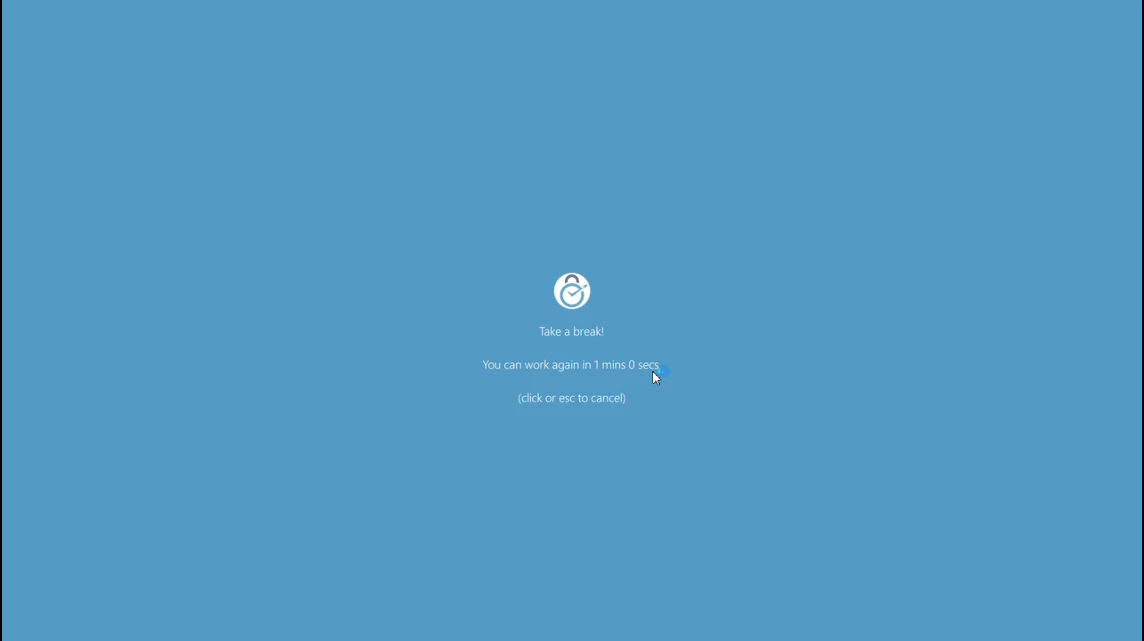
The screen break lock screen with the countdown
- A full-screen overlay covers the display with Take a break! You can continue in … and a countdown
- Everything keeps running in the background; nothing is closed
- If you set a skippable after minimum, the screen shows Skip available in … until it passes, then a Skip Break button appears
- When the countdown ends the overlay disappears and everything is exactly as you left it
Stop yourself from skipping
Skipping is decided on the How strict step. The presets already cover it: Gentle Guidance asks for 5 random characters, Firm but Flexible for 4, and Lock it Down does not allow skipping at all. For your own mix, click Customize and look at Skip break:- Choose Unprotected, Random, Password or Disallowed
- Skip limit (Per day) caps how many breaks you can skip in a day
A break after a Quick Timer session
You do not need a separate plan to rest after a sprint. Any Quick Timer plan can end with a break:- On When it runs, with Quick Timer selected, tick Screen break after session and set how long it lasts with lasting
- The same option is on the start dialog each time you press play