> ## Documentation Index
> Fetch the complete documentation index at: https://docs.focusme.com/llms.txt
> Use this file to discover all available pages before exploring further.
# Quick Start
> Create your first focus plan in under 5 minutes.
This guide walks you through creating a plan that blocks distracting websites during work hours. By the end, you'll have a working plan that keeps you focused.
## Open the Plan Wizard
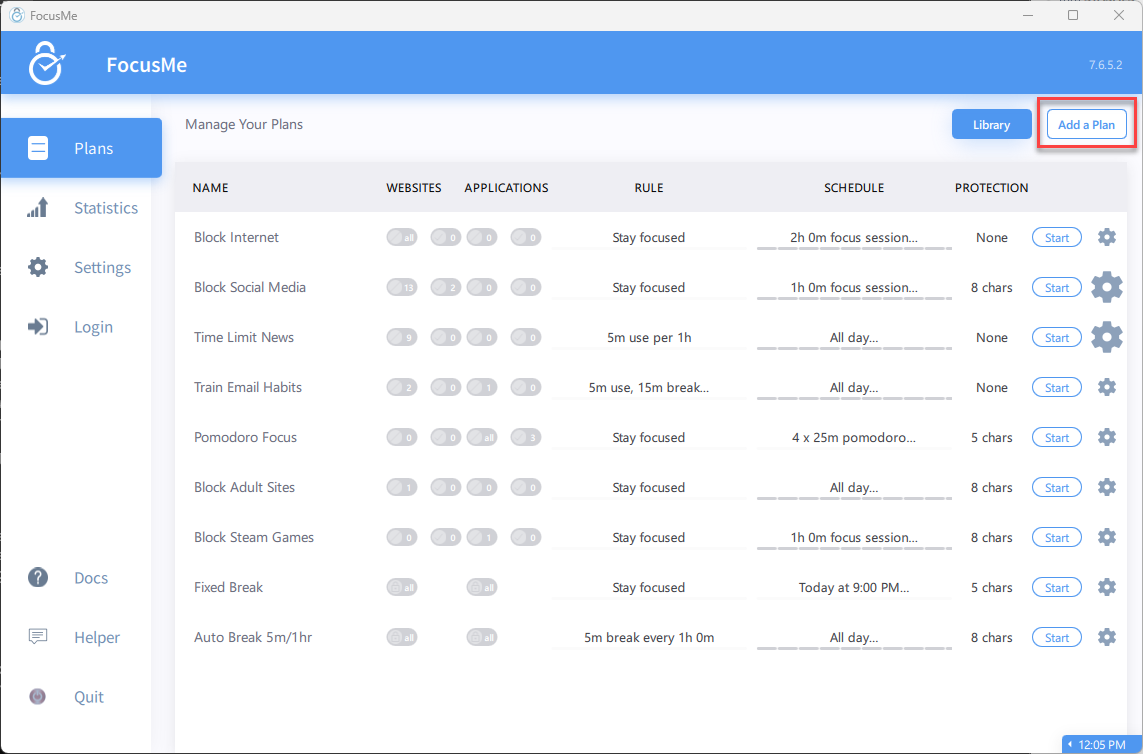
Click **Add a Plan** in the top-right corner of the Plans tab.
The Plan Wizard opens — a 6-step guided setup that walks you through every option.
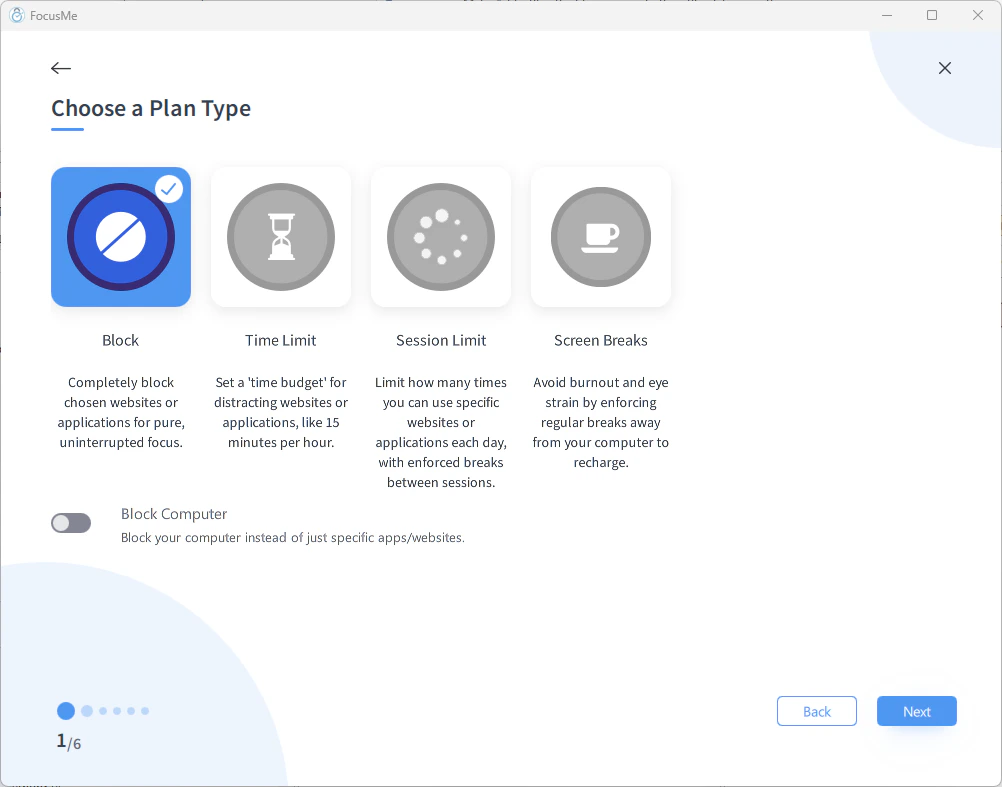
## Step 1: Choose a Plan Type
Pick how blocking is enforced:
| Plan Type | What It Does | Best For |
| ----------------- | ------------------------------------------------------- | ------------------------------ |
| **Block** | Completely blocks chosen websites or applications | Deep work, no exceptions |
| **Time Limit** | Sets a time budget for distracting sites/apps | "15 mins of Reddit per hour" |
| **Session Limit** | Limits how many times you can launch a site/app per day | Building intentional usage |
| **Screen Breaks** | Forces regular breaks away from your computer | Eye health, burnout prevention |
For this guide, choose **Block** and click **Next**.
Toggle **Block Computer** at the bottom to block your entire PC instead of specific sites/apps — useful for enforcing bedtime or total digital breaks.
## Step 2: Add Websites
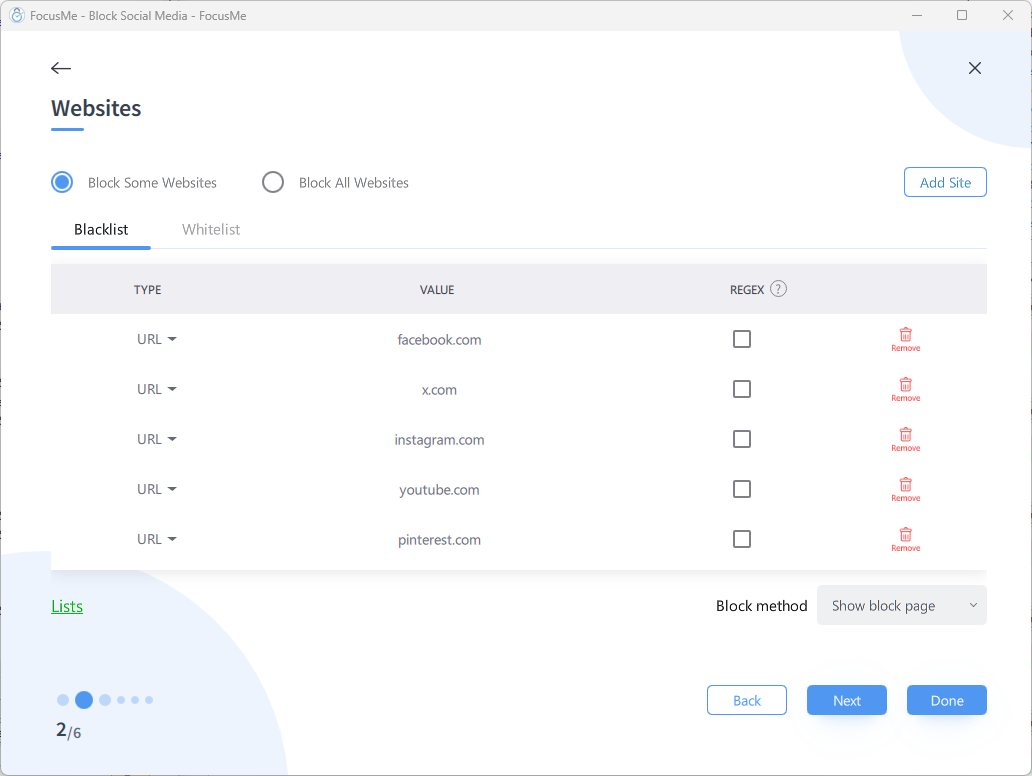
Choose **Block Some Websites** and add the sites you want to block:
1. Click **Add Site**
2. Type a URL like `facebook.com` or `tiktok.com`
3. Repeat for each site you want to block
Each entry has a **Type** dropdown (URL or Title), a **Value** field, and a **RegEx** checkbox for pattern matching.
You don't need to type `https://` or `www.` — just the domain name. FocusMe handles the rest.
Click **Next**.
## Step 3: Add Applications
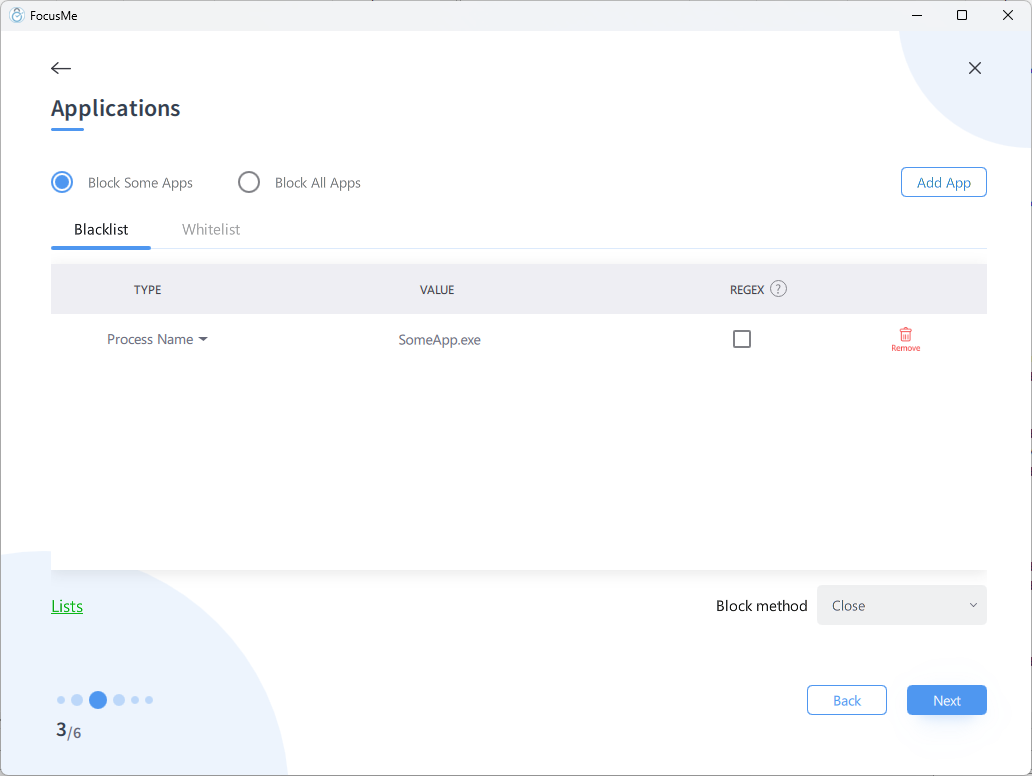
Choose **Block Some Apps** and add any desktop apps you want to block:
1. Click **Add App**
2. Select apps from running processes, installed apps, or enter a process name manually
If you only want to block websites, you can skip this step and click **Next**.
Click **Next**.
## Step 4: Set Timing Mode
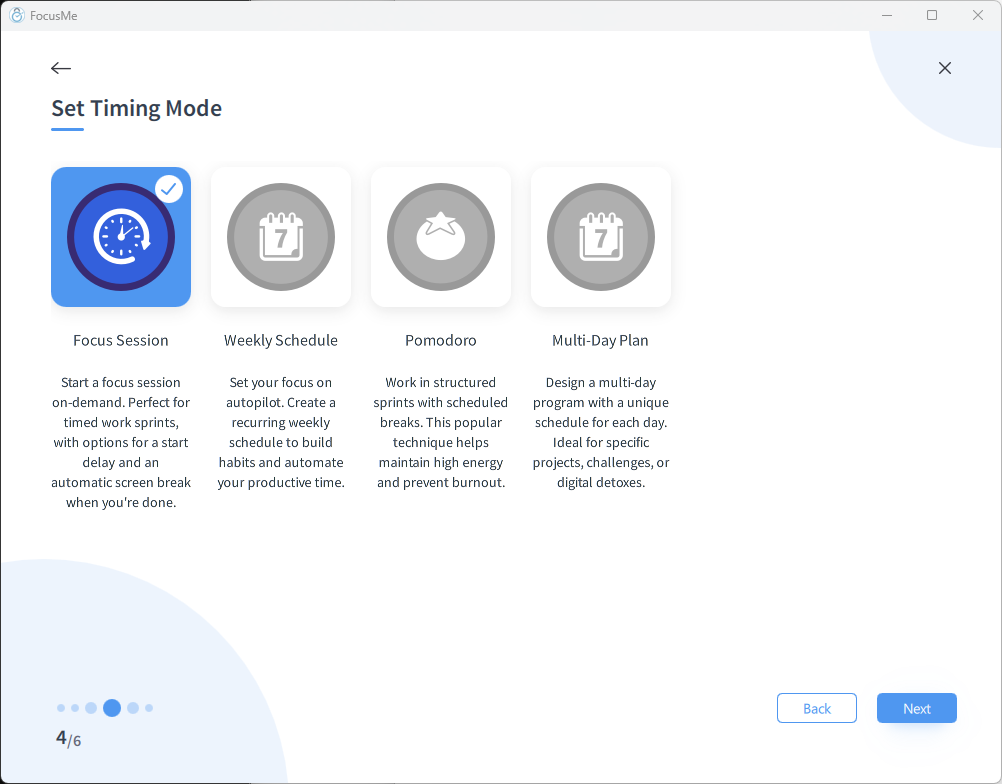
Choose when the plan runs:
| Timing Mode | What It Does |
| ------------------- | ------------------------------------------------------------------ |
| **Focus Session** | Start manually, runs for a set duration (e.g., 2 hours) |
| **Weekly Schedule** | Runs automatically at set times each week (e.g., Mon-Fri 9am-5pm) |
| **Pomodoro** | Work sprints with built-in breaks (e.g., 25 min work, 5 min break) |
| **Multi-Day Plan** | Different schedule each day (e.g., a 30-day challenge) |
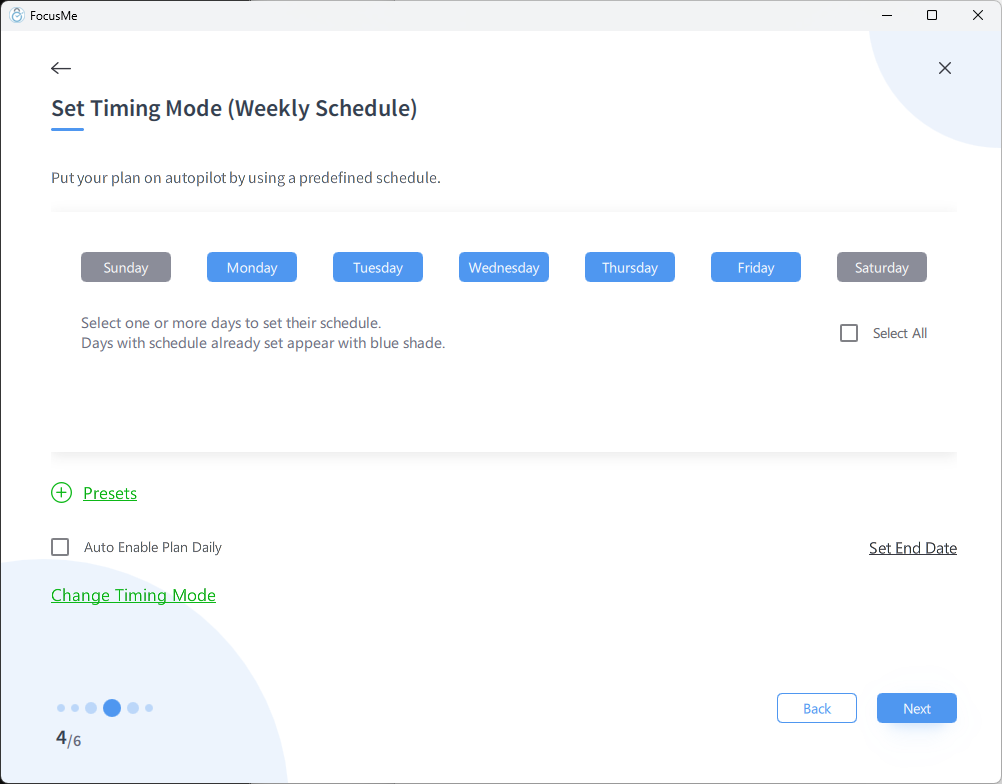
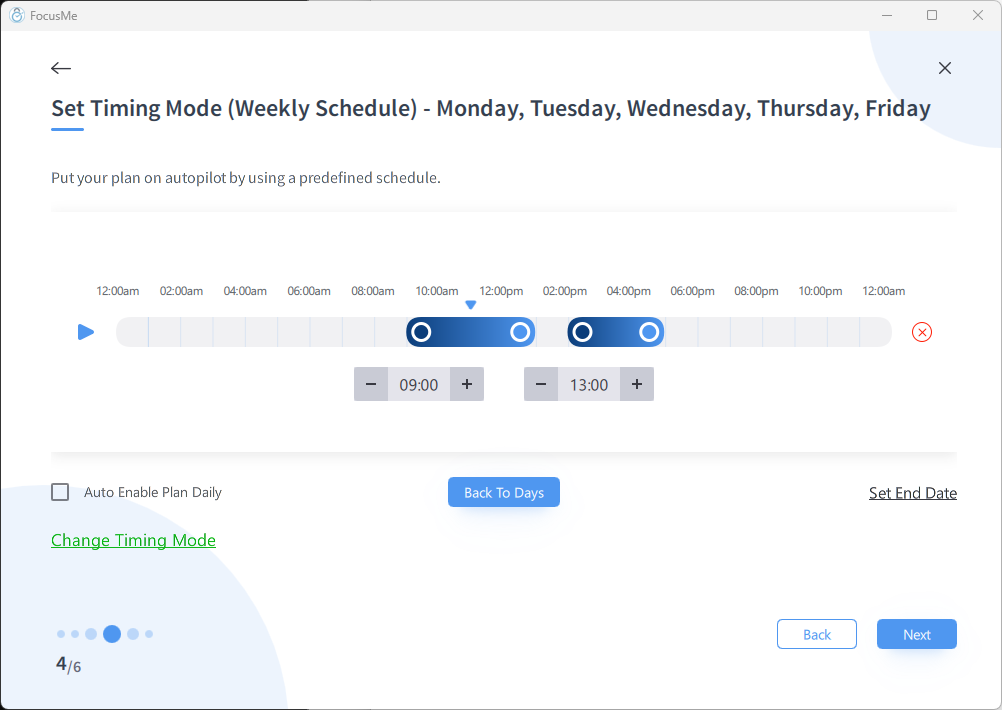
For this guide, choose **Weekly Schedule** and set it to your work hours (e.g., Monday to Friday, 9:00 AM to 5:00 PM).
Click **Next**.
## Step 5: Set Protection
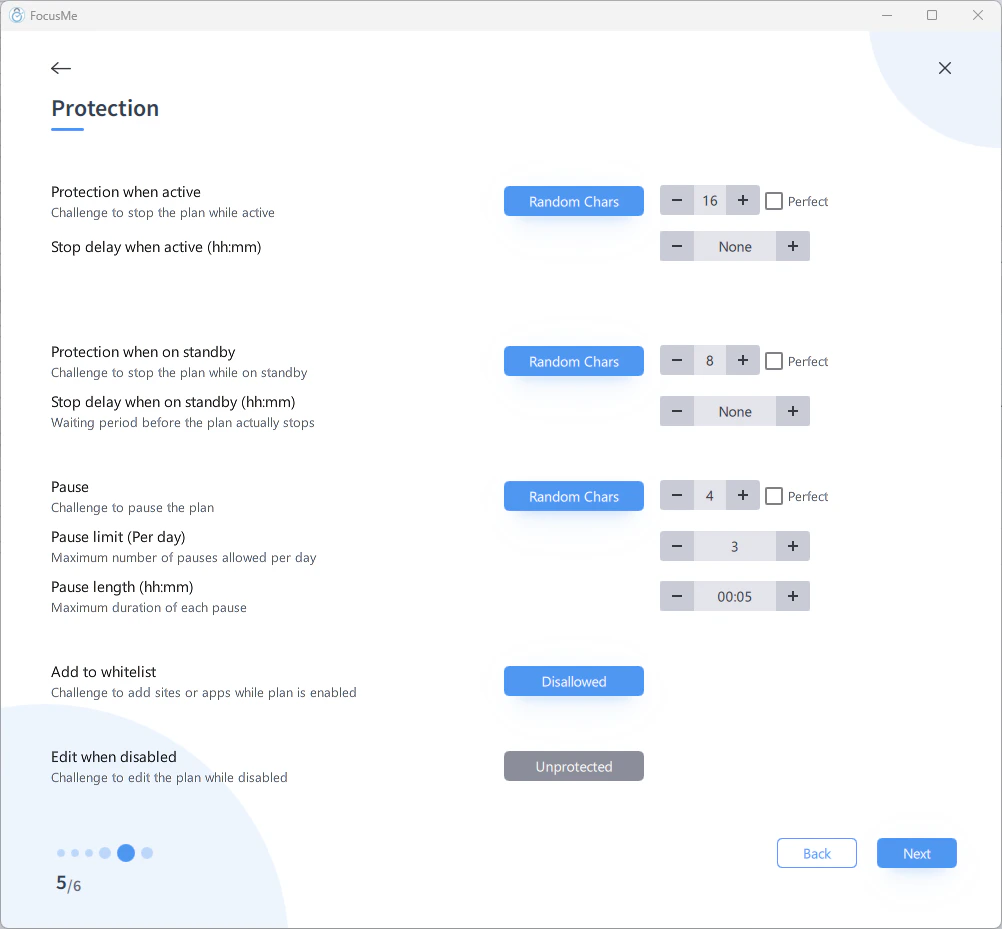
Protection determines how hard it is to stop or modify your plan. Set the **stop challenge** for when the plan is active:
| Challenge | What Happens |
| ---------------- | --------------------------------------------------------------------------------- |
| **None** | You can stop the plan at any time |
| **Password** | Enter a password to stop |
| **Random Chars** | Type a long string of random characters to stop — discourages impulsive bypassing |
| **Enforced** | Cannot be stopped until the schedule ends — maximum willpower support |
You can also set a separate stop challenge for when the plan is on **standby** (outside schedule hours), protect **disabled** plans from editing and deletion, configure **stop delays**, and control whether **pausing** is allowed.
**Enforced mode** means you genuinely cannot turn off blocking until the plan's schedule allows it. Start with Password or Random Chars until you're comfortable with the system.
Click **Next**.
## Step 6: Plan Information
Enter a name for your plan (e.g., "Work Focus") and optionally add a description.
Configure notification preferences:
* **Status Change** — when the plan starts or stops
* **Soon Starting / Soon Ending** — advance warnings
* **Fixed Intervals** — periodic reminders that the plan is active
Click **Done** to create your plan.
## Your Plan is Live
Your plan now appears in the Plans list.
If you set a weekly schedule, it will activate automatically at the times you configured. If you chose Focus Session, click **Start** to begin.
While the plan is active:
* Blocked websites show a "blocked" page in your browser
* Blocked applications are prevented from opening
* The system tray icon shows the plan status
* You can see remaining time (if using a time limit or session)
## What's Next?
Learn how to block desktop apps alongside websites.
Make your plans harder to bypass when temptation strikes.
See how you spend your screen time with FocusMe's built-in statistics.
Use the same plans on your work and home computers.
 The Plan Wizard opens — a 6-step guided setup that walks you through every option.
## Step 1: Choose a Plan Type
Pick how blocking is enforced:
| Plan Type | What It Does | Best For |
| ----------------- | ------------------------------------------------------- | ------------------------------ |
| **Block** | Completely blocks chosen websites or applications | Deep work, no exceptions |
| **Time Limit** | Sets a time budget for distracting sites/apps | "15 mins of Reddit per hour" |
| **Session Limit** | Limits how many times you can launch a site/app per day | Building intentional usage |
| **Screen Breaks** | Forces regular breaks away from your computer | Eye health, burnout prevention |
For this guide, choose **Block** and click **Next**.
The Plan Wizard opens — a 6-step guided setup that walks you through every option.
## Step 1: Choose a Plan Type
Pick how blocking is enforced:
| Plan Type | What It Does | Best For |
| ----------------- | ------------------------------------------------------- | ------------------------------ |
| **Block** | Completely blocks chosen websites or applications | Deep work, no exceptions |
| **Time Limit** | Sets a time budget for distracting sites/apps | "15 mins of Reddit per hour" |
| **Session Limit** | Limits how many times you can launch a site/app per day | Building intentional usage |
| **Screen Breaks** | Forces regular breaks away from your computer | Eye health, burnout prevention |
For this guide, choose **Block** and click **Next**.
 Click **Next**.
## Step 3: Add Applications
Choose **Block Some Apps** and add any desktop apps you want to block:
1. Click **Add App**
2. Select apps from running processes, installed apps, or enter a process name manually
If you only want to block websites, you can skip this step and click **Next**.
Click **Next**.
## Step 3: Add Applications
Choose **Block Some Apps** and add any desktop apps you want to block:
1. Click **Add App**
2. Select apps from running processes, installed apps, or enter a process name manually
If you only want to block websites, you can skip this step and click **Next**.
 Click **Next**.
## Step 4: Set Timing Mode
Choose when the plan runs:
| Timing Mode | What It Does |
| ------------------- | ------------------------------------------------------------------ |
| **Focus Session** | Start manually, runs for a set duration (e.g., 2 hours) |
| **Weekly Schedule** | Runs automatically at set times each week (e.g., Mon-Fri 9am-5pm) |
| **Pomodoro** | Work sprints with built-in breaks (e.g., 25 min work, 5 min break) |
| **Multi-Day Plan** | Different schedule each day (e.g., a 30-day challenge) |
For this guide, choose **Weekly Schedule** and set it to your work hours (e.g., Monday to Friday, 9:00 AM to 5:00 PM).
Click **Next**.
## Step 4: Set Timing Mode
Choose when the plan runs:
| Timing Mode | What It Does |
| ------------------- | ------------------------------------------------------------------ |
| **Focus Session** | Start manually, runs for a set duration (e.g., 2 hours) |
| **Weekly Schedule** | Runs automatically at set times each week (e.g., Mon-Fri 9am-5pm) |
| **Pomodoro** | Work sprints with built-in breaks (e.g., 25 min work, 5 min break) |
| **Multi-Day Plan** | Different schedule each day (e.g., a 30-day challenge) |
For this guide, choose **Weekly Schedule** and set it to your work hours (e.g., Monday to Friday, 9:00 AM to 5:00 PM).
 Click **Next**.
## Step 5: Set Protection
Protection determines how hard it is to stop or modify your plan. Set the **stop challenge** for when the plan is active:
| Challenge | What Happens |
| ---------------- | --------------------------------------------------------------------------------- |
| **None** | You can stop the plan at any time |
| **Password** | Enter a password to stop |
| **Random Chars** | Type a long string of random characters to stop — discourages impulsive bypassing |
| **Enforced** | Cannot be stopped until the schedule ends — maximum willpower support |
You can also set a separate stop challenge for when the plan is on **standby** (outside schedule hours), protect **disabled** plans from editing and deletion, configure **stop delays**, and control whether **pausing** is allowed.
Click **Next**.
## Step 5: Set Protection
Protection determines how hard it is to stop or modify your plan. Set the **stop challenge** for when the plan is active:
| Challenge | What Happens |
| ---------------- | --------------------------------------------------------------------------------- |
| **None** | You can stop the plan at any time |
| **Password** | Enter a password to stop |
| **Random Chars** | Type a long string of random characters to stop — discourages impulsive bypassing |
| **Enforced** | Cannot be stopped until the schedule ends — maximum willpower support |
You can also set a separate stop challenge for when the plan is on **standby** (outside schedule hours), protect **disabled** plans from editing and deletion, configure **stop delays**, and control whether **pausing** is allowed.
 Click **Next**.
## Step 6: Plan Information
Enter a name for your plan (e.g., "Work Focus") and optionally add a description.
Click **Next**.
## Step 6: Plan Information
Enter a name for your plan (e.g., "Work Focus") and optionally add a description.
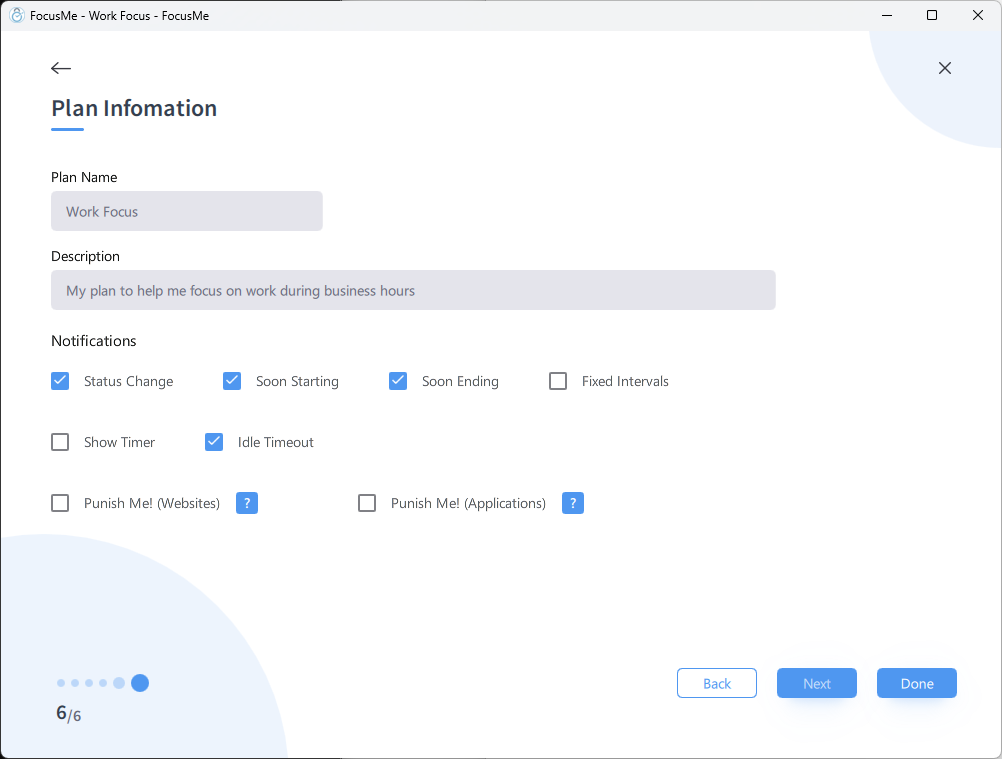 Configure notification preferences:
* **Status Change** — when the plan starts or stops
* **Soon Starting / Soon Ending** — advance warnings
* **Fixed Intervals** — periodic reminders that the plan is active
Click **Done** to create your plan.
## Your Plan is Live
Your plan now appears in the Plans list.
Configure notification preferences:
* **Status Change** — when the plan starts or stops
* **Soon Starting / Soon Ending** — advance warnings
* **Fixed Intervals** — periodic reminders that the plan is active
Click **Done** to create your plan.
## Your Plan is Live
Your plan now appears in the Plans list.
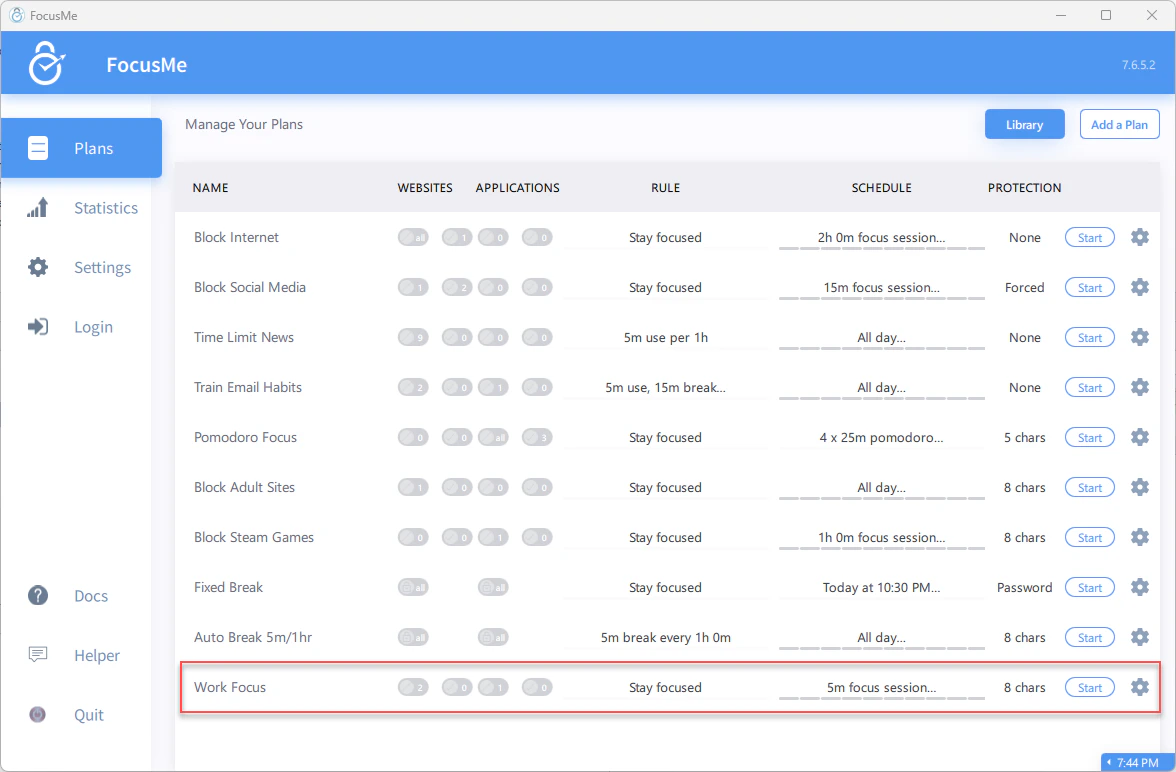 If you set a weekly schedule, it will activate automatically at the times you configured. If you chose Focus Session, click **Start** to begin.
While the plan is active:
If you set a weekly schedule, it will activate automatically at the times you configured. If you chose Focus Session, click **Start** to begin.
While the plan is active:
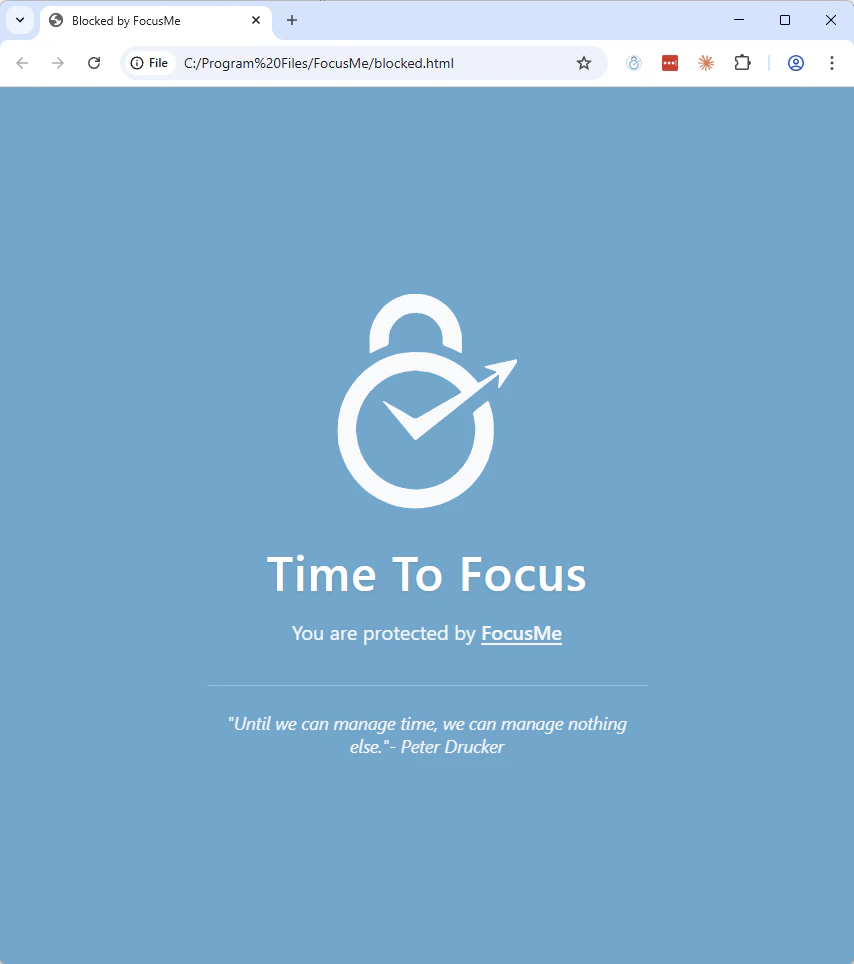 * Blocked websites show a "blocked" page in your browser
* Blocked applications are prevented from opening
* The system tray icon shows the plan status
* You can see remaining time (if using a time limit or session)
## What's Next?
* Blocked websites show a "blocked" page in your browser
* Blocked applications are prevented from opening
* The system tray icon shows the plan status
* You can see remaining time (if using a time limit or session)
## What's Next?