> ## Documentation Index
> Fetch the complete documentation index at: https://docs.focusme.com/llms.txt
> Use this file to discover all available pages before exploring further.
# Windows
> Windows-specific features, setup, and troubleshooting for FocusMe.
## Windows-Specific Features
### Always Running
FocusMe starts automatically and keeps itself running:
* Blocking continues even if you close the FocusMe window
* Protected plans cannot be bypassed by closing FocusMe
### System Tray
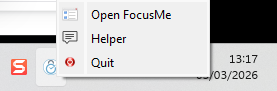 FocusMe lives in the Windows system tray (notification area). Right-click the icon for quick access to:
* Open the main window
* Start/stop plans
* Access the Helper Tool
* View active plan status
### Windows Store (UWP) Apps
To block modern Windows Store apps:
1. Use the **Helper Tool** to identify the app while it's running
2. UWP apps may use `ApplicationFrameHost.exe` as their process — in this case, match by **window title** instead
3. Some UWP apps have their own process names visible in Task Manager
### Global Shortcuts
Register keyboard shortcuts to quickly start/stop plans without opening the FocusMe window.
## Troubleshooting
### FocusMe won't start
1. Check that FocusMe is running (look for the tray icon)
2. Try running FocusMe as administrator
3. Check the log file for errors
### Websites not blocked in a specific browser
1. Install the [browser extension](/advanced/browser-extension)
2. Make sure the browser isn't in your plan's whitelist
3. Try adding the site by both URL and window title
### Blocked app keeps reopening
Some apps have auto-restart features or companion processes. Use the Helper Tool to identify all related processes and add them to your blacklist.
FocusMe lives in the Windows system tray (notification area). Right-click the icon for quick access to:
* Open the main window
* Start/stop plans
* Access the Helper Tool
* View active plan status
### Windows Store (UWP) Apps
To block modern Windows Store apps:
1. Use the **Helper Tool** to identify the app while it's running
2. UWP apps may use `ApplicationFrameHost.exe` as their process — in this case, match by **window title** instead
3. Some UWP apps have their own process names visible in Task Manager
### Global Shortcuts
Register keyboard shortcuts to quickly start/stop plans without opening the FocusMe window.
## Troubleshooting
### FocusMe won't start
1. Check that FocusMe is running (look for the tray icon)
2. Try running FocusMe as administrator
3. Check the log file for errors
### Websites not blocked in a specific browser
1. Install the [browser extension](/advanced/browser-extension)
2. Make sure the browser isn't in your plan's whitelist
3. Try adding the site by both URL and window title
### Blocked app keeps reopening
Some apps have auto-restart features or companion processes. Use the Helper Tool to identify all related processes and add them to your blacklist.