> ## Documentation Index
> Fetch the complete documentation index at: https://docs.focusme.com/llms.txt
> Use this file to discover all available pages before exploring further.
# Installation
> Download and install FocusMe on Windows, macOS, or Linux.
## Download
Don't have a FocusMe account yet? [Start your free trial](https://focusme.com/#free-trial) first — it only takes a few seconds and gives you full access to all features.
Download FocusMe from [focusme.com/download](https://focusme.com/download/) — the page automatically detects your platform.
You can also download directly for a specific platform:
* [Windows](https://focusme.com/download/win/)
* [macOS](https://focusme.com/download/mac/)
* [Linux](https://focusme.com/download/linux/)
## Windows
1. Download and run the `.exe` installer — you may need to approve a User Account Control (UAC) prompt
2. Follow the setup wizard and choose your installation directory (default: `C:\Program Files\FocusMe`)
3. FocusMe will launch automatically after installation
A **non-admin installer** is also available on the [download page](https://focusme.com/download/win/) for users without administrator privileges.
FocusMe starts automatically and keeps itself running to enforce blocking. This is what makes the blocking tamper-resistant.
### Browser Extension (Recommended)
For reliable website blocking, install the FocusMe browser extension:
* **Chrome / Edge / Brave / Opera / Vivaldi:** [Install from Chrome Web Store](https://focusme.com/download/addon/)
* **Firefox:** [Install from Firefox Add-ons](https://focusme.com/download/addon/)
The [addon link](https://focusme.com/download/addon/) automatically detects your browser. The extension communicates with the desktop app to detect and block websites in real time.
## macOS
Two installer options are available on the [download page](https://focusme.com/download/mac/):
1. **PKG installer (recommended)** — double-click to run the guided installer
2. **DMG installer** — drag FocusMe to your Applications folder
After installation:
1. Launch FocusMe from Applications
2. **Grant Accessibility permissions** when prompted — FocusMe needs this to detect which app is in the foreground
If you skip the Accessibility permission, FocusMe cannot detect or block applications. Go to **System Settings → Privacy & Security → Accessibility** and enable FocusMe.
### Supported Architectures
FocusMe ships as a universal binary — it runs natively on both **Intel** and **Apple Silicon** (M1/M2/M3/M4) Macs.
## Linux
1. Download the `.bin` installer from [focusme.com/download/linux](https://focusme.com/download/linux/)
2. Run the installer:
```bash theme={null}
chmod +x FocusMe.bin
sudo ./FocusMe.bin
```
3. FocusMe installs to `/Applications/` and starts automatically on login
FocusMe on Linux requires X11 or Wayland. The application integrates with your desktop environment for system tray support.
## System Requirements
| | Windows | macOS | Linux |
| ---------------- | ---------------- | ---------------- | ---------------------------- |
| **OS** | Windows 10+ | macOS 12+ | Debian-based (Ubuntu 20.04+) |
| **Architecture** | x64 | x64 / ARM64 | x64 |
| **Disk Space** | \~150 MB | \~200 MB | \~250 MB (includes Qt libs) |
| **Display** | 1000×600 minimum | 1000×600 minimum | 1000×600 minimum |
## After Installation
FocusMe starts in the system tray. Click the tray icon to open the main window.
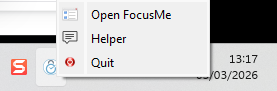 On first launch you can:
* **Create an account** to sync plans across devices
* **Enter a license key** if you purchased one
* **Start a free trial** to explore all features
Head to the [Quick Start](/quick-start) guide to create your first plan.
On first launch you can:
* **Create an account** to sync plans across devices
* **Enter a license key** if you purchased one
* **Start a free trial** to explore all features
Head to the [Quick Start](/quick-start) guide to create your first plan.