> ## Documentation Index
> Fetch the complete documentation index at: https://docs.focusme.com/llms.txt
> Use this file to discover all available pages before exploring further.
# Using the Helper Tool
> Identify the exact process name, window title, and URL of any running application or website.
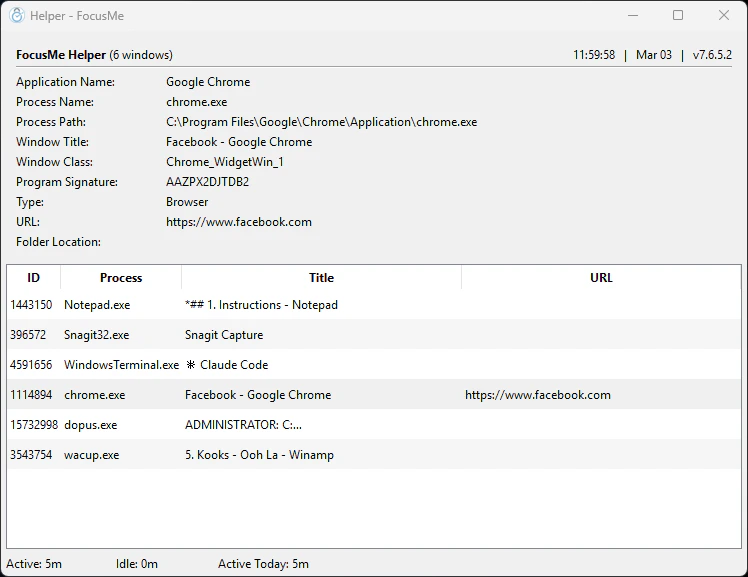
The Helper Tool tells you exactly how FocusMe sees a running application or website — its process name, window title, path, and URL. This is essential for creating precise blocking rules.
## How to Use It
 1. Open the website or application you want to identify
2. **Right-click** the FocusMe icon in the system tray
3. Select **Helper**
4. A dialog appears showing details about the currently active window
## What the Helper Shows
| Field | Description | Use For |
| -------------------- | -------------------------------------------- | -------------------------------- |
| **Application Name** | The friendly name of the app | Reference only |
| **Process Name** | The executable filename (e.g., `msedge.exe`) | Blocking apps by process |
| **Process Path** | Full path to the executable | Blocking a specific installation |
| **Title** | The current window title text | Blocking by window title |
| **URL** | The website address (if a browser) | Blocking websites |
## Common Examples
| App | Process Name | Notes |
| --------------- | ------------- | ------------------------------------------------------------- |
| Google Chrome | `chrome.exe` | |
| Microsoft Edge | `msedge.exe` | Not `MicrosoftEdge.exe` (that was the old, pre-Chromium Edge) |
| Firefox | `firefox.exe` | |
| Brave | `brave.exe` | |
| Microsoft Word | `WINWORD.exe` | |
| Microsoft Excel | `EXCEL.exe` | |
| Discord | `Discord.exe` | Electron app — may show multiple processes |
| Slack | `slack.exe` | |
| Steam | `steam.exe` | Game processes have their own names |
| VS Code | `Code.exe` | |
## Tips
* **Switch to the target app first**, then activate the Helper. It reads the currently focused window.
* **Electron apps** (Discord, Slack, VS Code, Spotify) are essentially bundled browsers. They have their own process names but may show multiple processes in Task Manager. Use the process name from the Helper, not Task Manager.
* **Windows Store (UWP) apps** sometimes run under `ApplicationFrameHost.exe`. In this case, match by **window title** instead of process name for more reliable blocking.
* **Games** each have their own process name. Launch the game, then use the Helper to find it. For Steam games, the process name is the game's executable, not `steam.exe`.
1. Open the website or application you want to identify
2. **Right-click** the FocusMe icon in the system tray
3. Select **Helper**
4. A dialog appears showing details about the currently active window
## What the Helper Shows
| Field | Description | Use For |
| -------------------- | -------------------------------------------- | -------------------------------- |
| **Application Name** | The friendly name of the app | Reference only |
| **Process Name** | The executable filename (e.g., `msedge.exe`) | Blocking apps by process |
| **Process Path** | Full path to the executable | Blocking a specific installation |
| **Title** | The current window title text | Blocking by window title |
| **URL** | The website address (if a browser) | Blocking websites |
## Common Examples
| App | Process Name | Notes |
| --------------- | ------------- | ------------------------------------------------------------- |
| Google Chrome | `chrome.exe` | |
| Microsoft Edge | `msedge.exe` | Not `MicrosoftEdge.exe` (that was the old, pre-Chromium Edge) |
| Firefox | `firefox.exe` | |
| Brave | `brave.exe` | |
| Microsoft Word | `WINWORD.exe` | |
| Microsoft Excel | `EXCEL.exe` | |
| Discord | `Discord.exe` | Electron app — may show multiple processes |
| Slack | `slack.exe` | |
| Steam | `steam.exe` | Game processes have their own names |
| VS Code | `Code.exe` | |
## Tips
* **Switch to the target app first**, then activate the Helper. It reads the currently focused window.
* **Electron apps** (Discord, Slack, VS Code, Spotify) are essentially bundled browsers. They have their own process names but may show multiple processes in Task Manager. Use the process name from the Helper, not Task Manager.
* **Windows Store (UWP) apps** sometimes run under `ApplicationFrameHost.exe`. In this case, match by **window title** instead of process name for more reliable blocking.
* **Games** each have their own process name. Launch the game, then use the Helper to find it. For Steam games, the process name is the game's executable, not `steam.exe`.