> ## Documentation Index
> Fetch the complete documentation index at: https://docs.focusme.com/llms.txt
> Use this file to discover all available pages before exploring further.
# Parental Controls
> Use FocusMe to manage your child's screen time, block inappropriate content, and enforce healthy computer habits.
FocusMe works as a powerful parental control tool. Here's how to set it up for your child's computer.
## Basic Setup
### 1. Block Inappropriate Websites
Create a plan with **Block** + **Block Some Websites**:
* Add adult content sites, violent games, or any sites you want to restrict
* Use [RegEx](/advanced/regex) for broad category blocking
Or use **Block All Websites** and whitelist only approved sites — the safer approach for younger children.
### 2. Set Time Limits
Create a separate plan with **Time Limit**:
* Allow 1-2 hours of gaming per day
* Allow 30 minutes of social media (for older children)
* The budget resets daily
### 3. Enforce Bedtime
Create a plan with **Block** + **Block Computer** enabled:
* Weekly Schedule: block every night from 9 PM to 7 AM (adjust for age)
* This completely locks the computer during sleep hours
### 4. Enforce Screen Breaks
Create a plan with **Screen Breaks**:
* 45 minutes of screen time, then a 10-minute break
* Helps prevent excessive screen use
## Protection for Parental Controls
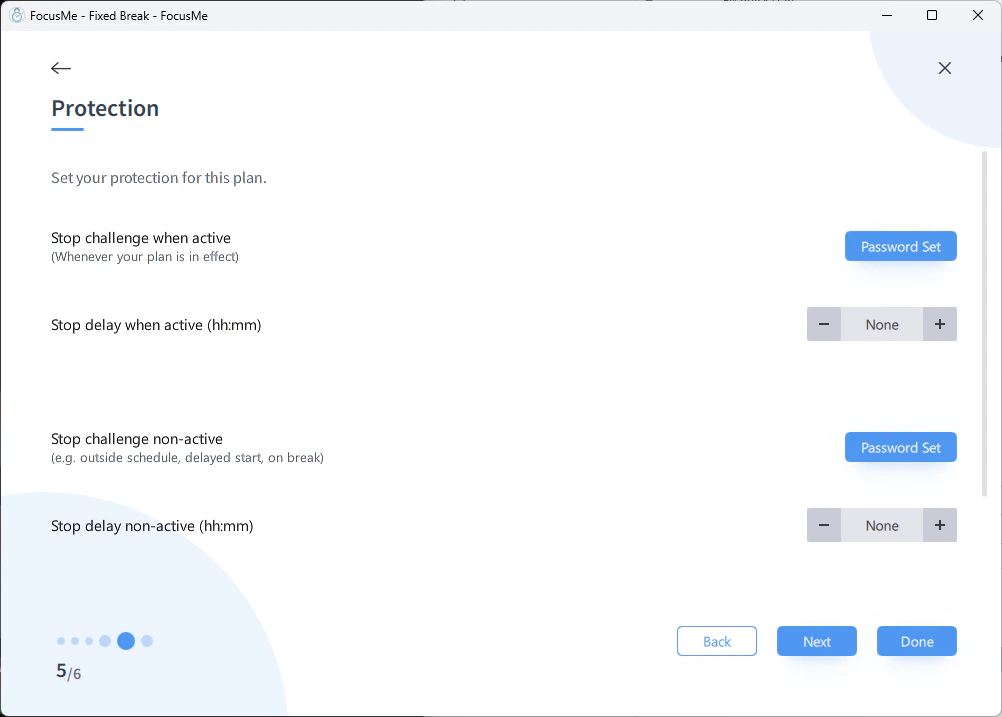 **Use Password protection** on all parental control plans:
* Set the **protection when active** to **Password** — your child cannot stop blocking without your password
* Set the **protection on standby** to **Password** as well — prevents editing the plan outside schedule hours
* Set the **When Disabled** protection to **Password** — prevents editing or deleting the plan when it's not running
* Set **Pause/Postpone** to **Disallowed** so the plan can't be paused at all
This is better than Enforced mode for parental controls because you can still modify plans yourself when needed — just enter your password.
## Tips
* **Use a master password** on FocusMe itself (in Settings) so your child cannot open the app and modify plans
* **Block Task Manager** (`taskmgr.exe`) and **Settings** to prevent circumvention attempts
* **Install on their Windows account** — FocusMe runs regardless of which Windows user is logged in
* **Start lenient and tighten.** Let them earn more screen time through good behaviour rather than starting with maximum restriction
**Use Password protection** on all parental control plans:
* Set the **protection when active** to **Password** — your child cannot stop blocking without your password
* Set the **protection on standby** to **Password** as well — prevents editing the plan outside schedule hours
* Set the **When Disabled** protection to **Password** — prevents editing or deleting the plan when it's not running
* Set **Pause/Postpone** to **Disallowed** so the plan can't be paused at all
This is better than Enforced mode for parental controls because you can still modify plans yourself when needed — just enter your password.
## Tips
* **Use a master password** on FocusMe itself (in Settings) so your child cannot open the app and modify plans
* **Block Task Manager** (`taskmgr.exe`) and **Settings** to prevent circumvention attempts
* **Install on their Windows account** — FocusMe runs regardless of which Windows user is logged in
* **Start lenient and tighten.** Let them earn more screen time through good behaviour rather than starting with maximum restriction