> ## Documentation Index
> Fetch the complete documentation index at: https://docs.focusme.com/llms.txt
> Use this file to discover all available pages before exploring further.
# Mastering Your Morning Routine
> A step-by-step guide to crafting a productive morning routine using FocusMe's Pomodoro timer and blocking features.
Mornings often start with a flurry of activity as we react to emails, social media, and other distractions even before enjoying our first cup of coffee. With the help of FocusMe's tools, you can create a morning routine that sets a positive tone for the rest of your day.
## Your Perfect Morning Schedule
### 8:00 - 8:15 a.m. | Reset & Prime
Begin your morning by identifying your top three priorities for the day. This simple planning step signals your brain to focus and reduces decision fatigue.
### 8:15 - 9:45 a.m. | Deep Work Block 1 with FocusMe
Dedicate this time to tackling your most important task, whether it's a study session, project work, or problem-solving. Use FocusMe's [Pomodoro Timer](/guides/pomodoro-technique) (3x25 min work + 5 min breaks) to maintain focus, and block all distractions like social media and email.
### 9:45 - 10:00 a.m. | Break & Recharge
Take a break to step away from screens. Move around, breathe, or grab a snack to restore energy and prevent cognitive fatigue.
### 10:00 - 11:15 a.m. | Deep Work Block 2 with FocusMe
Continue with your important projects or shift focus to secondary tasks. This session is perfect for students to review notes or solve problems, and for professionals to create or strategize.
### 11:15 - 11:30 a.m. | Mindful Reset
Engage in a quick walk, meditation, or journaling session. Review your progress on the day's top priorities to transition smoothly into lighter tasks.
### 11:30 - 12:00 p.m. | Shallow Work & Planning with FocusMe
Conclude your morning by handling lighter tasks such as emails and scheduling. This wraps up your productive morning, leaving you ready for a well-deserved lunch.
## Setting Up Deep Work Block 1
### Step 1: Create a new plan
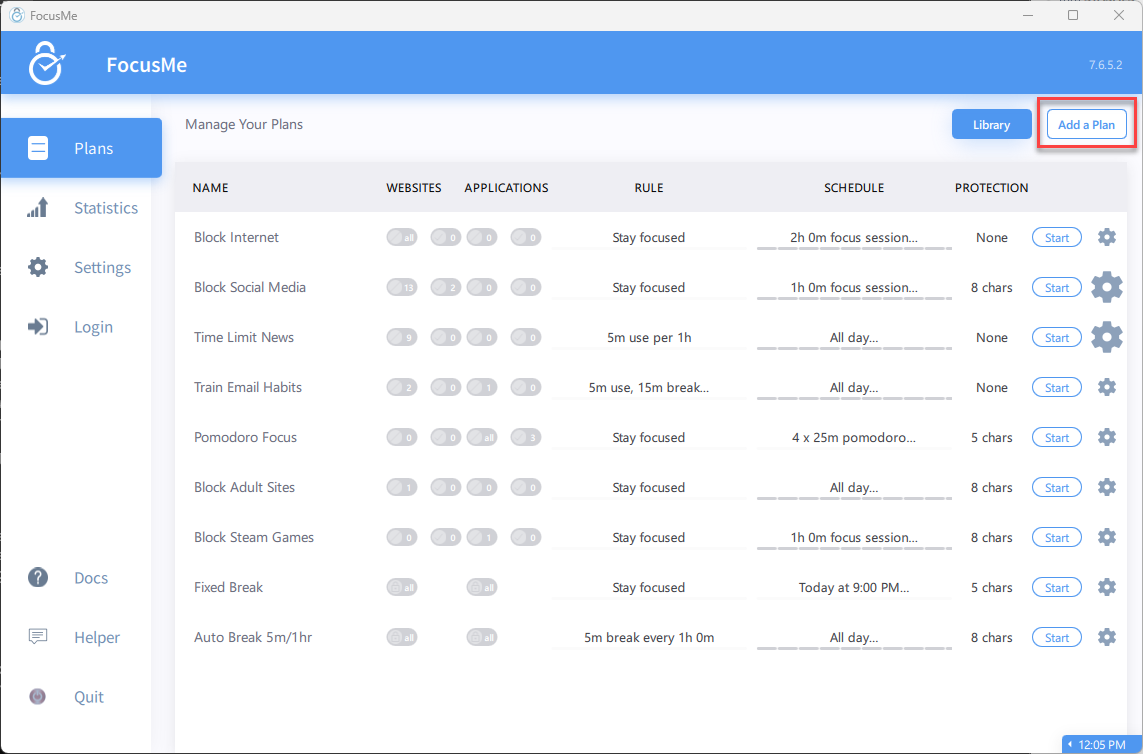
Open FocusMe and click **Add a Plan**.
 ### Step 2: Choose your plan type
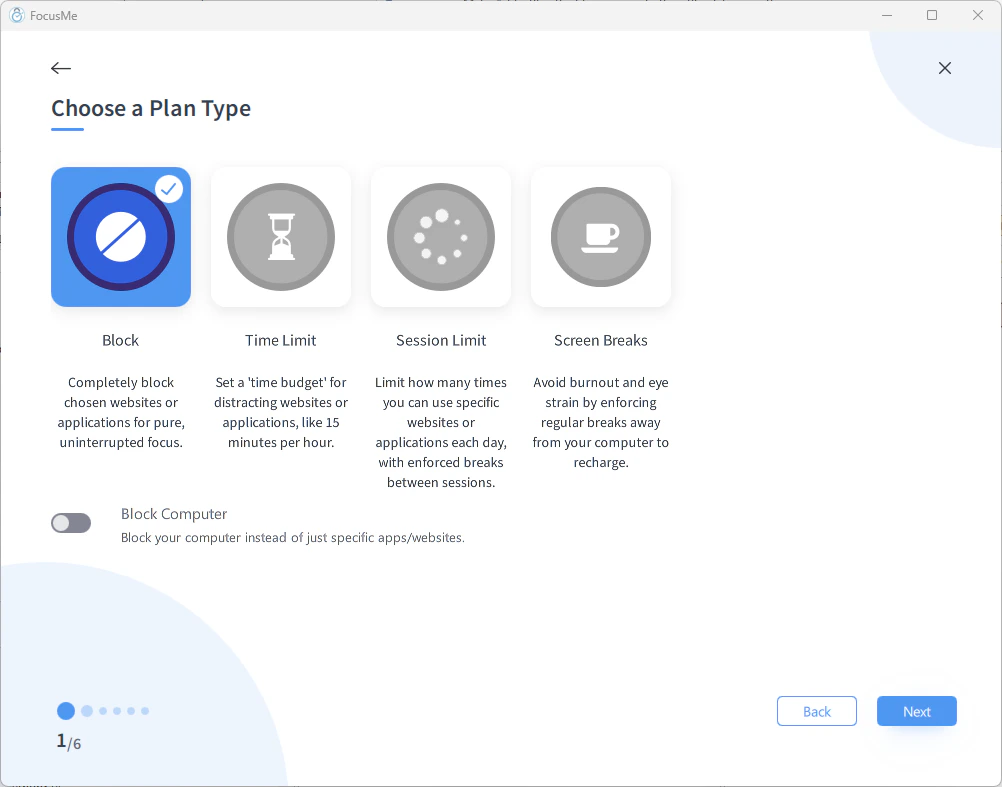
Select **Block** as your plan type and click **Next**.
### Step 2: Choose your plan type
Select **Block** as your plan type and click **Next**.
 ### Step 3: Add websites to block
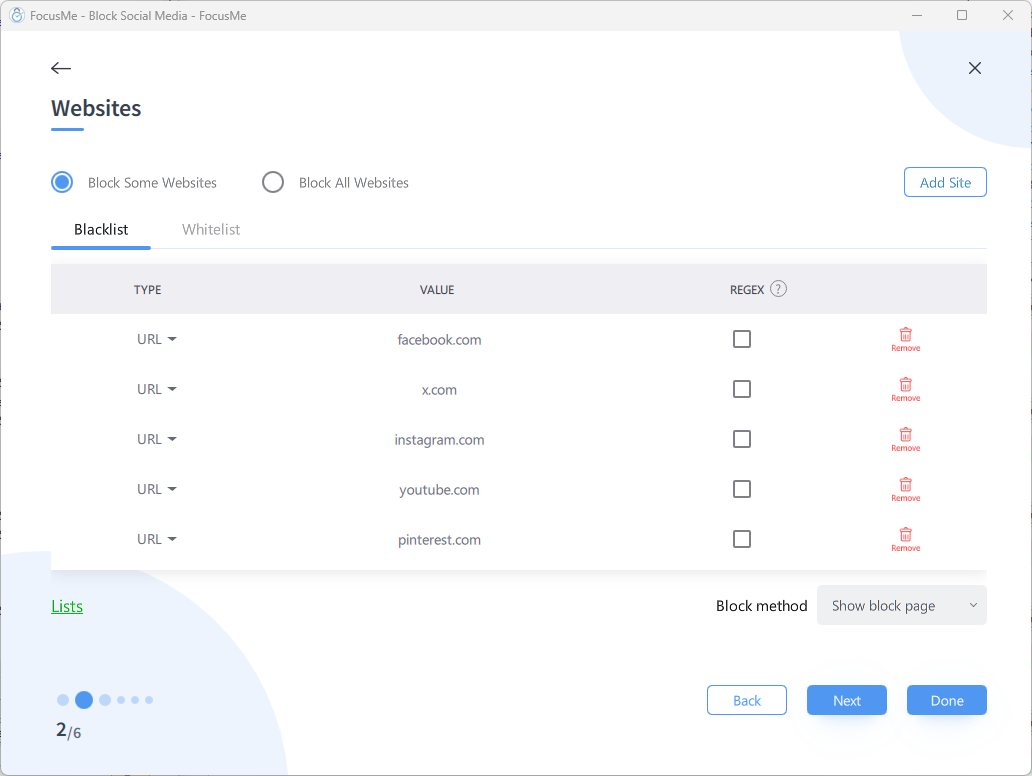
Add the websites you want to block during deep work (social media, email, news, etc.). Use the **Allow List** tab for any websites you need access to.
### Step 3: Add websites to block
Add the websites you want to block during deep work (social media, email, news, etc.). Use the **Allow List** tab for any websites you need access to.
 ### Step 4: Add applications to block
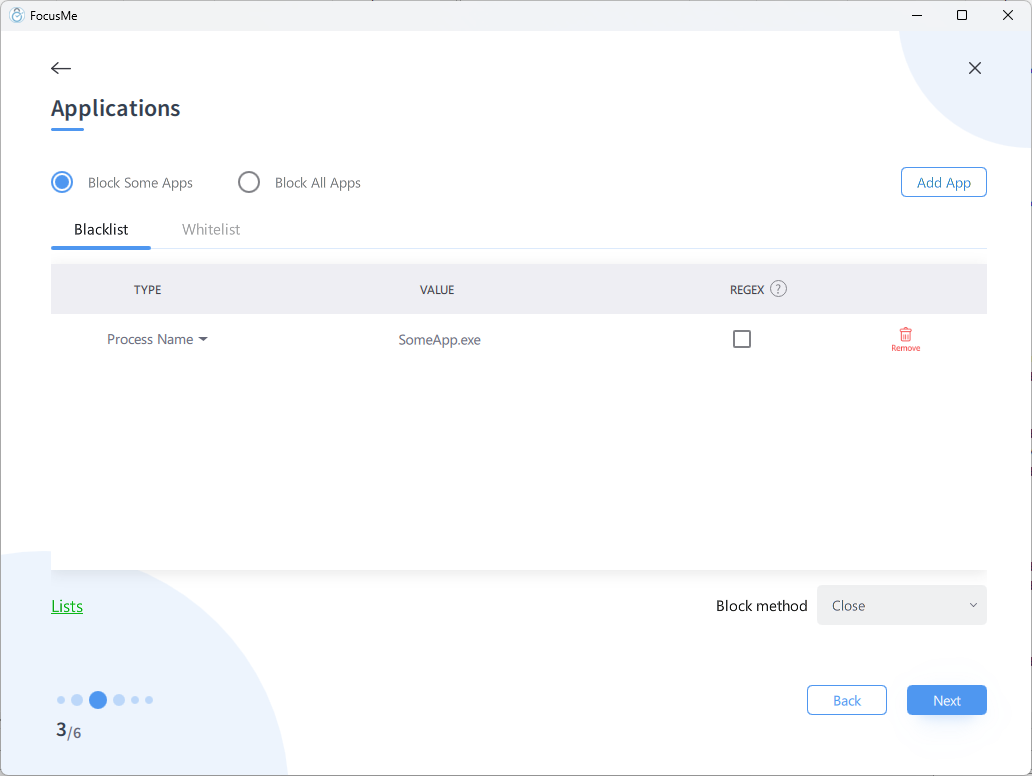
Repeat for applications - block any distracting apps you want to keep closed during deep work.
### Step 4: Add applications to block
Repeat for applications - block any distracting apps you want to keep closed during deep work.
 ### Step 5: Set up the Pomodoro timer
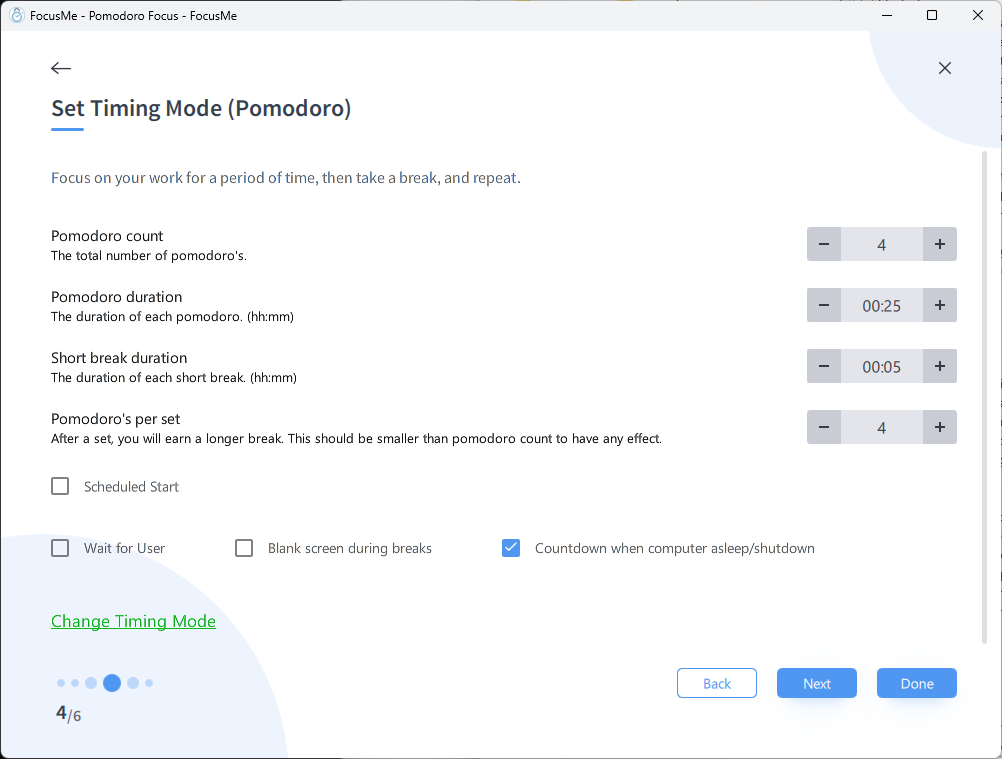
Select **Pomodoro** as your timing mode and configure as follows:
### Step 5: Set up the Pomodoro timer
Select **Pomodoro** as your timing mode and configure as follows:
 | Setting | Value |
| ------------------------ | ---------------- |
| **Pomodoro count** | 3 |
| **Pomodoro duration** | 25 minutes |
| **Short break duration** | 5 minutes |
| **Pomodoros per set** | 3 |
| **Scheduled Start** | Mon-Fri at 08:15 |
Enable **Wait for User** so the plan waits for you to begin.
### Step 6: Set protection
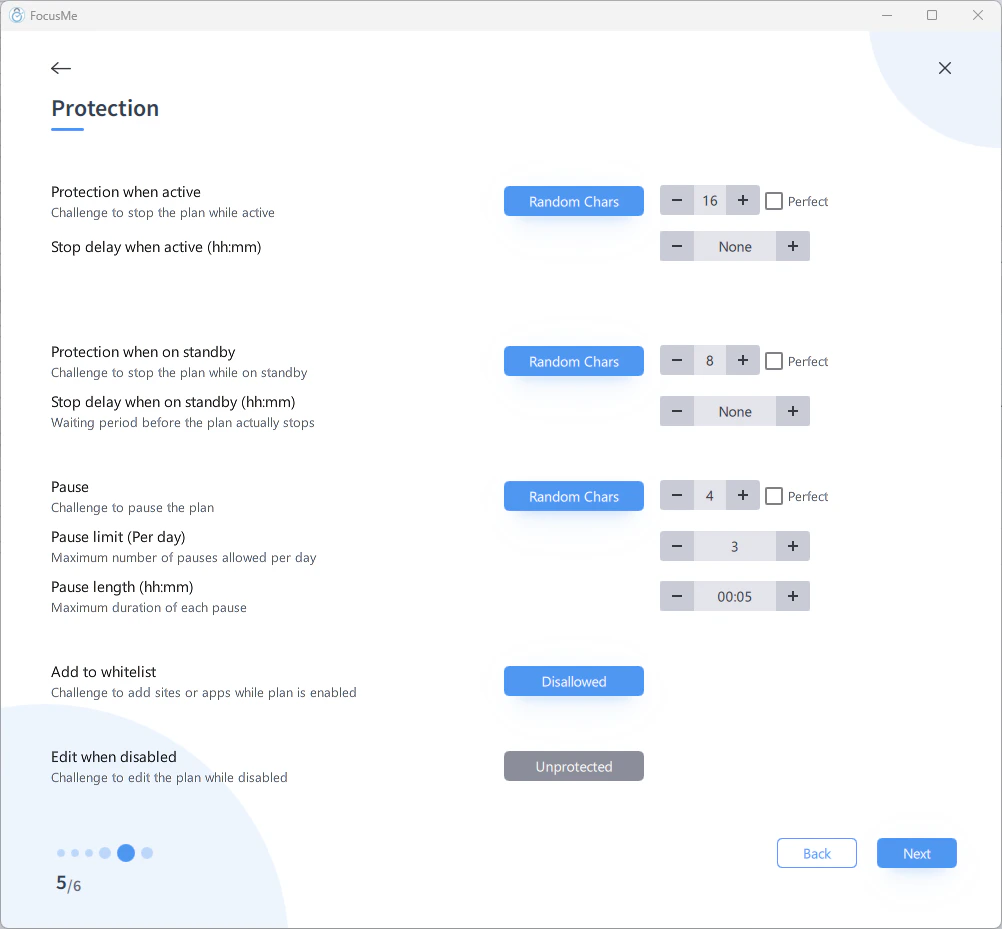
Choose a challenge that will be applied if you try to stop the plan early. **Random Chars (8)** is a good default - it requires you to type 8 random characters to stop the plan, giving you time to reconsider.
| Setting | Value |
| ------------------------ | ---------------- |
| **Pomodoro count** | 3 |
| **Pomodoro duration** | 25 minutes |
| **Short break duration** | 5 minutes |
| **Pomodoros per set** | 3 |
| **Scheduled Start** | Mon-Fri at 08:15 |
Enable **Wait for User** so the plan waits for you to begin.
### Step 6: Set protection
Choose a challenge that will be applied if you try to stop the plan early. **Random Chars (8)** is a good default - it requires you to type 8 random characters to stop the plan, giving you time to reconsider.
 ### Step 7: Name your plan
Label the plan so it's easy to find on your dashboard.
### Step 7: Name your plan
Label the plan so it's easy to find on your dashboard.
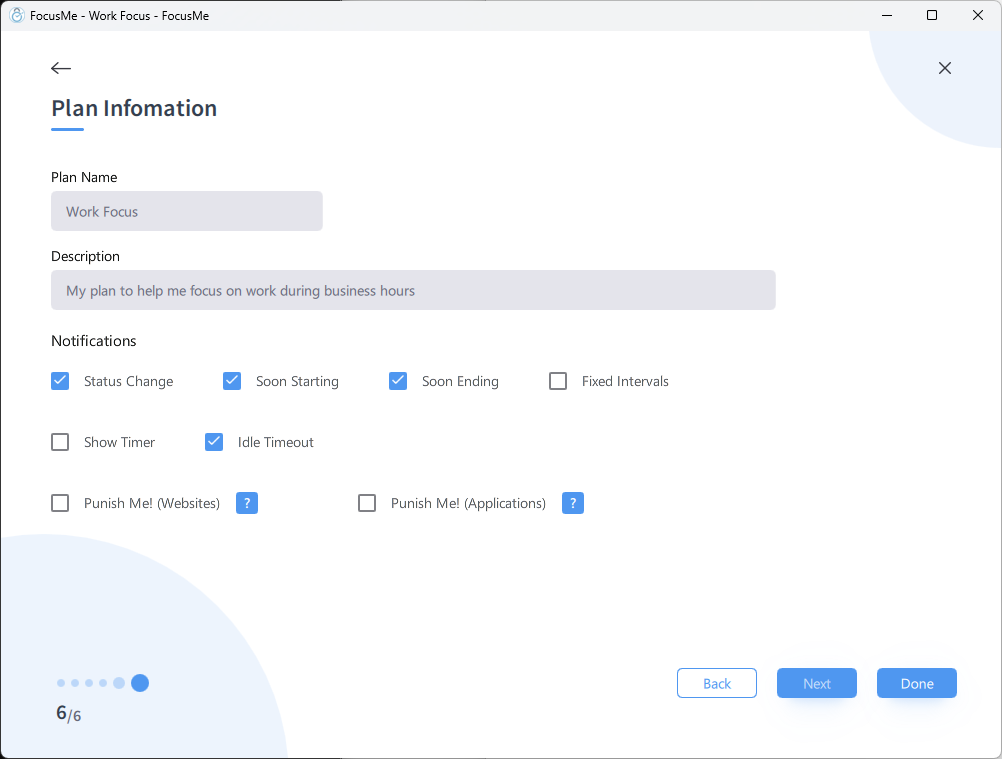 * **Plan Name:** Deep Work Block 1
* **Description:** Runs Monday - Friday 08:15 - 09:45
## Setting Up Deep Work Block 2
Repeat the same steps as Deep Work Block 1, with these changes to the Pomodoro settings:
| Setting | Value |
| ------------------------ | ---------------- |
| **Pomodoro count** | 2 |
| **Pomodoro duration** | 30 minutes |
| **Short break duration** | 7 minutes |
| **Pomodoros per set** | 2 |
| **Scheduled Start** | Mon-Fri at 10:00 |
* **Plan Name:** Deep Work Block 2
* **Description:** Runs Monday - Friday 10:00 - 11:15
## Setting Up the Shallow Work Timer
### Step 1: Create a new Block plan
Follow the same steps as above: **Add a Plan** > **Block** > **Next**.
### Step 2: Configure block and allow lists
Add websites and applications to block, but keep your **email and calendar on the Allow List** for this lighter work block.
### Step 3: Set the timer
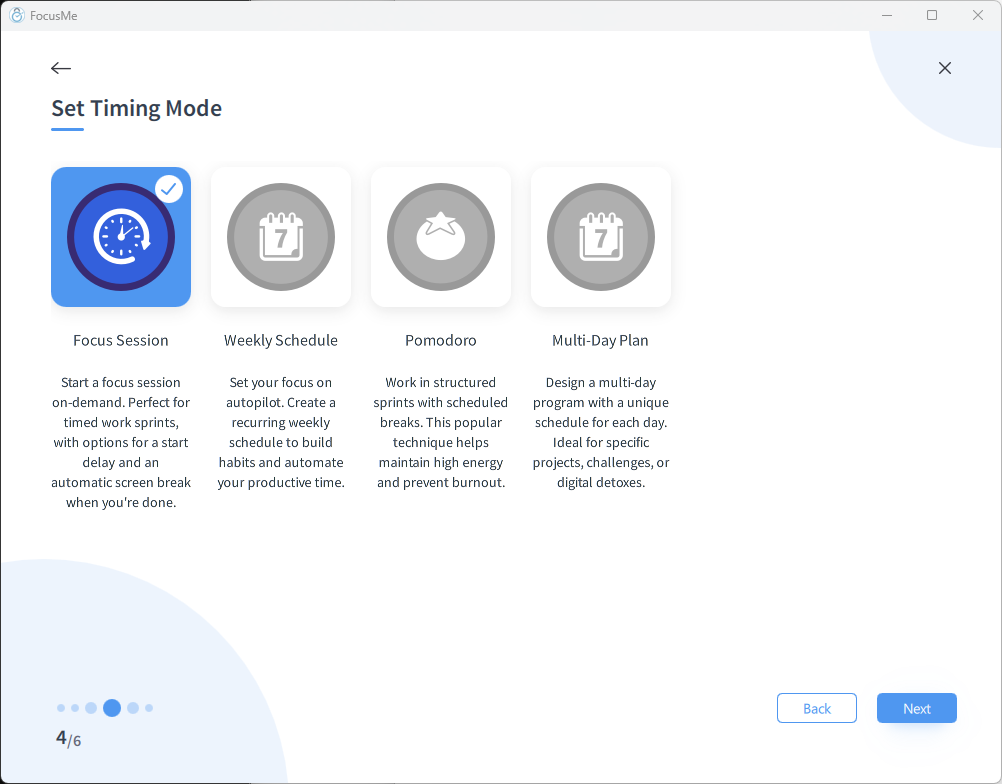
Select **Timer** as your timing mode (instead of Pomodoro) and set the duration to **30 minutes**.
* **Plan Name:** Deep Work Block 1
* **Description:** Runs Monday - Friday 08:15 - 09:45
## Setting Up Deep Work Block 2
Repeat the same steps as Deep Work Block 1, with these changes to the Pomodoro settings:
| Setting | Value |
| ------------------------ | ---------------- |
| **Pomodoro count** | 2 |
| **Pomodoro duration** | 30 minutes |
| **Short break duration** | 7 minutes |
| **Pomodoros per set** | 2 |
| **Scheduled Start** | Mon-Fri at 10:00 |
* **Plan Name:** Deep Work Block 2
* **Description:** Runs Monday - Friday 10:00 - 11:15
## Setting Up the Shallow Work Timer
### Step 1: Create a new Block plan
Follow the same steps as above: **Add a Plan** > **Block** > **Next**.
### Step 2: Configure block and allow lists
Add websites and applications to block, but keep your **email and calendar on the Allow List** for this lighter work block.
### Step 3: Set the timer
Select **Timer** as your timing mode (instead of Pomodoro) and set the duration to **30 minutes**.
 ### Step 4: Protection and naming
Set your protection level, then name the plan:
* **Plan Name:** Shallow Work
* **Description:** To start at 11:30am daily (Monday - Friday)
***
Embrace the power of FocusMe to help you stick to your routine and achieve your goals. By following this structured approach, you can transform your mornings into a time of productivity and calm.
### Step 4: Protection and naming
Set your protection level, then name the plan:
* **Plan Name:** Shallow Work
* **Description:** To start at 11:30am daily (Monday - Friday)
***
Embrace the power of FocusMe to help you stick to your routine and achieve your goals. By following this structured approach, you can transform your mornings into a time of productivity and calm.