> ## Documentation Index
> Fetch the complete documentation index at: https://docs.focusme.com/llms.txt
> Use this file to discover all available pages before exploring further.
# Log In & Sync Plans
> Log in to your FocusMe account and sync plans across all your devices.
When you sign up for a trial or purchase FocusMe on the website, a cloud account is automatically created for you. Logging in connects your installation to that account, activates your license, and enables plan sync.
## Logging In
1. Click the **Login** button in the sidebar
2. Enter your **email address** and **password**
3. Click **Login**
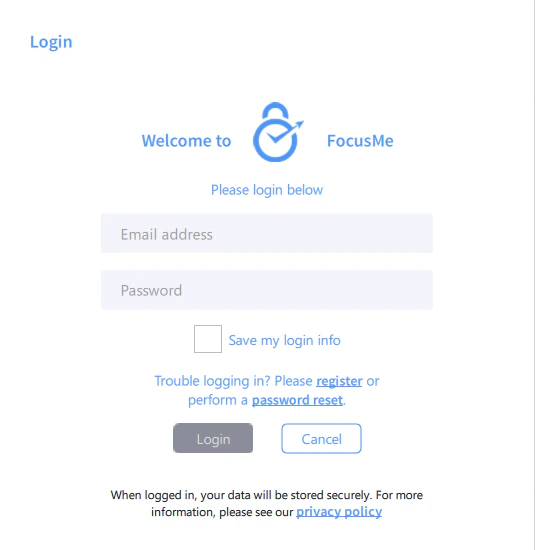 Your license (trial or paid) is activated automatically when you log in — no separate activation step is needed. Your plans also begin syncing to your account immediately.
If you have a license key to activate manually, or need to activate a machine without internet access, see [Activate a License](/guides/activation).
## How Sync Works
Once logged in, FocusMe automatically syncs your plans to the cloud:
* Sync runs every **15 seconds** in the background
* Changes you make on one device appear on your other devices automatically
* New plans, edits, and deletions are all synced
To sync across devices:
1. **Log in on each device** with the same account
2. **Enable sync** on each plan — check the **Should sync** option in the plan details
## What Gets Synced
| Synced | Not Synced |
| --------------------------------------------- | ------------------------------------------------------ |
| Plan configuration (targets, rules, schedule) | Statistics and usage data |
| Plan protection settings | Local settings (window size, notification preferences) |
| Plan status (active/stopped) | Emergency codes |
### Per-Plan Sync Control
Not every plan needs to sync. You can control sync on a per-plan basis:
* Open a plan's settings
* Toggle **Sync to Account** on or off
* Plans with sync disabled stay local to the current device
This is useful for device-specific plans (e.g., a plan that blocks apps only installed on your work computer).
## Trial Sync
If you're using FocusMe on a trial:
* Your trial status is synced across devices
* This prevents resetting the trial by installing on a different computer
* The trial start date from your first device applies everywhere
## Logout Restrictions
FocusMe prevents logging out in certain situations to maintain protection:
* **Active plans** — you cannot log out while plans are actively blocking. Stop all plans first.
* **Auto-login enabled** — if auto-login is configured, you must disable it before logging out.
This prevents using logout as a way to bypass active blocking.
## Folder Sync (Alternative)
Logging in and using cloud sync is the recommended way to sync plans. Folder Sync is provided as an alternative for users who prefer not to create an account.
If you prefer not to log in, FocusMe also supports **Folder Sync** — syncing plans through a local or network folder. This option is found in **Settings**.
| Setting | Description |
| ------------------ | ----------------------------------------------------------------------- |
| **Sync folder** | Path to a local or network folder used for syncing |
| **Sync direction** | **Both** (two-way sync), **In** (import only), or **Out** (export only) |
Folder Sync is unavailable when you are logged in with cloud sync active. Use one method or the other.
### Setting Up Folder Sync
Your license (trial or paid) is activated automatically when you log in — no separate activation step is needed. Your plans also begin syncing to your account immediately.
If you have a license key to activate manually, or need to activate a machine without internet access, see [Activate a License](/guides/activation).
## How Sync Works
Once logged in, FocusMe automatically syncs your plans to the cloud:
* Sync runs every **15 seconds** in the background
* Changes you make on one device appear on your other devices automatically
* New plans, edits, and deletions are all synced
To sync across devices:
1. **Log in on each device** with the same account
2. **Enable sync** on each plan — check the **Should sync** option in the plan details
## What Gets Synced
| Synced | Not Synced |
| --------------------------------------------- | ------------------------------------------------------ |
| Plan configuration (targets, rules, schedule) | Statistics and usage data |
| Plan protection settings | Local settings (window size, notification preferences) |
| Plan status (active/stopped) | Emergency codes |
### Per-Plan Sync Control
Not every plan needs to sync. You can control sync on a per-plan basis:
* Open a plan's settings
* Toggle **Sync to Account** on or off
* Plans with sync disabled stay local to the current device
This is useful for device-specific plans (e.g., a plan that blocks apps only installed on your work computer).
## Trial Sync
If you're using FocusMe on a trial:
* Your trial status is synced across devices
* This prevents resetting the trial by installing on a different computer
* The trial start date from your first device applies everywhere
## Logout Restrictions
FocusMe prevents logging out in certain situations to maintain protection:
* **Active plans** — you cannot log out while plans are actively blocking. Stop all plans first.
* **Auto-login enabled** — if auto-login is configured, you must disable it before logging out.
This prevents using logout as a way to bypass active blocking.
## Folder Sync (Alternative)
Logging in and using cloud sync is the recommended way to sync plans. Folder Sync is provided as an alternative for users who prefer not to create an account.
If you prefer not to log in, FocusMe also supports **Folder Sync** — syncing plans through a local or network folder. This option is found in **Settings**.
| Setting | Description |
| ------------------ | ----------------------------------------------------------------------- |
| **Sync folder** | Path to a local or network folder used for syncing |
| **Sync direction** | **Both** (two-way sync), **In** (import only), or **Out** (export only) |
Folder Sync is unavailable when you are logged in with cloud sync active. Use one method or the other.
### Setting Up Folder Sync
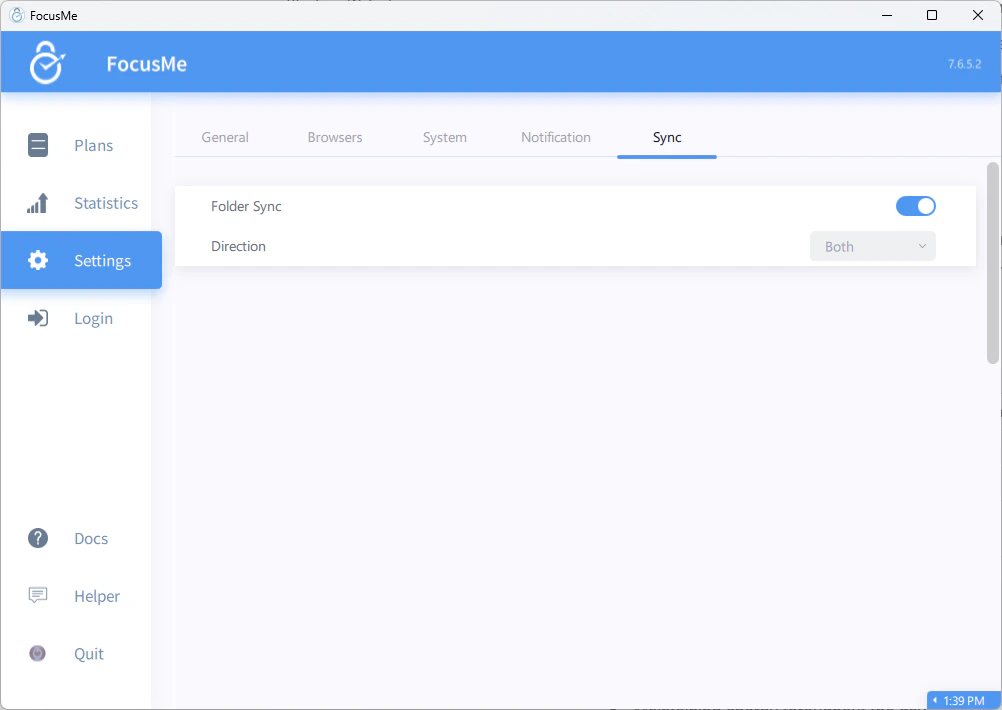 1. Make sure you are **logged out**
2. Open **Settings** and find the Folder Sync option
3. Set the **sync folder** to a shared location (e.g., a Dropbox, OneDrive, or network drive folder)
4. Choose the **sync direction**
5. Plans are synced through the folder automatically
Folder Sync with a cloud storage folder (Dropbox, OneDrive, Google Drive) gives you cloud-like sync without needing a FocusMe account.
## Tips
* **Same plans everywhere.** Sync your social media blocking plan to your work and home computers so you can't cheat by switching devices.
* **Device-specific plans.** Not every plan needs sync. Keep device-specific plans (like blocking a game only installed on your home PC) as local-only.
1. Make sure you are **logged out**
2. Open **Settings** and find the Folder Sync option
3. Set the **sync folder** to a shared location (e.g., a Dropbox, OneDrive, or network drive folder)
4. Choose the **sync direction**
5. Plans are synced through the folder automatically
Folder Sync with a cloud storage folder (Dropbox, OneDrive, Google Drive) gives you cloud-like sync without needing a FocusMe account.
## Tips
* **Same plans everywhere.** Sync your social media blocking plan to your work and home computers so you can't cheat by switching devices.
* **Device-specific plans.** Not every plan needs sync. Keep device-specific plans (like blocking a game only installed on your home PC) as local-only.