> ## Documentation Index
> Fetch the complete documentation index at: https://docs.focusme.com/llms.txt
> Use this file to discover all available pages before exploring further.
# Use Focus Sessions
> Start an on-demand focus session with a set duration — block distractions for exactly as long as you need.
A Focus Session lets you start blocking on demand for a set duration. Unlike a Weekly Schedule that runs automatically, a Focus Session only activates when you click **Start**.
## Starting a Focus Session
1. Create a plan using the **Focus Session** timing mode (Step 4 of the Plan Wizard), or click **Start** on an existing Focus Session plan
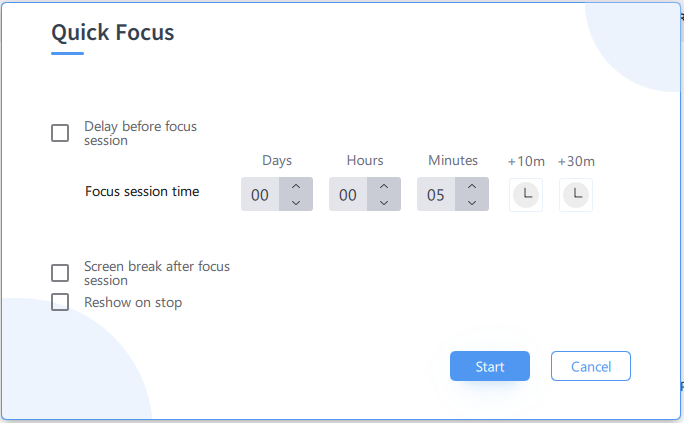
2. The **Quick Schedule** window appears
 ## Setting the Duration
Set how long your focus session should last using the **days**, **hours**, and **minutes** fields.
Quick-add buttons let you add common durations with a single click:
* **+15m**, **+30m**, **+1h**, **+2h** — add time to the current duration
* Combine quick-add buttons for custom durations (e.g., click +1h then +30m for 90 minutes)
## Optional Delay
Set a **delay** before the session starts. This gives you time to finish what you're doing before blocking begins.
For example, set a 5-minute delay so you can save your work, close tabs, and prepare before distractions are blocked.
## Optional Break After Session
You can configure a **screen break** that triggers when the focus session ends. This is a great way to enforce a rest period after an intense work session.
## Extending a Running Session
If your focus session is about to end but you're still in the zone, you can extend it:
1. Right-click the plan in the Plans list
2. Select **Extend Time**
3. Choose how much additional time to add
The session continues seamlessly with the extra time.
## Reshow on Stop
The **Reshow on stop** option automatically reopens the Quick Schedule window when a focus session ends. This makes it easy to immediately start another session without navigating back to the plan.
## Tips
* **Start small.** If you're new to focus sessions, begin with 25-30 minutes. You can always extend if you're in the zone.
* **Use the delay** to create a ritual. A 5-minute delay gives you time to set up your workspace, close unnecessary tabs, and mentally prepare.
* **Combine with protection.** A Focus Session with Random Characters protection prevents you from impulsively stopping early.
* **Stack sessions.** With Reshow on stop enabled, you can chain focus sessions back-to-back with deliberate breaks in between.
* **Add a break after.** Enforce a screen break after each session to prevent marathon screen time.
## Setting the Duration
Set how long your focus session should last using the **days**, **hours**, and **minutes** fields.
Quick-add buttons let you add common durations with a single click:
* **+15m**, **+30m**, **+1h**, **+2h** — add time to the current duration
* Combine quick-add buttons for custom durations (e.g., click +1h then +30m for 90 minutes)
## Optional Delay
Set a **delay** before the session starts. This gives you time to finish what you're doing before blocking begins.
For example, set a 5-minute delay so you can save your work, close tabs, and prepare before distractions are blocked.
## Optional Break After Session
You can configure a **screen break** that triggers when the focus session ends. This is a great way to enforce a rest period after an intense work session.
## Extending a Running Session
If your focus session is about to end but you're still in the zone, you can extend it:
1. Right-click the plan in the Plans list
2. Select **Extend Time**
3. Choose how much additional time to add
The session continues seamlessly with the extra time.
## Reshow on Stop
The **Reshow on stop** option automatically reopens the Quick Schedule window when a focus session ends. This makes it easy to immediately start another session without navigating back to the plan.
## Tips
* **Start small.** If you're new to focus sessions, begin with 25-30 minutes. You can always extend if you're in the zone.
* **Use the delay** to create a ritual. A 5-minute delay gives you time to set up your workspace, close unnecessary tabs, and mentally prepare.
* **Combine with protection.** A Focus Session with Random Characters protection prevents you from impulsively stopping early.
* **Stack sessions.** With Reshow on stop enabled, you can chain focus sessions back-to-back with deliberate breaks in between.
* **Add a break after.** Enforce a screen break after each session to prevent marathon screen time.