> ## Documentation Index
> Fetch the complete documentation index at: https://docs.focusme.com/llms.txt
> Use this file to discover all available pages before exploring further.
# Block Windows Store Apps
> How to block modern Windows Store (UWP) applications.
Windows Store apps (also called UWP apps) work differently from traditional desktop software. Here's how to block them.
## The Challenge
Many Windows Store apps run under a shared process called `ApplicationFrameHost.exe`. Blocking this process would block *all* Store apps, which is usually too aggressive.
## Recommended Approach: Window Title Matching
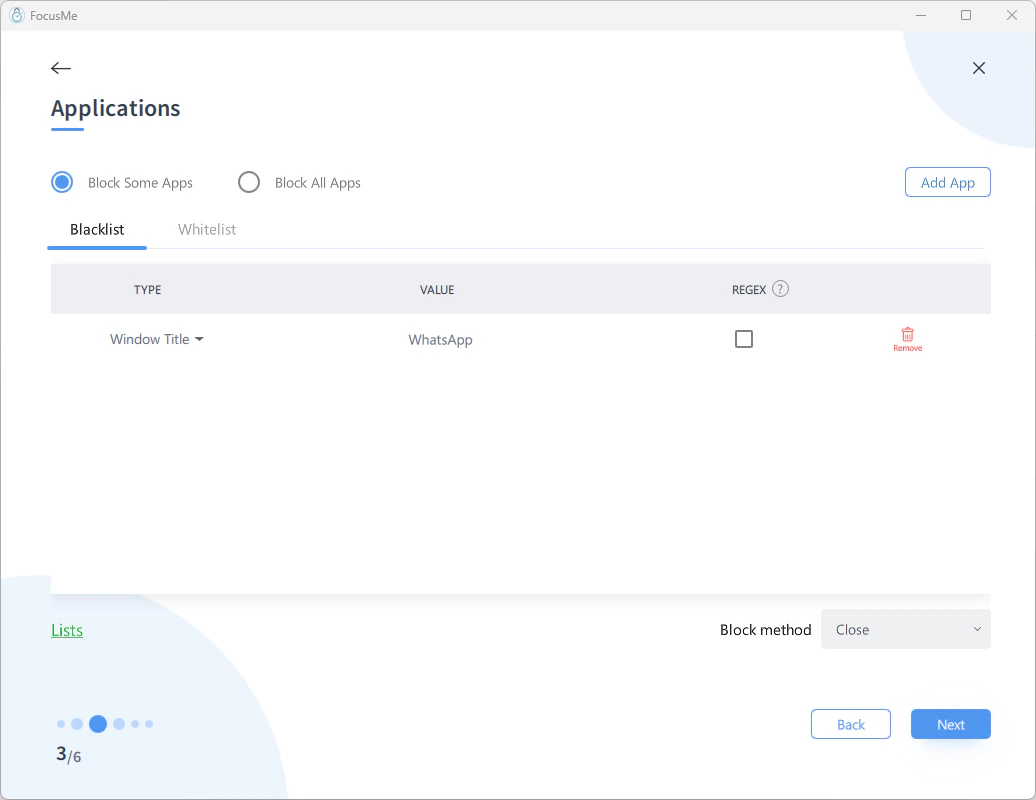 1. Open the Store app you want to block
2. Use the [Helper Tool](/guides/using-the-helper-tool) to see its window title
3. In your plan, add the app by **window title** rather than process name
**Example:** To block the Windows Store TikTok app, add a title match for `TikTok`.
## Some Store Apps Have Unique Processes
Not all Store apps use `ApplicationFrameHost.exe`. Some have their own process names:
* Use the Helper Tool or Task Manager to check
* If the app has a unique process name, you can block by process as normal
## Block All Store Apps
If you want to block every Store app:
1. Add `ApplicationFrameHost.exe` as a blocked process
2. Add exceptions by whitelisting specific window titles you need (e.g., Calculator, Settings)
Blocking `ApplicationFrameHost.exe` also blocks some built-in Windows apps like Settings and Calculator. Only do this if you're sure you don't need any Store apps during your focus period.
1. Open the Store app you want to block
2. Use the [Helper Tool](/guides/using-the-helper-tool) to see its window title
3. In your plan, add the app by **window title** rather than process name
**Example:** To block the Windows Store TikTok app, add a title match for `TikTok`.
## Some Store Apps Have Unique Processes
Not all Store apps use `ApplicationFrameHost.exe`. Some have their own process names:
* Use the Helper Tool or Task Manager to check
* If the app has a unique process name, you can block by process as normal
## Block All Store Apps
If you want to block every Store app:
1. Add `ApplicationFrameHost.exe` as a blocked process
2. Add exceptions by whitelisting specific window titles you need (e.g., Calculator, Settings)
Blocking `ApplicationFrameHost.exe` also blocks some built-in Windows apps like Settings and Calculator. Only do this if you're sure you don't need any Store apps during your focus period.