> ## Documentation Index
> Fetch the complete documentation index at: https://docs.focusme.com/llms.txt
> Use this file to discover all available pages before exploring further.
# Block All Steam Games
> Block Steam games while optionally keeping the Steam client accessible.
## Block Everything (Steam + All Games)
The simplest approach — block the Steam process:
1. **Add a Plan** → in the Applications step, choose **Block Some Apps**
2. Add `steam.exe`
3. This blocks the Steam client and prevents launching any games through it
## Block Games but Allow Steam Client
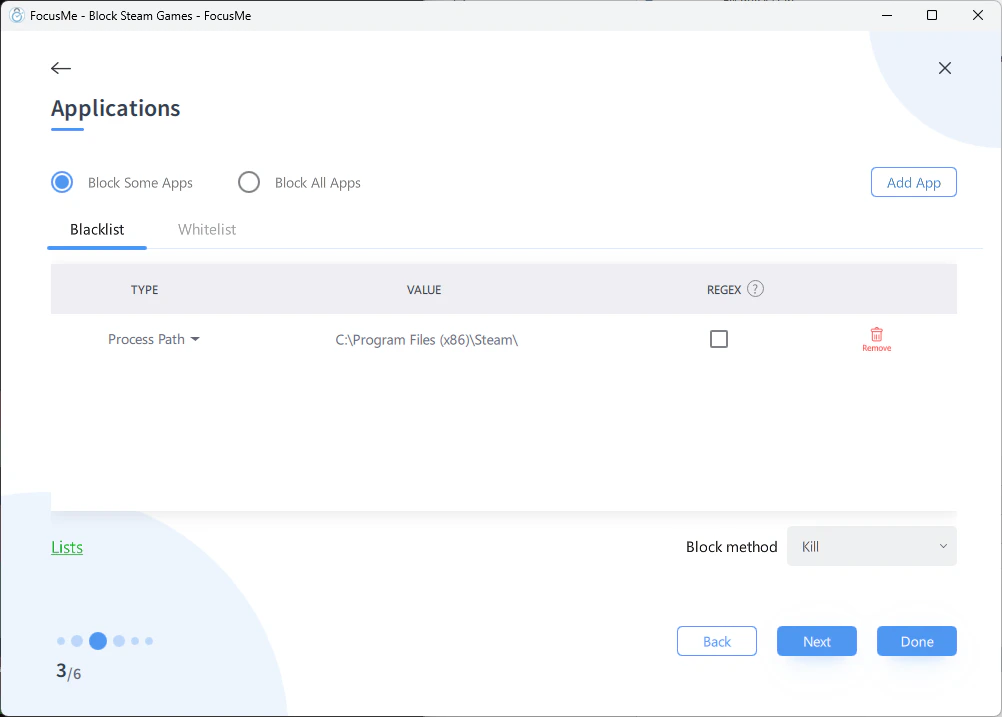 To keep access to the Steam store and chat but block actual gameplay:
1. Use [RegEx](/advanced/regex) with a title-based match
2. Add a **window title** entry with RegEx: `\b(game1|game2|game3)\b`
3. Replace with the actual names of games you want to block
Alternatively, add each game's process name individually using the Helper Tool while each game is running.
## Block by Steam Library Path
If all your Steam games are installed in one folder (e.g., `C:\Program Files (x86)\Steam\steamapps\common\`), you can use **process path** matching with RegEx:
```
steamapps\\common
```
This catches any executable running from the Steam games directory, regardless of the game.
This approach also works for Epic Games (`Epic Games\\`) or any other launcher that installs games in a common directory.
To keep access to the Steam store and chat but block actual gameplay:
1. Use [RegEx](/advanced/regex) with a title-based match
2. Add a **window title** entry with RegEx: `\b(game1|game2|game3)\b`
3. Replace with the actual names of games you want to block
Alternatively, add each game's process name individually using the Helper Tool while each game is running.
## Block by Steam Library Path
If all your Steam games are installed in one folder (e.g., `C:\Program Files (x86)\Steam\steamapps\common\`), you can use **process path** matching with RegEx:
```
steamapps\\common
```
This catches any executable running from the Steam games directory, regardless of the game.
This approach also works for Epic Games (`Epic Games\\`) or any other launcher that installs games in a common directory.