> ## Documentation Index
> Fetch the complete documentation index at: https://docs.focusme.com/llms.txt
> Use this file to discover all available pages before exploring further.
# Block Social Media
> Step-by-step guide to blocking social media sites and apps with FocusMe.
Social media is designed to be addictive. Here's how to take back control.
## Quick Setup — Block the Big Sites
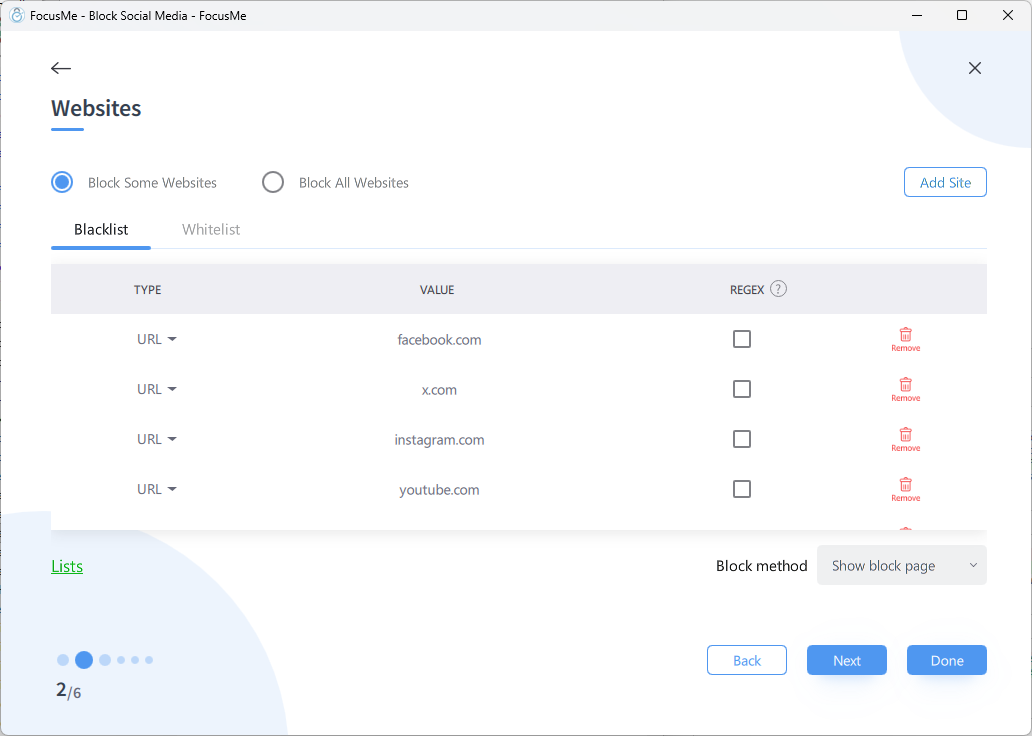 1. Open FocusMe and click **Add a Plan**
2. Choose **Block** as the plan type (or **Time Limit** if you want a daily budget)
3. Choose **Block Some Websites** and add:
```
facebook.com
instagram.com
tiktok.com
x.com
reddit.com
threads.net
snapchat.com
linkedin.com
pinterest.com
```
4. Set your timing mode — e.g., **Weekly Schedule**, Monday to Friday, 9 AM – 5 PM
5. Add protection — at least **Password** to prevent yourself from disabling it
6. Name it "Social Media Block" and click **Done**
## Block the Apps Too
Social media has desktop apps and Windows Store apps. Block the websites *and* the applications for complete coverage:
1. In the same plan, click **Next** to go to the **Applications** page
2. Add these common social media apps:
| App | Process Name |
| -------- | -------------- |
| Discord | `Discord.exe` |
| Slack | `Slack.exe` |
| Telegram | `Telegram.exe` |
| WhatsApp | `WhatsApp.exe` |
Use the [Helper Tool](/guides/using-the-helper-tool) to find the exact process name of any app. Right-click the FocusMe tray icon → **Helper** while the app is open.
## Allow a Daily Budget Instead
If you don't want to block social media entirely, use a **Time Limit** instead of Block:
1. Choose **Time Limit** as the plan type
2. Set **30 minutes per day** (or whatever feels right)
3. FocusMe tracks your actual usage and blocks when the budget runs out
This lets you check social media on breaks without losing entire hours to doomscrolling.
## Block YouTube Shorts and Instagram Reels
You can block specific addictive features while allowing the rest of the platform:
* Block `youtube.com/shorts` — blocks Shorts but allows regular YouTube
* Block by window title containing `Reels` — catches Instagram Reels
[See the YouTube Shorts guide →](/guides/block-youtube-shorts)
## Make It Stick
The biggest risk is that future-you will disable the plan. Use protection:
* **Password** — give the password to someone you trust
* **Random Characters** — the friction of typing 50+ characters stops impulsive disabling
* **Enforced** — the nuclear option: you genuinely cannot disable it until the schedule ends
1. Open FocusMe and click **Add a Plan**
2. Choose **Block** as the plan type (or **Time Limit** if you want a daily budget)
3. Choose **Block Some Websites** and add:
```
facebook.com
instagram.com
tiktok.com
x.com
reddit.com
threads.net
snapchat.com
linkedin.com
pinterest.com
```
4. Set your timing mode — e.g., **Weekly Schedule**, Monday to Friday, 9 AM – 5 PM
5. Add protection — at least **Password** to prevent yourself from disabling it
6. Name it "Social Media Block" and click **Done**
## Block the Apps Too
Social media has desktop apps and Windows Store apps. Block the websites *and* the applications for complete coverage:
1. In the same plan, click **Next** to go to the **Applications** page
2. Add these common social media apps:
| App | Process Name |
| -------- | -------------- |
| Discord | `Discord.exe` |
| Slack | `Slack.exe` |
| Telegram | `Telegram.exe` |
| WhatsApp | `WhatsApp.exe` |
Use the [Helper Tool](/guides/using-the-helper-tool) to find the exact process name of any app. Right-click the FocusMe tray icon → **Helper** while the app is open.
## Allow a Daily Budget Instead
If you don't want to block social media entirely, use a **Time Limit** instead of Block:
1. Choose **Time Limit** as the plan type
2. Set **30 minutes per day** (or whatever feels right)
3. FocusMe tracks your actual usage and blocks when the budget runs out
This lets you check social media on breaks without losing entire hours to doomscrolling.
## Block YouTube Shorts and Instagram Reels
You can block specific addictive features while allowing the rest of the platform:
* Block `youtube.com/shorts` — blocks Shorts but allows regular YouTube
* Block by window title containing `Reels` — catches Instagram Reels
[See the YouTube Shorts guide →](/guides/block-youtube-shorts)
## Make It Stick
The biggest risk is that future-you will disable the plan. Use protection:
* **Password** — give the password to someone you trust
* **Random Characters** — the friction of typing 50+ characters stops impulsive disabling
* **Enforced** — the nuclear option: you genuinely cannot disable it until the schedule ends