> ## Documentation Index
> Fetch the complete documentation index at: https://docs.focusme.com/llms.txt
> Use this file to discover all available pages before exploring further.
# Block the Entire Internet
> How to block all websites and optionally allow specific sites you need for work.
Sometimes you need zero internet distractions. FocusMe can block **every website** and let you whitelist only what you need.
## Setup
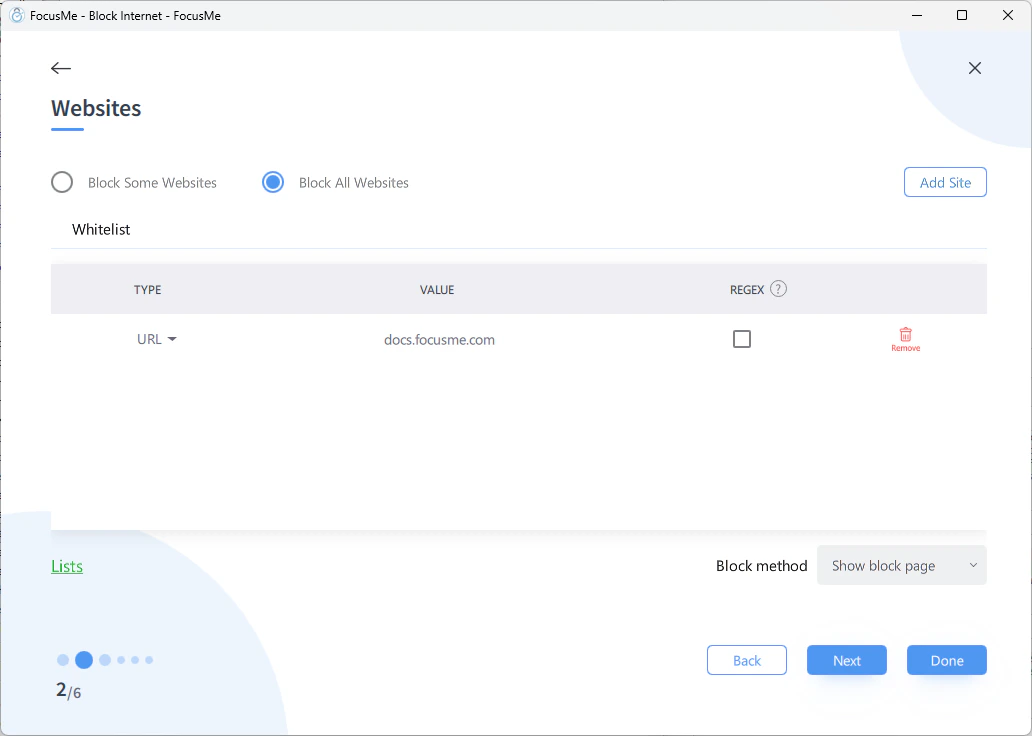 1. **Add a Plan** → choose your plan type (Block recommended)
2. In the Websites step, choose **Block All Websites**
3. Add exceptions — the sites you still need:
**Common work whitelist:**
```
docs.google.com
drive.google.com
github.com
stackoverflow.com
slack.com
```
4. Set your schedule and protection
5. Click **Done**
## Tips
* **Whitelist authentication providers.** If your work tools use Google or Microsoft SSO, add `accounts.google.com` and `login.microsoftonline.com` to your whitelist.
* **Allow Google Drive and Docs together.** See [How to allow Google Drive and Docs](/guides/block-internet-allow-google).
* **Test before adding protection.** Run the plan without protection first to make sure your whitelist covers everything you need. Then add protection once you're confident.
* **Pair with app blocking.** Blocking all websites doesn't block desktop apps that connect to the internet (Spotify, email clients, etc.). Add those separately if needed.
If you use **Enforced** protection with a "block all websites" plan, make absolutely sure your whitelist is complete. You won't be able to modify it until the schedule ends.
1. **Add a Plan** → choose your plan type (Block recommended)
2. In the Websites step, choose **Block All Websites**
3. Add exceptions — the sites you still need:
**Common work whitelist:**
```
docs.google.com
drive.google.com
github.com
stackoverflow.com
slack.com
```
4. Set your schedule and protection
5. Click **Done**
## Tips
* **Whitelist authentication providers.** If your work tools use Google or Microsoft SSO, add `accounts.google.com` and `login.microsoftonline.com` to your whitelist.
* **Allow Google Drive and Docs together.** See [How to allow Google Drive and Docs](/guides/block-internet-allow-google).
* **Test before adding protection.** Run the plan without protection first to make sure your whitelist covers everything you need. Then add protection once you're confident.
* **Pair with app blocking.** Blocking all websites doesn't block desktop apps that connect to the internet (Spotify, email clients, etc.). Add those separately if needed.
If you use **Enforced** protection with a "block all websites" plan, make absolutely sure your whitelist is complete. You won't be able to modify it until the schedule ends.