> ## Documentation Index
> Fetch the complete documentation index at: https://docs.focusme.com/llms.txt
> Use this file to discover all available pages before exploring further.
# Block Email Inboxes but Allow Sending
> Stop checking email compulsively while still being able to send messages.
Constant email checking is a major productivity killer. This guide shows you how to block your inbox while keeping the ability to compose and send emails.
## The Strategy
Instead of blocking your entire email provider, block only the **inbox view** while allowing the **compose** page.
## Gmail
1. Block: `mail.google.com`
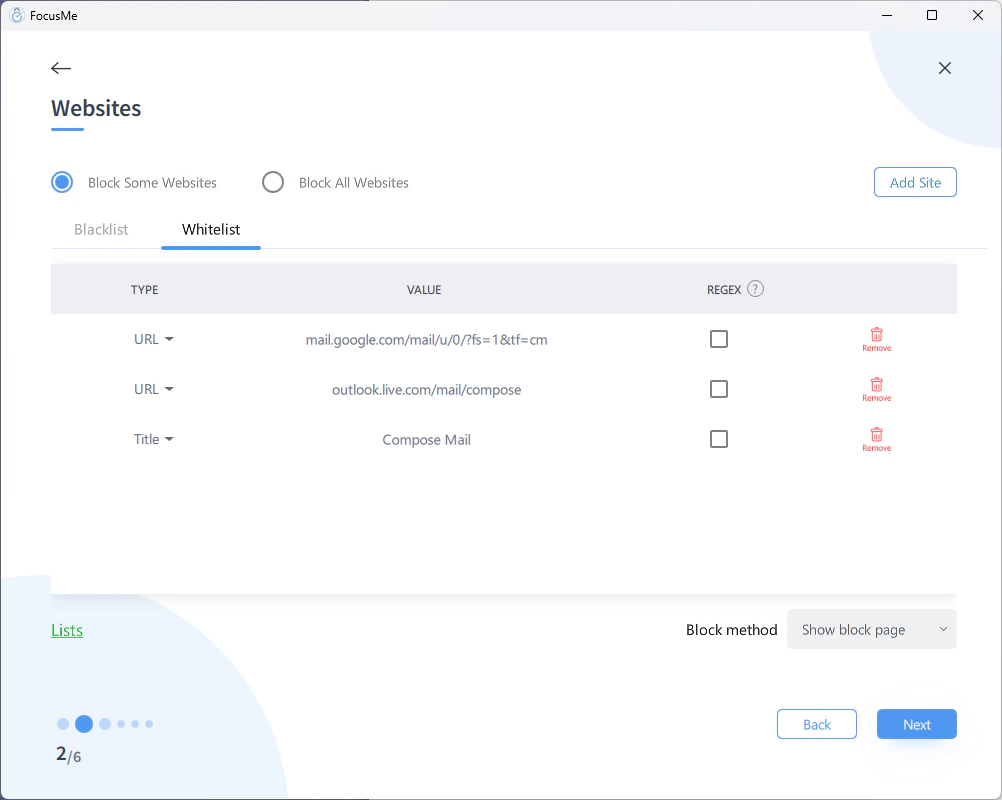
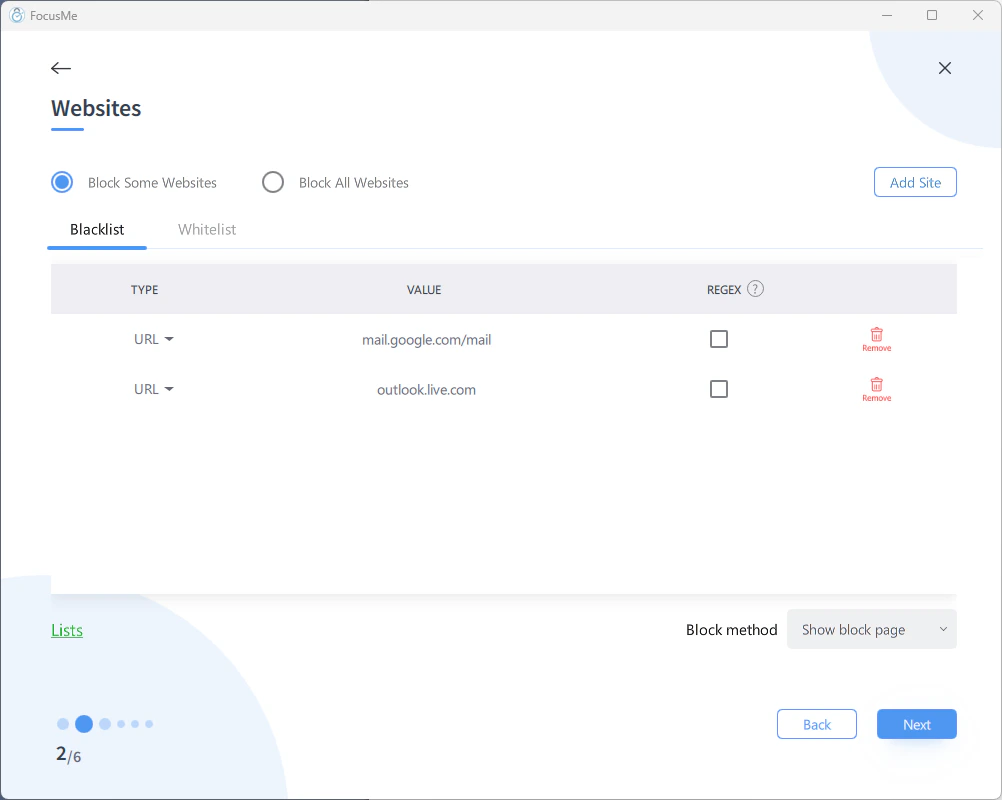 2. Whitelist these compose URLs:
* `mail.google.com/mail/?view=cm&fs=1&tf=1`
* `mail.google.com/mail/u/0/?fs=1&tf=cm`
3. As a title fallback, also whitelist by **Title**: `Compose Mail`
2. Whitelist these compose URLs:
* `mail.google.com/mail/?view=cm&fs=1&tf=1`
* `mail.google.com/mail/u/0/?fs=1&tf=cm`
3. As a title fallback, also whitelist by **Title**: `Compose Mail`
 Bookmark `https://mail.google.com/mail/?view=cm&fs=1&tf=1` in your browser favourites bar. This opens the compose window directly without loading the inbox, so you can fire off emails without getting distracted by unread messages.
## Outlook (Web)
1. Block: `outlook.live.com` or `outlook.office.com`
2. Whitelist: `outlook.live.com/mail/compose` or `outlook.office.com/mail/compose`
## Desktop Email Clients
For apps like Outlook desktop or Thunderbird, blocking the application entirely prevents both reading and sending. If you need to send but not read:
1. Use the **web version** of your email with the URL-based approach above
2. Block the desktop email application by process name
3. Or schedule email access to specific times (e.g., 9 AM, 12 PM, 4 PM) using a Weekly Schedule
A popular approach: instead of partial blocking, schedule your email access. Create a plan that blocks email entirely except during 2-3 designated checking windows per day. This builds the habit of batching email.
Bookmark `https://mail.google.com/mail/?view=cm&fs=1&tf=1` in your browser favourites bar. This opens the compose window directly without loading the inbox, so you can fire off emails without getting distracted by unread messages.
## Outlook (Web)
1. Block: `outlook.live.com` or `outlook.office.com`
2. Whitelist: `outlook.live.com/mail/compose` or `outlook.office.com/mail/compose`
## Desktop Email Clients
For apps like Outlook desktop or Thunderbird, blocking the application entirely prevents both reading and sending. If you need to send but not read:
1. Use the **web version** of your email with the URL-based approach above
2. Block the desktop email application by process name
3. Or schedule email access to specific times (e.g., 9 AM, 12 PM, 4 PM) using a Weekly Schedule
A popular approach: instead of partial blocking, schedule your email access. Create a plan that blocks email entirely except during 2-3 designated checking windows per day. This builds the habit of batching email.