> ## Documentation Index
> Fetch the complete documentation index at: https://docs.focusme.com/llms.txt
> Use this file to discover all available pages before exploring further.
# Add to Blacklist While a Plan is Active
> Add new websites or apps to your blacklist without stopping the plan.
Discovered a new distraction while your plan is running? You can add it to the blacklist without stopping and restarting the plan.
## How to Add
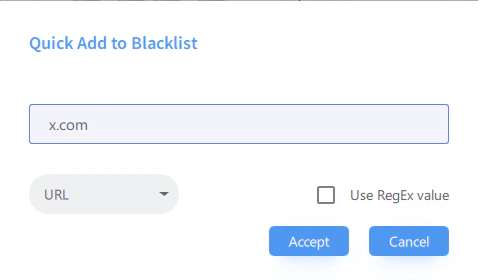 1. Open the FocusMe main window
2. Find the active plan in the Plans list
3. Double-click to edit the plan
4. Navigate to the targets (websites or applications)
5. Add the new entry
6. Save — the new entry takes effect immediately
If the plan has **standby** protection, you may need to authenticate to edit it. The plan remains active throughout the edit.
## Quick Add via Helper Tool
1. Open the distracting site or app
2. Right-click the FocusMe tray icon → **Helper**
3. Note the URL or process name
4. Edit your plan and add that entry
## Whitelist Additions
The same process works for adding **exceptions**. If a site or app is blocked that you need:
1. Edit the plan
2. Add the site/app to your whitelist
3. Save — the exception takes effect immediately
1. Open the FocusMe main window
2. Find the active plan in the Plans list
3. Double-click to edit the plan
4. Navigate to the targets (websites or applications)
5. Add the new entry
6. Save — the new entry takes effect immediately
If the plan has **standby** protection, you may need to authenticate to edit it. The plan remains active throughout the edit.
## Quick Add via Helper Tool
1. Open the distracting site or app
2. Right-click the FocusMe tray icon → **Helper**
3. Note the URL or process name
4. Edit your plan and add that entry
## Whitelist Additions
The same process works for adding **exceptions**. If a site or app is blocked that you need:
1. Edit the plan
2. Add the site/app to your whitelist
3. Save — the exception takes effect immediately