> ## Documentation Index
> Fetch the complete documentation index at: https://docs.focusme.com/llms.txt
> Use this file to discover all available pages before exploring further.
# Activate a License
> Manually activate FocusMe with a license key, or activate on a machine without internet.
In most cases, activation happens automatically when you [log in](/guides/login-and-sync). Your license — whether trial or paid — is activated as soon as you sign in with the account you created on the website.
This page covers manual activation for cases where the standard login flow doesn't apply.
## License Key Activation
If you have a license key (e.g., purchased through a reseller or received as a gift):
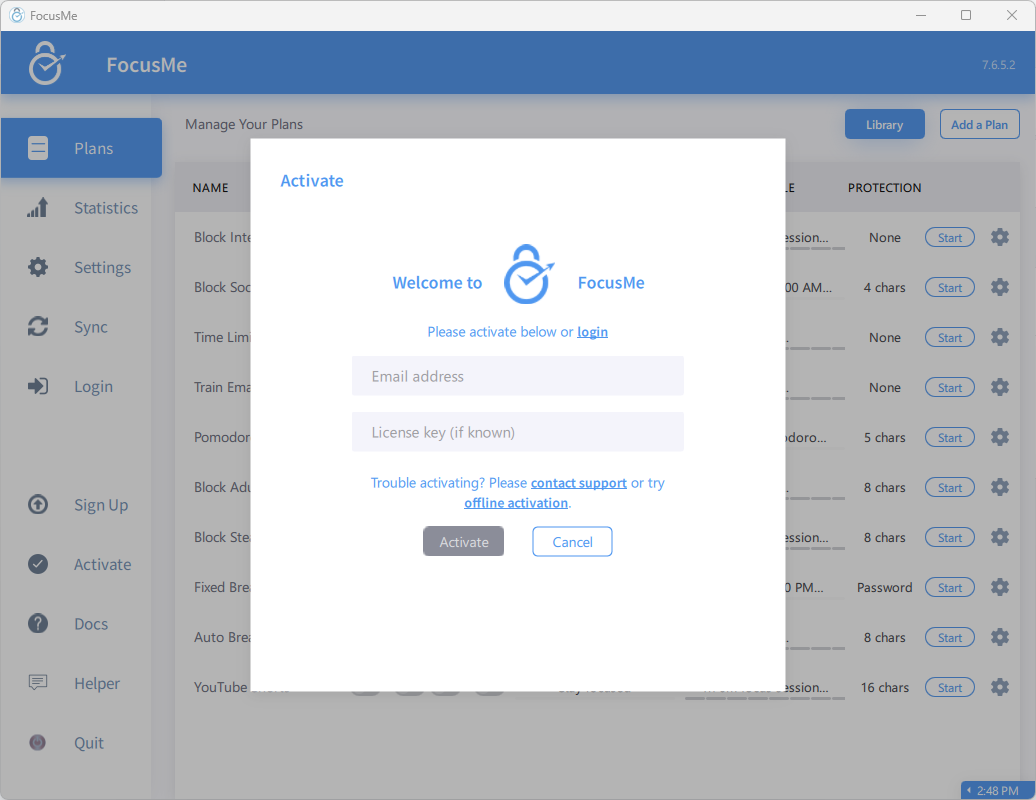 1. Click the **Login** button in the sidebar
2. Enter your **email address**
3. Click **Activate** instead of Login
4. Enter your **license key**
5. Your installation is activated and linked to your account
After activation, plan sync is enabled automatically. See [Log In & Sync Plans](/guides/login-and-sync) for details on syncing across devices.
## Offline Activation
For machines without internet access:
1. Follow the activation steps above — FocusMe will show an offline activation option
2. Note the **Machine ID** displayed
3. On a device with internet, visit the FocusMe activation page and enter your license key and Machine ID
4. Enter the offline activation code you receive back into FocusMe
Offline activation is useful for locked-down work environments or machines that are intentionally kept offline.
1. Click the **Login** button in the sidebar
2. Enter your **email address**
3. Click **Activate** instead of Login
4. Enter your **license key**
5. Your installation is activated and linked to your account
After activation, plan sync is enabled automatically. See [Log In & Sync Plans](/guides/login-and-sync) for details on syncing across devices.
## Offline Activation
For machines without internet access:
1. Follow the activation steps above — FocusMe will show an offline activation option
2. Note the **Machine ID** displayed
3. On a device with internet, visit the FocusMe activation page and enter your license key and Machine ID
4. Enter the offline activation code you receive back into FocusMe
Offline activation is useful for locked-down work environments or machines that are intentionally kept offline.