> ## Documentation Index
> Fetch the complete documentation index at: https://docs.focusme.com/llms.txt
> Use this file to discover all available pages before exploring further.
# Plan Protection
> Make your plans tamper-resistant — from simple passwords to unbreakable Enforced mode.
Protection determines how hard it is to stop, pause, or edit a plan once it's running. This is what separates FocusMe from a simple browser extension — when you set strong protection, you genuinely cannot bypass blocking, even if you want to.
 ## Protection Levels
Protection levels apply to stopping, skipping, pausing, and other plan actions. Not all levels are available for every action.
### Unprotected
No challenge. You can perform the action with a single click.
**Good for:** Testing plans, flexible schedules, low-stakes blocking.
### Password
You set a password when creating the plan. To perform the action, you must enter the password.
**Good for:** Mild accountability. Adds a speed bump that makes you pause and think before acting.
Give your password to a trusted friend or family member so you can't easily disable it yourself. Or use a password manager to generate a random password you don't memorise.
### Random Chars
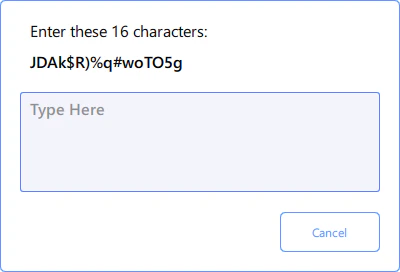
FocusMe generates a string of random characters that you must type out exactly. The character count is configurable directly on the protection page using the inline spinbox — longer strings take more effort.
**Perfect mode:** When enabled, any typo resets your entire entry and you must start over from the beginning. Without Perfect mode, partial progress is preserved and you can correct mistakes in place. Enable Perfect mode for stronger protection — it makes impulsive bypass attempts much harder under frustration.
## Protection Levels
Protection levels apply to stopping, skipping, pausing, and other plan actions. Not all levels are available for every action.
### Unprotected
No challenge. You can perform the action with a single click.
**Good for:** Testing plans, flexible schedules, low-stakes blocking.
### Password
You set a password when creating the plan. To perform the action, you must enter the password.
**Good for:** Mild accountability. Adds a speed bump that makes you pause and think before acting.
Give your password to a trusted friend or family member so you can't easily disable it yourself. Or use a password manager to generate a random password you don't memorise.
### Random Chars
FocusMe generates a string of random characters that you must type out exactly. The character count is configurable directly on the protection page using the inline spinbox — longer strings take more effort.
**Perfect mode:** When enabled, any typo resets your entire entry and you must start over from the beginning. Without Perfect mode, partial progress is preserved and you can correct mistakes in place. Enable Perfect mode for stronger protection — it makes impulsive bypass attempts much harder under frustration.
 **Good for:** Discouraging impulsive bypassing. The friction of typing random characters gives you time to reconsider.
### Enforced
The plan **cannot be stopped** by any means until the schedule allows it. There is no password, no override, no escape hatch.
**Good for:** Maximum willpower support, serious commitments, parental controls.
**Enforced mode is serious.** Once an enforced plan is active, the only way to unblock is to wait for the schedule to end. Make absolutely sure your plan is configured correctly before enabling Enforced protection. Test your plan without protection first.
In older versions of FocusMe, Enforced was called "Forced". It's the same feature, just renamed for clarity.
### Disallowed
Available for **skip break**, **pause/postpone**, and **add to whitelist** actions. When set to Disallowed, the action is completely blocked — there is no challenge, no workaround, and the button is hidden entirely.
**Good for:** When you want to guarantee that breaks can't be skipped, plans can't be paused, or whitelists can't be modified during active blocking.
Disallowed is the strongest level for these actions — equivalent to Enforced for stopping a plan. The button is hidden entirely and the action cannot be performed.
## Protection Settings
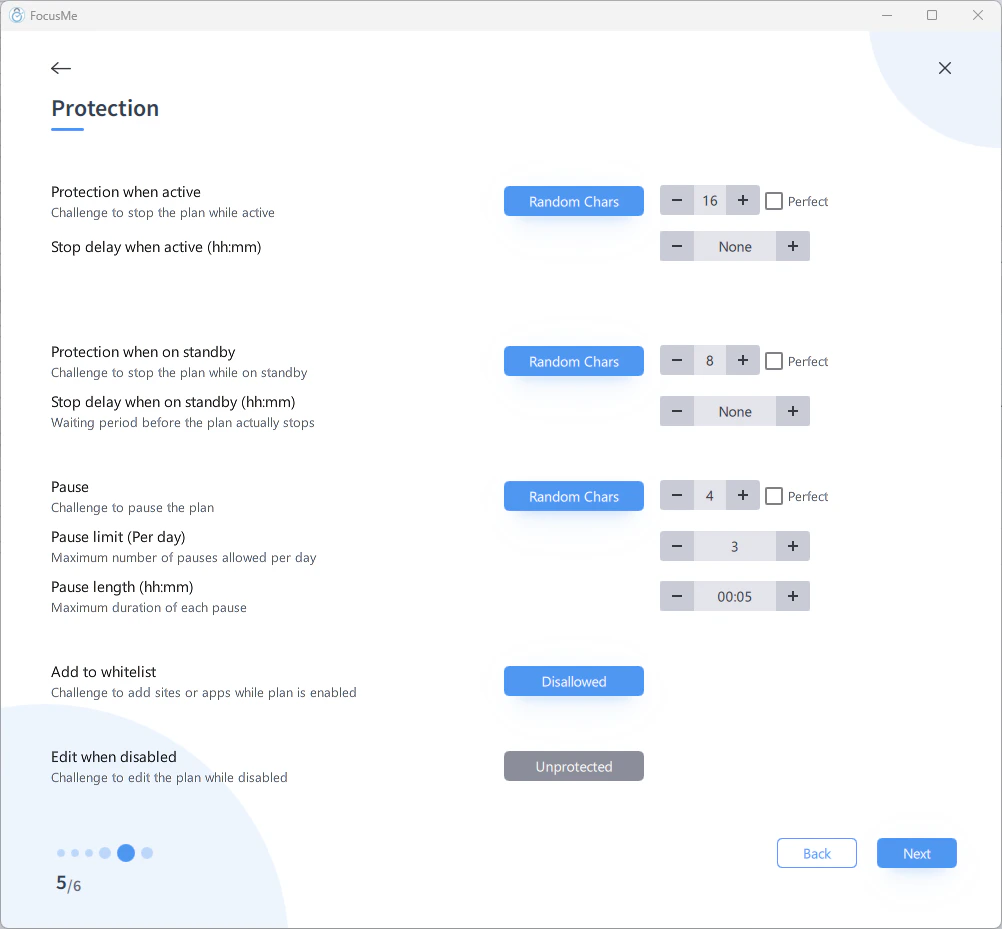
The Protection page in the Plan Wizard has these settings:
| Setting | Description |
| -------------------------- | ---------------------------------------------------------------------------------------------------------------------------------------------------------------------------------------------------------------------------------------------------------------------------------------------- |
| **Protection when active** | Challenge required to stop the plan while it's blocking |
| **Stop delay when active** | Countdown timer between requesting to stop and the plan actually stopping (e.g., 15 minutes). The plan stays active during the delay — blocking continues until the countdown expires. |
| **Protection on standby** | Challenge required to stop/edit the plan outside schedule hours |
| **Stop delay on standby** | Same countdown for stopping outside schedule hours |
| **When Disabled** | Password-protect editing and deleting of disabled plans. Prevents tampering with a plan's settings while it's not running. |
| **Skip break** | Challenge to skip a break on Screen Break or Pomodoro plans. Can be set to Disallowed to prevent skipping entirely. |
| **Pause/Postpone** | Challenge to pause the plan. Can be set to Disallowed to prevent pausing entirely. Pausing temporarily suspends blocking and resumes automatically after the configured duration. On Screen Break and Pomodoro plans, the button says "Postpone" instead of "Pause" — it's the same mechanism. |
| **Pause limit** | Maximum pause duration (default: 15 minutes) and optional pause count per day |
| **Add to Whitelist** | Challenge to add exceptions while the plan is active. Can be set to Disallowed to prevent whitelist changes entirely. |
**Example setup:**
* Protection when active: **Enforced** (can't stop the plan while it's running)
* Protection on standby: **Password** (need a password to edit outside schedule)
* When Disabled: **Password** (need a password to edit or delete the plan when it's not running)
* Skip break: **Disallowed** (breaks cannot be skipped)
* Pause/Postpone: **Random Chars (4)** (must type 4 random characters to pause)
### Default Protection for New Plans
New plans are created with moderate protection by default:
* **Stop when active:** Random Characters (8)
* **Skip break:** Random Characters (4)
* **Pause/Postpone:** Random Characters (4)
* **Add to Whitelist:** Disallowed
* **Pause length:** 15 minutes
You can change these in the Plan Wizard before saving.
## Editing Running Plans
When a plan is active, you can still edit it — but only to make protection **stricter**. You can increase the stop challenge level, reduce pause limits, or tighten schedule times. You cannot weaken protection on a running plan (e.g., changing from Enforced to Password, or extending pause duration). This also applies to whitelist and When Disabled protection.
This prevents you from undermining your own plans in a moment of weakness while still allowing you to strengthen them.
## Tips for Effective Protection
1. **Start mild, increase gradually.** Begin with Password protection. Once you're comfortable, try Random Characters. Only use Enforced when you're confident in your schedule.
2. **Test before committing.** Run your plan with no protection for a day to verify the schedule, targets, and rules are correct. Then add protection.
3. **Set up your schedule first.** With Enforced mode on a Weekly Schedule, blocking activates and deactivates automatically. Make sure the schedule has gaps for when you need unrestricted access.
4. **Use pause limits as a middle ground.** Instead of going straight to Enforced, use Password protection with 2-3 pause limits. You can still take breaks, but the friction prevents mindless disabling.
5. **Emergency codes.** FocusMe provides emergency unlock codes for genuine emergencies. These are single-use and limited — they exist for safety, not convenience.
6. **Lock your accountability partners.** If you use [Accountability Partner](/concepts/accountability-partner) protection, lock your partner list to prevent yourself from adding a more lenient partner.
## Emergency Stop Codes
If you're locked out by an Enforced plan and genuinely need to regain access (e.g., an urgent work situation), FocusMe provides emergency stop codes as a last resort.
**Good for:** Discouraging impulsive bypassing. The friction of typing random characters gives you time to reconsider.
### Enforced
The plan **cannot be stopped** by any means until the schedule allows it. There is no password, no override, no escape hatch.
**Good for:** Maximum willpower support, serious commitments, parental controls.
**Enforced mode is serious.** Once an enforced plan is active, the only way to unblock is to wait for the schedule to end. Make absolutely sure your plan is configured correctly before enabling Enforced protection. Test your plan without protection first.
In older versions of FocusMe, Enforced was called "Forced". It's the same feature, just renamed for clarity.
### Disallowed
Available for **skip break**, **pause/postpone**, and **add to whitelist** actions. When set to Disallowed, the action is completely blocked — there is no challenge, no workaround, and the button is hidden entirely.
**Good for:** When you want to guarantee that breaks can't be skipped, plans can't be paused, or whitelists can't be modified during active blocking.
Disallowed is the strongest level for these actions — equivalent to Enforced for stopping a plan. The button is hidden entirely and the action cannot be performed.
## Protection Settings
The Protection page in the Plan Wizard has these settings:
| Setting | Description |
| -------------------------- | ---------------------------------------------------------------------------------------------------------------------------------------------------------------------------------------------------------------------------------------------------------------------------------------------- |
| **Protection when active** | Challenge required to stop the plan while it's blocking |
| **Stop delay when active** | Countdown timer between requesting to stop and the plan actually stopping (e.g., 15 minutes). The plan stays active during the delay — blocking continues until the countdown expires. |
| **Protection on standby** | Challenge required to stop/edit the plan outside schedule hours |
| **Stop delay on standby** | Same countdown for stopping outside schedule hours |
| **When Disabled** | Password-protect editing and deleting of disabled plans. Prevents tampering with a plan's settings while it's not running. |
| **Skip break** | Challenge to skip a break on Screen Break or Pomodoro plans. Can be set to Disallowed to prevent skipping entirely. |
| **Pause/Postpone** | Challenge to pause the plan. Can be set to Disallowed to prevent pausing entirely. Pausing temporarily suspends blocking and resumes automatically after the configured duration. On Screen Break and Pomodoro plans, the button says "Postpone" instead of "Pause" — it's the same mechanism. |
| **Pause limit** | Maximum pause duration (default: 15 minutes) and optional pause count per day |
| **Add to Whitelist** | Challenge to add exceptions while the plan is active. Can be set to Disallowed to prevent whitelist changes entirely. |
**Example setup:**
* Protection when active: **Enforced** (can't stop the plan while it's running)
* Protection on standby: **Password** (need a password to edit outside schedule)
* When Disabled: **Password** (need a password to edit or delete the plan when it's not running)
* Skip break: **Disallowed** (breaks cannot be skipped)
* Pause/Postpone: **Random Chars (4)** (must type 4 random characters to pause)
### Default Protection for New Plans
New plans are created with moderate protection by default:
* **Stop when active:** Random Characters (8)
* **Skip break:** Random Characters (4)
* **Pause/Postpone:** Random Characters (4)
* **Add to Whitelist:** Disallowed
* **Pause length:** 15 minutes
You can change these in the Plan Wizard before saving.
## Editing Running Plans
When a plan is active, you can still edit it — but only to make protection **stricter**. You can increase the stop challenge level, reduce pause limits, or tighten schedule times. You cannot weaken protection on a running plan (e.g., changing from Enforced to Password, or extending pause duration). This also applies to whitelist and When Disabled protection.
This prevents you from undermining your own plans in a moment of weakness while still allowing you to strengthen them.
## Tips for Effective Protection
1. **Start mild, increase gradually.** Begin with Password protection. Once you're comfortable, try Random Characters. Only use Enforced when you're confident in your schedule.
2. **Test before committing.** Run your plan with no protection for a day to verify the schedule, targets, and rules are correct. Then add protection.
3. **Set up your schedule first.** With Enforced mode on a Weekly Schedule, blocking activates and deactivates automatically. Make sure the schedule has gaps for when you need unrestricted access.
4. **Use pause limits as a middle ground.** Instead of going straight to Enforced, use Password protection with 2-3 pause limits. You can still take breaks, but the friction prevents mindless disabling.
5. **Emergency codes.** FocusMe provides emergency unlock codes for genuine emergencies. These are single-use and limited — they exist for safety, not convenience.
6. **Lock your accountability partners.** If you use [Accountability Partner](/concepts/accountability-partner) protection, lock your partner list to prevent yourself from adding a more lenient partner.
## Emergency Stop Codes
If you're locked out by an Enforced plan and genuinely need to regain access (e.g., an urgent work situation), FocusMe provides emergency stop codes as a last resort.
 ### How to Request a Stop Code
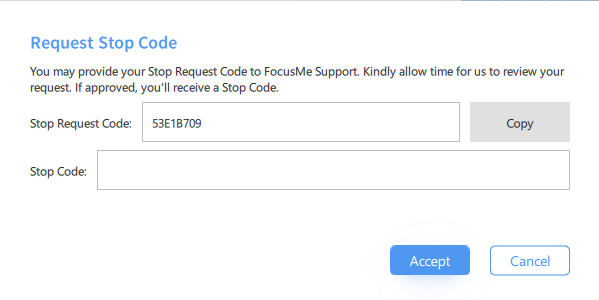
1. **Right-click** the active plan → **Request Stop Code**, or click the **Request Stop Code** button on the [Break Screen](/concepts/break-screen)
2. A dialog appears showing your **Device ID** — copy this
3. Contact FocusMe support with your Device ID to request a stop code
4. Enter the stop code you receive into the dialog
### Stop Code Responses
| Response | Meaning |
| --------------------- | ------------------------------------------------------------ |
| **Success** | The code is valid — the plan is stopped immediately |
| **Already used** | This code has already been redeemed and cannot be used again |
| **Invalid / Expired** | The code is incorrect or has expired. Request a new one. |
Emergency stop codes are **single-use** and **time-limited**. They exist for genuine emergencies, not as a regular bypass method. If you find yourself requesting stop codes frequently, consider adjusting your plan's protection settings.
Want even more commitment? Enable a [Self-Imposed Penalty](/concepts/self-imposed-penalty) to add a financial cost when you request an emergency stop code.
### How to Request a Stop Code
1. **Right-click** the active plan → **Request Stop Code**, or click the **Request Stop Code** button on the [Break Screen](/concepts/break-screen)
2. A dialog appears showing your **Device ID** — copy this
3. Contact FocusMe support with your Device ID to request a stop code
4. Enter the stop code you receive into the dialog
### Stop Code Responses
| Response | Meaning |
| --------------------- | ------------------------------------------------------------ |
| **Success** | The code is valid — the plan is stopped immediately |
| **Already used** | This code has already been redeemed and cannot be used again |
| **Invalid / Expired** | The code is incorrect or has expired. Request a new one. |
Emergency stop codes are **single-use** and **time-limited**. They exist for genuine emergencies, not as a regular bypass method. If you find yourself requesting stop codes frequently, consider adjusting your plan's protection settings.
Want even more commitment? Enable a [Self-Imposed Penalty](/concepts/self-imposed-penalty) to add a financial cost when you request an emergency stop code.