> ## Documentation Index
> Fetch the complete documentation index at: https://docs.focusme.com/llms.txt
> Use this file to discover all available pages before exploring further.
# Break Screen
> The full-screen overlay that appears during screen breaks and Pomodoro break periods.
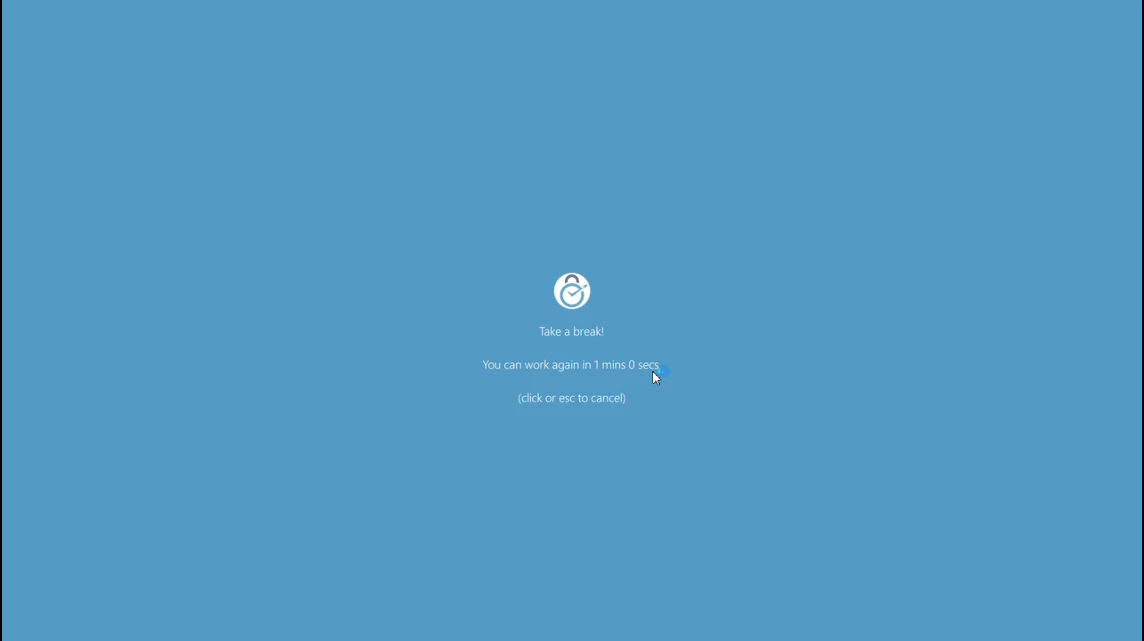
The Break Screen is a full-screen overlay that appears when a Screen Break or Pomodoro break period starts. It covers your entire display to enforce the break.
 ## What's Displayed
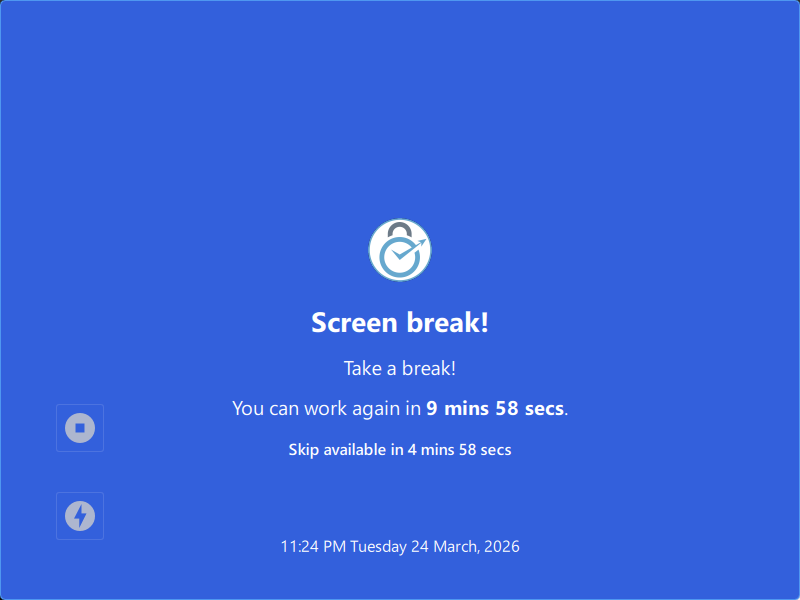
The Break Screen shows:
* **Plan name** — which plan triggered the break
* **Countdown timer** — time remaining until the break ends
* **Current date and time** — so you stay oriented
## Controls
## What's Displayed
The Break Screen shows:
* **Plan name** — which plan triggered the break
* **Countdown timer** — time remaining until the break ends
* **Current date and time** — so you stay oriented
## Controls
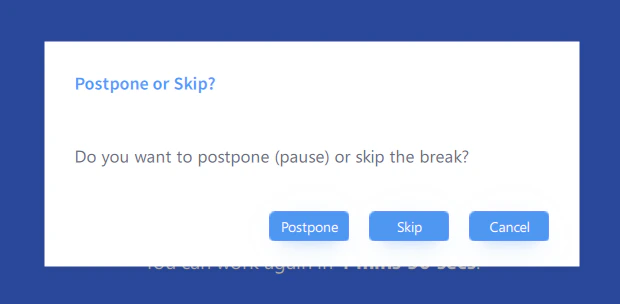 Depending on your plan's protection settings, the Break Screen may show these controls:
| Control | Description |
| --------------------- | ------------------------------------------------------------------------------------------------------------------------------------------------------------------------ |
| **Skip Break** | End the break early and return to work. Only available if the plan's skip break challenge allows it. |
| **Stop Plan** | Stop the plan entirely from the break screen. If the plan has stop protection, you'll see a confirmation dialog with the appropriate challenge (password, random chars). |
| **Extend Time** | Add more time to the break if you want a longer rest. |
| **Request Stop Code** | Request an emergency stop code to end the break or stop the plan entirely. See [Emergency Stop Codes](/concepts/plan-protection#emergency-stop-codes). |
### Pause and Postpone
If your plan allows pausing, you can **pause** the break to temporarily dismiss the Break Screen. The break timer pauses and resumes when you unpause.
Some plans also allow you to **postpone** a break — delaying it by a set number of minutes before it starts.
## Minimum Break Time
Screen Break plans can enforce a **minimum break time**. When set, the Skip Break button is disabled until the minimum time has elapsed. This ensures you take at least a short rest even if you're allowed to skip the full break.
Depending on your plan's protection settings, the Break Screen may show these controls:
| Control | Description |
| --------------------- | ------------------------------------------------------------------------------------------------------------------------------------------------------------------------ |
| **Skip Break** | End the break early and return to work. Only available if the plan's skip break challenge allows it. |
| **Stop Plan** | Stop the plan entirely from the break screen. If the plan has stop protection, you'll see a confirmation dialog with the appropriate challenge (password, random chars). |
| **Extend Time** | Add more time to the break if you want a longer rest. |
| **Request Stop Code** | Request an emergency stop code to end the break or stop the plan entirely. See [Emergency Stop Codes](/concepts/plan-protection#emergency-stop-codes). |
### Pause and Postpone
If your plan allows pausing, you can **pause** the break to temporarily dismiss the Break Screen. The break timer pauses and resumes when you unpause.
Some plans also allow you to **postpone** a break — delaying it by a set number of minutes before it starts.
## Minimum Break Time
Screen Break plans can enforce a **minimum break time**. When set, the Skip Break button is disabled until the minimum time has elapsed. This ensures you take at least a short rest even if you're allowed to skip the full break.
 ## Skip Break Challenge
Skipping a break can have its own protection challenge, separate from the stop plan challenge. This is configured in the plan's [Protection settings](/concepts/plan-protection) under **Skip break challenge**.
If the plan has skip break protection enabled, attempting to skip triggers a challenge:
* **Random Characters** — you must type a string of random characters
* **Password** — you must enter the plan's password
This prevents impulsive break-skipping. The harder the challenge, the more likely you are to just take the break.
## Stop Plan from Break Screen
If your protection settings allow it, the **Stop Plan** button lets you stop the plan directly from the break screen. If the plan has stop protection, you'll see a confirmation dialog with the appropriate challenge (password or random characters).
## Enforced Mode
When a plan uses **Enforced** protection, the Break Screen has no skip or stop option. The break must complete fully before you can return to your computer. The only controls available are:
* **Request Stop Code** — for genuine emergencies only
* **Extend Time** — if you want a longer break
In Enforced mode, you cannot dismiss the Break Screen until the countdown reaches zero. Make sure your break durations are configured correctly before enabling Enforced protection.
## Emergency Stop Code
If you genuinely need to end an enforced break (e.g., an urgent work situation), you can request an emergency stop code:
1. Click **Request Stop Code** on the Break Screen
2. Note the **Device ID** displayed
3. Contact FocusMe support with your Device ID
4. Enter the stop code you receive
Stop codes are single-use and time-limited. See [Plan Protection](/concepts/plan-protection#emergency-stop-codes) for full details.
The Break Screen is designed to be a positive experience — a reminder to rest your eyes, stretch, and recharge. Treat breaks as part of your productivity system, not an interruption.
## Skip Break Challenge
Skipping a break can have its own protection challenge, separate from the stop plan challenge. This is configured in the plan's [Protection settings](/concepts/plan-protection) under **Skip break challenge**.
If the plan has skip break protection enabled, attempting to skip triggers a challenge:
* **Random Characters** — you must type a string of random characters
* **Password** — you must enter the plan's password
This prevents impulsive break-skipping. The harder the challenge, the more likely you are to just take the break.
## Stop Plan from Break Screen
If your protection settings allow it, the **Stop Plan** button lets you stop the plan directly from the break screen. If the plan has stop protection, you'll see a confirmation dialog with the appropriate challenge (password or random characters).
## Enforced Mode
When a plan uses **Enforced** protection, the Break Screen has no skip or stop option. The break must complete fully before you can return to your computer. The only controls available are:
* **Request Stop Code** — for genuine emergencies only
* **Extend Time** — if you want a longer break
In Enforced mode, you cannot dismiss the Break Screen until the countdown reaches zero. Make sure your break durations are configured correctly before enabling Enforced protection.
## Emergency Stop Code
If you genuinely need to end an enforced break (e.g., an urgent work situation), you can request an emergency stop code:
1. Click **Request Stop Code** on the Break Screen
2. Note the **Device ID** displayed
3. Contact FocusMe support with your Device ID
4. Enter the stop code you receive
Stop codes are single-use and time-limited. See [Plan Protection](/concepts/plan-protection#emergency-stop-codes) for full details.
The Break Screen is designed to be a positive experience — a reminder to rest your eyes, stretch, and recharge. Treat breaks as part of your productivity system, not an interruption.