> ## Documentation Index
> Fetch the complete documentation index at: https://docs.focusme.com/llms.txt
> Use this file to discover all available pages before exploring further.
# Activity
> See where your screen time goes, how many distractions FocusMe blocked and how much time you reclaimed.
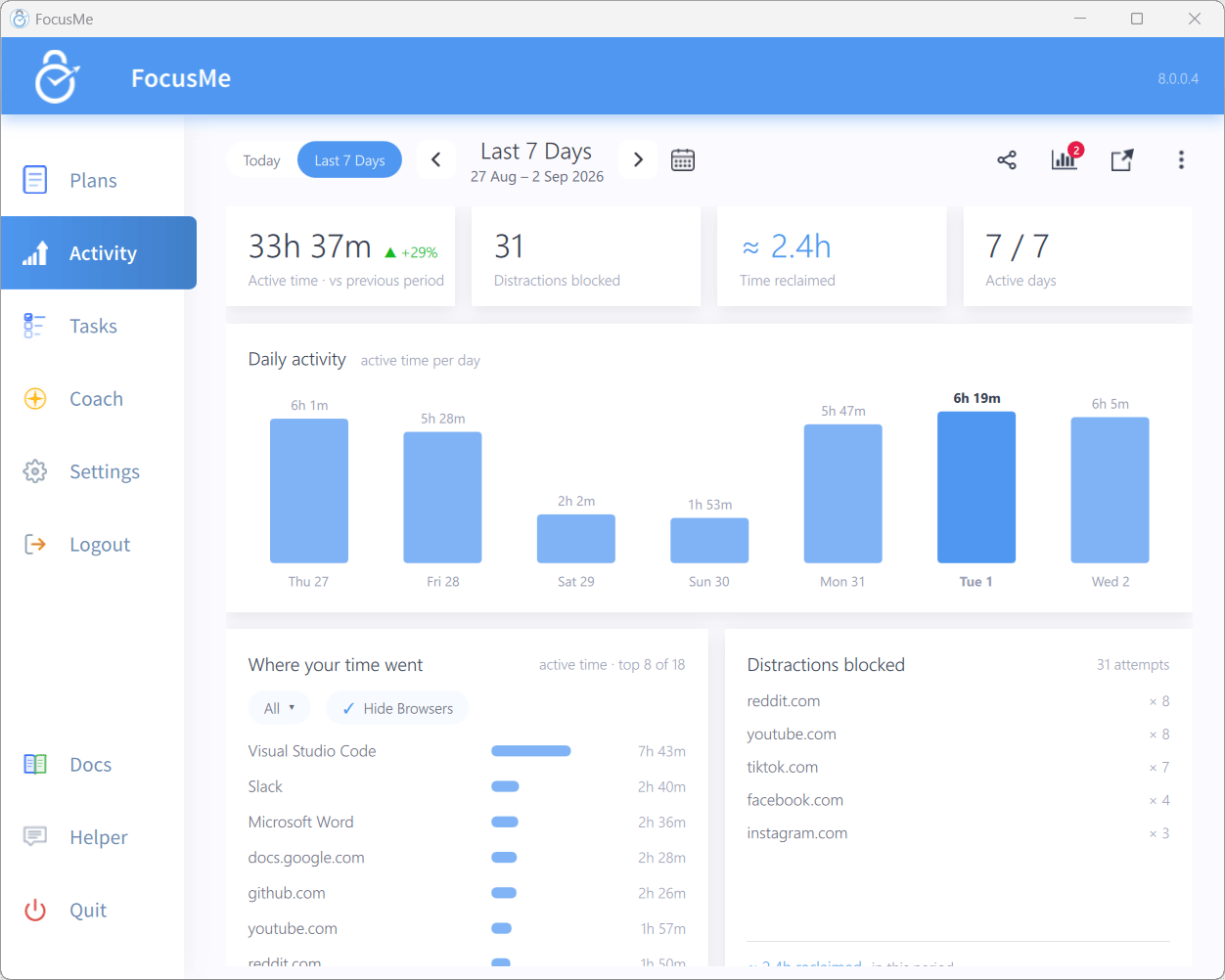
The **Activity** tab is FocusMe's dashboard for your screen time. It shows how long you were actively using your computer, which apps and websites took that time, how many distractions FocusMe blocked and how much time that saved you.
Activity was previously called **Statistics**. Everything recorded under the old name is still available here.
 Click the pop-out icon in the header (or double-click the **Activity** tab) to pop the dashboard out into its own window. You can also open it from the tray icon menu.
## Choosing a period
The header controls which dates are shown:
* **Today** / **Last 7 Days** — the two quick views. **Last 7 Days** is the default and covers the seven completed days ending yesterday.
* **Previous period** / **Next period** chevrons step backwards and forwards by the current period length.
* Click the calendar icon to pick a preset: **Last Month**, **This Month**, **Last Week**, **This Week**, **Last 7 Days**, **Yesterday** or **Today**. When the dates don't match a preset, the label reads **Custom range**.
If you use FocusMe on more than one device and have [device sync](#activity-settings) on, the **device pill** switches between **All devices** and a single device (this device is marked **(this device)**).
## Tiles
| Tile | What it shows |
| ------------------------------------ | ---------------------------------------------------------------------------------------------------------------------------------------------------------------------------------- |
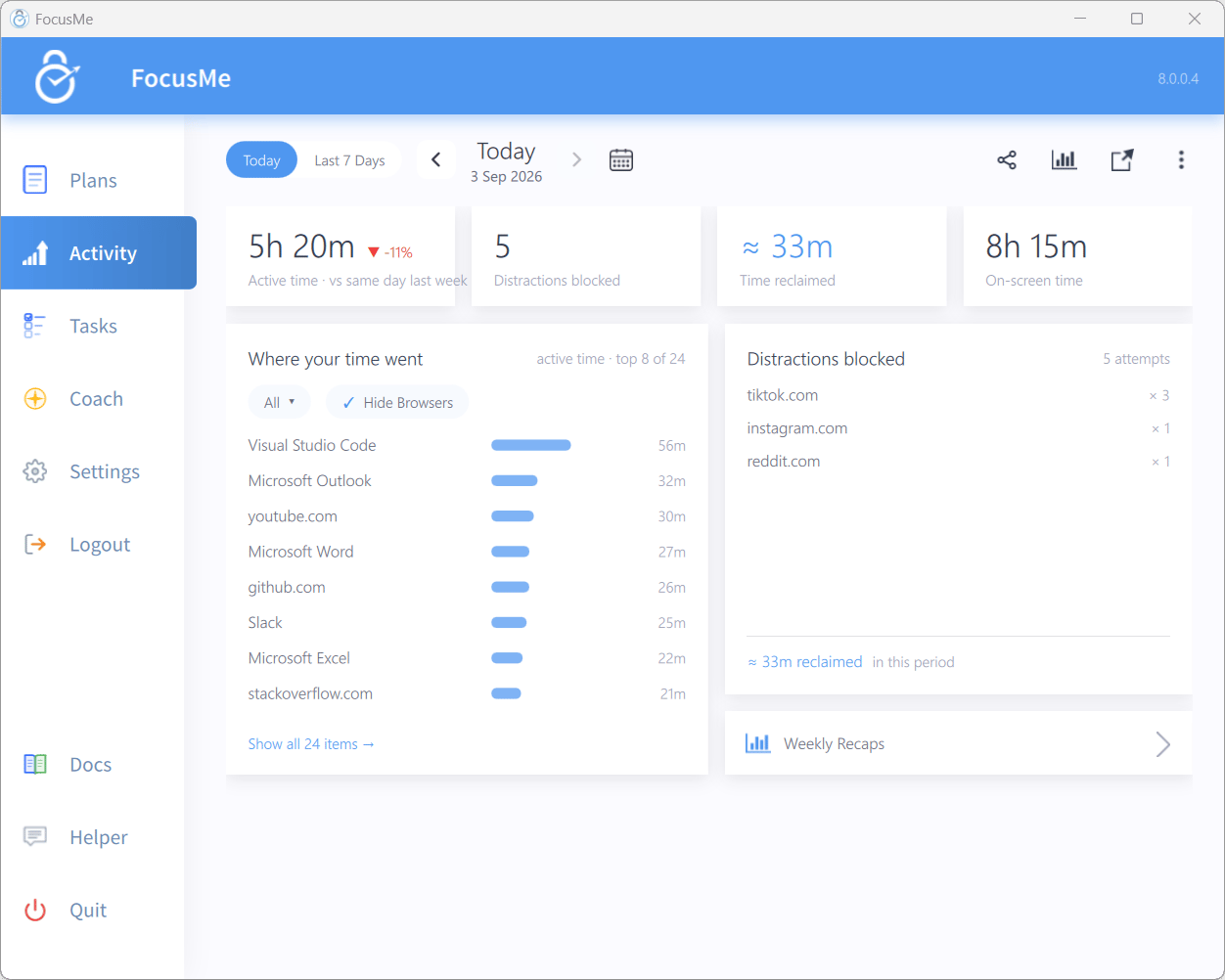
| **Active time** | Time you were actively using the computer, with a comparison to the previous period. Single days compare **vs same day last week**; longer periods compare **vs previous period**. |
| **Distractions blocked** | How many times FocusMe blocked an app or website. |
| **Time reclaimed** | An estimate of the time those blocks gave back to you. |
| **Active days** / **On-screen time** | For multi-day periods, how many of the days had activity. For a single day, the total time apps were on screen. |
Below the tiles, the **Daily activity** chart plots active time per day for the period. Switch to **Today** and the chart makes way for the day's totals, including **On-screen time**.
Click the pop-out icon in the header (or double-click the **Activity** tab) to pop the dashboard out into its own window. You can also open it from the tray icon menu.
## Choosing a period
The header controls which dates are shown:
* **Today** / **Last 7 Days** — the two quick views. **Last 7 Days** is the default and covers the seven completed days ending yesterday.
* **Previous period** / **Next period** chevrons step backwards and forwards by the current period length.
* Click the calendar icon to pick a preset: **Last Month**, **This Month**, **Last Week**, **This Week**, **Last 7 Days**, **Yesterday** or **Today**. When the dates don't match a preset, the label reads **Custom range**.
If you use FocusMe on more than one device and have [device sync](#activity-settings) on, the **device pill** switches between **All devices** and a single device (this device is marked **(this device)**).
## Tiles
| Tile | What it shows |
| ------------------------------------ | ---------------------------------------------------------------------------------------------------------------------------------------------------------------------------------- |
| **Active time** | Time you were actively using the computer, with a comparison to the previous period. Single days compare **vs same day last week**; longer periods compare **vs previous period**. |
| **Distractions blocked** | How many times FocusMe blocked an app or website. |
| **Time reclaimed** | An estimate of the time those blocks gave back to you. |
| **Active days** / **On-screen time** | For multi-day periods, how many of the days had activity. For a single day, the total time apps were on screen. |
Below the tiles, the **Daily activity** chart plots active time per day for the period. Switch to **Today** and the chart makes way for the day's totals, including **On-screen time**.
 ## Where your time went
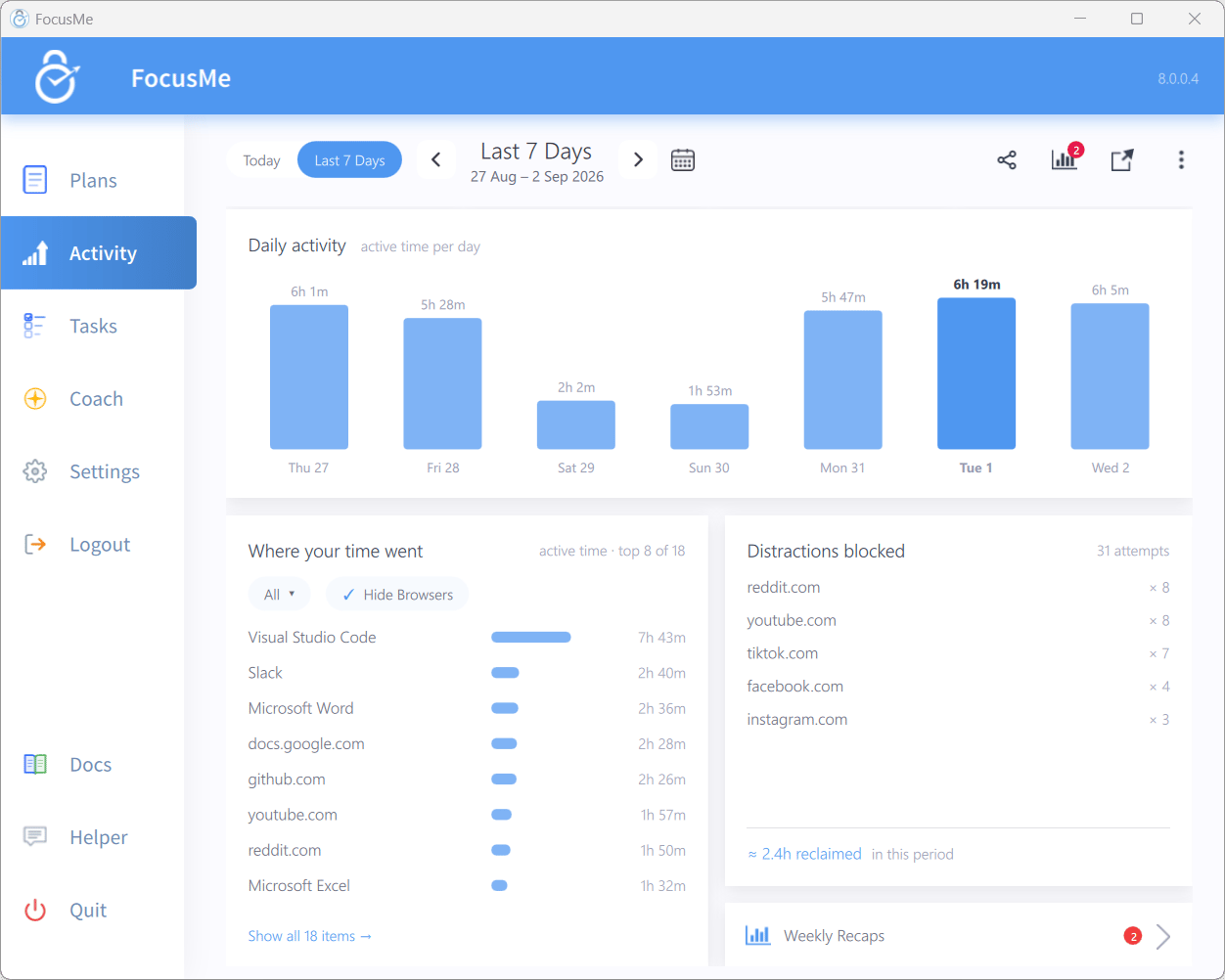 This panel lists the apps and websites that took the most active time (**active time · top N of M**). Use the **All** dropdown to show everything, only apps or only websites, and tick **Hide Browsers** to leave browser processes out so the websites inside them stand on their own.
Click **Show all N items →** to open the full table with columns **Name**, **Active Time**, **On-screen Time** and **Launches**. Click a column heading to sort. Hovering a row shows its first and last activity; the row menu offers **Remove Item**, which hides that app or site from your Activity. Removed items are listed under **Exclusion**, where **Remove** brings one back. **← Back to overview** returns to the dashboard.
This panel lists the apps and websites that took the most active time (**active time · top N of M**). Use the **All** dropdown to show everything, only apps or only websites, and tick **Hide Browsers** to leave browser processes out so the websites inside them stand on their own.
Click **Show all N items →** to open the full table with columns **Name**, **Active Time**, **On-screen Time** and **Launches**. Click a column heading to sort. Hovering a row shows its first and last activity; the row menu offers **Remove Item**, which hides that app or site from your Activity. Removed items are listed under **Exclusion**, where **Remove** brings one back. **← Back to overview** returns to the dashboard.
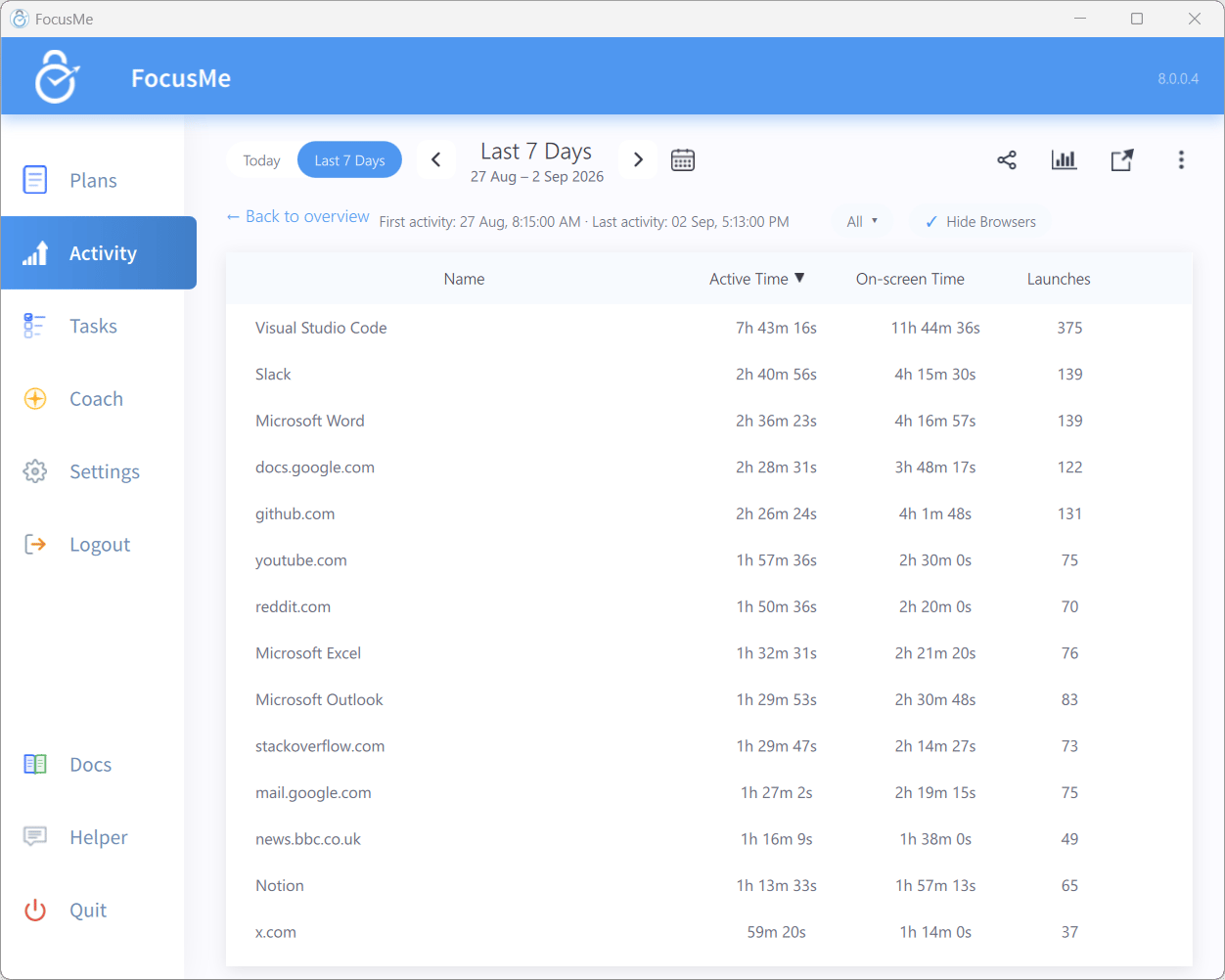 **Active time** counts only while a window is in the foreground and you are using the keyboard or mouse. **On-screen time** counts whenever the window is visible, so it is useful for apps that run passively on a second monitor.
## Distractions blocked
The rail on the right lists the apps and websites FocusMe blocked most often in the period, with the number of **attempts** and the total **reclaimed in this period**.
## Weekly Recaps
Click the **Weekly Recaps** icon in the header (it shows a badge when a new recap is waiting) or the **Weekly Recaps** entry in the rail.
**Active time** counts only while a window is in the foreground and you are using the keyboard or mouse. **On-screen time** counts whenever the window is visible, so it is useful for apps that run passively on a second monitor.
## Distractions blocked
The rail on the right lists the apps and websites FocusMe blocked most often in the period, with the number of **attempts** and the total **reclaimed in this period**.
## Weekly Recaps
Click the **Weekly Recaps** icon in the header (it shows a badge when a new recap is waiting) or the **Weekly Recaps** entry in the rail.
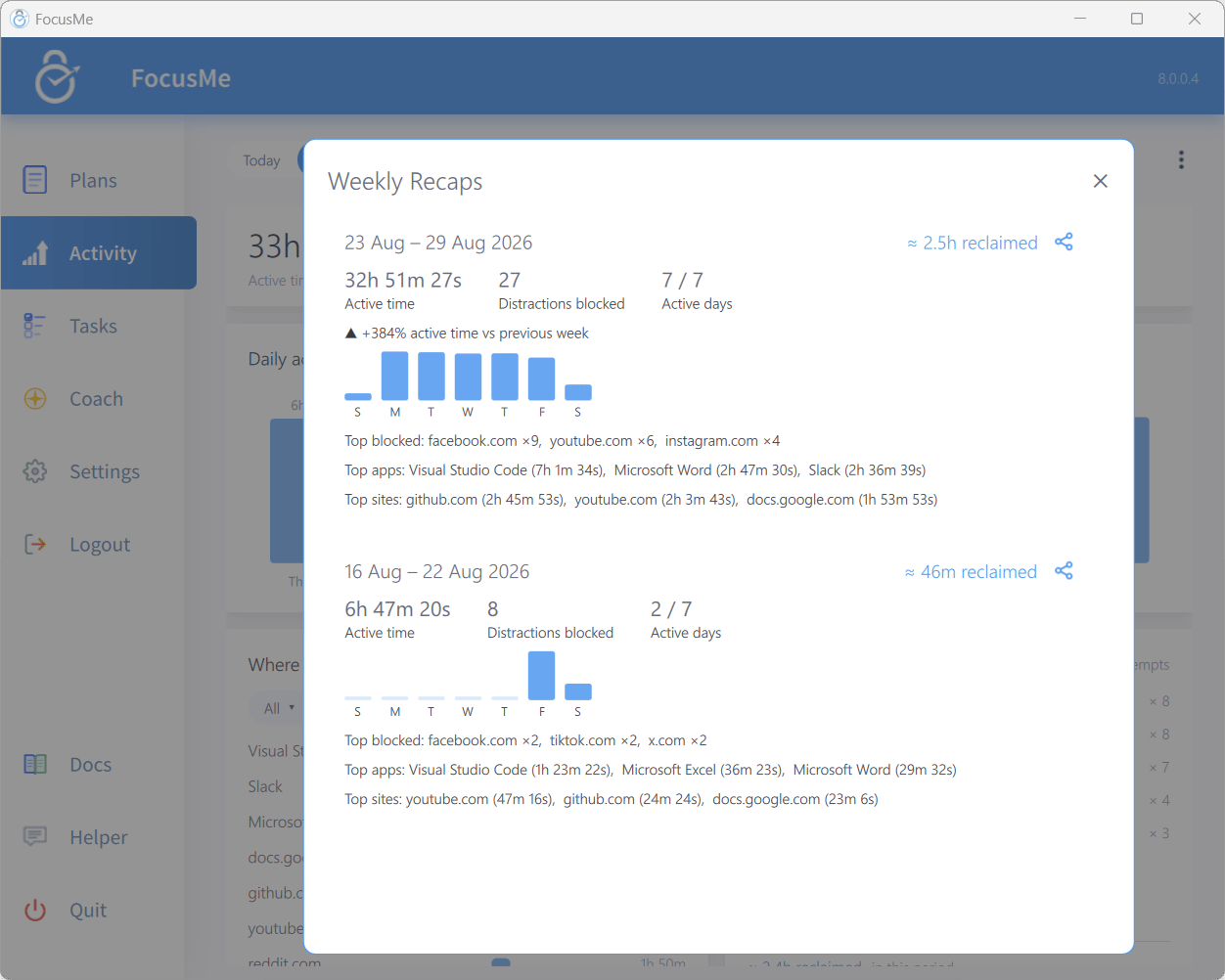 Each recap card summarises one week: **Active time**, **Distractions blocked**, **Active days** out of 7, the approximate time reclaimed, the change in active time versus the previous week, a seven-day bar chart, and your **Top blocked**, **Top apps** and **Top sites**. If you use [Coach](/concepts/coach), the card ends with a **Coach:** teaser and a link to **Read the coach's take on this week →**. The share icon on each week opens the share dialog for that week.
Your first recap appears once FocusMe has tracked a full week of activity. FocusMe notifies you when a new recap is ready.
## Share your stats
Click the share icon (**Share these stats**) in the header (or the share icon on a recap) to turn the current period into a square image card.
Each recap card summarises one week: **Active time**, **Distractions blocked**, **Active days** out of 7, the approximate time reclaimed, the change in active time versus the previous week, a seven-day bar chart, and your **Top blocked**, **Top apps** and **Top sites**. If you use [Coach](/concepts/coach), the card ends with a **Coach:** teaser and a link to **Read the coach's take on this week →**. The share icon on each week opens the share dialog for that week.
Your first recap appears once FocusMe has tracked a full week of activity. FocusMe notifies you when a new recap is ready.
## Share your stats
Click the share icon (**Share these stats**) in the header (or the share icon on a recap) to turn the current period into a square image card.
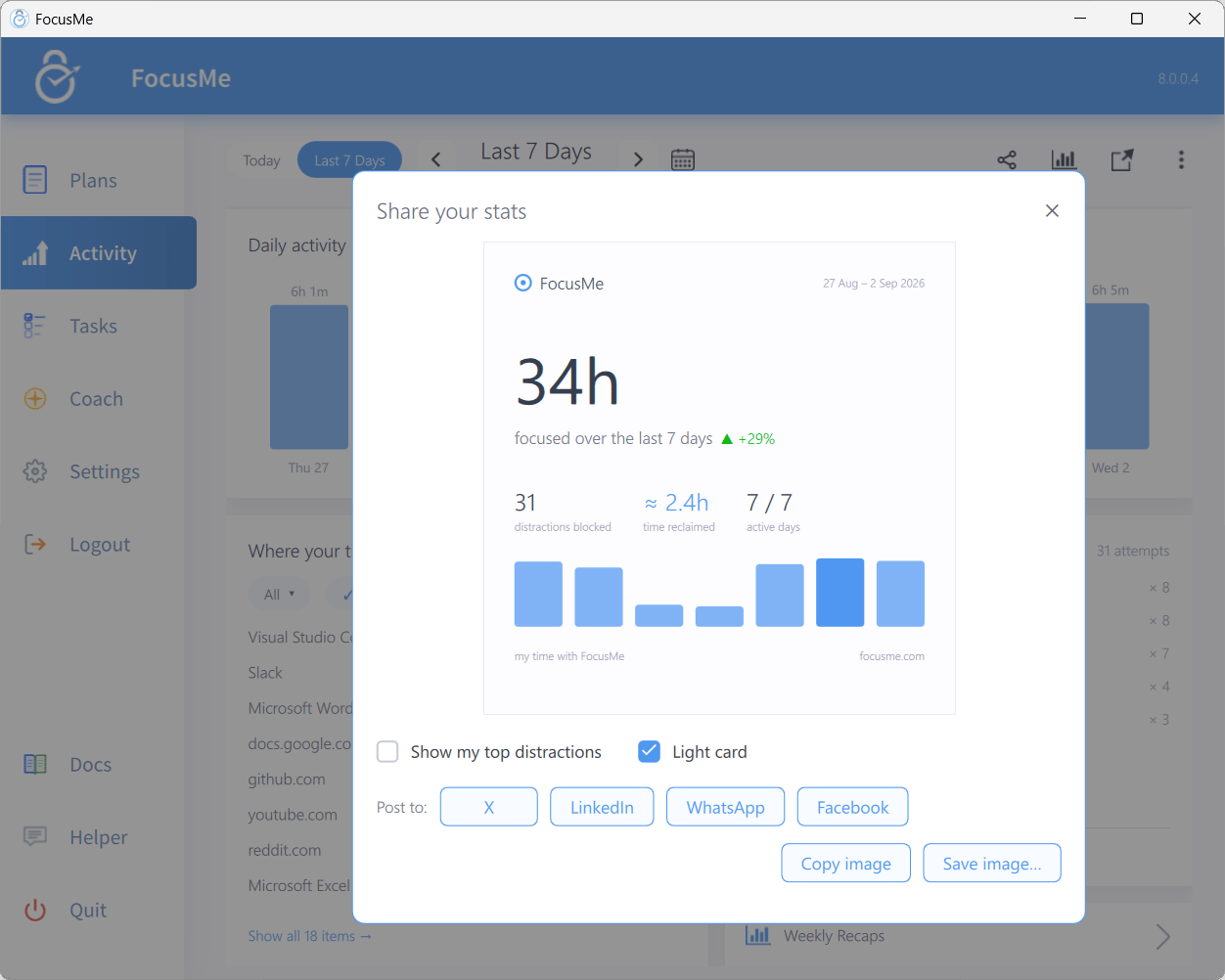 * **Show my top distractions** adds your most-blocked sites and apps to the card (off by default).
* **Light card** switches between the light and dark card designs; it follows your app theme by default.
* **Post to:** **X**, **LinkedIn**, **WhatsApp** or **Facebook** creates a share link and opens the network with a pre-filled message. For Facebook the message is copied for you to paste (**Post text copied. Paste it as your message if it doesn't appear automatically.**).
* **Copy image** puts the card on your clipboard (**Image copied. Paste it into your post with Ctrl+V.**); **Save image…** saves it as a PNG.
## The header menu
The ellipsis menu in the header contains:
* **Show my top distractions** adds your most-blocked sites and apps to the card (off by default).
* **Light card** switches between the light and dark card designs; it follows your app theme by default.
* **Post to:** **X**, **LinkedIn**, **WhatsApp** or **Facebook** creates a share link and opens the network with a pre-filled message. For Facebook the message is copied for you to paste (**Post text copied. Paste it as your message if it doesn't appear automatically.**).
* **Copy image** puts the card on your clipboard (**Image copied. Paste it into your post with Ctrl+V.**); **Save image…** saves it as a PNG.
## The header menu
The ellipsis menu in the header contains:
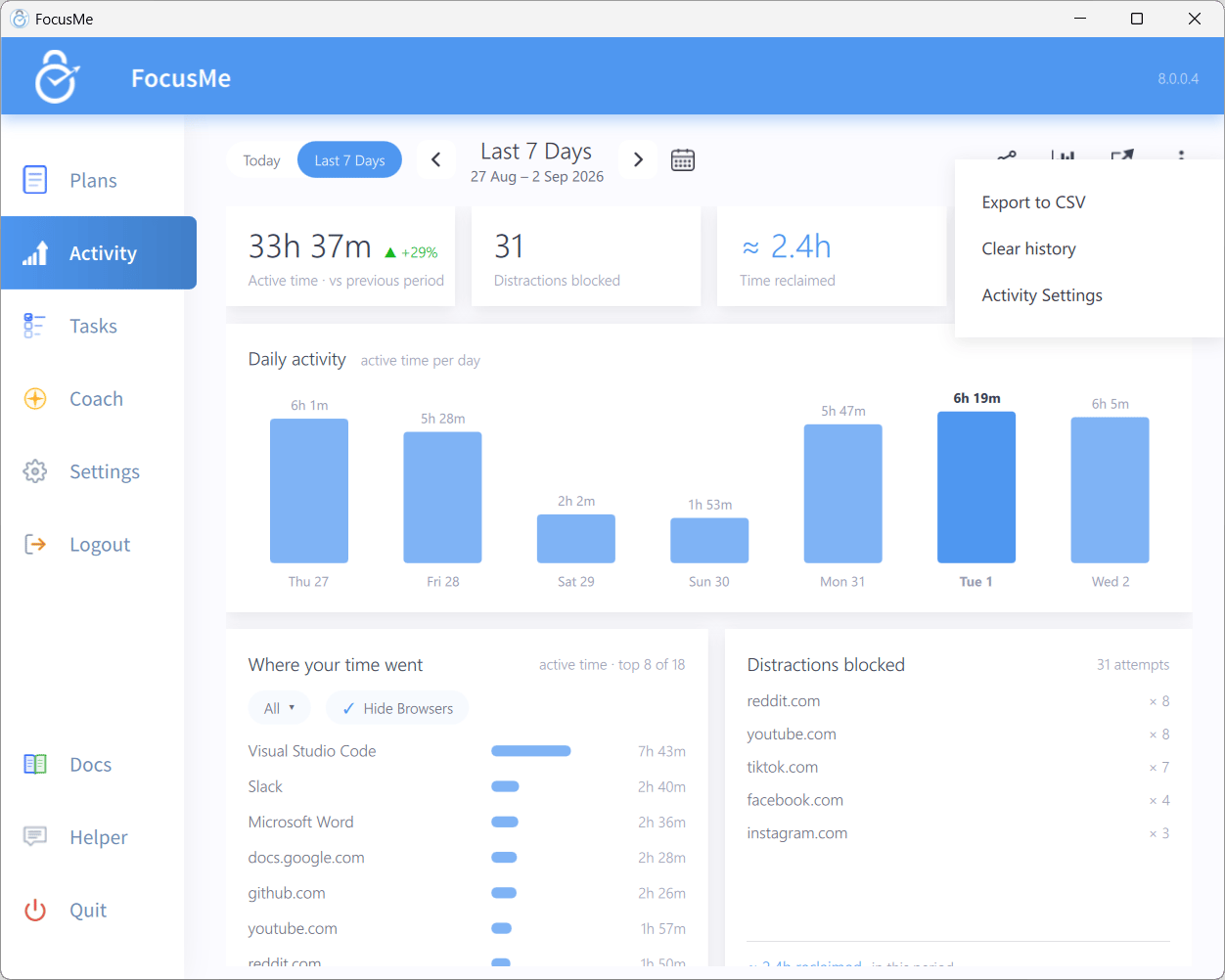 | Item | Description |
| --------------------- | ------------------------------------------------------------------------------------------------------------------------------------------------------------------------------------------------------------------------------------------------------------------------------------------------------------------------------------------------------------- |
| **Export to CSV** | Save the activity for the current period as a CSV file. |
| **Clear history** | Delete recorded activity. When logged in you choose **This Device Only** (removes everything recorded on this device, including its synced copy in your account; other devices keep their data and sync it back) or **All Devices** (also removes every device's synced activity from your account; other devices keep their local copy until cleared there). |
| **Activity Settings** | Open the settings dialog described below. |
Clearing history and removing items are not possible while **Protect Activity** is on (**Settings → System**): "Cannot clear history while 'Protect Activity' is enabled!". Protect Activity itself can only be switched off when all plans are stopped.
## Activity Settings
| Item | Description |
| --------------------- | ------------------------------------------------------------------------------------------------------------------------------------------------------------------------------------------------------------------------------------------------------------------------------------------------------------------------------------------------------------- |
| **Export to CSV** | Save the activity for the current period as a CSV file. |
| **Clear history** | Delete recorded activity. When logged in you choose **This Device Only** (removes everything recorded on this device, including its synced copy in your account; other devices keep their data and sync it back) or **All Devices** (also removes every device's synced activity from your account; other devices keep their local copy until cleared there). |
| **Activity Settings** | Open the settings dialog described below. |
Clearing history and removing items are not possible while **Protect Activity** is on (**Settings → System**): "Cannot clear history while 'Protect Activity' is enabled!". Protect Activity itself can only be switched off when all plans are stopped.
## Activity Settings
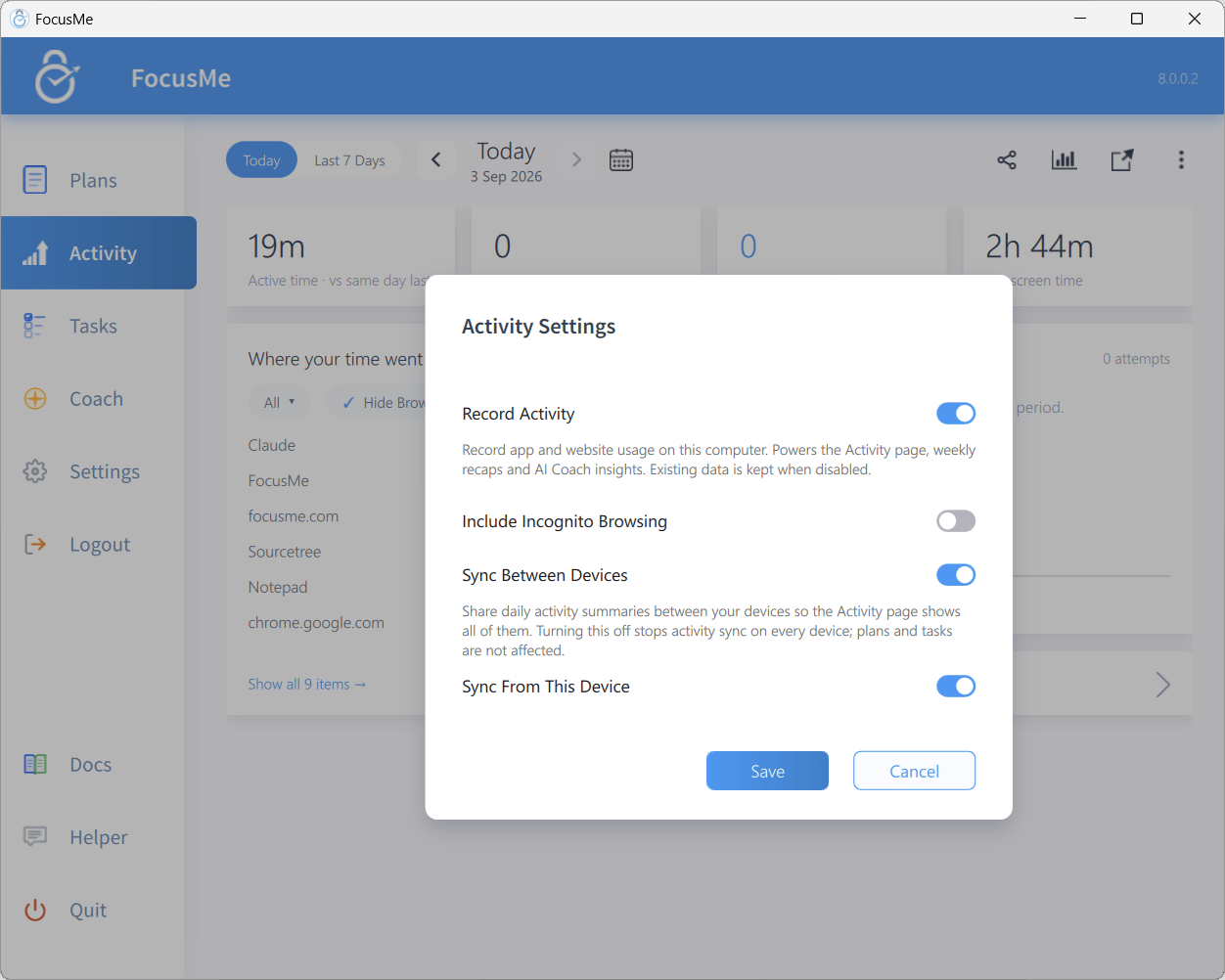 | Setting | Description |
| ------------------------------ | ------------------------------------------------------------------------------------------------------------------------------------------------------------------------------------------------------------------- |
| **Record Activity** | Record app and website usage on this computer. Powers the Activity page, weekly recaps and Coach insights. Existing data is kept when disabled. Cannot be disabled while a plan or **Protect Activity** is enabled. |
| **Include Incognito Browsing** | Also record websites visited in private or incognito windows. Cannot be changed while a plan is enabled. |
| **Sync Between Devices** | Share daily activity summaries between your devices so the Activity page can show all of them. Turning this off stops activity sync on every device; plans and tasks are not affected. |
| **Sync From This Device** | Whether this device contributes its activity to the sync. |
Click **Save** to apply. **Record Activity** and **Protect Activity** are also available in [Settings → System](/concepts/settings#system).
## Privacy
* Activity is recorded and stored on your computer. Plan, block and app events are always logged locally so your dashboard is complete.
* Nothing leaves your computer unless you choose it: **Sync Between Devices** shares daily summaries with your other devices through your account, and **Coach & Anonymous Data Collection** (in **Settings → System**) uploads anonymised usage for [Coach](/concepts/coach) reports.
* Sharing a stats card uploads only the image you see in the preview.
* **Delete My Data** in **Settings → System** removes your anonymous usage data from FocusMe's servers; **Clear history → All Devices** removes synced activity from your account.
## Using Activity effectively
1. **Find your biggest time sinks** — open **Show all items** and sort by **Active Time**.
2. **Set a baseline** — track a week without plans, then set limits you can actually keep.
3. **Check that blocks work** — if a blocked site still shows active time, review the plan's targets and your [browser addon](/advanced/browser-extension).
4. **Watch the trend** — compare **Last 7 Days** with the previous period, or read your Weekly Recaps.
| Setting | Description |
| ------------------------------ | ------------------------------------------------------------------------------------------------------------------------------------------------------------------------------------------------------------------- |
| **Record Activity** | Record app and website usage on this computer. Powers the Activity page, weekly recaps and Coach insights. Existing data is kept when disabled. Cannot be disabled while a plan or **Protect Activity** is enabled. |
| **Include Incognito Browsing** | Also record websites visited in private or incognito windows. Cannot be changed while a plan is enabled. |
| **Sync Between Devices** | Share daily activity summaries between your devices so the Activity page can show all of them. Turning this off stops activity sync on every device; plans and tasks are not affected. |
| **Sync From This Device** | Whether this device contributes its activity to the sync. |
Click **Save** to apply. **Record Activity** and **Protect Activity** are also available in [Settings → System](/concepts/settings#system).
## Privacy
* Activity is recorded and stored on your computer. Plan, block and app events are always logged locally so your dashboard is complete.
* Nothing leaves your computer unless you choose it: **Sync Between Devices** shares daily summaries with your other devices through your account, and **Coach & Anonymous Data Collection** (in **Settings → System**) uploads anonymised usage for [Coach](/concepts/coach) reports.
* Sharing a stats card uploads only the image you see in the preview.
* **Delete My Data** in **Settings → System** removes your anonymous usage data from FocusMe's servers; **Clear history → All Devices** removes synced activity from your account.
## Using Activity effectively
1. **Find your biggest time sinks** — open **Show all items** and sort by **Active Time**.
2. **Set a baseline** — track a week without plans, then set limits you can actually keep.
3. **Check that blocks work** — if a blocked site still shows active time, review the plan's targets and your [browser addon](/advanced/browser-extension).
4. **Watch the trend** — compare **Last 7 Days** with the previous period, or read your Weekly Recaps.